Table of Contents >> Show >> Hide
- Before You Touch Anything: A Quick Reality Check
- Restore vs. Refresh vs. Reset: What These Buttons Really Mean
- How to Boot into the Windows 8 Recovery Menu (WinRE)
- Option 1: System Restore from Boot (The “Undo Button”)
- Option 2: Refresh Windows 8 from Boot (Keep Files, Fix Windows)
- Option 3: Reset Windows 8 from Boot (Factory Reset / Clean Slate)
- Windows 8 vs. Windows 8.1: Why Your Menus Might Look Different
- When Refresh/Reset Options Are Missing (or Only Shows Two Weird Buttons)
- Common Boot-Reset Problems (and How to Fix Them Without Losing Your Mind)
- After You Refresh or Reset: Your “Don’t Forget These” Checklist
- FAQ: Quick Answers to the Questions People Shout at Their Screens
- Real-World Experiences: What Usually Goes Wrong (and How to Avoid It) 500+ Words
- Conclusion: Pick Your Button Like a Pro
Windows 8 has a secret superpower: when your PC starts acting like it just drank three energy drinks and forgot how to behave,
you can roll it back, clean it up, or nuke it from orbit without needing to fully log in. Microsoft calls these tools
Restore, Refresh, and Resetand the big trick is learning how to reach them
from boot using the Windows Recovery Environment (WinRE).
This guide walks you through factory resetting Windows 8 (and 8.1) from the boot/recovery menu, explains what each option actually does,
and includes real-world troubleshooting for common “Reset failed” moments. No fluff, no scary jargonjust clear steps and a few laughs
so you don’t cry into your keyboard.
Before You Touch Anything: A Quick Reality Check
A factory reset is powerful. It can also be permanently annoying if you skip the prep. Take five minutes now to save yourself
five hours later.
1) Back up what you can (even if Windows won’t boot)
- If you can still sign in: Copy your files to an external drive or cloud storage.
- If you can’t sign in: In the recovery menu, you may be able to open Command Prompt and copy files
to a USB drive (more on that later). - If the drive is failing: Prioritize the “irreplaceables” (photos, documents) first.
2) Plug in the power
Don’t attempt Reset/Refresh on battery alone. Losing power mid-process is like ripping a cake out of the oven at minute two and
being shocked it isn’t dessert yet.
3) Know your passwords and encryption situation
If your device uses drive encryption (common on some laptops/tablets), you may need a recovery key or account credentials afterward.
Also, after a reset you’ll likely sign in with a Microsoft account or local accountmake sure you know which one you were using.
Restore vs. Refresh vs. Reset: What These Buttons Really Mean
Windows 8 uses three different “save me” tools. They sound similar. They are not. Here’s the short, useful version.
| Option | What it does | What happens to your files | Best for |
|---|---|---|---|
| System Restore (Restore) | Rolls system settings and system files back to a restore point | Usually keeps personal files | After a bad driver/update, sudden instability |
| Refresh your PC | Reinstalls Windows while keeping personal files; removes most desktop apps | Keeps personal files | Windows feels “corrupted,” slow, or glitchy but you want to keep data |
| Reset your PC | Wipes the system and reinstalls Windows (factory-reset style) | Removes personal files (unless you back them up) | Selling the PC, malware cleanup, total system meltdown |
Think of it like cleaning a house:
Restore is undoing the last bad “renovation.”
Refresh is repainting and redoing the floors while keeping your furniture.
Reset is bulldozing it and building a fresh one on the same lot.
How to Boot into the Windows 8 Recovery Menu (WinRE)
To factory reset Windows 8 from boot, you need to reach the blue recovery screens:
Choose an option → Troubleshoot.
Here are the most reliable ways.
Method A: Use Automatic Repair (when Windows can’t boot)
- Turn the PC on.
- If it starts loading Windows, hold the power button to force it off.
- Repeat that process 2–3 times. (Yes, it feels wrong. Yes, it works surprisingly often.)
- Windows should eventually show Preparing Automatic Repair or Automatic Repair.
- Select Advanced options → Troubleshoot.
Method B: Shift + Restart (if you can reach the sign-in screen)
- At the sign-in screen (or Start menu), click the Power icon.
- Hold Shift and click Restart.
- When the blue menu appears, select Troubleshoot.
This is one of the cleanest ways to enter WinREno boot loops required.
Method C: Boot from Windows 8 Install Media or a Recovery Drive (USB/DVD)
- Insert your Windows 8 USB/DVD or recovery drive.
- Restart and open the boot menu (commonly F12, Esc, or another manufacturer key).
- Boot from the USB/DVD.
- On the Windows Setup screen, choose Repair your computer (not Install).
- Select Troubleshoot.
Method D: Use the Manufacturer Recovery Key (varies by brand)
Many PCs include an OEM recovery environment on a hidden partition. Common keys include F11 on several brands,
but it varies. If you see a “Recovery” or “Factory Image Restore” option during boot, you’re in the right neighborhood.
When available, OEM recovery can restore the computer closer to its original “out of the box” software bundle.
Option 1: System Restore from Boot (The “Undo Button”)
If your PC started failing right after a driver install, Windows update, or a questionable “optimizer” app,
System Restore is often the least destructive fix.
Steps
- Boot into WinRE using one of the methods above.
- Select Troubleshoot → Advanced options.
- Select System Restore.
- Choose your account and enter the password if prompted.
- Select a restore point from before the problem started.
- Confirm and allow Windows to restart.
Example: If your laptop began crashing after you updated a graphics driver, restore to the day before the driver update.
You’ll keep your personal files, but system settings and drivers roll back.
Option 2: Refresh Windows 8 from Boot (Keep Files, Fix Windows)
Refresh is the sweet spot when Windows is unstable but your personal files are still precious.
In many cases, it reinstalls the Windows system files and resets key settings, while leaving your personal data intact.
What Refresh typically keeps and removes
- Keeps: personal files in your user folders (like Documents, Pictures), many system settings, and Windows Store apps.
- Removes: most traditional desktop programs you installed (Office, Chrome, Steam, etc.).
- Adds: a list of removed apps so you know what to reinstall after.
Steps (from the boot recovery menu)
- Boot into WinRE.
- Select Troubleshoot.
- Select Refresh your PC.
- Follow the prompts and confirm.
- Wait while Windows reinstalls core components and restarts.
Pro tip: If Refresh asks for installation media, don’t panicthis is common if the recovery image is missing or damaged.
Jump to the “When Refresh/Reset Options Are Missing or Demand Media” section below.
Option 3: Reset Windows 8 from Boot (Factory Reset / Clean Slate)
Reset is the big one: Windows reinstalls and your stuff gets erased.
If you’re dealing with persistent malware, handing the PC to someone else, or Windows is beyond repair,
this is the option that says, “We’re starting over, and we mean it.”
Steps (from WinRE)
- Boot into WinRE.
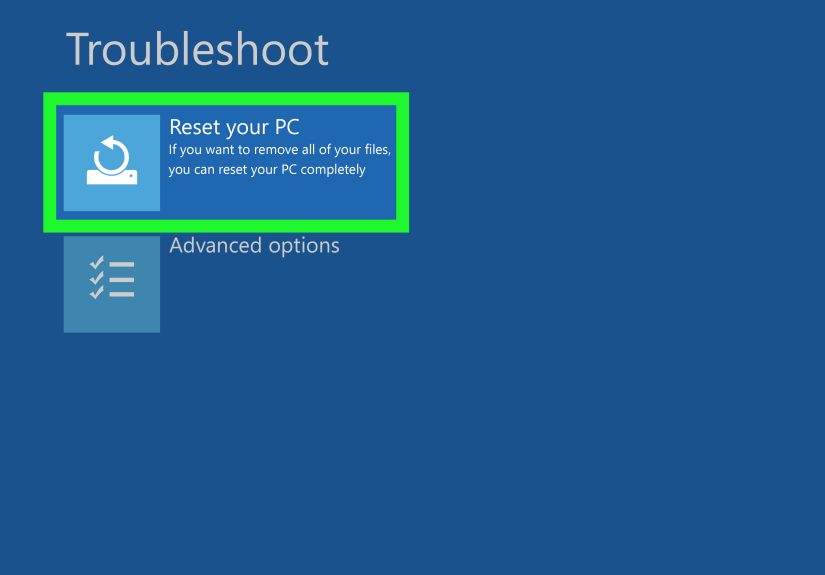
- Select Troubleshoot.
- Select Reset your PC.
- Choose your account and enter your password if asked.
- Confirm the reset and follow prompts.
- If offered, choose the type of cleaning:
- Just remove my files (faster; good for keeping the PC)
- Fully clean the drive (slower; better if selling or donating)
Example: If you’re selling your laptop, choose Fully clean the drive. It takes longer, but it’s designed to reduce the chance
someone can recover your old files with recovery tools.
Windows 8 vs. Windows 8.1: Why Your Menus Might Look Different
Windows 8 and 8.1 both support Restore/Refresh/Reset, but the wording and paths can differ. In Windows 8.1,
you often see these options under “Update and recovery,” while Windows 8 originally grouped them under “General.”
From boot (WinRE), the steps are mostly the same: Troubleshoot → choose the option.
When Refresh/Reset Options Are Missing (or Only Shows Two Weird Buttons)
Sometimes you click Troubleshoot and expect to see Refresh/Reset, but instead you only see things like
UEFI Firmware Settings and Startup Settings. Or you try Reset and Windows says:
“Insert media” or “Some files are missing.” Annoying? Yes. Normal? Also yes.
Why it happens
- The built-in recovery image (OEM or Windows) is missing or corrupted.
- The recovery partition was deleted during a resize/dual-boot adventure.
- Storage errors or file corruption prevent the process from finding required files.
- Some upgrades (especially older Windows 8 → 8.1 scenarios) could interfere with recovery configuration.
What to do
- Try booting from Windows install media or a recovery USB (Method C above), then choose Repair your computer and re-enter Troubleshoot.
- Try the OEM recovery environment (Method D) if your device has it.
- If Reset/Refresh fails after Automatic Repair: use Advanced options → Command Prompt to run repair steps (see next section).
If you don’t have install media, you may need to create it on another computer. It’s not glamorous, but neither is a laptop that refuses to boot.
Common Boot-Reset Problems (and How to Fix Them Without Losing Your Mind)
Problem: “There was a problem resetting your PC”
This message usually means Windows can’t access the files it needs to complete Reset/Refresh. File corruption, missing recovery images,
or broken recovery configuration can all trigger it.
Fix checklist:
- From WinRE, go to Troubleshoot → Advanced options → Startup Repair (sometimes called Automatic Repair).
- If that fails, open Command Prompt and run:
- sfc /scannow (checks and repairs system files)
- chkdsk c: /f (checks disk errors; may take a while)
- Restart and try Reset/Refresh again.
- If it still fails, boot from install media and attempt Reset/Refresh from there (it often has access to required files).
Problem: Automatic Repair loops forever
The irony of “Automatic Repair” is that it sometimes automatically repairs your patience right out of existence.
If you’re stuck in a boot loop, your goals are: (1) get into WinRE, (2) try Restore, then (3) Refresh, then (4) Reset if needed.
- Enter WinRE (Method A).
- Try System Restore first (lowest risk).
- Try Refresh next.
- If neither works and you have backups, use Reset.
Problem: You can’t access WinRE at all
If the internal recovery environment won’t load, you’ll almost always need external media:
a Windows installer USB/DVD or a recovery drive. Use the boot menu key at startup and select the USB/DVD device.
After You Refresh or Reset: Your “Don’t Forget These” Checklist
Once Windows boots again, it’s tempting to declare victory and immediately install 47 apps “just in case.” Take a breath first.
A clean reboot is your chance to set things up right.
Do this first
- Run Windows Update until there are no more important updates.
- Install key drivers (Wi-Fi/network, graphics). If networking doesn’t work, use another device to download drivers.
- Reinstall your programs (Refresh removes many desktop apps).
- Restore your files from backup if you used Reset.
- Re-enable security: antivirus/Defender, firewall, and a strong login password.
If you’re selling or donating the PC
- Use Reset and choose Fully clean the drive if available.
- Remove the device from any linked accounts if applicable (Microsoft account device list, etc.).
- Do one final boot to confirm Windows reaches the first setup screen (then shut down).
FAQ: Quick Answers to the Questions People Shout at Their Screens
Will Refresh delete my documents?
Refresh is designed to keep personal files, but “designed to” and “guaranteed to” are not the same thing in computing.
If the drive is failing or the file system is corrupted, anything can happen. Back up first whenever possible.
Is Reset the same as a clean install?
Reset is similar to a clean install because it reinstalls Windows and removes your data, but OEM systems may restore bundled software
depending on how recovery is configured. A true clean install usually comes from installation media.
Why does Windows ask for media during Reset/Refresh?
Because the recovery files it needs aren’t available (missing partition, corrupted image, or altered configuration). Booting from a Windows installer
USB/DVD often solves this by providing the needed files.
Real-World Experiences: What Usually Goes Wrong (and How to Avoid It) 500+ Words
Factory resetting Windows 8 from boot sounds like a clean, heroic story: you press a button, Windows resets, life is good, credits roll.
In real life, it’s more like a sitcom where everyone has good intentions and then the printer starts screaming.
One of the most common real-world scenarios is the “I just want it faster” reset. People notice the PC is slow, assume it’s “old,” and go straight
to Reset like it’s a magical youth potion. The better play is often Restore or Refresh first. Restore can undo a single bad update
that triggered the slowdown. Refresh can clean up Windows system files without wiping your photos, tax documents, and that folder named
“Important Stuff DO NOT DELETE” (which is, naturally, a folder that often contains everything except important stuff).
Another classic is the “I can’t boot, but I also don’t have my password” situation. You reach the Troubleshoot menu, but Windows wants an account password
before it will proceed with certain actions. This is where preparation matters. If you’ve been using a Microsoft account, make sure you can log into it
from another device. If it’s a local account, ensure you know the password. Recovery tools aren’t mind readers; they’re more like bouncers at a club:
no password, no entry, no matter how convincing your sob story is.
Then there’s the surprise twist: missing recovery options. People enter the recovery menu and only see UEFI settings and startup settingsno Reset,
no Refresh, no helpful buttons. This usually traces back to a missing recovery image or partition. Maybe the drive was repartitioned, maybe a dual-boot experiment
got “creative,” or maybe the storage is simply corrupted. The fix is often boring but effective: boot from Windows install media or a recovery drive. It’s the digital
equivalent of showing up with the right tools instead of trying to tighten a screw with a coin.
Malware cases are their own category of drama. When a system is infected, Reset can be the fastest route back to sanitybut only if you back up smart.
A common mistake is copying everything, including suspicious executables and unknown “helper” programs, right back onto the fresh install. A safer approach is to
back up only personal files (documents, photos), avoid copying random .exe files, and reinstall software from official sources afterward. Reset is a clean slate,
but you still control what you write on it next.
Finally, if you’re resetting to sell a PC, don’t underestimate how often people pick the fastest wipe option and assume it’s “gone forever.”
If you’re handing the machine to someone else, take the extra time for the more thorough drive cleaning option when available. It’s not about paranoia; it’s about
basic privacy. Your old browser passwords and documents should not become a surprise bonus feature for the next owner.
The biggest “experience-based” takeaway is simple: choose the least destructive tool that solves the problem.
Start with Restore, step up to Refresh, and only hit Reset when you’re ready to lose installed apps and/or personal files. Windows 8 gives you multiple escape routes.
The trick is using the right onebefore your computer forces you into the wrong one.
Conclusion: Pick Your Button Like a Pro
Factory resetting Windows 8 from boot isn’t mysterious once you know where to look. Get into the recovery menu (WinRE),
open Troubleshoot, and choose the option that matches your situation:
Restore for quick rollbacks, Refresh for a Windows repair that keeps your files,
and Reset for the full factory-reset clean slate.
Do the prep, follow the steps, and you’ll go from “my PC is possessed” to “my PC is usable again” without sacrificing your entire weekend.