Table of Contents >> Show >> Hide
- Should You Close Apps on Android?
- Method 1: Close Apps from the Recent Apps Screen
- Method 2: Close All Apps at Once
- Method 3: Force Stop a Frozen or Problem App
- How to Stop Apps from Running in the Background
- Common Problems When Closing Apps on Android
- Quick Comparison: Which Closing Method Should You Use?
- Practical Examples
- My Experience with Closing Apps on Android
- Conclusion
Note: This article is based on current Android, Google Pixel, Samsung Galaxy, and Android developer guidance, plus widely accepted mobile troubleshooting practices. Steps may vary slightly by Android version, brand, launcher, or navigation style.
Android phones are delightfully powerful little computers that live in your pocket, take better vacation photos than some cameras, and somehow know when you are about to Google “why is my phone acting weird?” Closing apps on Android is one of those basic skills that sounds simple until your screen looks different from the tutorial, your phone uses gestures instead of buttons, or an app freezes like it just saw a ghost.
The good news: learning how to close apps on Android is easy. The better news: you probably do not need to close every app all the time. Android is designed to manage memory automatically, pause apps you are not actively using, and keep frequently used apps ready so they open faster. Still, closing apps can help when an app is glitching, using too much battery, playing audio in the background, refusing to refresh, or simply cluttering your Recent Apps screen.
In this guide, you will learn three easy methods to close apps on Android: using the Recent Apps screen, closing all apps at once, and force stopping a problem app through Settings. We will also cover when closing apps helps, when it does not, and how to avoid turning your phone into a digital panic button.
Should You Close Apps on Android?
Before we start swiping things away like a tiny phone ninja, let’s clear up a common misunderstanding: apps shown in your Recent Apps screen are not always “running” in the way people imagine. Many of them are paused, cached, or sitting in memory so Android can reopen them quickly. That does not automatically mean they are draining your battery like a raccoon chewing through a power cable.
Modern Android uses smart memory management. When your phone needs more resources, Android can close cached processes on its own. That is why constantly closing every app may not make your phone faster. In some cases, it can do the opposite, because reopening an app from scratch may use more processing power than resuming it from memory.
However, closing apps is still useful in specific situations. If an app freezes, refuses to load new content, keeps using location, plays sound after you leave it, or behaves like it had three espressos and no supervision, closing it is a smart first step. Think of it as giving the app a polite “please go home” before moving to stronger troubleshooting.
Method 1: Close Apps from the Recent Apps Screen
The Recent Apps screen is the fastest and most common way to close apps on Android. This is the screen that shows your recently opened apps as cards or windows. You can swipe through them, jump back into an app, or close an app you no longer need.
How to Close One App with Gesture Navigation
If your Android phone uses gesture navigation, follow these steps:
- Swipe up from the bottom of the screen and hold for a moment.
- Release when the Recent Apps screen appears.
- Swipe left or right to find the app you want to close.
- Swipe the app preview upward to close it.
That is it. The app disappears from the Recent Apps view, and Android removes that app card from your current multitasking list. On most Android phones, this is the cleanest way to close a single app without digging through menus.
How to Close One App with 3-Button Navigation
Some Android phones still use the classic 3-button navigation bar at the bottom of the screen. This usually includes Back, Home, and Recent Apps buttons.
- Tap the Recent Apps button, usually shown as a square or three vertical lines.
- Find the app you want to close.
- Swipe the app upward, sideways, or tap the small close icon if your phone shows one.
The direction of the swipe can vary by phone brand and Android skin. On many newer devices, swiping up closes the app. On some older or customized phones, you may swipe sideways. Android likes consistency, but phone makers occasionally decide to add a little personality.
Best Times to Use This Method
Use the Recent Apps method when you want to close one or two apps quickly. For example, you might close Instagram after scrolling for “five minutes” that somehow became 47, close a banking app after checking your balance, or close a game before going back to work or school.
This method is quick, safe, and beginner-friendly. It does not delete the app, remove your data, or uninstall anything. It simply closes the app card and gets it out of your multitasking view.
Method 2: Close All Apps at Once
If your Recent Apps screen looks like a digital card deck exploded, you may prefer to close everything at once. Many Android phones include a “Clear all” or “Close all” button in the Recent Apps screen. This option is especially common on Samsung Galaxy phones and many other Android devices.
How to Close All Apps on Most Android Phones
- Open the Recent Apps screen by swiping up from the bottom and holding, or by tapping the Recent Apps button.
- Look for a button labeled Clear all, Close all, or something similar.
- Tap it to close every app card shown in the Recent Apps view.
On some Pixel phones and stock Android-style devices, you may need to swipe all the way to the far left of the Recent Apps list to find Clear all. On Samsung Galaxy phones, Close all is usually easier to spot near the bottom of the screen. If you do not see the button right away, swipe through the app cards and check the edges of the screen.
Does Closing All Apps Save Battery?
Sometimes, but not always. Closing all apps can help if several apps are actively misbehaving, using location, syncing in the background, or playing media. But if those apps were simply paused or cached, closing them may not produce a dramatic battery improvement.
For real battery gains, check which apps are actually using power. Go to Settings > Battery or Settings > Battery > Battery usage, depending on your phone. This screen can show whether a specific app is draining more battery than expected. If one app is the villain, close or restrict that app instead of blaming the entire Recent Apps lineup.
When Closing All Apps Makes Sense
Closing all apps can be useful before handing your phone to someone else, after using many apps during travel, before gaming, or when your phone feels slow and you want a quick reset of your multitasking screen. It is also helpful if you simply like a clean interface. Digital tidiness is real, and no one should be judged for wanting their Recent Apps screen to look less like a junk drawer.
Just avoid turning it into a ritual you perform every five minutes. Android already manages background apps better than most people give it credit for. Your phone is not helpless; it has been to software gym.
Method 3: Force Stop a Frozen or Problem App
Sometimes swiping an app away is not enough. Maybe the app keeps crashing, refuses to close, drains battery, will not refresh, or gets stuck on a loading screen that spins forever like it is contemplating life choices. In that case, you can use Force stop.
Force stopping an app is stronger than closing it from Recent Apps. It shuts down the app’s current activity and stops related background processes until you open the app again or until another allowed system action restarts it. This is a troubleshooting tool, not something you need to use constantly.
How to Force Stop an App on Android
- Open Settings.
- Tap Apps, Apps & notifications, or Application manager.
- Select the app you want to close.
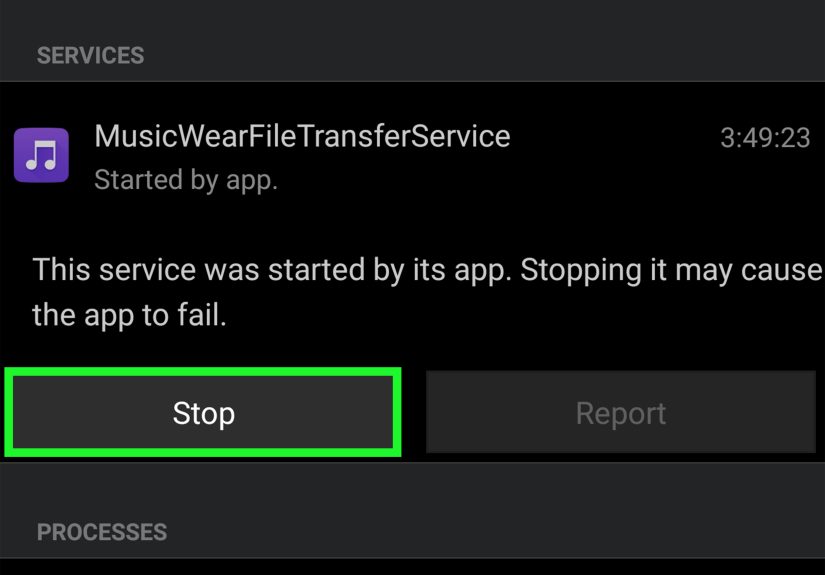
- Tap Force stop.
- Confirm if your phone asks you to.
On many Android phones, there is an even faster shortcut:
- Find the app icon on your Home screen or app drawer.
- Touch and hold the app icon.
- Tap App info.
- Tap Force stop.
When Should You Force Stop an App?
Use Force stop when an app is genuinely causing trouble. Good examples include a frozen messaging app, a navigation app that keeps using GPS after your trip, a shopping app stuck on checkout, a social media app that will not load new posts, or a camera app that refuses to save photos properly.
Force stop is also helpful before clearing an app’s cache. If an app is glitching, you can try this sequence: force stop the app, reopen it, and see if the problem is fixed. If not, go back to the app’s settings and clear the cache. Avoid clearing storage unless you understand that it may remove local app data, settings, or sign-in information.
What Happens After You Force Stop an App?
After you force stop an app, it stays closed until you open it again or until a system-approved event restarts part of it. For example, some apps may resume notifications or background services later depending on permissions, battery settings, and how the app is designed. Force stop is not the same as uninstalling the app, and it does not remove your account.
Still, be careful with system apps. If you do not recognize an app or it sounds important, do a little research before force stopping it. Randomly force stopping core services can cause temporary weirdness, and nobody wants to break notifications just because an app name looked suspiciously boring.
How to Stop Apps from Running in the Background
Closing apps is one thing. Controlling background activity is another. If your real goal is better battery life, fewer notifications, or less mobile data use, you may need to adjust app permissions and battery settings instead of only closing apps.
Restrict Background Battery Usage
Most Android phones let you limit how much battery an app can use in the background. The exact wording varies, but the path is often similar:
- Open Settings.
- Tap Apps.
- Select the app.
- Tap Battery or App battery usage.
- Choose an option such as Restricted, Optimized, or Unrestricted.
If an app is draining your battery, try Optimized first. If it still behaves badly, try Restricted. Just remember that restricting background usage may delay notifications, uploads, syncing, or reminders. If you restrict your messaging app and then miss a message, the phone is not being dramatic; it is following orders.
Turn Off Background Mobile Data
If an app uses too much mobile data, you can limit its background data access:
- Go to Settings.
- Tap Apps.
- Select the app.
- Tap Mobile data or Data usage.
- Turn off background data if your phone offers the option.
This is useful for apps that sync frequently, auto-play content, or refresh feeds in the background. It can also help if your data plan is more “tiny snack” than “all-you-can-eat buffet.”
Review Location Permissions
Location access can affect battery life, especially when apps use GPS frequently. Check location permissions by going to Settings > Location > App location permissions. Set apps to use location only while in use unless they truly need constant access, such as maps, safety apps, or trusted delivery tools.
Common Problems When Closing Apps on Android
I Do Not See the Recent Apps Button
Your phone may be using gesture navigation. Try swiping up from the bottom of the screen and holding for a second. If you prefer buttons, you can usually switch navigation styles in Settings > System > Navigation mode or a similar menu. On Samsung Galaxy phones, look under Settings > Display > Navigation bar.
The App Comes Back After I Close It
Some apps restart because they handle notifications, alarms, widgets, syncing, or background services. Messaging apps, email apps, weather widgets, fitness trackers, and security tools may reappear or keep parts of themselves active. If the app is not causing problems, let Android manage it. If it is draining battery, restrict its background battery usage.
My Phone Is Still Slow After Closing Apps
If closing apps does not help, the issue may be low storage, an outdated app, a buggy system update, too many browser tabs, heavy widgets, or an app running background tasks. Try restarting your phone, updating Android, updating your apps, deleting unnecessary files, and checking battery usage. A restart is still one of the most underrated tech fixes. It is basically a nap for your phone.
Should I Use a Task Killer App?
In most cases, no. Android already has built-in tools for memory and battery management. Third-party task killers can sometimes interfere with normal app behavior, stop useful notifications, or repeatedly close apps that Android then reopens. That loop can waste battery instead of saving it. Use Android’s built-in Recent Apps, Force stop, battery restrictions, and uninstall options first.
Quick Comparison: Which Closing Method Should You Use?
| Method | Best For | Difficulty | Risk Level |
|---|---|---|---|
| Swipe up from Recent Apps | Closing one app quickly | Easy | Very low |
| Clear all or Close all | Cleaning the Recent Apps screen | Easy | Very low |
| Force stop in Settings | Frozen, buggy, or battery-draining apps | Moderate | Low, but use carefully |
For everyday use, start with the Recent Apps screen. If your phone feels cluttered, use Close all. If an app is misbehaving, use Force stop. That simple order solves most app-closing problems without turning your Settings menu into a crime scene investigation.
Practical Examples
Example 1: YouTube Keeps Playing Audio
Open Recent Apps and swipe YouTube away. If audio continues, open the notification shade and stop playback from the media controls. If the app is still stuck, go to Settings > Apps > YouTube > Force stop.
Example 2: Google Maps Keeps Using Location
End navigation inside Google Maps first. Then close the app from Recent Apps. If location remains active, check Settings > Location and review Maps permissions. Usually, setting location access to “Allow only while using the app” is enough for everyday use.
Example 3: A Game Freezes
Swipe up to open Recent Apps and close the game. Reopen it. If it freezes again, force stop it from Settings. If the problem continues, update the game, clear its cache, restart your phone, or check whether your device has enough free storage.
Example 4: A Social Media App Drains Battery
Closing the app may help temporarily, but battery settings are more important. Check battery usage, restrict background activity if needed, turn off unnecessary notifications, and disable background mobile data if the app refreshes too often.
My Experience with Closing Apps on Android
After using different Android phones over the years, including stock Android-style devices and Samsung Galaxy phones, I have learned that closing apps is less about “boosting speed” and more about knowing which tool to use at the right time. The first mistake many people make is treating the Recent Apps screen like a list of dangerous battery monsters. It is not. Most of the time, it is more like a history of apps you recently used. Some are active, some are paused, and some are just waiting patiently in the background like well-behaved digital pets.
In daily use, I usually close apps for three reasons: privacy, focus, and troubleshooting. Privacy is simple. If I just opened a banking app, payment app, private document, or personal message thread, I like closing it from Recent Apps when I am done. It is not because Android cannot manage it; it is because I prefer not to leave sensitive screens sitting in my app switcher. It is the phone version of closing a notebook before someone walks by.
Focus is another big one. If I am trying to work, study, write, or do anything that requires more attention than a goldfish with Wi-Fi, I close distracting apps. Social media, shopping apps, short-video apps, and games are usually the first to go. Closing them does not magically erase temptation, but it adds one small speed bump. Sometimes one speed bump is enough to stop a “quick check” from becoming a 30-minute tour of memes, food videos, and comments from people arguing about things nobody can prove.
Troubleshooting is where closing apps becomes genuinely useful. For example, I have seen apps freeze on blank screens, camera apps refuse to save images, weather apps stop updating, and music apps keep playing even after they were supposed to stop. In those moments, swiping the app away from Recent Apps is the first fix I try. It is fast, harmless, and often works. If it does not, I move to Force stop. Force stop feels a little more serious, like telling the app, “You have lost your background privileges for now.”
One practical habit that helps is checking battery usage before blaming every app. If my phone battery drops quickly, I do not immediately close all apps and hope for magic. I check the battery screen to see what actually used power. Sometimes the culprit is obvious, like Maps after a long trip or a video app after streaming. Other times it is screen brightness, weak signal, or an app syncing too often. Closing apps is useful, but battery problems are not always app-closing problems.
I have also learned not to overuse “Close all.” It feels satisfying, like clearing a messy desk with one dramatic arm sweep, but it is not always necessary. If I close all apps and then reopen the same five apps two minutes later, I have not helped the phone much. I have simply made Android reload things it already had ready. Now I use Close all when the Recent Apps screen is truly cluttered, before gaming, before handing my phone to someone, or when I want a quick mental reset.
The best Android habit is balance. Close apps when they are distracting, private, frozen, or obviously draining resources. Do not obsessively close everything every few minutes. Let Android do its job, and step in only when an app acts like it needs adult supervision. That approach keeps your phone cleaner, your battery expectations realistic, and your fingers free from unnecessary swiping marathons.
Conclusion
Learning how to close apps on Android is simple once you know where to look. For everyday app closing, open the Recent Apps screen and swipe away the app you no longer need. To clean up everything at once, use the Clear all or Close all button. For stubborn apps that freeze, crash, or drain battery, use Force stop from Android Settings.
The key is knowing when closing apps actually helps. Android is built to manage memory automatically, so you do not need to constantly close every app. Instead, use app closing as a practical tool: clear clutter, protect privacy, stop glitches, and control apps that behave badly. Your phone will feel easier to manage, and you will spend less time fighting invisible background gremlins.