Table of Contents >> Show >> Hide
- What Are Handwritten Messages on iPhone?
- How to Write Handwritten Messages on an iPhone: 7 Steps
- Why Use Handwritten Messages on iPhone?
- Best Times to Send a Handwritten iPhone Message
- Handwritten Messages vs. Digital Touch
- Common Problems and How to Fix Them
- Tips for Better Handwritten Messages on iPhone
- Privacy and Practical Notes
- 500-Word Experience Section: What It Is Actually Like to Use Handwritten Messages on an iPhone
- Conclusion
Typing is fast. Voice messages are convenient. Emojis are doing heroic emotional labor every day. But sometimes, nothing beats the charm of a handwritten message on an iPhone. It feels more personal than a regular text, more playful than a plain “happy birthday,” and much easier than finding a pen that has not mysteriously vanished into the couch dimension.
Apple’s Messages app includes a built-in handwriting feature that lets you write or doodle with your finger and send the result as an animated iMessage. The recipient sees your handwriting appear as if you are writing it in real time. It is a small feature, but it can make a simple message feel warmer, funnier, or more memorable.
In this guide, you will learn how to write handwritten messages on an iPhone in 7 simple steps, how to fix common problems, when to use handwritten iMessages, and how to make your handwritten notes look better even if your finger-writing looks like a spider learned cursive during an earthquake.
What Are Handwritten Messages on iPhone?
Handwritten messages are a feature inside the iPhone Messages app that allows you to write a short note or draw a quick doodle using your finger. Instead of sending typed text, your iPhone sends the handwritten message as an animated iMessage. The animation recreates the order of your strokes, so your recipient sees the note appear naturally.
This feature is especially useful for greetings, quick love notes, inside jokes, congratulations, thank-you messages, and tiny doodles. It is not designed for writing a full novel, drafting legal documents, or composing a 900-word apology to your group chat after accidentally replying “you too” to a breakup announcement.
The handwritten message feature works inside iMessage conversations. That usually means blue-bubble conversations between Apple devices. If you are messaging someone on a non-Apple device, the feature may not appear or may not send in the same animated way.
How to Write Handwritten Messages on an iPhone: 7 Steps
Step 1: Open the Messages App
Start by opening the Messages app on your iPhone. Choose an existing conversation or start a new one by tapping the compose button. For the best experience, use a conversation with another iPhone, iPad, or Mac user so the message sends as an iMessage.
You can confirm this by looking at the message field. If it says iMessage, you are in the right place. If it says Text Message, the person may not be using iMessage, or your device may not be connected to the internet.
Step 2: Tap the Text Field
Tap inside the message field as if you are about to type a normal text. This brings up the keyboard. The handwriting feature is connected to the keyboard view, so you need the keyboard open before rotating your iPhone.
This step sounds almost too obvious, but it matters. If you rotate your phone before tapping the text field, your iPhone may simply show the conversation sideways without opening the handwriting canvas.
Step 3: Rotate Your iPhone to Landscape Mode
Turn your iPhone sideways into landscape orientation. On many iPhone models, this reveals the handwriting canvas automatically. If you still see the regular keyboard, look for the handwriting key. It usually looks like a small loop, squiggle, or cursive-style icon near the keyboard area.
If nothing happens when you rotate your phone, check whether Portrait Orientation Lock is turned on. Swipe down from the top-right corner of the screen to open Control Center, then look for the lock icon with a circular arrow. If it is enabled, tap it to turn it off, then return to Messages and rotate your iPhone again.
Step 4: Tap the Handwriting Key
If the handwriting canvas does not open automatically, tap the handwriting key on the keyboard. This opens a blank writing area where you can use your finger to write a note or draw a small doodle.
On some iPhones, the handwriting key may be easy to miss because it only appears in landscape mode. It is one of those classic iPhone features that feels hidden in plain sight, like a secret door in a very expensive refrigerator.
Step 5: Write Your Message With Your Finger
Use your finger to write your message on the blank canvas. Keep it short and simple. A handwritten “Happy Birthday,” “Miss you,” “Good luck,” or “You got this!” usually looks better than trying to squeeze an entire paragraph into the handwriting space.
You can also draw small hearts, stars, smiley faces, arrows, flowers, or silly doodles. The feature is flexible enough for quick creativity, but it is not a full drawing app. Think of it as a digital sticky note with personality.
If you make a mistake, use the undo option if available, or clear the canvas and try again. For neater handwriting, write slowly, make large letters, and avoid trying to fit too many words on one line.
Step 6: Choose a Saved Message or Tap Done
At the bottom of the handwriting screen, you may see saved handwritten messages or built-in examples. These can be useful when you want to send a quick greeting without writing something new from scratch.
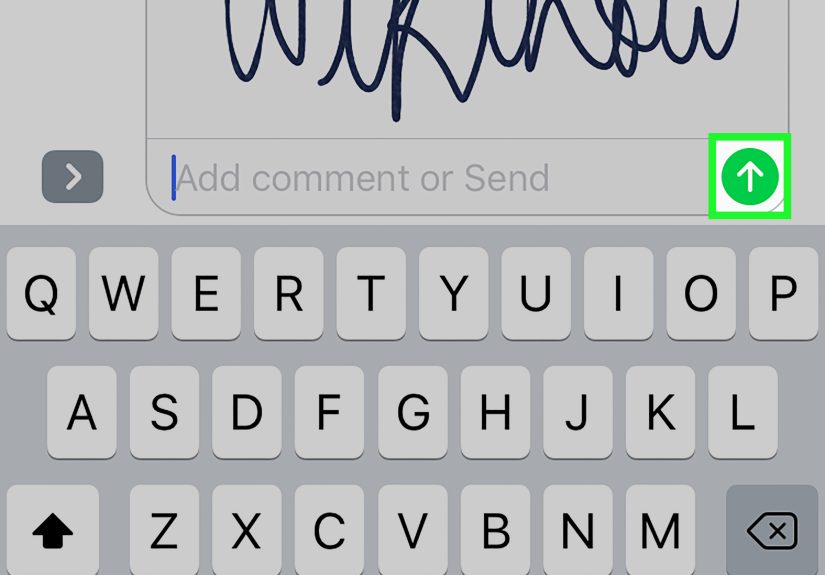
Once you are happy with your message, tap Done. Your handwritten note will appear in the conversation area, ready to send. At this point, it has not necessarily been sent yet, so you still have a chance to cancel if your “beautiful cursive” looks more like a shopping list written during turbulence.
Step 7: Send the Handwritten Message
Tap the blue send arrow to send your handwritten iMessage. The recipient will see your handwriting animate on their screen, stroke by stroke. This animation is what makes handwritten iPhone messages feel more personal than a simple image.
If you decide not to send it, tap the cancel or delete option instead. You can then return to the keyboard and type a normal message.
Why Use Handwritten Messages on iPhone?
Handwritten messages add emotion to everyday texting. A typed “thank you” is polite, but a handwritten “thank you!” feels more intentional. A typed “good luck” is nice, but a handwritten one can feel like a tiny motivational poster sent directly to someone’s pocket.
They are especially effective for moments when tone matters. Text messages can feel flat, and not every emotion can be rescued by an emoji. Handwriting adds warmth, imperfection, and personality. It tells the recipient, “I took a few extra seconds for you,” which is basically the modern love language of people with 3 percent battery.
Best Times to Send a Handwritten iPhone Message
Birthdays and Celebrations
A handwritten “Happy Birthday!” feels more festive than a standard text. Add a doodled cake, balloon, or tiny crown if you are feeling artistic. Even if your balloon looks like a potato with a string, the effort counts.
Thank-You Notes
For small acts of kindness, handwritten messages can make your thank-you feel more sincere. Try “Thank you so much,” “You made my day,” or “I really appreciate you.”
Romantic Messages
A handwritten “I love you” or “Thinking of you” can feel more intimate than typed text. Keep it simple. Romance does not require a digital calligraphy diploma.
Encouragement and Support
Send a handwritten “You got this,” “Proud of you,” or “Good luck today” before an exam, interview, presentation, or difficult appointment.
Inside Jokes
Handwritten doodles are perfect for jokes that make no sense to anyone outside your friendship. A strange little drawing can become funnier simply because it looks handmade.
Handwritten Messages vs. Digital Touch
The iPhone also includes Digital Touch features in Messages. Digital Touch lets you send animated sketches, taps, heartbeats, and drawings on a dark canvas. It is similar to handwritten messages because both features make texting more visual and expressive.
The main difference is that handwritten messages are accessed through the landscape keyboard and are best for written notes. Digital Touch is usually accessed through the Messages app options and is better for quick animated sketches, taps, and playful effects.
If your goal is to write a personal note, use handwritten messages. If your goal is to send a dramatic glowing sketch or a tiny animated burst of chaos, Digital Touch may be more fun.
Common Problems and How to Fix Them
The Handwriting Screen Does Not Appear
First, make sure Portrait Orientation Lock is off. Open Control Center and disable the rotation lock if needed. Then return to Messages, tap the text field, and rotate your iPhone sideways.
The Handwriting Icon Is Missing
The handwriting icon typically appears only in landscape mode. If you are still in portrait orientation, you may not see it. Also, make sure you are using Apple’s standard keyboard. Some third-party keyboards may not display the same handwriting option.
The Message Sends as a Regular Image
Handwritten messages work best in iMessage conversations. If the recipient is not using iMessage, the animated effect may not work as expected. Check whether the conversation uses blue bubbles instead of green ones.
The Canvas Feels Too Small
Write fewer words, use larger letters, and keep your message short. You can also send multiple handwritten messages instead of trying to fit everything into one canvas.
Your Handwriting Looks Messy
Welcome to the club. Finger-writing on glass is not exactly calligraphy school. Try writing slowly, resting your hand lightly, using short words, and avoiding tiny letters. If needed, use a stylus designed for touchscreens.
Tips for Better Handwritten Messages on iPhone
Keep your message short. Handwritten iMessages are most charming when they are quick and readable. “Proud of you!” works better than “I would like to formally acknowledge your impressive achievement in the field of surviving Monday.”
Use contrast in your message. Mix words with small doodles. For example, write “Good luck!” and add a star. Write “Miss you” and add a heart. Write “Coffee?” and add a cup that may or may not look like a bucket.
Practice once before sending an important message. If you are sending a birthday greeting, anniversary note, or romantic message, take a test run. The undo button exists for a reason.
Use saved handwritten messages when you are in a hurry. The Messages app may save previous handwritten notes, allowing you to reuse them later. This is helpful for greetings you send often.
Do not overuse the feature. A handwritten message is fun because it feels special. If every text you send is handwritten, your friends may begin to wonder whether your keyboard has retired.
Privacy and Practical Notes
Handwritten messages are part of your Messages conversation, so treat them like any other message you send. Do not write sensitive information, passwords, private codes, or anything you would not want screenshotted. A handwritten message may feel casual, but it is still digital communication.
Also remember that the feature depends on the recipient’s device, iMessage status, and software behavior. Apple may update the Messages app over time, so the exact icon placement or menu appearance can vary slightly across iOS versions and iPhone models.
500-Word Experience Section: What It Is Actually Like to Use Handwritten Messages on an iPhone
The first time many people discover handwritten messages on an iPhone, it feels accidental. You rotate your phone sideways, expecting a bigger keyboard, and suddenly your screen becomes a blank canvas. For a moment, it feels like your iPhone has challenged you to an art contest you did not sign up for.
In real use, the feature is surprisingly charming. It is not perfect, and that is exactly why it works. Typed messages are clean and predictable. Handwritten messages are a little wobbly, a little human, and sometimes unintentionally hilarious. A handwritten “hello” can look sweet. A handwritten “congratulations” can look like it fought a raccoon and lost. But the imperfection is part of the appeal.
One of the best uses is for birthdays. A regular “Happy birthday!” is fine, but a handwritten version feels more like a mini greeting card. Add a heart, a star, or a questionable balloon, and suddenly the message has personality. It is still fast, but it feels less automatic than choosing a birthday GIF from a search bar.
Handwritten messages are also great for close friends and family. Sending “Love you” in your own handwriting feels warmer than typing it. Sending “Good luck!” before someone’s exam or interview can feel like a small digital pep talk. It is not a grand gesture, but it shows effort. In a world where most replies are typed in two seconds while walking between rooms, effort stands out.
The feature is less practical for long messages. After a sentence or two, the canvas starts to feel cramped, and your handwriting may shrink into ancient cave markings. It is better to send a short handwritten note followed by a typed message if you need to explain something in detail. For example, write “You got this!” by hand, then type the actual details afterward.
There is also a learning curve. Writing with your finger on glass feels different from writing with a pen. Your letters may slide, stretch, or lean dramatically, as if they are trying to escape the screen. A stylus can help, but most people can get decent results by writing slowly and using larger letters.
The most enjoyable part is the animation. Because the recipient sees your strokes appear in order, the message feels alive. It is not just a picture of words; it is a tiny performance. That makes it fun for jokes, doodles, and dramatic reveals. You can write “Guess what?” and send a second handwritten message with the answer. Is it necessary? Absolutely not. Is it fun? Very.
Overall, handwritten iPhone messages are not a replacement for regular texting. They are a small creative tool for moments that deserve a little extra personality. Use them for birthdays, encouragement, affection, jokes, and quick doodles. Do not worry about perfect handwriting. The goal is not to create museum-quality calligraphy. The goal is to make someone smile when their phone lights up.
Conclusion
Learning how to write handwritten messages on an iPhone is simple once you know where the feature is hiding. Open Messages, choose an iMessage conversation, rotate your iPhone sideways, tap the handwriting key if needed, write your note, tap Done, and send it. That is all it takes to turn a regular text into something more personal.
Handwritten messages work best when they are short, thoughtful, and a little playful. Use them when a typed message feels too plain but a phone call feels too dramatic. Whether you are sending a birthday wish, a thank-you note, a romantic message, or a doodle that only your best friend will understand, this small iPhone feature can make everyday texting feel more human.