Table of Contents >> Show >> Hide
- What It Actually Means to Run Android Apps on Windows 11
- How Windows Subsystem for Android Works (Without Going Full Nerd)
- Getting Your First Android Apps on Windows 11
- What You Can Actually Do with Android Apps on Windows 11
- The Limitations: No, This Is Not a Full Android Phone
- Why the First Android Apps on Windows 11 Mattered
- Tips for a Better Android-on-Windows Experience
- Real-World Experiences with Windows 11’s First Android Apps
- Conclusion: A Big Step Toward Blended Computing
For years, Windows users watched in mild jealousy as Chrome OS and Android phones
enjoyed a rich app ecosystem while the humble PC had to make do with clunky
emulators and browser tabs. Then Microsoft dropped a surprise: with
Windows 11, you could finally run Android apps on your PC,
natively, no third-party emulator required. The future had arrived… with a twist
called the Windows Subsystem for Android (WSA) and the
Amazon Appstore on Windows 11.
It wasn’t perfect, it wasn’t global, and it definitely wasn’t Google Play. But the
moment Windows 11 got its first Android apps, the line between phone and PC got a
whole lot blurrier.
What It Actually Means to Run Android Apps on Windows 11
When people hear “Android apps on Windows,” they often imagine their PC turning
into a giant phone. That’s not quite what’s happening under the hood.
Windows 11 uses a special technology layer called
Windows Subsystem for Android that runs Android inside a lightweight,
virtualized environment. Think of it as a tiny Android device living inside your
PC, managed by Windows.
Instead of streaming apps from your phone or using a slow emulator, WSA lets
compatible Android apps run natively on your desktop. They appear in the
Start menu, can be pinned to the taskbar, snapped into layouts alongside Word,
Edge, or Photoshop, and they respond to your keyboard, mouse, or touch input just
like any other Windows app.
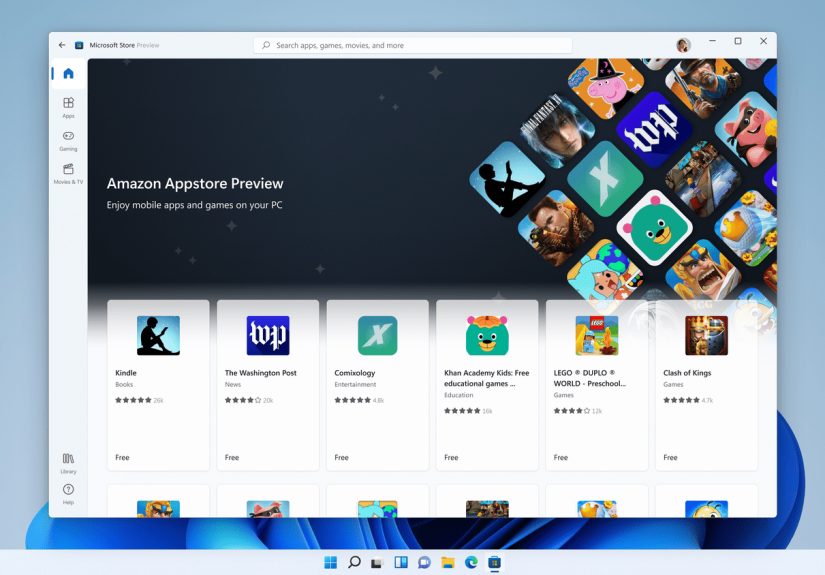
The first official gateway to these apps is the
Amazon Appstore for Windows 11. Once you install it from the
Microsoft Store, Windows automatically pulls in WSA and the basic Android
runtime. After that, you sign in with your Amazon account and start downloading
apps from a curated catalog of games, reading apps, and utilities.
How Windows Subsystem for Android Works (Without Going Full Nerd)
Underneath the friendly icons and tiles, WSA uses virtualization technology
similar to what powers Windows Subsystem for Linux. Your PC’s CPU
(Intel or AMD) needs to support and enable hardware virtualization
(Intel VT-x or AMD-V) and the Windows feature called
Virtual Machine Platform has to be turned on.
Once that’s in place, Windows launches a dedicated Android environment in the
background whenever you start an Android app. From your perspective, it feels
instant: you click an app, it opens in a window. In reality, Windows has spun up a
small, highly optimized virtual machine running an Android build tuned for
desktops.
This approach has a few big advantages:
- Better performance than traditional emulators, since WSA can tap
into hardware-accelerated virtualization and graphics. - Security and isolation, because apps run in a sandboxed Android
environment separate from your core Windows system. - Deep integration with Windows features such as Start, taskbar,
notifications, and window snapping.
Of course, the trade-off is that not every Android trick works. You don’t get
Google Play Services out of the box, and anything that absolutely depends on
them may refuse to run or behave oddly. But for many everyday apps, the
experience is surprisingly smooth.
Getting Your First Android Apps on Windows 11
In the early days, installing Android apps on Windows 11 involved a few hoops:
being on the right Windows 11 build, living in a supported region, and making
sure your hardware met requirements. Even today, the core recipe looks similar:
-
Update Windows 11 to the latest feature release so you get
all WSA fixes and store updates. -
Enable virtualization in your PC’s BIOS/UEFI and then turn on
“Virtual Machine Platform” in Windows Features. -
Install the Amazon Appstore from the Microsoft Store.
Windows will automatically install Windows Subsystem for Android alongside it. -
Sign in with an Amazon account and browse the Android app catalog
from the Appstore app. -
Install apps and launch them like normal Windows apps from the
Start menu or taskbar.
Once you’ve done this once, things feel very normal. You click an icon, your
Android app appears in a window, and you may briefly forget that there’s a
micro-Android system powering the whole experience.
What You Can Actually Do with Android Apps on Windows 11
The first wave of Android apps on Windows 11 focused on the kinds of experiences
that naturally benefit from a bigger screen or keyboard:
-
Reading and entertainment – apps like Kindle, comics readers,
casual puzzle games, and kids’ titles suddenly work great on a laptop. -
Social and short-form video – TikTok and similar apps became
easier to consume in a resizable window while you “multitask” (a.k.a. watch
memes with Outlook open in the background). -
Productivity and utilities – simple note apps, to-do lists,
password managers, or niche tools that don’t have good Windows clients can live
on your desktop via Android.
For developers, WSA also offered a convenient way to test Android
builds on a PC without juggling cables or separate devices. If you were
building cross-platform apps (for example with React Native), you could spin up
the Android version in a window alongside your Windows tools.
The Limitations: No, This Is Not a Full Android Phone
As exciting as “Android on Windows” sounds, there are practical limitations you
need to know about.
No Native Google Play Store
Officially, Windows 11’s Android support is built around the
Amazon Appstore, not Google Play. That means:
-
Apps that rely heavily on Google Play Services (like many Google
apps, location-heavy services, or apps using specific Google APIs) may not work
properly, or at all. -
The catalog is smaller than Google Play, especially if you’re used
to grabbing every obscure app under the sun.
Enthusiasts have found unofficial ways to inject Google Play into WSA or run
customized images, but these approaches aren’t supported by Microsoft and can
break with updates. For everyday users, the safe route is to stick with the
Amazon Appstore and compatible apps.
Regional and Hardware Restrictions
When Windows 11 first gained Android support, the rollout was limited to
selected countries and required specific hardware: reasonably modern CPUs, SSD
storage, and enough RAM. Over time, Microsoft expanded availability, but some
budget or older devices still struggle with performance or simply don’t qualify.
If your PC is on the edge of Windows 11’s minimum requirements, running Android
apps may feel sluggish. Remember, you’re effectively running two operating
systems at once.
And Yes, Things Have Changed Over Time
A twist in this story is that Microsoft later announced the
deprecation of Windows Subsystem for Android and the Amazon Appstore on
Windows. While early days were all about the excitement of “Windows 11
gets its first Android apps,” the long-term picture has been more complicated.
Even so, the launch era remains important: it showed that users genuinely want
mobile and desktop worlds to blend and proved that Windows can run Android apps
smoothly when the ecosystem is aligned.
Why the First Android Apps on Windows 11 Mattered
Beyond the technical details, the arrival of Android apps on Windows 11 was a big
philosophical shift.
-
It challenged the idea that PCs and phones are separate universes.
Suddenly, your favorite mobile apps could coexist with desktop-class software. -
It pushed developers to think about multi-device experiences
where the same app might run on a phone, a tablet, and a Windows laptop with a
keyboard and mouse. -
It gave Windows users more choice: if a company never bothered to build a
Windows client but had a great Android app, you still had a path to use it.
In practice, the impact varied. Some users treated Android apps as a fun bonus;
others integrated them deeply into their workflow. But the core ideathat your
PC shouldn’t be cut off from the mobile app ecosystemresonated widely.
Tips for a Better Android-on-Windows Experience
If you’re experimenting with Android apps on Windows 11 (whether via WSA on older
builds or modern alternatives), a few best practices can make the experience feel
smoother:
-
Prioritize lightweight apps. Casual games, readers, and simple
tools shine. Huge 3D games designed for phones might run, but they won’t always
feel at home on a laptop. -
Use window snapping and layouts. One of the best parts of running
Android apps on Windows is being able to snap them next to Word, Teams, or your
browser. Treat them like any other window, not a floating phone screen. -
Leverage keyboard and mouse shortcuts. Many Android apps adapt
surprisingly well to keyboard inputtry tabbing between fields, using arrow
keys, or right-click context where available. -
Keep storage and RAM free. Because WSA is a separate environment,
it adds its own memory and storage overhead. Cleaning up unused apps on both
Windows and Android sides helps maintain performance.
Think of Android on Windows as a powerful bonus layer: not a full replacement
for Windows apps or your phone, but an extra drawer of tools you can pull from
when needed.
Real-World Experiences with Windows 11’s First Android Apps
Let’s talk about what it actually felt like when Windows 11 first got its
Android appsand what users still notice when they try similar setups today.
“My Laptop Became My Reading Tablet”
One of the most common early experiences was the “instant tablet” effect. Users
who installed reading apps like Kindle or comic viewers on Windows 11 suddenly
found their laptop becoming the most comfortable reading device in the house.
Instead of squinting at a 6-inch phone screen, you can:
- Open an Android reading app in a tall, narrow window on your laptop.
- Snap it beside a browser tab for quick lookups or note-taking.
- Use your keyboard’s page up/down keys to breeze through chapters.
For students and knowledge workers, this mix of Android app convenience and
desktop flexibility felt like the best of both worlds.
Casual Games During “Meetings” (We See You)
Then there are the casual gamers. Puzzle and idle games that were previously
“phone-only” quietly migrated onto Windows 11 desktops. For some people, this
meant quick stress breaks between tasks; for others, it meant dangerous levels of
distraction during video calls.
Running these games on a PC also had unexpected perks:
- No more overheating phone during long sessions.
- Better battery life on your phone because the heavy lifting moved to your PC.
- Easier multitasking: game window on one side, work apps on the other.
It wasn’t exactly what Microsoft’s productivity team had in mindbut it definitely
made Android support popular.
Dealing with the Rough Edges
Not every experience was seamless. Early adopters ran into:
-
Apps that refused to start because they expected Google Play
Services. -
Odd scaling or UI layouts when phone-designed interfaces met large
laptop screens. -
Regional restrictions where the Amazon Appstore on Windows 11
wasn’t formally supported.
Power users often worked around these issues with sideloading, custom builds, or
alternative Android environments. But for average users, the best strategy was to
stick with apps that were simple, well-maintained, and clearly advertised as
Amazon Appstore compatible.
Lessons Learned from the First Wave
Even as official support has evolved, the first generation of Android apps on
Windows 11 taught a few clear lessons:
-
Users love cross-platform continuity. If they can pick up an app
on a PC where they left off on a phone, they’ll do it. -
The best Android-on-Windows experiences are focused and purposeful:
reading, simple gaming, utilities, and communication tools. -
Deep system-integrated mobile features (like full Google Play stacks) are hard
to replicate in a desktop OS without tight ecosystem alignment.
Whether you see Windows 11’s Android era as a brief experiment or a preview of
where computing is headed, one thing is clear: once people get a taste of their
favorite phone apps on a big screen with a keyboard and mouse, they tend to want
more of that flexibility, not less.
Conclusion: A Big Step Toward Blended Computing
When Windows 11 got its first Android apps, it wasn’t just checking
a feature box. It was Microsoft acknowledging that mobile apps are part of how
people work, play, learn, and communicateand that the classic desktop OS has to
meet users where they are.
The technical details may shift over time, and specific implementations (like
WSA and Amazon Appstore) may come and go, but the underlying trend is here to
stay: people don’t want a wall between their PC and their phone’s app ecosystem.
They want one experience, stretched across different screens.
Windows 11’s first Android apps were an imperfect but important step in that
direction. Whether you’re using them to read, game, experiment, or build, they
show what’s possible when desktop power and mobile convenience finally start
working together.
SEO metadata in JSON format