Table of Contents >> Show >> Hide
- First: What “Upgrading Storage” Really Means on an M4 Mac mini
- Know Your Ports: Why the M4 Mac mini Is Great for External Storage
- Option A: Buy More Internal Storage Up Front (When It’s Worth It)
- Option B: The Best Bang-for-Buck UpgradeExternal SSD Done Right
- Make Extra Storage Feel Built-In
- Can You Boot the M4 Mac mini From an External SSD?
- The Spicy Option: Swapping the Internal SSD Module
- How Much Storage Do You Actually Need?
- Backup Strategy: More Storage Isn’t Safety
- Conclusion: The Smartest Way to Upgrade M4 Mac mini Storage
- Real-World Experiences: What It’s Like Living With More Storage on an M4 Mac mini (About )
The M4 Mac mini is the kind of computer that makes you do math in your head at checkout. “Wow, that’s a lot of performance for the price,” you say… and then you click the storage upgrade dropdown and suddenly you’re calculating whether you truly need both kidneys.
The good news: you have multiple smart ways to get more storage on an M4 Mac mini without turning your desk into a cable spaghetti museum (unless you’re into that, in which case… no judgment, just label your cords). The better news: with the M4 Mac mini, storage expansion is more interesting than it’s been on recent minis, because Apple changed the internal design.
This guide breaks down what’s actually upgradable, what’s “technically possible but emotionally expensive,” and what gives you the best real-world results: fast external SSD setups, clean workflows, and a few pro moves that make extra storage feel built-in.
First: What “Upgrading Storage” Really Means on an M4 Mac mini
1) Unified memory still isn’t upgradable later
Storage and memory get lumped together in casual conversation (“I need more space!”), but they’re different problems. Unified memory (RAM) is not a later upgrade. If you’re buying new, choose memory based on your workload and keep storage flexible.
2) Internal storage is no longer the same old story
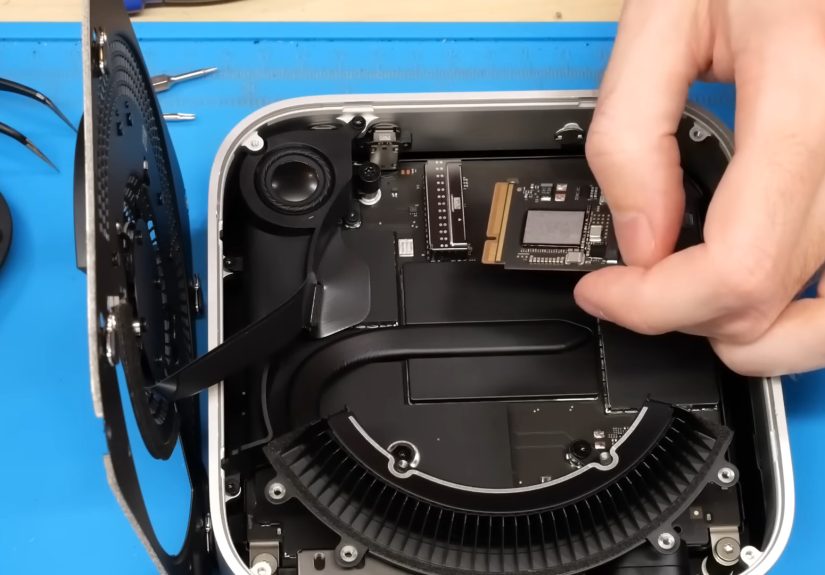
Recent Mac minis trained everyone to assume: “Storage is soldered, end of discussion.” The M4 Mac mini shakes that up. Teardowns and repair documentation show the internal storage uses a removable modulebut it’s not a standard off-the-shelf M.2 SSD. The storage controller is integrated into Apple silicon, so normal M.2 drives won’t work in that slot.
Translation: the door is no longer welded shut… but the key is proprietary, and the locksmith requires a second Mac and a very calm personality. You can swap/replace the module, but it’s a specialized process that may involve firmware restore steps, correct cables/ports, and the right tools.
3) External storage is still the best value (and the least dramatic)
If your goal is “more storage that’s fast, reliable, and doesn’t risk turning your mini into a paperweight,” external SSD expansion remains the sweet spot. With the ports on the M4 Mac mini, you can get performance that feels internal for most workflowsespecially media libraries and project files.
Know Your Ports: Why the M4 Mac mini Is Great for External Storage
External storage speed is often limited by the connection, not the SSD. The M4 Mac mini gives you strong options:
- Thunderbolt 4 / USB4 (up to 40Gbps) on M4 models: excellent for NVMe enclosures and fast SSDs.
- Thunderbolt 5 on M4 Pro models: even more bandwidth for high-end drives, docks, and RAID setups.
- Front USB-C ports can be handy for quick SSD hookups (great for portable drives and shuttling files).
In practice: a good USB4/Thunderbolt enclosure with an NVMe SSD can deliver “whoa” speeds for editing, large photo catalogs, sample libraries, and general “my Downloads folder is a landfill” situations.
Option A: Buy More Internal Storage Up Front (When It’s Worth It)
If you’re still within the return window or you haven’t bought yet, increasing internal storage at purchase is the simplest, cleanest solution: one drive, no cables, nothing to mount, nothing to accidentally unplug during a Zoom call.
When paying Apple’s storage pricing makes sense
- You travel with the mini (yes, people do this) and want fewer peripherals.
- You want maximum simplicity and don’t want external volumes mounted everywhere.
- You rely on always-on encryption + zero fuss for sensitive work.
- Your workflow is app-heavy and you prefer everything local (Xcode, simulators, VMs, giant Docker images).
When it doesn’t
- You mainly need space for large project files (video, photo, audio) that work perfectly fine on a fast external NVMe drive.
- You want the ability to reuse your storage later (move the SSD to another Mac, PC, enclosure, NAS, etc.).
- You’d rather spend the money on memory, a better monitor, or literally anything that isn’t priced like boutique saffron.
Option B: The Best Bang-for-Buck UpgradeExternal SSD Done Right
External storage has three tiers. Pick the one that matches your workload (and your tolerance for cable management).
Tier 1: Portable USB-C SSD (Simple, small, fast-enough)
These are the “plug it in and keep living your life” drives. They’re great for:
- Storing Photos library backups or exports
- Keeping big folders off the internal SSD (downloads, installers, archives)
- Time Machine (though many people prefer a separate HDD for cost per TB)
- Moving projects between machines
For most people, this is the best first step. If you later need more speed, you can repurpose this drive as a backup target.
Tier 2: NVMe SSD + USB4/Thunderbolt Enclosure (Fast, flexible, “feels internal”)
This is the enthusiast sweet spot: buy a quality NVMe SSD (often cheaper per TB) and put it in a USB4/Thunderbolt enclosure. The result is a compact, high-performance external drive that can handle serious work.
Perfect for:
- Final Cut Pro / Premiere scratch + media
- Lightroom catalogs and previews
- Logic Pro sample libraries
- Game libraries
- Large codebases + build artifacts
What to look for:
- USB4 or Thunderbolt enclosure (not just “USB-C,” which is a shape, not a speed)
- Thermals: aluminum body, thermal pad, vents; NVMe drives get hot and hot drives get slow
- Known compatibility with macOS and sleep/wake behavior
- Short, quality cable (yes, the cable matterssurprise!)
Many users choose well-regarded enclosures from established Mac-focused vendors, and pair them with a reliable NVMe drive. It’s a clean way to add multiple terabytes without paying internal-upgrade pricing.
Tier 3: Thunderbolt 5 Drives, Docks, and RAID (Pro workflows, big projects, big budgets)
If you’re running an M4 Pro Mac mini and moving huge files all daymulticam 8K, massive photo shoots, working off external storage full-timeThunderbolt 5 solutions can push performance further, especially with multi-drive RAID setups.
This tier is less “upgrade my storage” and more “I run a small post-production facility out of a box the size of a sandwich.” Amazing for the right person, unnecessary for everyone else.
Make Extra Storage Feel Built-In
Adding storage is easy. Making it convenient is the real upgrade. Here’s how to avoid the classic external-drive experience: “Where did my files go, and why is everything opening from the wrong place?”
Step 1: Format it correctly
For Mac-first use, format your external SSD as APFS. It’s the modern macOS file system and generally the best choice for performance and reliability. If you need Windows compatibility, use exFATbut understand you’re trading some resilience and Mac-specific features for cross-platform convenience.
Step 2: Name it like you mean it
Don’t call it “Untitled.” Call it something obvious: MacMini_Work, Media_SSD, ScratchNVMe, or DoNotUnplugOrIWillCry.
Step 3: Move the right things (not everything)
The best approach is usually: keep macOS and apps on the internal drive, and move big, changeable data to the external drive.
Great candidates to move:
- Video media + caches + render files
- Photo catalogs (Lightroom) and libraries (depending on your setup)
- Music production sample libraries
- Steam / game libraries
- Virtual machine images
- Large client/project folders
For creative apps, look in each app’s settings for storage locations for caches, media, and libraries. Moving caches alone can free up a shocking amount of space on the internal drive.
Step 4: Use a “workspace” structure
Create a clean root folder on the external SSD, like:
- /Projects
- /Media
- /Exports
- /Caches
- /Archives
This keeps everything predictable. Predictable is fast. Predictable also makes backups dramatically easier.
Step 5: Encrypt if the drive leaves your desk
If the external SSD ever travels (or even if it just sits in a shared office), encryption is worth it. macOS supports encrypted volumes, and you can protect data at rest without turning your workflow into a tech support ticket.
Can You Boot the M4 Mac mini From an External SSD?
Yes, and it’s a powerful option if you bought a base internal SSD and want most of your day-to-day life on a bigger, faster external drive. You can install macOS onto an external storage device and select it as your startup disk.
Why people do this:
- Keep internal storage mostly free (updates, recovery, breathing room)
- Run a massive “system + apps + projects” environment from a big NVMe external
- Maintain separate boot environments (work vs personal, stable vs beta testing)
What to know before you do it:
- Use a high-quality USB4/Thunderbolt enclosure for best performance and stability.
- Make sure you understand startup security settings if macOS prompts you about external boot policies.
- Don’t cheap out on the cable. The cable is the tiny plastic villain in many “why is it disconnecting?” stories.
The Spicy Option: Swapping the Internal SSD Module
If you came here specifically for “open it up and replace the internal storage,” here’s the honest take: it can be possible on the M4 Mac mini, but it’s not the same as upgrading a PC with a standard M.2 stick.
What makes it complicated
- The storage module is proprietary; standard NVMe drives aren’t compatible in that slot.
- You may need a second Mac and Apple’s restore tools to initialize/restore the system after swapping storage.
- A mistake can turn your weekend project into a “why is my computer in DFU mode?” project.
If you still want to do it (high-level, non-hand-holdy checklist)
- Backup everything (Time Machine plus a second copy of critical files).
- Get a known-compatible storage module designed for the M4 Mac mini’s slot.
- Use proper tools and ESD precautions (static electricity is not a vibe).
- Plan for a restore step using Apple’s firmware restore process if required.
- Accept the risk that warranty/service implications may apply depending on your region and provider.
For most readers, the practical recommendation remains: go external NVMe first. It’s faster to set up, safer, and upgradeable forever. Internal module swapping is best reserved for people who genuinely enjoy hardware projects and have a backup Mac available.
How Much Storage Do You Actually Need?
Storage upgrades feel emotional (“I’m always running out!”), but planning them can be very rational. A simple sizing approach:
- System + apps: 60–150GB depending on tools (creative suites, Xcode, etc.)
- Working projects: whatever your current active workload is (often 500GB–4TB for media work)
- Cache and scratch: 100GB–1TB depending on editing and rendering
- Free space buffer: keep 10–20% free on your working drive for smooth performance and fewer surprises
If you’re a general productivity user, a modest external SSD is plenty. If you’re a creator, treat storage like camera batteries: you never regret having more than you think you need.
Backup Strategy: More Storage Isn’t Safety
A larger drive is not a backup. It’s just a larger place for mistakes to live. If you upgrade storage, upgrade your backup plan too:
- Time Machine to a separate drive (often an HDD for cost efficiency)
- One additional copy of critical files (another external drive or a NAS)
- Optional off-site backup for irreplaceable work
The best feeling in computing is not “my SSD is fast.” It’s “I accidentally deleted the folder and restored it in five minutes.”
Conclusion: The Smartest Way to Upgrade M4 Mac mini Storage
If you want the simplest life, buy enough internal storage at purchase and move on. If you want the best value and flexibility, use a high-quality external SSDideally an NVMe drive in a USB4/Thunderbolt enclosure and move your big stuff there.
And if you’re tempted by internal module swapping, make sure you’re doing it for the right reason: not because you need to, but because you want the project (and you’re prepared for the restore steps). For everyone else: external storage gets you 90–95% of the benefit with about 5% of the stress.
Real-World Experiences: What It’s Like Living With More Storage on an M4 Mac mini (About )
Here’s what day-to-day life typically looks like once you expand storage the smart waybased on common owner workflows, setup patterns, and the kinds of “I tried this so you don’t have to” lessons people share after the honeymoon period ends.
Week 1: The “Why didn’t I do this earlier?” phase. You plug in a fast external SSD, format it APFS, and move your biggest offendersPhotos exports, video media, old client projects, that “TEMP_FINAL_FINAL_v9” folderoff the internal drive. The Mac mini instantly feels calmer. Updates stop failing because of low disk space. Spotlight indexing finishes and your fan stops acting like it’s training for a tiny marathon.
Week 2: The workflow upgrades begin. If you edit video, you point your NLE’s cache/scratch to the external NVMe. Export times become more predictable. Your internal SSD stops filling up with render files you didn’t know existed. If you do music production, sample libraries on external storage load smoothlyespecially if you picked an enclosure that manages heat well. The only real annoyance is remembering that some apps still default to internal locations unless you tell them otherwise.
Week 3: You learn the cable rules. You discover that “USB-C” is not a speed guarantee. A random cable can quietly limit performance or cause disconnects when the drive warms up. Once you switch to a short, high-quality cable and avoid bargain-basement hubs, the whole system becomes boringin the best possible way. Boring storage is reliable storage.
Week 4: External boot becomes tempting. Some users decide to install macOS on the external NVMe and boot from it so everything lives on the big drive. When it’s done well (USB4/Thunderbolt enclosure, stable cable, good thermals), it feels surprisingly “internal.” Apps launch quickly, projects open fast, and you stop playing storage Tetris. The trade-off is psychological: you become more aware of what’s plugged in, because unplugging your boot drive is… memorable. (Not in a good way.)
Long-term: You start treating storage like modular gear. This is the best part. External NVMe storage becomes something you can upgrade independently: swap a larger SSD into the enclosure later, repurpose the old drive as a backup, or move the whole setup to a new Mac. Even if you eventually buy a higher-capacity internal SSD model, your external drive doesn’t become obsoleteit becomes your project drive, your archive drive, or your “I never want to download this again” library.
The overall vibe: with the right external setup, the M4 Mac mini feels like a tiny workstation that grows with you. You keep the desk clean, the internal drive breathing, and your files where they belongwithout paying luxury pricing for more flash storage.