Table of Contents >> Show >> Hide
- What Is Microsoft Word for Mac?
- Microsoft Word for Mac Download Options
- Before You Install Microsoft Word on Mac
- How to Download and Install Microsoft Word for Mac from Microsoft
- How to Install Microsoft Word from the Mac App Store
- How to Activate Microsoft Word on Mac
- Microsoft Word for Mac: Subscription vs. One-Time Purchase
- How to Update Microsoft Word on Mac
- Common Microsoft Word for Mac Installation Problems
- How to Uninstall Microsoft Word from Mac
- Is Microsoft Word for Mac Free?
- Best Practices After Installing Word on Mac
- Real-World Experience: What Installing Microsoft Word for Mac Is Actually Like
- Conclusion
Note: This guide focuses on safe, legitimate ways to download and install Microsoft Word for Mac through Microsoft, the Mac App Store, or authorized purchase channels. Avoid “free lifetime Office” installers from random websites unless you enjoy turning your Mac into a malware-themed escape room.
Microsoft Word for Mac is one of those apps that feels boring right up until you desperately need it. A school paper, business proposal, resume, legal form, client contract, novel draft, newsletter, or “please make this PDF look normal again” situation can suddenly turn Word from “just another app” into the hero wearing a tiny blue cape.
The good news? Installing Microsoft Word on a Mac is straightforward. The slightly less good news? There are a few different versions, download paths, subscriptions, one-time licenses, activation screens, macOS requirements, and update methods that can make the process feel like assembling IKEA furniture without the cheerful little stick-figure manual.
This complete Microsoft Word for Mac download and install guide walks you through the safest options, what you need before installing, how to activate Word, how to update it, and what to do when something goes sideways. Whether you have a MacBook Air, MacBook Pro, iMac, Mac mini, Mac Studio, or a Mac that has survived three coffee spills and still believes in you, this guide will help you get Word running properly.
What Is Microsoft Word for Mac?
Microsoft Word for Mac is the macOS version of Microsoft’s word-processing application. It lets users create, edit, format, save, share, and collaborate on documents. The Mac version supports familiar Word features such as templates, spell check, grammar suggestions, track changes, comments, styles, tables, headers, footers, mail merge, dictation, cloud sync through OneDrive, and real-time collaboration.
Word for Mac is available mainly through two routes: as part of a Microsoft 365 subscription or through a one-time Office 2024 license. You can also download Word from the Mac App Store, but creating and editing documents generally requires a qualifying Microsoft 365 subscription when using the App Store version.
In plain English: yes, you can download Word on a Mac. No, the full desktop version is not completely free forever. Microsoft does offer free web-based Office apps through a browser, but the full Word desktop app for Mac requires a valid subscription or license.
Microsoft Word for Mac Download Options
1. Download Word Through Microsoft 365
The most common way to get Microsoft Word for Mac is through Microsoft 365. This subscription includes the latest versions of Word, Excel, PowerPoint, Outlook, OneNote, and OneDrive, depending on your plan. For many home users, Microsoft 365 Personal or Microsoft 365 Family is the most practical option. For business users, Microsoft 365 Business plans are more common.
The advantage of Microsoft 365 is that Word stays current with feature updates, security patches, cloud features, and collaboration tools. It also works across multiple devices depending on the plan. If you often switch between a Mac, iPad, iPhone, Windows PC, and browser, Microsoft 365 is usually the smoothest path.
2. Download Microsoft Word from the Mac App Store
You can download Microsoft Word directly from the Mac App Store. This is convenient because the installation feels familiar: search, click Get, wait, open, sign in, done. The App Store also handles updates if automatic updates are enabled.
However, there is one important catch: Word, Excel, and PowerPoint downloaded from the Mac App Store require a qualifying Microsoft 365 subscription to create and edit documents. You can often view documents without much trouble, but full editing is tied to activation. If you already have Microsoft 365, this is not a problem. If you expected a totally free desktop Word app, the App Store version may surprise you faster than a low-battery warning during a final exam.
3. Buy Office Home 2024 for Mac
If you dislike subscriptions, Microsoft also offers Office Home 2024 as a one-time purchase for one PC or Mac. This version includes classic desktop apps such as Word, Excel, PowerPoint, and OneNote. It is useful for students, families, and home users who want the traditional Office apps without monthly or yearly billing.
The trade-off is that a one-time Office license does not include the same ongoing feature upgrades as Microsoft 365. You get security updates, but when the next major Office version arrives, upgrading usually means buying a new license. For users who mostly write documents, edit resumes, print forms, and do basic school or home work, Office Home 2024 may be enough. For users who want the newest AI, collaboration, cloud, and cross-device features, Microsoft 365 is usually the better fit.
Before You Install Microsoft Word on Mac
Check Your macOS Version
Before downloading Microsoft Word for Mac, check whether your Mac supports the current version. Microsoft generally supports Office for Mac on the three most recent versions of macOS. Starting with later Office updates, newer macOS versions may be required to continue receiving updates. New installations of Office 2024 for Mac require a modern macOS version, so keeping your Mac updated is not just cosmeticit helps Word stay secure and compatible.
To check your macOS version, click the Apple menu in the top-left corner of your screen, choose About This Mac, and review the macOS name and version number. If your Mac is several years behind, update macOS first if your hardware supports it.
Check Storage Space
Microsoft Office apps need several gigabytes of free disk space, and updates may require additional room. A good rule is to keep at least 10 GB of free storage available before installing. If your Mac is full of old screenshots, mystery downloads, duplicated videos, and “Final Essay FINAL final v7.docx,” clean up before installing.
Know Your Microsoft Account
Activation depends on the Microsoft account connected to your subscription or license. Before installing, make sure you know which email address was used to buy Microsoft 365 or Office. This could be a personal Outlook, Hotmail, Gmail, school, or work account.
If you sign in with the wrong account, Word may install successfully but refuse to activate. This is one of the most common problems. The app is not being dramatic; it simply cannot find the license attached to that login.
How to Download and Install Microsoft Word for Mac from Microsoft
Here is the safest standard method for installing Microsoft Word through Microsoft 365 or Office 2024:
- Open your browser and go to the official Microsoft 365 or Office account page.
- Sign in with the Microsoft account connected to your subscription or one-time purchase.
- Choose the option to install apps.
- Download the Microsoft Office installer package for Mac.
- Open Finder and go to the Downloads folder.
- Double-click the Microsoft Office installer .pkg file.
- Follow the installer prompts.
- Enter your Mac administrator password if requested.
- Wait for the installation to finish.
- Open Microsoft Word from the Applications folder or Launchpad.
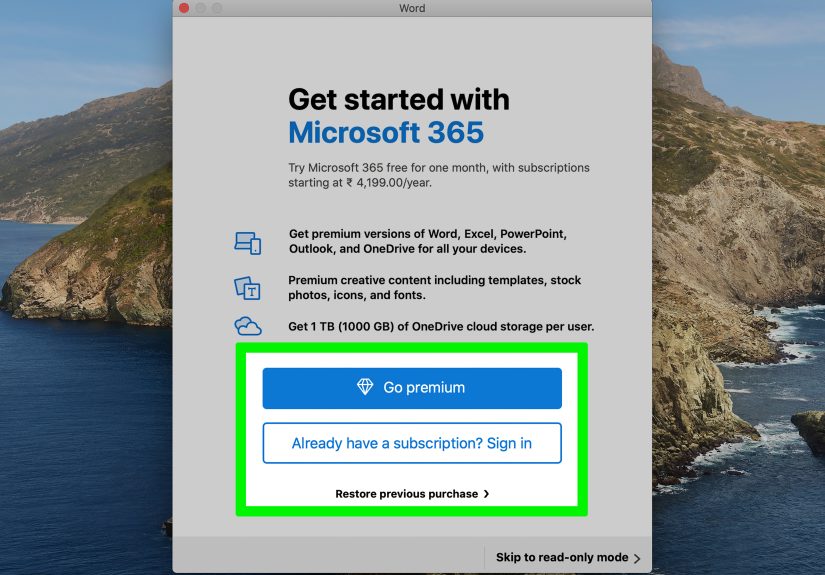
- Sign in to activate Word.
After installation, you can pin Word to the Dock. Open Word, then Control-click the Word icon in the Dock, choose Options, and select Keep in Dock. This saves you from hunting through Launchpad every time you need to write something important, like a resume or a strongly worded letter to your printer.
How to Install Microsoft Word from the Mac App Store
If you prefer the App Store method, follow these steps:
- Open the App Store on your Mac.
- Search for Microsoft Word.
- Make sure the developer is Microsoft Corporation.
- Click Get or the download icon.
- Wait for the app to install.
- Open Word from Launchpad or the Applications folder.
- Sign in with your Microsoft 365 account.
This method is simple, but remember: the Mac App Store version still requires Microsoft 365 activation for creating and editing documents. If you already bought Office Home 2024 directly from Microsoft or another authorized retailer, the Microsoft website installer may be the better route.
How to Activate Microsoft Word on Mac
After installation, open Word. You will usually see a sign-in or activation screen. Enter the Microsoft account associated with your subscription or license. Once Word verifies your account, it should unlock editing features.
If Word says you need to activate Microsoft 365, but you already paid, check these items:
- Are you using the same email address used for the purchase?
- Is your Microsoft 365 subscription still active?
- Are you connected to the internet?
- Did you install from the correct source for your license type?
- Are there older Office files or duplicate installations causing confusion?
For work or school accounts, your organization may control licensing. If Word installs but will not activate, your IT department may need to assign an Office license to your account.
Microsoft Word for Mac: Subscription vs. One-Time Purchase
Choose Microsoft 365 If…
Choose Microsoft 365 if you want the latest features, regular improvements, cloud storage, multiple-device access, OneDrive integration, and smoother collaboration. It is ideal for freelancers, students, families with several devices, remote workers, and businesses that depend on shared documents.
Choose Office Home 2024 If…
Choose Office Home 2024 if you prefer paying once, mainly work on one Mac, and do not need constant feature upgrades. It is a practical choice for basic writing, printing, school assignments, household documents, and offline work.
Use Word Online If…
If you only need occasional document editing and do not want to install anything, Word for the web may be enough. It runs in a browser and offers basic editing tools. It is not as powerful as the desktop app, but it can handle simple writing, formatting, and collaboration tasks.
How to Update Microsoft Word on Mac
Keeping Word updated is important for security, compatibility, and performance. If you installed Word from Microsoft, updates are usually managed through Microsoft AutoUpdate. Open Word, click Help in the menu bar, then choose Check for Updates. Microsoft AutoUpdate can automatically download and install updates in the background.
If you installed Word from the Mac App Store, open the App Store and click Updates. You can update Word manually or turn on automatic app updates in macOS settings.
Do not ignore updates for months unless you enjoy document glitches with a side of security risk. Word updates often include bug fixes, compatibility improvements, and security patches that help documents open and save correctly.
Common Microsoft Word for Mac Installation Problems
Problem: “Unsupported Operating System”
This usually means your Mac is running an older macOS version that the current Office installer does not support. Update macOS if possible. If your Mac cannot run a newer macOS version, you may need an older compatible Office build, but you should understand that older builds may no longer receive full security updates.
Problem: Word Installs but Will Not Activate
This is often an account mismatch. Sign out, restart Word, and sign in with the account used for the Microsoft 365 subscription or Office purchase. If you bought through Apple, check your App Store subscriptions. If your license comes from work or school, contact your administrator.
Problem: The Installer Will Not Open
Make sure the download completed fully. Delete the installer package and download it again from the official source. Also check whether your Mac has enough free storage and whether you have administrator rights.
Problem: Word Keeps Crashing
Update Word, restart your Mac, and check whether the crash happens with one specific document or all documents. If only one file crashes, the document may be damaged. Try opening it in Word Online, Pages, or another device, then save a fresh copy.
Problem: Old Office Versions Are Causing Conflicts
If your Mac has older Office apps, trial versions, or mixed installations from Microsoft and the Mac App Store, activation can get messy. In that case, uninstall Office completely, restart your Mac, then reinstall from the correct source.
How to Uninstall Microsoft Word from Mac
To uninstall Word and other Office apps, open Finder, go to Applications, select Microsoft Word and any other Office apps you want to remove, Control-click, and choose Move to Trash. For a cleaner removal, you may also need to remove related Microsoft containers and group containers from the Library folder, especially if you are troubleshooting activation or reinstalling after a failed setup.
Be careful when deleting Library files. If you are unsure, follow Microsoft’s official uninstall instructions or get help from someone experienced. Your documents are usually stored separately, but it is still smart to back up important files before removing software.
Is Microsoft Word for Mac Free?
The full Microsoft Word desktop app for Mac is not permanently free for creating and editing documents. You usually need Microsoft 365 or a one-time Office license. However, there are a few ways to use Word-related tools without paying immediately:
- Use Word for the web with a free Microsoft account for basic editing.
- Try a Microsoft 365 trial if available in your region.
- Use a school or work license if your organization provides one.
- View documents in Word without needing every premium feature.
Be cautious with websites claiming to offer “free Microsoft Word for Mac full version lifetime activated.” That phrase is usually less “productivity solution” and more “welcome to malware bingo.” Download only from Microsoft, Apple, or trusted retailers.
Best Practices After Installing Word on Mac
Once Word is installed, take a few minutes to set it up properly. Sign in, turn on AutoSave if you use OneDrive, choose your default save location, and confirm your spelling and grammar language. If you write for school or work, set up templates for common document types such as reports, invoices, proposals, or essays.
You should also decide whether you want documents saved locally, in OneDrive, or both. OneDrive is excellent for backup and cross-device access, but some users prefer local folders for privacy, organization, or offline reliability. The best setup is the one you understand and can maintain.
Real-World Experience: What Installing Microsoft Word for Mac Is Actually Like
In real life, installing Microsoft Word for Mac is usually easybut the experience depends heavily on your account, macOS version, and download source. The cleanest installations usually happen when the user starts at Microsoft’s official account page, signs in with the correct email, downloads the Office installer, and activates Word immediately after installation. That path tends to avoid most confusion.
The most common headache is not the installer itself. It is the account. Many people have more Microsoft accounts than they realize. One email may be used for Xbox, another for school, another for work, and another for an old Microsoft 365 trial from three laptops ago. When Word asks for activation, the app is looking for the account with the license. If you sign in with the wrong one, Word may act as if you never paid. This feels insulting, but it is usually just a login mismatch.
Another real-world issue is the Mac App Store route. It feels simpler because Mac users trust the App Store, and for good reason. But users sometimes download Word there after buying a one-time Office license elsewhere, then wonder why activation behaves differently. The App Store version is excellent for Microsoft 365 subscribers, but it is not always the best match for every license type. When in doubt, install from the same ecosystem where your license lives.
Older Macs create a different kind of adventure. A Mac may still browse the web, stream videos, and write emails perfectly, but that does not mean it supports the newest Office build. Microsoft’s support window follows recent macOS versions, so an aging Mac can run into the dreaded unsupported operating system message. This is not always a reason to panic, but it is a sign to check compatibility before buying a license or subscription.
Performance is generally strong on modern Apple silicon Macs. Word opens quickly, handles large documents better than many people expect, and works smoothly with trackpads, Retina displays, macOS search, and file previews. On Intel Macs, Word can still run well, especially with enough RAM and storage, but older machines may feel slower with large documents, heavy images, or dozens of tracked changes.
One practical tip: after installing Word, create a test document before you actually need the app. Type a few lines, save the file locally, save another copy to OneDrive, close Word, reopen it, and confirm everything works. This tiny test can save you from discovering an activation problem at 1:12 a.m. when your paper is due at 8:00 a.m. and your coffee has started making eye contact with you.
For writers, students, and professionals, the best Word setup is boring in the best possible way: updated macOS, official installer, correct Microsoft account, automatic updates, clear save locations, and a backup plan. Once that foundation is in place, Word for Mac becomes dependable. It may not make writing effortlesssadly, no app can turn a blank page into genius while you snackbut it gives you the tools to format, polish, share, and protect your work without unnecessary drama.
Conclusion
Downloading and installing Microsoft Word for Mac is simple when you choose the right path. Microsoft 365 is best for users who want the latest features, cloud storage, and cross-device access. Office Home 2024 is better for users who prefer a one-time purchase on one Mac. The Mac App Store is convenient, but it works best when paired with a Microsoft 365 subscription.
Before installing, check your macOS version, free up storage, confirm your Microsoft account, and download only from trusted sources. After installation, activate Word, run updates, and create a test document to make sure everything works. Do that, and you will have a clean, reliable Word setup ready for essays, resumes, reports, business documents, creative writing, and all the little formatting battles that make modern life so character-building.