Table of Contents >> Show >> Hide
- Why You Might Need to Log Out Everywhere
- What “Sign Out on All Devices” Really Means
- How to Sign Out of Your Twitter on All Devices at Once: 12 Steps
- Step 1: Open Twitter/X on a Device You Trust
- Step 2: Sign In If You Are Not Already Logged In
- Step 3: Open the Main Menu
- Step 4: Tap or Click “Settings and Privacy”
- Step 5: Go to “Security and Account Access”
- Step 6: Select “Apps and Sessions”
- Step 7: Open the “Sessions” List
- Step 8: Review Every Login Like a Digital Detective
- Step 9: Choose “Log Out All Other Sessions”
- Step 10: Confirm the Sign-Out Request
- Step 11: Manually Log Out of Your Current Device Too, If Needed
- Step 12: Change Your Password and Turn On 2FA
- What to Do If You Forgot to Sign Out on Someone Else’s Device
- Common Problems and Easy Fixes
- Extra Security Tips After a Global Sign-Out
- Logging Out vs. Deactivating vs. Revoking Access
- Real-World Experiences and Lessons Learned
- Final Thoughts
If your Twitter account is still logged in on an old phone, a borrowed laptop, a work computer you no longer trust, or that one tablet hiding in a drawer like a retired spy, it is time for a clean exit. The good news is that Twitter, now branded as X, gives you a way to review your active sessions and kick other devices out of your account without physically chasing every gadget around your house. Which is nice, because nobody wants to play hide-and-seek with old electronics before coffee.
This guide explains exactly how to sign out of Twitter on all devices, what the “log out all other sessions” feature really does, and what to do next if you suspect someone else has access. You will also get a practical 12-step walkthrough, security tips, common mistakes to avoid, and real-life experience-based advice for shared devices, travel, public computers, and replacement phones.
Why You Might Need to Log Out Everywhere
Most people do not think about account sessions until something feels weird. Maybe your account sends alerts about a login you do not recognize. Maybe you traded in a phone without double-checking your apps. Maybe you signed in on a friend’s laptop and then left like a dramatic movie character, except without the dramatic soundtrack. Remote sign-out is useful when:
You lost a phone or tablet, used Twitter on a public or school computer, sold or gave away a device, switched jobs, or noticed suspicious account activity. It is also smart after a password leak, phishing scare, or one of those moments when you realize you have been logged in on everything except your toaster.
What “Sign Out on All Devices” Really Means
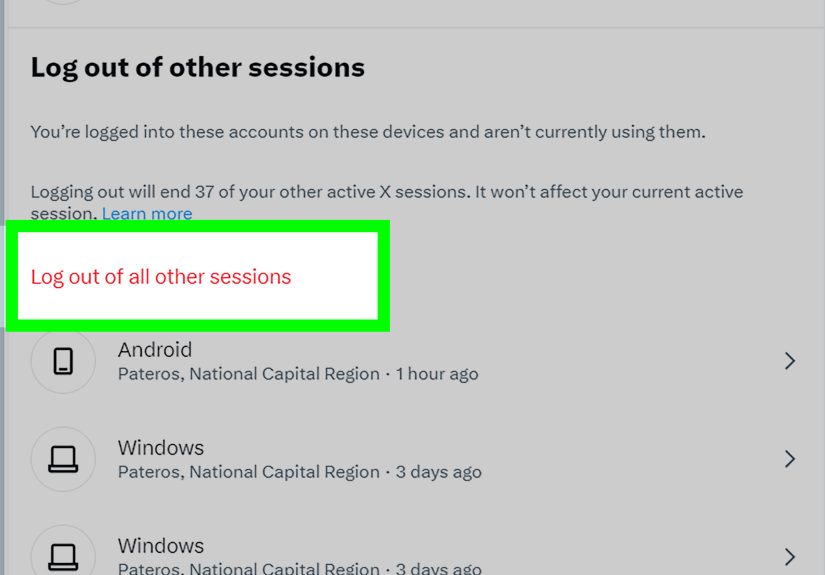
Here is the important fine print: on Twitter/X, the built-in session tool usually signs out all other sessions, not the device you are currently using to manage the account. In plain English, it clears out the phones, tablets, browsers, and mystery logins elsewhere, but it often leaves your current trusted session alone so you do not lock yourself out mid-fix.
If you want to be fully signed out everywhere, the usual move is simple: first use the session-management tool to remove all other devices, then manually log out of the device in your hand. If you are reacting to suspicious activity, go one step further and change your password right after. That gives your account a fresh lock, not just a fresh door slam.
How to Sign Out of Your Twitter on All Devices at Once: 12 Steps
-
Step 1: Open Twitter/X on a Device You Trust
Start on a phone, tablet, or computer that belongs to you and that you believe is secure. This matters more than people think. Fixing account security from a borrowed device is like changing your house locks while your neighbor holds the spare key and a sandwich. Use your own device and a stable internet connection.
-
Step 2: Sign In If You Are Not Already Logged In
Go to the official Twitter/X app or website and log in normally. If you cannot sign in because you forgot your password, use the password reset process first. In many cases, resetting your password also signs out active sessions, which can be useful if you are locked out of the session screen entirely.
-
Step 3: Open the Main Menu
On desktop, look for the left-side navigation and choose the menu option that leads to account settings. On mobile, tap your profile picture or menu icon. The exact label can vary slightly by app version, but you are looking for the path to your account controls, not the path to doom, chaos, or trending arguments.
-
Step 4: Tap or Click “Settings and Privacy”
This is the control center for your account. Inside this area, Twitter/X stores privacy settings, security options, audience controls, account data, and login management. If you are on mobile, you may see this under a broader menu such as settings and support first. That is normal.
-
Step 5: Go to “Security and Account Access”
Once inside settings, open the section for Security and account access. This is where Twitter/X groups login sessions, connected apps, password tools, and verification settings. If you only remember one menu name from this article, make it this one. It is the digital equivalent of the breaker box in your house.
-
Step 6: Select “Apps and Sessions”
Now open Apps and sessions. This page usually shows two important things: third-party apps that can access your account and the devices or browsers where you are currently signed in. If you ever connected scheduling tools, analytics services, or other add-ons, this section is worth checking carefully.
-
Step 7: Open the “Sessions” List
Choose Sessions to see where your account is active. Twitter/X may display the current device separately from other logged-in sessions. You may also see location clues, device types, browser names, or last-active information. Do not panic if one location looks slightly off; location data can be approximate. Still, if something looks wildly unfamiliar, treat it seriously.
-
Step 8: Review Every Login Like a Digital Detective
Pause for a minute before hitting the big logout button. Check whether the list includes your current phone, your laptop, an old tablet, a work computer, or that cousin’s iPad from Thanksgiving. If a session looks strange, ask yourself: Did I use a browser in another city? Did I log in through a VPN? Did I replace a phone recently? The goal is not paranoia. The goal is not letting a suspicious login blend in like it belongs there.
-
Step 9: Choose “Log Out All Other Sessions”
When you are ready, use the option to Log out all other sessions. This tells Twitter/X to end access on every device except the one you are currently using. If you prefer a surgical approach, you can also log out individual sessions one by one. But if your main goal is speed and peace of mind, the all-other-sessions option is the faster broom.
-
Step 10: Confirm the Sign-Out Request
Twitter/X will usually ask you to confirm the action. Go ahead and approve it. Once confirmed, the other devices should lose the ability to keep posting, liking, replying, or browsing as your account. Keep in mind that some already-loaded content could remain cached on a device for a short while, so this step is powerful, but not magical fairy dust.
-
Step 11: Manually Log Out of Your Current Device Too, If Needed
If your goal is truly to be signed out everywhere, including the device in your hand, this is your final logout step. After removing all other sessions, return to your account menu on the current device and choose Log out. That leaves no active Twitter/X session behind. Think of it as switching off the last light before leaving the house.
-
Step 12: Change Your Password and Turn On 2FA
This step is optional if you were just doing routine cleanup, but it is strongly recommended if anything about your session list seemed suspicious. Create a strong, unique password you do not reuse anywhere else, and enable two-factor authentication. An authenticator app or stronger verification method adds a serious layer of protection and makes account takeovers much harder.
What to Do If You Forgot to Sign Out on Someone Else’s Device
This is one of the most common reasons people search for how to sign out of Twitter on all devices. Maybe you logged in on a friend’s laptop to send one message, check one DM, or settle one debate that absolutely did not need settling. If you are no longer near that device, do not waste time sending awkward texts like, “Hey, can you maybe not read my timeline?” Just go straight to the sessions page and log out all other sessions.
Then change your password if the device was public, shared, or generally chaotic. A library computer, hotel business center, classroom desktop, or borrowed device deserves the full treatment: remote sign-out, password change, and two-factor authentication. Convenience is great, but convenience on a public machine is how future-you ends up having a very annoying Tuesday.
Common Problems and Easy Fixes
The session list looks unfamiliar
Do not assume the worst immediately. Device names and locations are not always perfectly precise. Review browsers, approximate places, and timestamps. If several details still look wrong, log out the unfamiliar sessions and change your password.
You do not see the exact same menu labels
Twitter/X updates its interface from time to time. Look for equivalent labels tied to security, account access, apps, or sessions. On some devices, menus are tucked under profile icons, support sections, or expandable settings lists.
You can log in, but something still feels off
Reset your password anyway, review connected third-party apps, and make sure your email address and phone number on the account are still yours. If someone changed recovery details, that is a bigger red flag than an unfamiliar browser session.
Extra Security Tips After a Global Sign-Out
Signing out everywhere is a strong move, but it works best as part of a bigger cleanup. Here are the habits that matter most after the logout sweep:
Use a unique password. If your Twitter/X password is the same one you used for another site years ago, retire it immediately. Reused passwords are the online version of using one key for your house, car, office, and secret snack drawer.
Enable two-factor authentication. This adds a second barrier after the password. Even if someone gets your login details, they still need the second verification step.
Review connected apps. If you no longer use a third-party service that has access to your account, revoke it. Less access means fewer opportunities for trouble.
Watch for phishing. Do not click random login alerts from messages, DMs, or sketchy emails. Go directly to the official app or site instead of trusting a link that landed in your inbox acting overly dramatic.
Update your devices. Old app versions and outdated operating systems can create security gaps. Keeping your phone, browser, and apps updated is not glamorous, but neither is getting hacked because you postponed an update for six months.
Logging Out vs. Deactivating vs. Revoking Access
These actions are related, but they are not identical. Logging out ends a session on a device. Revoking app access cuts off connected tools that may still interact with your account. Changing your password refreshes your core credentials and can force active sessions out. Deactivating your account is a much bigger step and is not necessary if your only goal is to remove devices.
In other words, if you want to stop a forgotten phone from accessing your account, do not nuke your whole profile from orbit. Start with sessions. Then strengthen the account if needed.
Real-World Experiences and Lessons Learned
One of the clearest patterns with Twitter sign-outs is that people rarely do this for fun. Nobody wakes up on a Saturday, stretches dramatically, and says, “Today feels like a great day to audit my social media sessions.” Usually, there is a trigger. It might be a replacement phone, an ex-work laptop, a public computer at school, or an alert that makes your stomach drop for half a second.
A common experience is the borrowed-device situation. Someone signs in for a minute, promises themselves they will log out before leaving, then gets distracted by a conversation, low battery, or life in general. Hours later, they remember their account is still open on somebody else’s machine. The fix is simple, but the stress is real. The session-management page becomes your best friend in that moment because it turns a panicked “please do not touch anything” situation into a quick cleanup.
Another very real scenario happens during phone upgrades. People transfer data, wipe one device, trade it in, and assume every account followed the plan. Most of the time that is fine. Sometimes it is not. Maybe the old phone sat powered on longer than expected. Maybe you forgot a tablet synced to the same account. Maybe a browser session on an old laptop survived several years and three bad wallpaper choices. Reviewing sessions after a device change is one of those tiny habits that saves a lot of future trouble.
Travel creates its own version of this problem. Airport lounges, hotel business centers, shared desktops, and borrowed chargers all have one thing in common: they make people rush. Rushing is wonderful for catching flights and terrible for account security. The smarter routine is to assume every travel login deserves a cleanup afterward. Sign out remotely, change the password if the login happened on a public machine, and move on with your life.
Then there is the “weird notification” experience. You get a login alert, or your feed behaves oddly, or a friend asks why you liked something at 3:12 a.m. that you absolutely did not like. Even when it turns out to be harmless, session review gives you clarity. You can see whether the account is active somewhere unexpected, close those sessions, and reset your password before a small worry becomes a bigger headache.
The biggest lesson from all these experiences is simple: logging out of Twitter on all devices is not just a troubleshooting trick. It is basic digital housekeeping. It helps after mistakes, after upgrades, after travel, after phishing scares, and after those little moments of uncertainty that make you wonder whether your account is as private as you thought. Done regularly, it turns account security from a dramatic emergency into a manageable routine. And that is the sweet spotless panic, fewer surprises, and a social media life that is a little more under your control.
Final Thoughts
If you need to sign out of Twitter on all devices, the fastest path is to use the Sessions tool inside Settings and privacy, remove all other sessions, and then log out of your current device if you want a full clean break. From there, a new password and two-factor authentication give you the extra protection that turns a quick fix into a smarter long-term habit.
The process is not difficult, but it is one of those tiny account-security tasks that pays off immediately. Whether you are cleaning up after a public login, a lost device, or a suspicious alert, a full Twitter/X sign-out is the digital version of checking that the doors are locked before bed. Not thrilling, perhaps. But deeply satisfying.