Table of Contents >> Show >> Hide
- Table of Contents
- What It Means to Use a TikTok Video as Wallpaper
- Before You Start: A Quick Checklist
- How to Set a TikTok Video as Wallpaper on iPhone
- How to Set a TikTok Video as Wallpaper on Android
- How to Set a TikTok Video as Wallpaper on Samsung Galaxy
- How to Use a TikTok Video as a Static Wallpaper
- Troubleshooting: Why Your TikTok Wallpaper Is Not Working
- Best TikTok Videos to Use as Wallpaper
- Real-World Experience: What Actually Works Best When Setting a TikTok Video as Your Wallpaper
- Conclusion
- SEO Tags
A regular wallpaper is nice. A TikTok video wallpaper, however, is like giving your phone a tiny personality transplant. Instead of staring at the same still image every time you unlock your screen, you can see a favorite dance clip, pet moment, travel view, aesthetic loop, motivational quote, or oddly satisfying coffee pour. Yes, your phone can become a pocket-sized cinema screenminus the sticky theater floor.
This guide explains how to set a TikTok video as your wallpaper on iPhone and Android, what to do when the option does not appear, how to fix common problems, and how to choose a video that looks good instead of turning your Lock Screen into visual soup. Whether you want a TikTok live wallpaper, a moving Lock Screen, or a simple static frame from a TikTok video, you will find a practical method below.
What It Means to Use a TikTok Video as Wallpaper
When people search for how to set a TikTok video as your wallpaper, they usually mean one of three things. First, they may want a moving wallpaper on the Lock Screen. Second, they may want a live wallpaper on the Home Screen. Third, they may simply want to save a cool frame from a TikTok and use it as a normal image wallpaper.
The process depends on your phone. On iPhone, animated wallpaper generally works through Live Photos and appears on the Lock Screen. On Android, the experience varies by brand. Some phones support video Lock Screen wallpapers directly, while others need a live wallpaper app. Samsung Galaxy phones, for example, make the process easier because many models allow users to set videos from the Gallery as Lock Screen wallpaper.
One important detail: video wallpapers usually do not include sound. That dramatic TikTok audio may have convinced you the clip was a masterpiece, but your wallpaper will usually be silent. Think of it as a mime version of your favorite TikTokstill expressive, just less noisy.
Before You Start: A Quick Checklist
Before you turn a TikTok into wallpaper, make sure the video can actually be saved. TikTok creators can control whether others are allowed to download their videos. If the Save video option does not appear, the creator may have disabled downloads, the post may be private, or the content may have restrictions.
Choose the Right Type of Video
A TikTok video wallpaper looks best when it is vertical, simple, and not too busy. A 9:16 vertical clip fills most phone screens naturally. Short loops also work better than long videos because wallpaper features often trim or repeat the clip. A calm beach wave, neon city street, cozy fireplace, slow-motion pet blink, or subtle aesthetic animation usually works better than a chaotic video with ten jump cuts and enough flashing lights to wake a hibernating raccoon.
Update Your Apps
Update TikTok, your phone operating system, and any wallpaper app you plan to use. Features can move around after app updates. One phone may show Live Photo, another may show Set as wallpaper, and another may require saving the video first. The steps below cover the most common routes.
Respect Creator Rights
Using a TikTok as your personal phone wallpaper is different from reposting it, selling it, or using it in public branding. Keep downloaded videos for private use unless you have permission from the creator. A wallpaper is personal decoration; content theft is a digital banana peel waiting for trouble.
How to Set a TikTok Video as Wallpaper on iPhone
On iPhone, the smoothest method is to turn the TikTok video into a Live Photo, then set that Live Photo as your Lock Screen wallpaper. Depending on your TikTok version and region, you may see a direct Live Photo option in the share menu. If not, you can save the video and convert it into a Live Photo using a trusted video-to-Live-Photo app.
Method 1: Use TikTok’s Live Photo Option If Available
- Open the TikTok app on your iPhone.
- Find the video you want to use as your wallpaper.
- Tap the Share button.
- Look for Live Photo. You may need to swipe through the share options.
- Tap Live Photo and wait for the video to save to your Photos app.
- Open Settings on your iPhone.
- Tap Wallpaper, then Add New Wallpaper.
- Choose Photos and select the Live Photo you saved.
- Make sure motion is enabled, then tap Add.
- Set it as your Lock Screen or wallpaper pair.
If the Live Photo button is missing, do not panic. Your phone is not judging your taste in TikToks. It simply means the feature may not be available for that video, that version of TikTok, or your current app settings.
Method 2: Save the Video and Convert It to a Live Photo
- Open TikTok and find the video.
- Tap Share, then tap Save video if available.
- Open a trusted video-to-Live-Photo app from the App Store.
- Import the saved TikTok video.
- Trim the clip to the best short section.
- Export it as a Live Photo.
- Go to Settings > Wallpaper > Add New Wallpaper > Photos.
- Select the Live Photo and set it as your Lock Screen wallpaper.
Important iPhone Notes
Live wallpapers on iPhone are mainly a Lock Screen feature. Your Home Screen may show a still version instead of a moving video. Also, not every Live Photo will animate perfectly. If your selected wallpaper shows a motion-off icon or refuses to move, try another Live Photo, update iOS, disable Low Power Mode, or create a shorter Live Photo.
How to Set a TikTok Video as Wallpaper on Android
Android gives you more flexibility, but that flexibility comes with a tiny sprinkle of confusion. Some Android phones support video wallpapers natively. Others need a live wallpaper app. TikTok has also offered a separate live wallpaper tool on Android that can convert TikTok videos into animated wallpapers.
Method 1: Use the TikTok Live Wallpaper Tool
- Install the TikTok live wallpaper add-on if your device prompts you to do so.
- Open TikTok and find the video you want.
- Tap the Share button.
- Look for Set as wallpaper, Live Photo, or a similar wallpaper option.
- Follow the on-screen instructions to preview the wallpaper.
- Choose whether to apply it to the Home Screen, Lock Screen, or both, depending on your phone.
If you do not see the wallpaper option, save the video first and use your phone’s built-in wallpaper settings or a trusted video wallpaper app. Android menus can differ widely between Pixel, Samsung, Motorola, OnePlus, and other devices.
Method 2: Use a Video Wallpaper App
- Download the TikTok video if the creator allows saving.
- Install a reputable video wallpaper app from Google Play.
- Open the wallpaper app and select the saved TikTok video.
- Trim the video if the app allows editing.
- Preview the result.
- Tap Apply or Set wallpaper.
When choosing a third-party wallpaper app, check reviews, permissions, update history, and privacy practices. A wallpaper app does not need access to your entire digital life, your favorite cereal, or your deepest group chat secrets.
How to Set a TikTok Video as Wallpaper on Samsung Galaxy
Samsung Galaxy phones often make video Lock Screen wallpapers easier than other Android devices. After saving a TikTok video to your Gallery, you can usually set it as a Lock Screen video wallpaper directly.
Samsung Galaxy Steps
- Open TikTok and find the video you want.
- Tap Share, then choose Save video.
- Open the Gallery app.
- Select the saved TikTok video.
- Tap the More menu, usually shown as three dots.
- Choose Set as wallpaper.
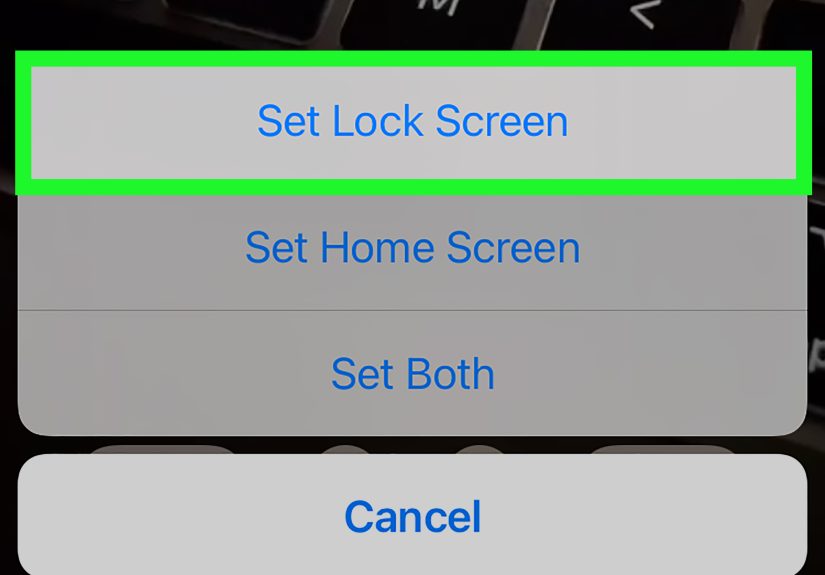
- Select Lock screen.
- Trim the video if your phone asks you to shorten it.
- Preview the result and tap Done.
Samsung may limit the length or size of a video wallpaper. If your TikTok is too long, trim it down to a short, clean moment. A five-second perfect loop usually beats a thirty-second masterpiece that your Lock Screen refuses to accept.
How to Use a TikTok Video as a Static Wallpaper
Sometimes a moving wallpaper is not worth the battery drain, app setup, or troubleshooting. In that case, you can use a single frame from the TikTok video as a normal wallpaper. This is also a great option if you like the look of a clip but do not need it to move.
Option 1: Take a Screenshot
- Open the TikTok video.
- Pause at the exact frame you like.
- Tap the screen once to hide buttons if possible.
- Take a screenshot.
- Crop the image in your Photos or Gallery app.
- Set it as your Lock Screen or Home Screen wallpaper.
Option 2: Export a Frame From the Video
Some gallery and video-editing apps allow you to export a still frame from a video. This usually gives a cleaner result than a screenshot because it avoids TikTok interface buttons. After exporting the frame, crop it vertically and set it as your wallpaper.
Troubleshooting: Why Your TikTok Wallpaper Is Not Working
The Save Video Button Is Missing
The creator may have turned off downloads, the video may be private, or TikTok may restrict saving for that post. Try another video, use your own TikTok content, or ask the creator for permission if you need the clip.
The Wallpaper Does Not Move
On iPhone, make sure you are using a Live Photo and setting it as the Lock Screen wallpaper. Check that motion is enabled. On Android, confirm that your phone supports live wallpapers or that your video wallpaper app is active.
The Video Looks Blurry
Blurry TikTok wallpaper usually happens when the original video is low resolution, heavily compressed, cropped too much, or downloaded from a repost. Choose vertical videos with clear subjects and good lighting. Avoid zooming too far when setting the wallpaper.
The Video Is Too Long
Trim it. Wallpaper tools often prefer short clips. A simple three-to-ten-second loop is usually better than a long video. If the best part happens in the middle, cut away the intro and ending.
The Wallpaper Drains Battery
Animated wallpapers can use more battery than still images, especially if they run frequently or include complex motion. If your battery starts disappearing like snacks at a movie night, switch to a shorter loop, use it only on the Lock Screen, or choose a static frame.
The Audio Does Not Play
That is normal. Most phone wallpapers are visual only. Your Lock Screen is not designed to blast TikTok audio every time you check the time, which is probably good news for everyone standing near you in an elevator.
Best TikTok Videos to Use as Wallpaper
The best TikTok video wallpaper is not always the funniest or loudest video. It is the one that still looks good after being cropped, muted, repeated, and partly covered by the clock, widgets, notifications, and app icons.
Good TikTok Wallpaper Ideas
- Ocean waves, rainfall, clouds, sunsets, and city lights
- Minimal animation loops with soft movement
- Pet videos with a calm or funny repeating moment
- Workout motivation clips with clean text
- Travel clips with strong vertical composition
- Anime-style edits or fan art, used only for personal wallpaper
- Food and coffee clips with satisfying movement
Videos to Avoid
- Fast flashing edits that strain your eyes
- Text-heavy videos blocked by the phone clock
- Horizontal videos that crop awkwardly
- Low-quality reposts with multiple watermarks
- Videos where the best part depends entirely on sound
A good rule: if the video still looks interesting on mute and under a clock, it can probably work as wallpaper.
Real-World Experience: What Actually Works Best When Setting a TikTok Video as Your Wallpaper
After testing the idea in real-life phone use, one thing becomes clear very quickly: the coolest TikTok video is not always the best wallpaper. A video can be hilarious inside TikTok and completely unusable on a Lock Screen. Why? Because TikTok gives you sound, captions, comments, timing, and context. Your wallpaper gives you silence, a clock, notifications, and maybe three seconds of motion before you unlock your phone.
The most successful TikTok wallpapers tend to be simple. A slow beach wave looks elegant. A cat blinking at the camera looks adorable. A neon street scene feels stylish. A person doing seventeen dance transitions while text flies across the screen looks like your phone is trying to pass an eye exam. When choosing a video, focus less on the full TikTok experience and more on the visual loop. Ask yourself: would this still look good if I saw it for only two seconds?
Another lesson is that trimming matters more than people expect. Many TikTok videos begin with a setup, a pause, or a creator adjusting the camera. That may be fine while watching the video, but it feels awkward as wallpaper. The best approach is to trim directly to the motion you want. For example, if you are using a coffee-pour video, start at the moment the milk hits the espresso. If you are using a travel clip, start where the camera movement is already smooth. If you are using a pet video, choose the blink, head tilt, or tiny paw movement that loops naturally.
Brightness is another sneaky factor. A beautiful white-background TikTok may look clean in the app, but as a Lock Screen it can make the clock hard to read. Darker clips, soft gradients, sunset tones, night streets, and nature scenes often work better because the time and notifications remain visible. If your phone lets you add a blur, filter, or dim effect, use it. Your future self, checking notifications at 6:30 a.m. with one eye open, will be grateful.
Battery life is also worth watching. A short animated Lock Screen is usually fine for many users, but a busy live wallpaper on the Home Screen can feel unnecessary after the novelty fades. The first day, it is exciting. By day three, you may realize you mostly unlock your phone too fast to admire it. That is why a Lock Screen-only setup is often the sweet spot: you get the fun without turning your Home Screen into a mini music video set.
Finally, the best TikTok video wallpaper is personal. It might be a clip from your own account, a saved vacation memory, a favorite creator’s aesthetic loop, or a motivational quote that gives you a tiny push before opening your apps. The goal is not to impress every person who sees your phone. The goal is to make your screen feel more like yours. A wallpaper is a small detail, but small details are what make a device feel less like a rectangle of obligations and more like a tiny digital home.
Conclusion
Learning how to set a TikTok video as your wallpaper is mostly about choosing the right method for your phone. On iPhone, you will usually need a Live Photo and then set it through Wallpaper settings. On Android, you can use TikTok’s live wallpaper option, a trusted video wallpaper app, or your phone’s built-in wallpaper tools. Samsung Galaxy users often have the easiest path because saved videos can commonly be applied directly to the Lock Screen from the Gallery.
The secret is to keep things short, vertical, clean, and readable. A TikTok wallpaper should look good without sound, survive cropping, and not fight with your clock or notifications. Choose the right clip, trim it carefully, and your phone can go from “default rectangle” to “tiny personal theater” in just a few minutes.
Note: App features, button names, and wallpaper options may vary by TikTok version, phone model, operating system, and regional availability. If one method does not appear on your device, use the alternative method for your platform.