Table of Contents >> Show >> Hide
- What Are Archived Messages on Facebook Messenger?
- Archived vs. Deleted Messenger Messages
- How to See Your Archived Messages on Facebook Messenger: 10 Steps
- Step 1: Open the Messenger App
- Step 2: Tap the Menu Icon
- Step 3: Select “Archive” or “Archived Chats”
- Step 4: Search for a Specific Conversation
- Step 5: Tap the Conversation to View It
- Step 6: Unarchive the Chat If You Want It Back in Your Inbox
- Step 7: Check Messenger on the Web
- Step 8: Search Your Main Chats List
- Step 9: Check Message Requests
- Step 10: Request a Copy of Your Messenger Data
- How to View Archived Messenger Messages on iPhone
- How to View Archived Messenger Messages on Android
- How to See Archived Messages on Facebook Desktop
- Why Can’t I Find My Archived Messenger Messages?
- How to Keep Messenger Chats Organized Without Losing Them
- Common Mistakes When Looking for Archived Messenger Chats
- Practical Example: Finding an Archived Marketplace Chat
- Practical Example: Finding an Old Friend’s Conversation
- Experience-Based Tips for Managing Archived Messenger Messages
- Conclusion
Archived Messenger chats are like the socks that vanish in the laundry: they are not necessarily gone, but they are definitely not where you expected them to be. If you opened Facebook Messenger and suddenly could not find an old conversation, there is a good chance it was archived rather than deleted. The good news? Archived messages on Facebook Messenger can usually be found again in just a few taps.
This guide explains how to see your archived messages on Facebook Messenger in 10 clear steps, whether you are using an iPhone, Android phone, Facebook in a browser, or Messenger on the web. You will also learn the difference between archived, deleted, hidden, and requested messages, plus what to do when the conversation still refuses to appear. Because yes, Messenger sometimes acts like it is hiding treasure in a digital attic.
What Are Archived Messages on Facebook Messenger?
Archived messages are conversations you have removed from your main Chats list without deleting them. Think of archiving as putting a chat in a drawer instead of throwing it into the trash. The conversation is still connected to your Messenger account, but it no longer appears in your regular inbox unless you look in the Archive section or the person messages you again.
Archiving is useful when you want to clean up your inbox without losing important details. Maybe you archived an old Marketplace chat, a group conversation that became too noisy, or a message thread you did not need every day. Whatever the reason, the archive feature helps keep your main Messenger screen tidy while preserving the conversation history.
Archived vs. Deleted Messenger Messages
Before you start searching, it is important to understand one crucial difference: archived messages are hidden, while deleted messages are removed from your view. If you archived a chat, you should be able to find it again. If you deleted it, recovery is much less likely.
Many users panic and say, “Messenger deleted my messages!” when the chat is actually archived. That is why checking the Archived Chats section should be your first move. It is faster, safer, and less dramatic than assuming your conversation has gone to the great Wi-Fi cloud in the sky.
How to See Your Archived Messages on Facebook Messenger: 10 Steps
Step 1: Open the Messenger App
Start by opening the Messenger app on your iPhone or Android device. Make sure you are logged into the correct Facebook or Messenger account. This sounds obvious, but many people have more than one account, especially if they manage business pages, old profiles, or family devices.
If you are using a shared phone or tablet, double-check the profile picture, name, or account details before searching. An archived chat will only appear in the account where it was originally archived.
Step 2: Tap the Menu Icon
On the Messenger home screen, look for the menu icon. In many versions of the app, it appears as three horizontal lines near the top-left corner. Tap it to open Messenger’s main navigation menu.
Messenger updates its design from time to time, so the exact placement may vary slightly. If you do not see the menu icon right away, look around the top area of the app or check for your profile image. The Archive option usually lives inside this expanded menu area.
Step 3: Select “Archive” or “Archived Chats”
Once the menu opens, tap Archive or Archived Chats. This is where Messenger stores conversations that have been removed from your main chat list but not deleted.
You should now see a list of archived conversations. If the person or group you are looking for appears here, congratulations: your missing chat was simply taking a quiet vacation from your inbox.
Step 4: Search for a Specific Conversation
If your archive list is long, use the search bar to find the person, business, page, or group chat. Type the contact’s name, page name, or a keyword you remember from the conversation.
For example, if you are looking for an old Facebook Marketplace conversation about a used desk, try searching the seller’s name or the word “desk.” If you are searching for a family conversation, try a relative’s name or the group chat title. Search is often faster than scrolling through months or years of old messages.
Step 5: Tap the Conversation to View It
When you find the archived chat, tap it to open the full conversation. You should be able to read the messages, view shared photos if they are still available, and look through the conversation history.
Opening an archived conversation may not automatically move it back to your main inbox. In many cases, it stays archived until you send a new message or manually unarchive it. So if you only want to read old messages, you can open the chat, review what you need, and leave it archived.
Step 6: Unarchive the Chat If You Want It Back in Your Inbox
If you want the conversation to return to your main Messenger Chats list, you can unarchive it. On mobile, go to the Archive section, press and hold the chat, and choose Unarchive if that option appears. In some versions of Messenger, sending a new message to the person also brings the conversation back to your inbox.
Use this only when you actually want the chat visible again. If your goal is a clean inbox, you may prefer to leave the conversation archived after reading it.
Step 7: Check Messenger on the Web
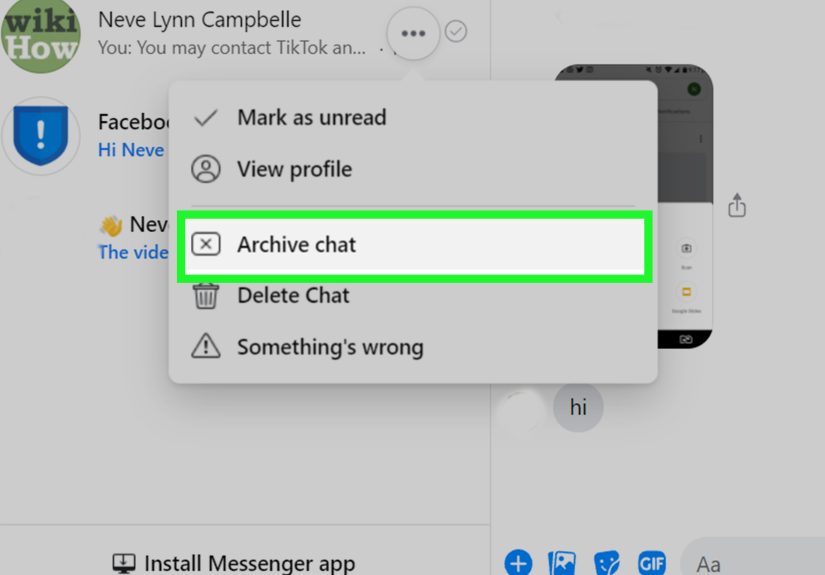
If you cannot find the chat on your phone, try checking Messenger in a web browser. Open Messenger.com or Facebook.com on your computer, sign in, and look for chat settings or archived conversations. The web layout may show options differently from the mobile app.
As of recent Messenger changes, the old standalone Messenger apps for Windows and Mac have been phased out, so using Messenger through a browser is the better desktop option for many people. If you previously relied on the desktop app, switch to Messenger.com or Facebook.com for the most reliable access.
Step 8: Search Your Main Chats List
Sometimes a conversation is not archived at all; it is simply buried under newer messages. Return to your main Chats tab and use the Messenger search bar. Type the person’s name or a phrase from the conversation.
This is especially helpful if the other person messaged you after the chat was archived. A new message may bring the conversation back to your main inbox, making it appear as though it “moved” again. Messenger is helpful like that, but also a little sneaky.
Step 9: Check Message Requests
If the chat is from someone who is not your Facebook friend, it may be in Message Requests instead of Archived Chats. Open the Messenger menu and look for Message Requests. This section stores messages from people Messenger thinks you may not know.
Message Requests are different from archived chats. An archived chat is a conversation you intentionally or accidentally removed from your inbox. A message request is usually a conversation Messenger filtered before it became a normal chat. If you are looking for a message from a stranger, business lead, buyer, seller, or long-lost classmate who suddenly wants to discuss “an exciting opportunity,” check Message Requests.
Step 10: Request a Copy of Your Messenger Data
If you still cannot find the conversation, consider requesting a copy of your Messenger information from Meta’s data export tools. This can help you review available message history connected to your account. It is not a magic wand for every deleted message, but it is worth checking if the conversation was important.
To do this, go to your Facebook or Messenger account settings, look for options related to your information, and request an export of your messages. Choose the date range and file format carefully. Once the file is ready, download it and search through the message data. This process can take time, but it may help you locate older conversations or confirm whether a chat is still available in your account data.
How to View Archived Messenger Messages on iPhone
On iPhone, open Messenger, tap the menu icon, and choose Archive. Scroll through the archived list or use search to find the conversation. Tap the chat to read it. To bring it back to your inbox, press and hold the chat and choose Unarchive, or send a new message if Messenger offers that behavior in your version of the app.
If the Archive option does not appear, update the Messenger app from the App Store. Interface changes often arrive through app updates, and an outdated version may display older menus or missing features.
How to View Archived Messenger Messages on Android
On Android, open the Messenger app, tap the menu icon, and select Archive. From there, you can open any archived conversation. You can also search by name if the list is too long.
Some Android devices show slightly different menu wording depending on app version, screen size, and regional settings. If you do not see “Archive,” look for “Archived Chats” or check under your profile/settings area.
How to See Archived Messages on Facebook Desktop
On a computer, use Messenger.com or Facebook.com in a browser. Sign in, open Messenger, and look for chat settings or archived conversations. If you are using Facebook.com, you may need to open the Messenger panel and choose an option such as “See all in Messenger” before accessing the full chat view.
Desktop menus change more often than people change their passwords, which is to say: not always wisely, but often enough to be annoying. If you cannot find the archive option immediately, use Messenger search to look for the person’s name. Archived conversations may still appear in search results.
Why Can’t I Find My Archived Messenger Messages?
You May Be in the Wrong Account
If you have multiple Facebook profiles, business access, or old accounts, you may be searching from the wrong login. Sign out and check whether another account contains the missing chat.
The Chat May Have Been Deleted
If you deleted the conversation instead of archiving it, it may no longer appear in Archived Chats. Messenger generally treats deleting and archiving differently, so always check Archive first before assuming the message is gone.
The Chat May Be in Message Requests
Messages from people outside your network can land in Message Requests. If the conversation began with someone you were not connected to, check that area next.
End-to-End Encrypted Chat History May Need Secure Storage
Messenger has been moving personal chats toward end-to-end encryption. On some accounts and devices, older encrypted chat history may depend on secure storage, a PIN, or another recovery method. If you switched phones or browsers and cannot see old encrypted messages, check Messenger’s privacy and safety settings for message storage or secure storage options.
The App May Need an Update
An outdated app can cause missing menus, loading errors, and general “why is technology like this?” moments. Update Messenger, restart your device, and try again.
How to Keep Messenger Chats Organized Without Losing Them
Use Archive for conversations you may need later. Use Delete only when you are comfortable losing access to that chat from your account. For important conversations, consider saving key details outside Messenger, such as order numbers, addresses, appointment times, or business agreements.
For example, if you bought furniture through Facebook Marketplace, do not rely only on the chat for pickup instructions. Save the address in your notes or calendar. If you discussed freelance work through Messenger, move the important details to email, a contract, or a project management tool. Messenger is convenient, but it should not be your only filing cabinet for important life admin.
Common Mistakes When Looking for Archived Messenger Chats
Mistake 1: Searching Only the Main Inbox
The main Chats list does not show everything. If a conversation was archived, you need to open the Archive section or search for it directly.
Mistake 2: Confusing Archive With Delete
Archiving hides a conversation. Deleting removes it from your view. This difference matters when you are trying to recover old messages.
Mistake 3: Forgetting About Message Requests
If the sender was not connected to you, the message may never have reached your main inbox. Message Requests should always be part of your search.
Mistake 4: Ignoring Secure Storage
If encrypted messages are missing after switching devices, review Messenger’s secure storage settings. A PIN or recovery method may be needed to restore chat history.
Mistake 5: Trusting “Message Recovery” Apps
Be careful with third-party tools that promise to recover Messenger messages. Many ask for account access, personal data, or suspicious downloads. Use Meta’s official tools first. Your private conversations do not need to become someone else’s “free trial.”
Practical Example: Finding an Archived Marketplace Chat
Imagine you bought a used bicycle through Facebook Marketplace and archived the chat after pickup. Two weeks later, you need the seller’s address because you left your helmet behind. Open Messenger, tap Menu, choose Archive, and search the seller’s name or the word “bike.” If the conversation appears, tap it and review the details. If you want to continue chatting with the seller, send a message or unarchive the conversation.
If it does not appear in Archive, search your main Chats list. If it still does not appear, check Message Requests. Marketplace conversations can sometimes behave differently depending on whether they came through a personal profile, listing, or page.
Practical Example: Finding an Old Friend’s Conversation
Suppose you archived a conversation with an old college friend because you were cleaning your inbox. Months later, you want to find the restaurant recommendation they sent. Open Archive, search their name, and tap the chat. Once inside, use Messenger’s in-conversation search if available and look for words like “restaurant,” “dinner,” or the city name.
This is one of the best uses of archived messages. You can keep your inbox clean without sacrificing useful details from past conversations.
Experience-Based Tips for Managing Archived Messenger Messages
After helping many users troubleshoot missing Messenger chats, one pattern appears again and again: most “lost” messages are not lost at all. They are usually archived, filtered into Message Requests, hidden under a different account, or affected by a device change. The trick is to search calmly and in the right order. Panic-clicking through every menu rarely helps, although it does provide a mild finger workout.
The best approach is to start with the simplest explanation. First, check Archived Chats. If the conversation is there, open it and decide whether to keep it archived or bring it back. Next, search your main inbox. Then check Message Requests. After that, consider whether you are using the correct account. Only when those steps fail should you move into heavier options, such as requesting your Messenger data or reviewing secure storage settings.
One helpful habit is to archive chats by purpose. For example, archive old shopping conversations, completed work discussions, inactive group chats, and one-time event messages. Keep active family, work, and close-friend conversations in your main inbox. This turns Messenger into something closer to an organized desk and less like a junk drawer with Wi-Fi.
Another practical tip is to avoid deleting chats when you are emotional, tired, or trying to “clean everything” in a burst of digital motivation. Archiving gives you a second chance. Deleting may not. If a conversation contains addresses, payment details, sentimental messages, photos, or business information, archive it first. You can always delete later after saving anything important.
For people who change phones often, secure storage matters. Messenger’s encrypted chats may not always behave like older cloud-synced messages. If your chat history is important, review your privacy and safety settings before switching devices. Set up the recommended recovery method, such as a PIN or supported account-based recovery option, so your messages have a better chance of following you to the new device.
Finally, remember that Messenger is a communication app, not a permanent records vault. It is excellent for quick conversations, photos, links, and casual planning. But for truly important information, copy the details somewhere safer. Save addresses in your contacts, appointments in your calendar, receipts in your email, and agreements in a document. Your future self will thank you, probably while sipping coffee and feeling unusually responsible.
Conclusion
Learning how to see your archived messages on Facebook Messenger is simple once you know where to look. Open Messenger, go to the menu, select Archive, search for the conversation, and tap it to view the messages. If the chat is not there, check your main inbox, Message Requests, account login, secure storage settings, and Messenger data export options.
The key lesson is this: archived does not mean deleted. It usually means the conversation is tucked away, waiting patiently for you to remember it exists. Use Archive when you want a cleaner inbox, use Delete carefully, and keep important information backed up somewhere more reliable than your memory and a tiny blue chat bubble.
Note: Messenger menus may vary slightly by app version, device, region, and account settings. If you do not see the same labels described here, update the app and check Messenger’s current settings menu.