Table of Contents >> Show >> Hide
- What the Samsung Bixby Button Really Is Today
- Which Samsung Phones Can Be Reprogrammed?
- How to Reprogram an Older Samsung Phone with a Dedicated Bixby Button
- How to Reprogram the Samsung Side Key on Newer Galaxy Phones
- Best Uses for a Remapped Samsung Bixby Button
- Can You Reprogram the Bixby Button to Open Google Assistant?
- What You Still Cannot Always Do
- Troubleshooting: Why the Remap Is Not Working
- Experiences Related to Reprogramming the Samsung Bixby Button
- Final Thoughts
Note: Menu names vary a little by Galaxy model and One UI version. Older phones usually say Bixby key, while newer phones usually say Side key or Side button.
If you have ever squeezed your Samsung phone, brushed the side by accident, and suddenly launched Bixby when you were only trying to adjust the volume, welcome to one of modern smartphone life’s least glamorous clubs. The good news is that Samsung eventually stopped acting like the Bixby button was sacred treasure guarded by dragons. On many Galaxy phones, you can now reprogram it, tame it, or at least shove Bixby into the digital back seat.
This guide explains how to reprogram the Samsung Bixby button on both older Galaxy devices with a dedicated Bixby key and newer models where Bixby lives inside the Side key. We will also cover what you can actually change, what Samsung still keeps on a leash, the best app ideas for remapping, and what to do if your phone refuses to cooperate like a stubborn little toaster with opinions.
What the Samsung Bixby Button Really Is Today
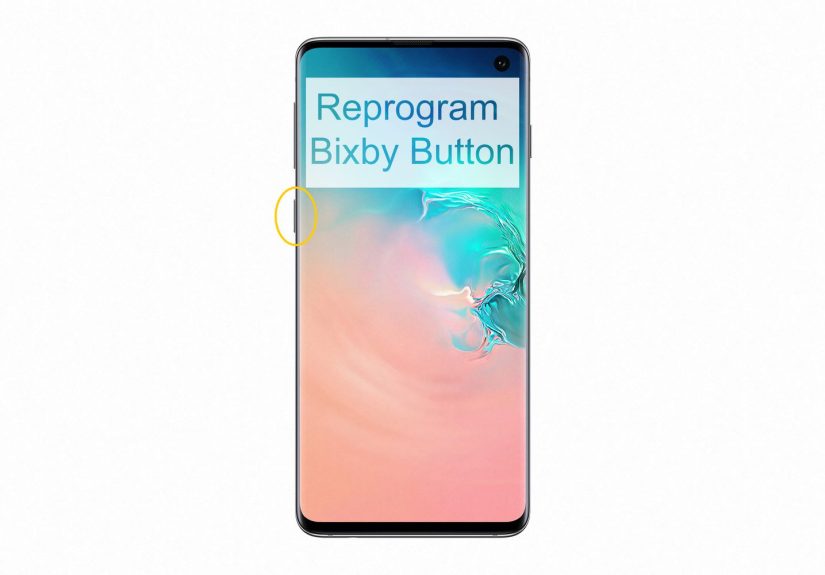
The phrase “Bixby button” can mean two different things depending on your phone. On older Samsung devices such as parts of the Galaxy S8, S9, Note 8, Note 9, and S10 era, there was a dedicated hardware Bixby key. It existed for one job: launching Bixby, whether you asked for that or not. On newer Galaxy phones, Samsung merged the power and assistant behavior into the Side key, which can often be customized to launch Bixby, show the power menu, or open an app.
That distinction matters because the remapping options are different. Older phones tend to offer settings tied to single press and double press behavior inside the Bixby key menu. Newer phones usually focus on long press and double press inside the Side key menu. Same basic idea, different Samsung flavor.
Which Samsung Phones Can Be Reprogrammed?
In practical terms, most supported Galaxy phones give you some kind of button customization now, but the depth of that customization depends on the model, software version, and whether you are working with a dedicated Bixby key or a newer Side key. If your phone has a separate Bixby key, you can usually assign one press mode to Bixby and the other to an app or a Bixby quick command. If your phone uses a Side key, you can often choose what happens on a long press and enable a double-press shortcut for another app.
Here is the simplest rule of thumb: if your menu includes Settings > Advanced features > Bixby key or Settings > Advanced features > Side key, you are in business. If you cannot find either path, your phone may use a different One UI layout, may need a software update, or may not support the same remapping options described on newer devices.
How to Reprogram an Older Samsung Phone with a Dedicated Bixby Button
If your device has a dedicated Bixby button, this is usually the cleanest official route. No hacks. No weird APK adventures. No downloading something named “Ultra Remap Pro 9000” from a website that looks like it was built in a basement during a thunderstorm.
Option 1: Make the Bixby Button Open Another App
- Open Settings.
- Tap Advanced features.
- Tap Bixby key.
- Choose either Single press to open Bixby or Double press to open Bixby.
- Use the other press action to select Open app.
- Pick the app you want, such as Camera, Spotify, Google Maps, Messages, or your favorite notes app.
This setup is popular because it keeps Bixby technically available while making accidental launches much less likely. A lot of users set Bixby to double press and use single press for something genuinely useful, like the camera. That turns the button from “Oops, Samsung assistant again” into “Great, I got the photo.” That is what we call character development.
Option 2: Make the Button Run a Quick Command
Samsung also lets some supported Bixby-key devices run a quick command instead of opening an app. A quick command is basically a shortcut bundle for Bixby actions. For example, you might create one that turns on Do Not Disturb, lowers brightness, and starts a playlist for bedtime. Or one that opens navigation and texts someone that you are on the way. Very adult. Very efficient. Very “I have finally become the person who labels charging cables.”
To do that, go back to Settings > Advanced features > Bixby key, choose the press action you want to customize, and select Run quick command instead of Open app. Then choose an existing command or create a custom one.
How to Reprogram the Samsung Side Key on Newer Galaxy Phones
On newer Galaxy phones, the dedicated Bixby button disappeared, but Bixby did not exactly pack its bags and leave town. Instead, Samsung moved assistant behavior into the Side key, which is also tied to power controls. The good news is that remapping this button is usually straightforward.
- Open Settings.
- Tap Advanced features.
- Tap Side key or Side button.
- Under Press and hold, choose whether you want the button to open Bixby or show the Power off menu.
- Under Double press, enable the option if available.
- Select whether double press launches the camera, opens an app, or performs another supported shortcut.
This is the version most people want. Why? Because it restores some sanity. Holding the side button to power off your phone feels normal. It feels civilized. It feels like the universe has been corrected by a tiny but meaningful amount.
If your goal is to reduce Bixby interruptions, the best move on many Side key phones is to set Press and hold to Power off menu and then assign Double press to a genuinely helpful app. Camera is a classic choice. Wallet, flashlight, voice recorder, and maps are also strong contenders depending on your daily routine.
Best Uses for a Remapped Samsung Bixby Button
Not every shortcut deserves prime real estate on a hardware button. The best reprogrammed Bixby button setups solve a problem you face often. Good remapping is about reducing friction, not showing off that you once spent twenty-five minutes optimizing a key press for “emergency grocery list mode.”
1. Camera
This is arguably the best choice for most people. A hardware button that gets you to the camera quickly is useful every day, and speed matters when your dog is doing something hilarious for exactly 1.7 seconds.
2. Google Maps
If you drive often, mapping the button to navigation makes a lot of sense. One press and you are moving instead of digging through folders and muttering at your home screen.
3. Music or Podcast App
Spotify, YouTube Music, or your podcast app can be perfect if you constantly jump into audio during commutes, workouts, or study sessions.
4. Voice Recorder
Great for meetings, classes, quick reminders, or sudden bursts of genius that would otherwise evaporate thirty seconds later.
5. Flashlight or Utility Shortcut
For some users, the best remap is not glamorous. It is just practical. Flashlight, calculator, notes, or calendar can turn the button into an everyday productivity trigger.
Can You Reprogram the Bixby Button to Open Google Assistant?
Sometimes yes, sometimes not neatly, and sometimes only with a workaround. Samsung’s official button customization typically lets you open apps or Bixby quick commands. But voice assistants do not always behave like ordinary apps in the launcher list, which means Google Assistant or another assistant may not appear the way you hope.
Historically, some users turned to third-party remapping tools to launch another assistant. Those tools have existed for years, but they can be hit-or-miss because Samsung software updates, Android permission changes, and security restrictions love to rearrange the furniture. If you try a third-party remapper, stick to reputable Play Store options when possible, read the permission requests carefully, and expect that future software updates may affect reliability.
In other words, yes, it can be done on some devices and setups, but this is where the “easy official fix” sometimes turns into “weekend hobby for people who enjoy troubleshooting.”
What You Still Cannot Always Do
Even though Samsung became more flexible over time, there are still limits. On many devices, you cannot completely erase Bixby from existence with one magical toggle. You can reduce how often it appears, change what a press does, and sometimes remove Bixby account data, but Samsung still treats the assistant as a built-in part of the system.
Also, not every model gives you identical freedom. One phone may let you assign an app to a press pattern, while another may limit you to certain side-key actions. Some older guides on the web suggest tricks that worked years ago but no longer behave the same on modern software. That is why checking your exact menu path first is smarter than trusting a dusty tutorial that still thinks the Galaxy S8 just launched yesterday.
Troubleshooting: Why the Remap Is Not Working
If the button is not responding the way you expect, a few common issues are usually to blame.
Your phone is using a different menu name
Look for Bixby key, Side key, or Side button. Samsung enjoys naming consistency the way cats enjoy bath time.
Bixby is not set up yet
Some options may not appear until Bixby has been activated at least once and tied to your Samsung account.
Your software is out of date
Remapping support expanded over time, especially after earlier Galaxy devices received later Android and One UI updates. If you are using an older phone, check for system updates and Galaxy Store app updates.
A third-party remapper stopped working
This is common after software updates. Recheck permissions such as accessibility access, foreground app access, battery optimization settings, and app defaults. If the app still acts flaky, the update may have broken the method.
You expected complete freedom but got partial freedom
That is not a bug. That is Samsung being Samsung. Sometimes the official tools give you useful customization without handing over total control.
Experiences Related to Reprogramming the Samsung Bixby Button
Real-world experience with the Samsung Bixby button tends to follow a familiar emotional arc. First comes annoyance. Then curiosity. Then a surprising amount of satisfaction once the button finally does something useful. A lot of users start out not because they hate Bixby with theatrical passion, but because they keep launching it by accident. The button sits in a place that feels just close enough to the volume controls to create accidental presses, especially on older Galaxy phones. After the third or fourth surprise Bixby pop-up in a week, most people reach the same conclusion: this button needs a new job.
One common experience is the “camera conversion.” Users who remap the button to open the camera often say it is the first time the key feels genuinely helpful. Instead of being the button they avoid, it becomes the button they trust. Parents like it because they can grab fast photos. Travelers like it because a landmark appears, a street performer does something wild, or a sunset finally looks dramatic enough to justify a picture. The value is not just convenience. It is speed. When a hardware shortcut works, it feels better than hunting through icons.
Another frequent experience is the “commute upgrade.” People who assign the button to maps, music, or podcasts often say the phone starts feeling more personal. The hardware begins reflecting habits rather than Samsung’s priorities. One press to resume navigation or launch a playlist sounds small, but it reduces those tiny daily irritations that stack up over time. It is the difference between a phone that feels borrowed and a phone that feels configured for your actual life.
There is also a learning-curve experience. Some users expect full remapping freedom right away and get confused when the settings only allow certain combinations. That leads to a short phase of disappointment, followed by practical compromise. Maybe the button cannot directly launch the exact assistant they wanted, but it can open the app they use most, or at least move Bixby to a less annoying double press. In many cases, that partial win still feels meaningful.
People who try third-party remapping tools usually report a more mixed adventure. When those tools work, they can feel brilliant. When they break after an update, they feel like a handshake deal with chaos. That is why the most positive long-term experiences usually come from using Samsung’s own settings first, then treating advanced remappers as optional extras rather than permanent guarantees.
Perhaps the biggest experience users report is psychological: once the button is reprogrammed, they stop thinking about it. And oddly enough, that is the highest compliment. Good hardware shortcuts disappear into daily life. They become natural. The Samsung Bixby button starts as a tiny source of friction, but once remapped well, it becomes one of those quality-of-life features you miss the instant you switch to a phone without it.
Final Thoughts
If you want to reprogram the Samsung Bixby button, the process is much easier today than it was during the early days of Samsung’s “you will love Bixby and you will say thank you” era. Older Galaxy phones with a dedicated Bixby key usually let you choose between single-press and double-press behavior, then assign the unused press pattern to an app or quick command. Newer Galaxy devices move that control into the Side key settings, where you can often restore the power menu to a long press and assign double press to something more useful.
The smartest approach is simple: use Samsung’s official settings first, choose a shortcut you genuinely use every day, and only consider third-party remappers if you need something more advanced and are willing to accept a little maintenance drama. Reprogram the button well, and it stops being a weird Samsung quirk and starts acting like a shortcut you actually wanted all along.