Table of Contents >> Show >> Hide
- Quick Answer: The 2 Easy Ways to Make a Google Doc Public
- Before You Make a Google Doc Public: What “Public” Really Means
- Method 1: Make a Google Doc Public with “Anyone with the Link”
- Method 2: Make a Google Doc Public with “Publish to Web”
- Which Method Should You Choose?
- Privacy and Safety Tips Before Making a Google Doc Public
- How to Make a Google Doc Public but Not Editable
- How to Make a Google Doc Public for Comments
- Troubleshooting: Why Can’t People Open My Public Google Doc?
- Real-World Experience: What I’ve Learned from Making Google Docs Public
- Conclusion
- SEO Tags
Need to share a Google Doc with a class, client, team, audience, or the entire internet without sending 47 “Can you request access?” apology emails? Good news: making a Google Doc public is simple once you understand the two main options. The trick is choosing the right one.
In Google Docs, “public” can mean two slightly different things. You can make a document accessible to anyone who has the link, which is best for sharing drafts, resources, forms of instructions, event notes, or read-only documents. Or you can publish the document to the web, which creates a cleaner web-page-style version that is easier to embed or distribute widely.
This guide explains how to make a Google Doc public in two easy ways, when to use each method, how to choose Viewer, Commenter, or Editor permissions, and how to avoid the classic mistake of accidentally letting the internet redecorate your document like a digital graffiti wall.
Quick Answer: The 2 Easy Ways to Make a Google Doc Public
There are two practical ways to make a Google Doc public:
- Share with “Anyone with the link” Best when you want people to open the actual Google Doc and view, comment, or edit based on the permission you choose.
- Publish to the web Best when you want a clean, web-page-style version of your document that people can view through a public URL or embed on a website.
For most people, the safest choice is Anyone with the link + Viewer access. That lets others read the document without changing it. If you want broader public distribution, such as posting a syllabus, guide, newsletter, portfolio, event agenda, or public resource page, Publish to web may be the better option.
Before You Make a Google Doc Public: What “Public” Really Means
Before clicking buttons with the confidence of a movie hacker, it helps to know what each sharing setting does. Google Docs sharing is permission-based, which means you control who can access the document and what they can do once they arrive.
Restricted
Restricted means only specific people you add can open the file. If someone else receives the link, they will usually see a request-access page. This is the safest setting for private drafts, internal documents, invoices, contracts, personal notes, client work, and anything you would not want floating around in the wild.
Anyone with the link
Anyone with the link means any person who has the URL can open the document. They do not necessarily need to be added by email. This is convenient for newsletters, classroom handouts, public instructions, media kits, meeting agendas, or downloadable templates.
However, “anyone with the link” does not mean “everyone on Earth automatically knows the link exists.” It means access is open to people who receive or find the URL. If that URL gets posted on a public website, social media page, forum, or newsletter, it can travel much farther than you expected. Links have legs. Sometimes roller skates.
Viewer, Commenter, and Editor
When making a Google Doc public, you still choose a role:
- Viewer: People can read the document but cannot edit it.
- Commenter: People can read and leave comments or suggestions, depending on document settings.
- Editor: People can directly change the document.
For public documents, Viewer is usually the best setting. Commenter can work for feedback, but Editor should be used carefully. Giving edit access to the public is like leaving a cake in a hallway with a sign that says, “Please be normal.” Some people will be. Some people will add pickles.
Method 1: Make a Google Doc Public with “Anyone with the Link”
This is the fastest and most common way to make a Google Doc public. It keeps the document in Google Docs and gives you a shareable link. You can decide whether people can view, comment, or edit.
Step-by-Step Instructions
- Open the Google Doc you want to share.
- Click the blue Share button in the upper-right corner.
- Find the section labeled General access.
- Click the dropdown that likely says Restricted.
- Choose Anyone with the link.
- Choose the permission level: Viewer, Commenter, or Editor.
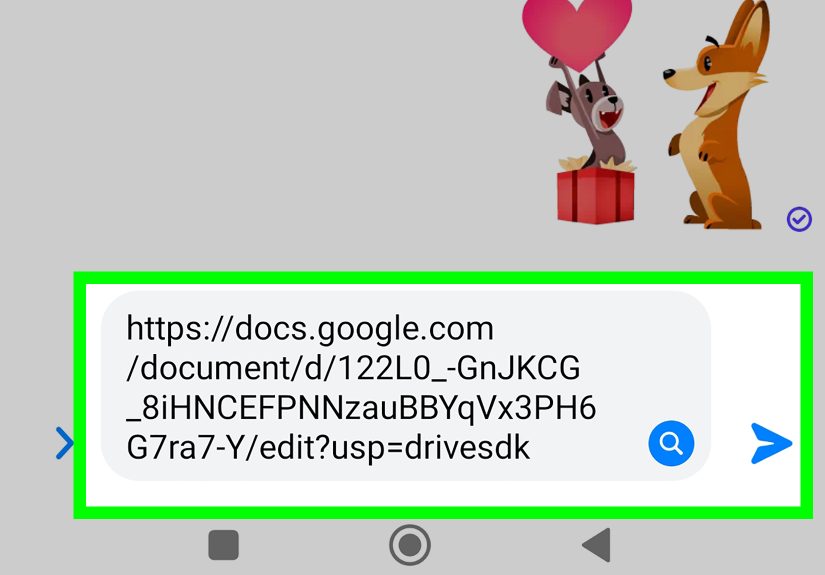
- Click Copy link.
- Click Done.
- Paste the link wherever you want to share it, such as an email, website, group chat, learning platform, or project management tool.
Best Permission Setting for Public Google Docs
If your goal is simply to let people read the document, choose Viewer. This is the cleanest option for public guides, instructions, schedules, checklists, policies, and resource lists.
Choose Commenter when you want feedback but do not want people rewriting the document directly. This works well for peer review, team suggestions, class discussions, editorial notes, and collaborative planning.
Choose Editor only when you truly trust the audience. Public editing can be useful for open sign-up sheets, collaborative brainstorming, or shared working documents, but it also increases the chance of accidental changes, deleted sections, formatting chaos, and mysterious sentences that no one admits writing.
Example: Sharing a Public Event Agenda
Imagine you are organizing a community workshop and want attendees to see the agenda. You would open the agenda in Google Docs, click Share, change General access to Anyone with the link, set the role to Viewer, copy the link, and add it to your registration email.
Now attendees can open the agenda without requesting access, while you remain the only person editing the official version. That is the sweet spot: easy access for them, fewer headaches for you.
When to Use This Method
Use “Anyone with the link” when you want to share the actual Google Doc and keep collaboration features available. It is ideal for:
- Class handouts and study guides
- Team documents and meeting notes
- Client drafts and review documents
- Public templates
- Instruction sheets
- Resource lists
- Simple documents that may still need updates
This method is also convenient because updates appear in the same document. If you fix a typo, add a paragraph, or change a date, anyone who opens the same link sees the updated version.
Method 2: Make a Google Doc Public with “Publish to Web”
The second way to make a Google Doc public is to use Publish to web. This creates a web-page-style version of your document. It looks cleaner than the normal Google Docs editing screen because viewers do not see the standard editing toolbar.
This method is especially useful when you want to share a polished document with a broad audience or embed it on a website. Think public announcement, newsletter, portfolio page, simple report, event program, classroom resource, or living document that should look more like a web page than a draft.
Step-by-Step Instructions
- Open the Google Doc you want to publish.
- Click File in the top menu.
- Select Share.
- Click Publish to web.
- Choose the Link tab if you want a public URL.
- Choose the Embed tab if you want HTML embed code for a website.
- Click Publish.
- Confirm that you want to publish the document.
- Copy the generated URL or embed code.
What People See After You Publish a Google Doc
When someone opens the published version of your Google Doc, they see a simplified page instead of the full Google Docs editor. For documents, that typically means no editing toolbar and a more reader-friendly layout. This can feel much more professional when you are sharing content with customers, readers, students, or public visitors.
Published Google Docs can update when you edit the original document. That is helpful for living documents, but it also means you should be careful. If you add a private note, unfinished paragraph, or spicy placeholder like “fix this before anyone sees it,” the published version may update too. Future-you deserves better. Proofread before publishing.
How to Stop Publishing a Google Doc
If you change your mind, you can stop publishing the document:
- Open the Google Doc.
- Click File.
- Select Share.
- Click Publish to web.
- Open Published content & settings.
- Click Stop publishing.
Stopping publication removes the public published version. If you also shared the document using “Anyone with the link,” you should review those sharing settings separately. Publishing and sharing are related, but they are not the same control.
When to Use Publish to Web
Use Publish to web when presentation matters more than collaboration. It is a strong choice for:
- Public newsletters
- Simple web pages
- Classroom resources
- Public reports
- Portfolio writing samples
- Website embeds
- Event programs
- Public-facing instructions
If you want people to comment or edit, use link sharing instead. If you want people to read a cleaner web-style version, publish to web.
Which Method Should You Choose?
The easiest way to decide is to ask one question: Do you want collaboration or presentation?
Choose “Anyone with the Link” If…
- You want people to open the actual Google Doc.
- You want to allow comments, suggestions, or editing.
- You are sharing with a known group, class, team, or client.
- You want quick access without creating a web-page version.
- You may need to change permissions later for specific people.
Choose “Publish to Web” If…
- You want the document to look like a simple web page.
- You want to embed the document on a website or blog.
- You are sharing information with a large public audience.
- You do not need comments or editing from viewers.
- You want a polished reading experience without the Google Docs toolbar.
Here is the simplest rule: Use link sharing for collaboration. Use Publish to web for public reading.
Privacy and Safety Tips Before Making a Google Doc Public
Making a Google Doc public is easy. Making sure you did not accidentally publish your phone number, client notes, private email, or secret birthday party plan is the part that deserves a little attention.
1. Review the Entire Document First
Before sharing publicly, scan the whole document from top to bottom. Check headings, comments, footnotes, image captions, tables, and any hidden-looking content. People often remember to edit the main paragraphs but forget that comments and suggestion history may reveal extra context.
2. Set Public Documents to Viewer Whenever Possible
If the document is going to a large audience, Viewer is your safest permission. It prevents accidental edits and keeps your formatting intact. Public Editor access should be rare, intentional, and monitored.
3. Be Careful with Personal or Sensitive Information
Do not make documents public if they contain private addresses, phone numbers, student information, passwords, financial details, medical information, confidential business plans, or internal notes. If the document contains anything that would make you whisper “uh-oh” if it appeared in a screenshot, keep it restricted.
4. Check Workspace or School Restrictions
If you use a work or school Google account, your administrator may limit public sharing or publishing. If the option is missing, disabled, or blocked, it may not be your fault. It may be an organization policy designed to prevent accidental data exposure.
5. Test the Link in a Private Browser Window
After sharing, open the link in an incognito or private browser window. This shows you what someone sees when they are not signed in as you. If the document opens correctly, your public access setting works. If it asks for permission, your sharing setting is still restricted.
How to Make a Google Doc Public but Not Editable
This is one of the most common goals: you want everyone to see the document, but nobody to change it. The solution is simple:
- Open your Google Doc.
- Click Share.
- Under General access, choose Anyone with the link.
- Set the role to Viewer.
- Click Copy link.
- Click Done.
This gives people public read-only access. They can view the content, but they cannot edit your original document. Depending on your settings, viewers may still be able to make a copy, download, or print, so review your sharing settings if you need tighter control.
How to Make a Google Doc Public for Comments
If you want feedback from a wider audience, choose Commenter instead of Viewer. This lets people leave comments without directly rewriting your document.
This is useful for:
- Peer review
- Community feedback
- Editorial suggestions
- Workshop drafts
- Policy review documents
Just remember that public commenting can get noisy. For a large audience, consider setting a feedback deadline or creating a separate form for responses. Your margins will thank you.
Troubleshooting: Why Can’t People Open My Public Google Doc?
If people still say they cannot access your document, do not panic. Most access problems come from one of a few common settings.
The Document Is Still Restricted
Open the sharing menu and check General access. If it says Restricted, only specific people can open it. Change it to Anyone with the link if you want public link access.
You Shared the Wrong Link
Make sure you clicked Copy link from the sharing dialog after updating permissions. If you copied the URL too early, the link may still behave as restricted for others.
Your Work or School Account Blocks Public Sharing
Some organizations prevent users from sharing files publicly. If you do not see “Anyone with the link” or “Publish to web,” your administrator may have disabled the feature. In that case, ask your IT department or use an approved sharing method.
You Published the Doc but Did Not Share the Right Version
The normal Google Doc link and the published web link are different. If you used Publish to web, copy the published URL from that menu, not just the address bar at the top of your browser.
The Viewer Is Using the Wrong Account
If you shared with specific people, they may need to sign in with the exact email address you invited. If you want to avoid that issue, use Anyone with the link with Viewer access.
Real-World Experience: What I’ve Learned from Making Google Docs Public
After working with public Google Docs for guides, drafts, editorial calendars, templates, and client-facing resources, one lesson stands out: the best sharing setting is not always the most open one. It is the one that matches the job.
For example, when sharing a simple checklist with a broad audience, Anyone with the link + Viewer is usually perfect. People can open the document instantly, and nobody can accidentally delete step seven because their cat walked across the keyboard. It is fast, familiar, and low-maintenance.
But for polished public resources, Publish to web often feels better. A published Google Doc looks cleaner because readers are not staring at the editing interface. This matters more than people think. If you are sharing a public announcement, a small newsletter, a classroom resource, or a basic landing page, the published version feels less like “Here is my draft” and more like “Here is the finished thing.” Presentation counts, even when the content is simple.
One practical habit that saves trouble is testing every public link before sending it. Open a private browser window, paste the link, and see what happens. If the document opens without asking for access, you are good. If it shows a request-access screen, the link is not public yet. This tiny test prevents the awkward email chain where five people say “I can’t open it,” and you pretend you were “just about to fix that.”
Another useful habit is creating a public copy instead of sharing your original working document. If you have comments, rough notes, internal reminders, or unfinished sections, duplicate the file first. Name the copy something obvious, like “Public Version – Workshop Guide.” Clean it up, remove private notes, then share or publish that version. This keeps your working draft safe while giving readers a polished document.
For collaborative projects, Commenter access can be a great middle ground. It lets people suggest ideas without turning the document into a formatting jungle. However, for large audiences, comments can become overwhelming quickly. If you expect lots of feedback, a Google Form may be easier to manage than hundreds of comments stacked in the right margin like digital sticky notes after a windstorm.
Public Editor access is the setting I treat with the most caution. It has a place, especially for small trusted groups or sign-up sheets, but it should not be the default. If several people need to edit, invite them directly by email when possible. That gives you better control and makes it easier to remove access later.
The biggest takeaway is simple: public sharing is powerful, but it should be intentional. Choose Viewer for reading, Commenter for feedback, Editor for trusted collaboration, and Publish to web for a cleaner public presentation. Once you understand those four ideas, Google Docs sharing stops feeling confusing and starts feeling like a very useful superpowerminus the cape, unless you wear one while organizing files, which is honestly none of my business.
Conclusion
Making a Google Doc public takes only a minute, but choosing the right method matters. If you want to share the actual document with flexible access, use Anyone with the link. Set it to Viewer for safe public reading, Commenter for feedback, or Editor only when you trust the people receiving the link.
If you want a cleaner, web-page-style version, use Publish to web. This is ideal for public resources, newsletters, announcements, guides, and website embeds. Just remember to review your document first, avoid sharing sensitive information, and test the link in a private browser window before sending it out.
The best approach is not complicated: share carefully, choose the right permission, and never give the entire internet editing access unless you are emotionally prepared for chaos in 11 different fonts.