Table of Contents >> Show >> Hide
- Before You Delete Cydia: Understand What You Are Removing
- Method Overview: The Best Ways to Remove Cydia
- How to Delete Cydia from iPhone/iPod Touch: 15 Steps
- Step 1: Confirm that Cydia is really installed
- Step 2: Decide whether you want to keep your personal data
- Step 3: Back up your iPhone or iPod touch
- Step 4: Save important files separately
- Step 5: Write down your Apple Account information
- Step 6: Charge the device
- Step 7: Update your computer software
- Step 8: Connect the iPhone or iPod touch to your computer
- Step 9: Choose “Restore” instead of “Update”
- Step 10: Let the restore finish without unplugging
- Step 11: Use recovery mode if the normal restore fails
- Step 12: Set up the device as new for the cleanest result
- Step 13: Check that Cydia is gone
- Step 14: Sign back into your accounts carefully
- Step 15: Update apps and test daily features
- Can You Delete Cydia Without a Computer?
- Common Mistakes When Removing Cydia
- Will Removing Cydia Update iOS?
- Is Removing Cydia Safe?
- What to Do After Cydia Is Removed
- Extra Experience: Real-World Lessons from Removing Cydia
- Conclusion
So, Cydia has been living on your iPhone or iPod touch like an uninvited roommate with root access. Maybe you installed it years ago to customize icons, try jailbreak tweaks, or squeeze a little more personality out of an older iOS device. Now you want it gone. Maybe the device is acting weird, maybe banking apps are refusing to cooperate, or maybe you simply want to return your iPhone or iPod touch to a clean, stock Apple setup.
The important thing to know is this: deleting the Cydia icon is not the same as removing Cydia. Cydia is usually installed as part of a jailbreak, and a jailbreak changes more than one app. It may modify system files, install package managers, add background services, and leave behind tweaks that continue working even if the Cydia app disappears from the Home Screen. That is why the safest way to remove Cydia from an iPhone or iPod touch is usually to restore the device to official Apple software.
This guide walks you through 15 practical steps to remove Cydia, unjailbreak your device, protect your data, avoid common mistakes, and choose the right method for your iOS version. Think of it as digital decluttering, except instead of throwing away old socks, you are removing system-level modifications from a tiny glass rectangle that somehow controls your entire life.
Before You Delete Cydia: Understand What You Are Removing
Cydia is a package manager for jailbroken iPhones, iPads, and iPod touch devices. It lets users install apps, tweaks, themes, and tools that are not distributed through Apple’s App Store. For many users, Cydia was the classic doorway into iOS customization: custom fonts, lock screen widgets, extra gestures, file managers, and all the other things Apple did not officially allow.
However, because Cydia is tied to jailbreaking, removing it properly matters. A jailbroken device may be less stable, may fail certain app security checks, and may behave unpredictably after iOS updates. Some apps, especially finance, school, workplace, streaming, and payment apps, may refuse to run on jailbroken software. If your goal is a clean device, you need to remove the jailbreak environment, not just the brown Cydia icon.
Method Overview: The Best Ways to Remove Cydia
There are three common ways people try to delete Cydia from an iPhone or iPod touch:
1. Restore the device with a computer
This is the most reliable method for most users. Restoring through Finder, Apple Devices for Windows, or iTunes erases the device and installs official Apple software. It removes Cydia, jailbreak tweaks, modified files, and local data.
2. Use recovery mode if the device is stuck
If your iPhone or iPod touch is frozen, boot-looping, or not recognized normally, recovery mode can help your computer reinstall iOS or iPod software. This is useful when Cydia or a jailbreak tweak has made the device unstable.
3. Use Cydia Eraser on older supported firmware
Cydia Eraser, formerly associated with the older name Cydia Impactor, was designed to remove jailbreak changes and return a device to stock iOS without updating the firmware. The catch? It is mainly relevant to older iOS versions and older jailbreak environments. For many modern devices, a computer restore is the cleaner and safer choice.
How to Delete Cydia from iPhone/iPod Touch: 15 Steps
Step 1: Confirm that Cydia is really installed
Look for the Cydia icon on the Home Screen or in the App Library if your device supports it. You can also use Spotlight Search and type “Cydia.” If Cydia opens, your device is likely jailbroken. If the icon is missing but jailbreak tweaks still work, Cydia may have been hidden, damaged, or removed while the jailbreak files remain.
Step 2: Decide whether you want to keep your personal data
Removing Cydia properly usually means erasing the device. Before doing anything dramatic, decide what matters: photos, videos, contacts, messages, app data, school files, music, notes, or game progress. A restore is excellent at cleaning the device, but it is also excellent at deleting everything. It does not pause and say, “Are you emotionally attached to these 4,000 screenshots?”
Step 3: Back up your iPhone or iPod touch
Create a backup before removing Cydia. You can back up with iCloud, Finder on a Mac, Apple Devices on Windows, or iTunes on older systems. A computer backup is often best when dealing with older iPhones or iPod touch models because it gives you a local copy. If you are using iCloud, connect to Wi-Fi, plug in your device, and make sure the backup completes before continuing.
Step 4: Save important files separately
A backup is helpful, but do not rely on it for everything. Export photos to a computer, upload important documents to cloud storage, and make sure contacts are synced with your Apple Account, Google account, or another trusted service. If you have files stored inside jailbreak apps or file managers, move them somewhere safe first.
Step 5: Write down your Apple Account information
After restoring the device, you may need your Apple Account email and password. If Find My is enabled, Activation Lock may require the original account credentials after the restore. This is not a bug; it is a security feature designed to stop stolen devices from being reused. Only continue if you own the device or have clear permission to manage it.
Step 6: Charge the device
Make sure the battery is at least 50 percent, or keep the device connected to power. A restore can take time, and you do not want the device dying halfway through the process. Nothing says “bad afternoon” like a half-restored phone and a charging cable that suddenly decides to retire.
Step 7: Update your computer software
Use a Mac with Finder, the Apple Devices app on Windows, or iTunes if your system still uses it for device management. Update the software before you begin. Many restore problems come from outdated device drivers, old iTunes versions, weak cables, or USB ports that behave like they are working on a freelance schedule.
Step 8: Connect the iPhone or iPod touch to your computer
Use a reliable USB cable. If the device asks whether to trust the computer, tap “Trust” and enter the passcode. Open Finder on macOS Catalina or later, Apple Devices on supported Windows PCs, or iTunes on older macOS or Windows setups. Select your device when it appears.
Step 9: Choose “Restore” instead of “Update”
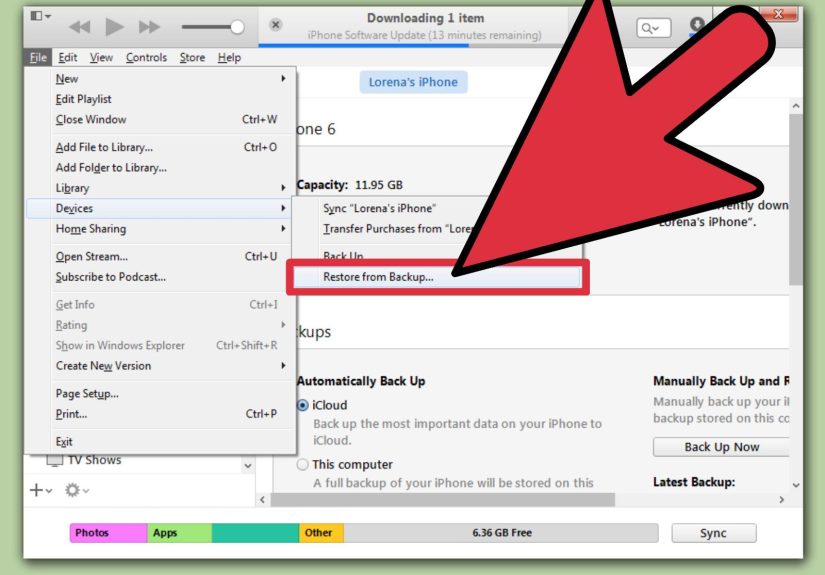
To remove Cydia completely, choose the restore option. Updating may install newer software while keeping some data, but it is not always enough to clean up jailbreak leftovers. Restoring erases the device, reinstalls official Apple software, and gives you the best chance of removing Cydia and related jailbreak files completely.
Step 10: Let the restore finish without unplugging
Once the restore begins, do not disconnect the cable, restart the computer, or panic-tap buttons because the progress bar is moving slowly. The computer may download software, prepare the device, verify the restore, and restart the iPhone or iPod touch. This can take a while, especially on older hardware.
Step 11: Use recovery mode if the normal restore fails
If the device is not recognized or is stuck on the Apple logo, use recovery mode. The button combination depends on the model. On many newer iPhones, you press volume up, press volume down, then hold the side button until the recovery screen appears. On iPhone 7 and iPod touch 7th generation, hold the top or side button and volume down. On older iPhones and iPod touch models, hold the Home button and the top or side button. Once the recovery screen appears, connect to the computer and choose Restore.
Step 12: Set up the device as new for the cleanest result
After restoring, you can set up the device as new or restore from a backup. If your main goal is to remove every trace of jailbreak behavior, setting up as new is the cleanest option. Restoring from a backup should not reinstall Cydia itself, but it may bring back settings, profiles, or app data that you no longer want. For a fresh start, choose “Set Up as New” and reinstall apps from the App Store manually.
Step 13: Check that Cydia is gone
Once setup is complete, search for Cydia. Check the Home Screen, Spotlight Search, and Settings. Apps that previously detected a jailbreak should now behave normally, assuming the restore was successful and the device is running official Apple software. If Cydia is gone and jailbreak tweaks no longer work, congratulations: your device has returned to polite society.
Step 14: Sign back into your accounts carefully
Sign into your Apple Account, iCloud, App Store, email, and other services. Reinstall apps from trusted sources only. Avoid reinstalling configuration profiles, unknown certificates, or old jailbreak-related tools unless you know exactly what they are. The goal is to keep the device clean, stable, and boring in the best possible way.
Step 15: Update apps and test daily features
Open the App Store and update your apps. Test Wi-Fi, Bluetooth, FaceTime, Messages, Safari, camera, music, and any apps that previously had problems. If everything works smoothly, the Cydia removal process is complete. If something still feels wrong, consider restoring again and setting up as new rather than using an old backup.
Can You Delete Cydia Without a Computer?
Sometimes, but not always. On certain older jailbroken devices, tools like Cydia Eraser were created to remove jailbreak changes directly from the device. This method appealed to users who wanted to remove Cydia without updating to the latest iOS version. It could be useful for older firmware where the tool was supported.
However, this is not the best recommendation for every device. Cydia Eraser is old, compatibility is limited, and modern jailbreak setups may not support it. Running an incompatible eraser tool can cause errors or leave the device in a messy state. If your iPhone or iPod touch is important to you, the computer restore method is usually safer and more predictable.
Common Mistakes When Removing Cydia
Deleting only the Cydia icon
If you only remove the icon, you may not remove the jailbreak. Tweaks, modified files, and package dependencies can remain. This is like removing the “Check Engine” light instead of fixing the engine.
Restoring from a suspicious backup
A backup made while the device was heavily modified may restore unwanted settings or profiles. If you want the cleanest setup, restore the device and set it up as new.
Using random “unjailbreak” tools
Be careful with third-party tools that promise one-click jailbreak removal. Some may be outdated, unreliable, or unnecessary. Stick with official restore methods whenever possible.
Forgetting the Apple Account password
If Activation Lock appears after restoring, you need the Apple Account credentials associated with the device. Make sure you know them before starting.
Will Removing Cydia Update iOS?
If you restore using Apple’s official tools, the device usually installs the latest software version available for that model. This matters for older jailbreak users who want to keep a specific iOS version. Once Apple stops signing an older iOS version, you generally cannot restore to it through normal methods. If staying on an old firmware is important, research your model and iOS version carefully before restoring.
For most users, updating is actually a benefit. Newer supported software may include security fixes, app compatibility improvements, and better stability. If your device is old enough that it no longer receives current updates, restoring still returns it to the latest official version available for that model.
Is Removing Cydia Safe?
Yes, removing Cydia is safe when done through a proper restore. In many cases, it makes the device more stable and easier to use with regular apps. The main risk is data loss, which is why backup preparation matters. Another risk is Activation Lock if you do not know the Apple Account connected to the device.
Do not attempt to bypass ownership protections, remove someone else’s account, or use tools that claim to defeat Activation Lock. Those methods are unreliable, risky, and often connected to scams. The legitimate path is simple: back up your data, restore the device, and sign in with the correct Apple Account.
What to Do After Cydia Is Removed
After Cydia is gone, keep your device clean. Install apps from the App Store, update iOS when available, and avoid unknown profiles. If you removed Cydia because apps were failing jailbreak detection, open those apps again after the restore. Many should work normally once the device is back on official software.
If you plan to sell or give away the device, erase all content and settings after signing out of your Apple Account. This prevents the next owner from getting stuck at Activation Lock. A clean device is also more attractive to buyers because they do not have to wonder what mysterious tweak from 2016 is still lurking in the background.
Extra Experience: Real-World Lessons from Removing Cydia
Removing Cydia from an iPhone or iPod touch sounds simple until you actually do it. The first lesson is that every jailbroken device has its own personality. One device restores perfectly in 20 minutes. Another behaves like it is auditioning for a technology horror movie: stuck logo, failed restore, cable error, computer not recognizing it, and a progress bar that appears to be meditating.
The best experience comes from preparation. Before touching the restore button, make a backup, copy photos separately, confirm the Apple Account password, and check that your cable is reliable. Many people rush because they only want the Cydia icon gone. Then they realize their notes, photos, or old game saves were not backed up. The restore process is not emotional. It does not care that the photo of your dog wearing sunglasses was historically important.
Another common experience is app relief. After removing Cydia properly, apps that previously complained about jailbreak detection often start working again. Banking apps, streaming apps, school apps, and work-related apps may become less dramatic. The phone may also feel more predictable because random tweaks are no longer changing system behavior. If a tweak once controlled your keyboard, lock screen, Control Center, or notifications, removing the jailbreak can make the device feel boringbut boring is often another word for stable.
Older iPod touch users may have a slightly different experience. Many iPod touch models are no longer central daily devices; they are music players, retro gaming devices, kid-friendly hand-me-downs, or “found in a drawer” gadgets. When removing Cydia from an old iPod touch, the biggest challenge is usually software compatibility. The latest available iOS version for that model may still be very old, and some current apps may not install. That is not caused by removing Cydia; it is simply the reality of older Apple hardware.
People also learn that backups are not magic. Restoring from a backup can bring back personal data, but it may not create the completely fresh feeling they expected. If the goal is maximum cleanliness, setting up as new is usually better. Yes, reinstalling apps manually takes longer. But it also gives you a chance to skip old clutter, abandoned apps, strange profiles, and settings you forgot existed.
The most satisfying moment is searching for Cydia after the restore and finding nothing. No icon. No tweaks. No package manager. No surprise themes turning your icons into neon jellybeans. Just a normal iPhone or iPod touch running official software. For some users, that feels like losing customization. For others, it feels like finally getting their device back.
The practical advice is simple: do not treat Cydia removal as a tiny app deletion. Treat it like a full device cleanup. Take your time, protect your data, use official restore tools, and avoid shortcuts unless you fully understand your iOS version and jailbreak environment. When in doubt, the clean restore wins.
Conclusion
Deleting Cydia from an iPhone or iPod touch is really about removing the jailbreak behind it. While older tools like Cydia Eraser may work in specific legacy situations, the most reliable method for most users is to back up the device, restore it with a computer, and set it up cleanly. This removes Cydia, jailbreak tweaks, modified system files, and many of the issues that come with a jailbroken setup.
If you want the smoothest result, do not skip the boring steps. Back up your data. Confirm your Apple Account. Use a good cable. Let the restore finish. Then reinstall only what you actually need. Your device may not look as wildly customized afterward, but it should be cleaner, safer, and easier to trust. Sometimes the best tweak is no tweak at all.