Table of Contents >> Show >> Hide
- Why Accents in Google Docs Actually Matter
- Method 1: Use “Insert > Special Characters” (Built-In & Foolproof)
- Method 2: Use Keyboard Shortcuts by Operating System
- Method 3: Use Google Docs Substitutions (Your Personal Accent Autopilot)
- Method 4: Add-ons & Extra Tools (When You Live in Accents)
- Method 5: Voice Typing for Accented Languages
- Troubleshooting: When Accents Don’t Show Up
- Which Method Should You Use? (Quick Recommendations)
- Conclusion: Mastering Accents Without Losing Your Mind
- Real-World Experiences & Pro Tips for Adding Accents in Google Docs
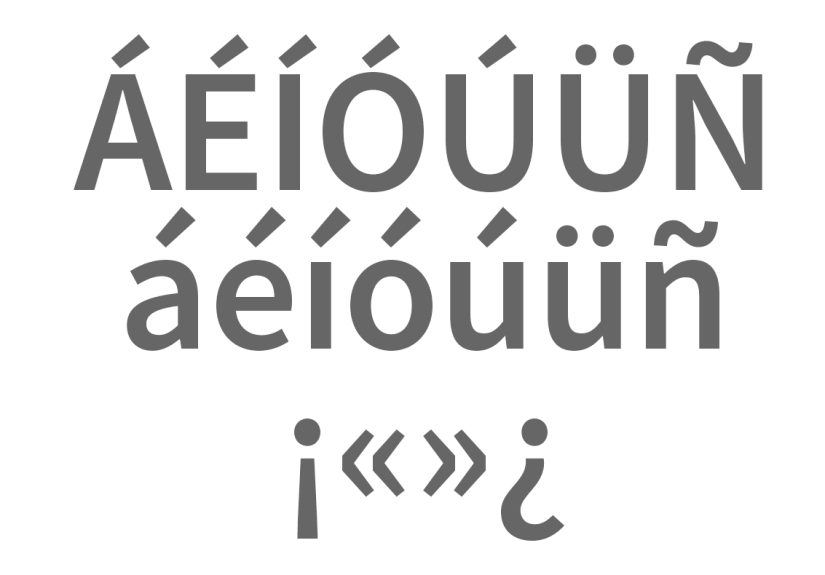
If you’ve ever typed senor instead of señor or written resume when you meant résumé, you already know: accents are tiny but mighty. In Google Docs, you have several clean, fast, and professional ways to add accented charactersno random copy–paste from suspicious websites required.
This guide walks you through every practical method to add accents in Google Docs on Windows, macOS, ChromeOS, and mobile. We’ll cover built-in tools, smart keyboard shortcuts, custom substitutions, and a few power-user tricks so you can type naturally in Spanish, French, Portuguese, Vietnamese, and morewithout breaking your writing flow.
Why Accents in Google Docs Actually Matter
Accents aren’t decoration; they change meaning. Think si vs. sí, année vs. annee, or Jose vs. José. Using the correct accented letters:
- Makes your documents look professional and culturally respectful.
- Avoids misunderstandings in academic, legal, or business contexts.
- Improves search accuracy inside long Docs (e.g., searching niño vs. nino).
The good news: Google Docs gives you multiple ways to do this, and you can mix and match them to build your ideal workflow.
Method 1: Use “Insert > Special Characters” (Built-In & Foolproof)
This is the most universal method because it works on any computer where Google Docs runs in a browser.
Step-by-step
- Open your document in Google Docs.
- Go to Insert > Special characters.
- In the panel:
- Search by name: type something like é, acute, tilde, ñ.
- Filter by script: choose Latin for most European languages.
- Draw the character in the box if you don’t know its name (shockingly helpful when you only remember the “squiggly with a hat”).
- Click the accented letter you want, and it appears where your cursor is.
When to use this method
- Occasional accent use (names, a few words, quotes).
- When you’re on a shared or locked-down device.
- When you’re not confident with keyboard shortcuts yet.
Pros: Always accurate, visual, and built-in.
Cons: Slower for heavy bilingual or multilingual writing.
Method 2: Use Keyboard Shortcuts by Operating System
If you type accented characters regularly, keyboard shortcuts are your best friend. You’ll type faster, stay in flow, and look extremely competent doing it.
On Mac (Google Docs in Browser or App)
macOS has excellent native support for accents that works directly in Google Docs:
- Press and hold a letter (like a, e, i, n) to open an accent menu, then press the number shown or click the character: e → é, è, ê, ë, etc.
- Or use Option-based combos (works instantly in Docs):
- Option + e, then letter → acute: é, á, ú
- Option + `, then letter → grave: è, à
- Option + i, then letter → circumflex: ê, ô
- Option + u, then letter → umlaut: ü, ö
- Option + n, then n → ñ
On Windows (in Google Docs via Browser)
Google Docs relies on your system input. You have three realistic options:
- US International Keyboard
- Enable it in Windows language settings as an input method.
- Then type:
- ‘ + a → á
- ” + u → ü
- ~ + n → ñ
- This works directly in Google Docs once selected.
- Alt codes (numpad required)
- Hold Alt and type a code on the numeric keypad:
- Alt + 0225 → á
- Alt + 0241 → ñ
- Alt + 0233 → é
- Works anywhere, including Docsbut slower to memorize.
- Hold Alt and type a code on the numeric keypad:
- Language-specific layouts
- Add Spanish, French, or other layouts in Windows; switch when needed for direct accent keys.
On Chromebooks (ChromeOS)
ChromeOS includes an accents menu and international keyboard support:
- Hold down a letter like a, e, or n to see available accented versions; choose with number keys or click.
- Or enable an international / language keyboard in ChromeOS settings for dedicated accent shortcuts.
On Mobile (Google Docs App for iOS & Android)
This one’s simple:
- Press and hold the base letter on your on-screen keyboard.
- Slide to the accented version (é, ñ, ç, ã, etc.) and release.
If you write in Spanish while texting and in Docs, this will feel completely natural.
Method 3: Use Google Docs Substitutions (Your Personal Accent Autopilot)
If you use the same accented words all day, automate them inside Google Docs.
How to set it up
- In Google Docs, go to Tools > Preferences > Substitutions.
- In the left column (Replace), type a shortcut like
ae'. - In the right column (With), type á.
- Click OK.
Now whenever you type ae' followed by a space or punctuation, Docs auto-swaps it to á. You can build a full accent system for names, brands, or phrases you use constantly.
Smart uses:
- Client names with accents (so you never misspell them).
- Frequent phrases in another language.
- Technical or linguistic symbols you don’t want to hunt for.
Method 4: Add-ons & Extra Tools (When You Live in Accents)
Some users prefer dedicated tools that show a sidebar with accented letters for multiple languages. Depending on what’s currently available in the Google Workspace Marketplace, you may find add-ons that:
- List common accented characters by language.
- Let you insert with one click instead of memorizing shortcuts.
Usage pattern is typically:
- Open your Doc.
- Go to Extensions > Add-ons > Get add-ons.
- Search for “accents” or language packs and follow the prompts.
Always check ratings, recent updates, and permissions before installing any add-on. If it looks shady, you do not need it to type “é”.
Method 5: Voice Typing for Accented Languages
For longer texts in another language, you can let Google handle accents automatically via speech recognition:
- In Docs, go to Tools > Voice typing.
- Select your target language (e.g., Spanish, French).
- Click the microphone and speak clearly. Correct accents usually appear automatically in recognized words.
This is great for drafting but always proofread; voice typing sometimes guesses creatively.
Troubleshooting: When Accents Don’t Show Up
- Your shortcut types two characters instead of one (e.g.,
'+egives'e):- Check if US International or a specific language layout is enabled and learn its dead-key behavior.
- Long-press menu doesn’t appear:
- On some Windows setups in the browser, long-press accents aren’t supported; use international keyboard or Alt codes instead.
- Browser extensions override input:
- Temporarily disable grammar/keyboard extensions and test again.
- Mobile keyboard missing accents:
- Switch to a full-featured keyboard (such as Gboard) and enable the correct language.
Which Method Should You Use? (Quick Recommendations)
- Light user (occasional words like “café”, “naïve”): Use Insert > Special characters or mobile long-press.
- Student / professional in a Romance language: Set up US International (Windows) or Option/long-press habits (Mac), plus a few Substitutions for common phrases.
- Multilingual writer: Combine:
- System-level language layouts.
- Keyboard shortcuts.
- Docs Substitutions for names and recurring terms.
- Mobile-first: Rely on press-and-hold accents; keep your keyboard language settings clean and intentional.
Conclusion: Mastering Accents Without Losing Your Mind
Accents in Google Docs don’t have to be a copy–paste scavenger hunt. Between the Special Characters tool, native OS shortcuts, smart keyboard layouts, Substitutions, mobile long-press, and (optionally) add-ons, you can build a setup that matches how you write.
Start with one method, layer in another as your needs grow, and within a day or two, typing Señor García ordered crème brûlée in São Paulo will feel just as natural as typing “hello world”. Only more delicious.
SEO Summary for Publishers
sapo: Want to type café, señor, or résumé correctly in Google Docs without rage-searching random websites? This in-depth guide shows you every effective way to add accent marks in Google Docs on Windows, Mac, Chromebook, and mobile. From built-in Special Characters and keyboard shortcuts to custom substitutions and pro workflows, you’ll learn how to type accented letters quickly, accurately, and confidentlyno copy–paste chaos required.
Real-World Experiences & Pro Tips for Adding Accents in Google Docs
The difference between “knowing the method” and “actually using it without thinking” comes from experience. Here are practical workflows and lessons learned from real-world use cases that you can apply immediately.
1. The Multilingual Student Workflow
Imagine a student bouncing between English essays, Spanish literature, and French citationsall in Google Docs. Constantly opening Insert > Special characters is a motivation killer. The winning setup is:
- Enable the US International Keyboard or language layouts on their laptop.
- Memorize 5–6 high-frequency combos: á, é, í, ó, ú, ñ, ç.
- Add Substitutions for long recurring terms, like automatically turning
frinto français orrightsinto a phrase with accents.
After a week, accents become muscle memory. No hunting. No excuses. Grades (and professors’ respect) go up.
2. The Brand & Name Protection Habit
For businesses and creators, getting names right is non-negotiable. If your client is José Núñez or your brand uses an accented word, build a safety net:
- Use Google Docs Substitutions so
jose.auto-corrects to José andnunez.becomes Núñez. - Train your team to rely on these shortcuts so every deck, doc, and proposal is consistent.
This tiny investment prevents embarrassing slips, especially when documents pass through multiple editors.
3. Writing in Another Language Without Losing Speed
Freelance writers, journalists, and translators often spend hours in multilingual Docs. Here’s a battle-tested combo:
- Pick one primary keyboard method (US International, Mac Option combos, or native layout) and commit to it.
- For rare symbols (ɣ, ẽ, œ), use Insert > Special characters once, copy it, and reuse or store it in a mini reference section at the end of the doc.
- Group similar shortcuts logically (all Spanish accents one way, French circumflex another) so your hands don’t hesitate.
Over time, you stop “adding accents” and simply “type words correctly”. That’s the goal.
4. Chromebook & Classroom Reality
In schools using Chromebooks, students often think accents are “too hard” and skip them. A quick demo of the press-and-hold accent menu or enabling the appropriate language keyboard changes everything. Teachers who integrate a 5-minute accent tutorial at the start of the year report:
- More accurate Spanish and French assignments.
- Students feeling more confident using correct forms of names and places.
- Less time spent correcting “Senor” and “anos” in red pen.
5. Productivity Mindset: Don’t Overcomplicate It
One common mistake: over-engineering your setup. Users install multiple add-ons, three keyboard layouts, and complex scriptsthen forget how any of them work.
A sustainable approach:
- Choose one primary accent method per device.
- Use Substitutions only for words you type daily.
- Reserve Special Characters for edge cases.
This keeps your brain (and fingers) relaxed. Your document looks polished, your writing stays fast, and you’re never stuck mid-sentence wondering, “Wait, how do I get that little hat on the o again?”
Once you’ve spent a few days with the right setup, accents stop being a technical obstacle and become just another natural part of writing well in Google Docs. And that’s exactly where they belong.