Table of Contents >> Show >> Hide
- What Changed With CarPlay Wallpapers in iOS 14?
- Before You Start: What You Need
- How to Add a CarPlay Wallpaper in iOS 14: Step-by-Step
- Why the Wallpaper Option Might Be Missing
- Best CarPlay Wallpaper Tips for iOS 14
- Does Changing CarPlay Wallpaper Affect Your iPhone?
- Can You Download More CarPlay Wallpapers for iOS 14?
- Common Questions About CarPlay Wallpapers in iOS 14
- Troubleshooting: Wallpaper Will Not Change
- Real-World Experience: What It Is Like Using CarPlay Wallpapers in iOS 14
- Conclusion
Apple CarPlay has always been the calm, sensible friend of your iPhone: helpful, organized, and not particularly interested in wild visual makeovers. Then iOS 14 arrived and quietly handed CarPlay a tiny but satisfying style upgrade: wallpapers. Finally, your dashboard could have a little personality without turning your car screen into a neon carnival ride.
If you are wondering how to add a CarPlay wallpaper in iOS 14, the process is simplebut there is one important twist. You do not change the CarPlay wallpaper from your iPhone’s normal Wallpaper settings. You change it directly from the CarPlay screen in your vehicle. Also, iOS 14 does not officially let you use your own photo as a CarPlay background. Apple gives you a built-in collection of wallpapers designed for visibility, contrast, and safe use while driving.
This guide walks you through the exact steps, explains what you can and cannot customize, helps you troubleshoot missing wallpaper options, and shares real-world experience on choosing a CarPlay background that looks good without making your map, music, or messages harder to read.
What Changed With CarPlay Wallpapers in iOS 14?
Before iOS 14, CarPlay looked clean but fairly plain. The interface focused on apps, maps, audio controls, Siri, and communication. That made sense because CarPlay is meant to be used in the car, where distraction is not just annoyingit is unsafe. Still, many drivers wanted at least a little visual customization.
iOS 14 introduced wallpaper support for CarPlay, giving users a selection of Apple-designed backgrounds. These wallpapers were made to fit the CarPlay interface, not compete with it. In other words, Apple did not suddenly say, “Sure, put a high-resolution photo of your dog wearing sunglasses behind your navigation map.” Tempting? Absolutely. Officially supported? Not in iOS 14.
The built-in wallpapers are designed to work with CarPlay’s light and dark appearance. Some options shift visually depending on the display mode, helping the interface remain readable during the day and less glaring at night. That matters because a car screen has a different job than a phone lock screen. Your iPhone wallpaper can be dramatic. Your CarPlay wallpaper needs to behave itself.
Before You Start: What You Need
To change your CarPlay wallpaper in iOS 14, you need a few basics in place. First, your iPhone must be running iOS 14 or later. Second, your car or aftermarket head unit must support Apple CarPlay. Third, your iPhone needs to be connected to CarPlay either with a USB cable or through wireless CarPlay, depending on your vehicle.
If CarPlay is already working in your car, you are probably ready. If not, connect your iPhone using the method your vehicle supports. Some cars require a cable. Others pair wirelessly using Bluetooth and Wi-Fi. Once CarPlay appears on the vehicle display, you can adjust the wallpaper from the CarPlay interface itself.
Can You Use a Custom Photo as a CarPlay Wallpaper?
Here is the answer many people search for first: in iOS 14, Apple does not provide an official way to use a custom photo as your CarPlay wallpaper. You can choose from Apple’s available CarPlay wallpapers, but you cannot open Photos, pick a vacation picture, and set it behind your CarPlay icons.
That may feel limiting, but there is a practical reason. CarPlay is built around glanceable information. App icons, map directions, album art, call controls, and Siri prompts need to remain easy to see. A busy personal image could make the interface harder to read, especially in bright sunlight or at night. Apple’s wallpaper options are more controlled, which is less exciting but better for safety and visibility.
How to Add a CarPlay Wallpaper in iOS 14: Step-by-Step
Changing the wallpaper takes less than a minute once your iPhone is connected. The trick is knowing where Apple hid the option. Spoiler: it is not inside the regular iPhone wallpaper menu.
Step 1: Connect Your iPhone to CarPlay
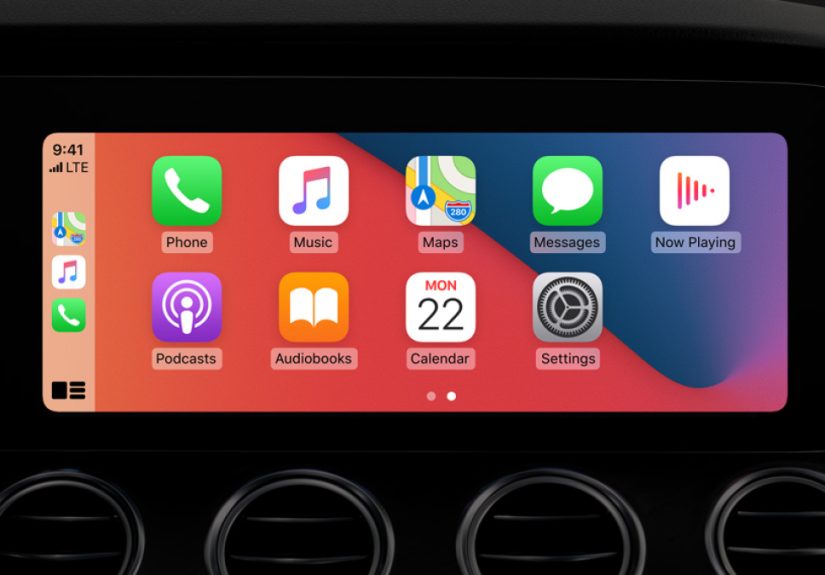
Start your vehicle or switch on the infotainment system. Connect your iPhone using USB or wireless CarPlay, depending on your car. Wait until the CarPlay home screen appears on the vehicle display. You should see your familiar CarPlay app icons, such as Maps, Music, Messages, Podcasts, Phone, or other compatible apps.
If CarPlay does not launch automatically, look for a CarPlay icon, smartphone projection option, or Apple CarPlay menu on your vehicle’s display. Some cars require you to approve CarPlay the first time you connect a new iPhone.
Step 2: Open the Settings App on the CarPlay Screen
On the CarPlay home screen, find the Settings app. It looks like the familiar gray gear icon. Tap it using the touchscreen, control knob, trackpad, or buttons built into your vehicle.
If you are currently on the CarPlay Dashboard and do not see Settings in the recent-app sidebar, tap the CarPlay Home button to view all available CarPlay apps. Settings should appear there. Apple put this control inside CarPlay because the wallpaper affects the car display, not the iPhone screen.
Step 3: Tap Wallpaper
Inside CarPlay Settings, choose Wallpaper. This opens Apple’s built-in wallpaper selection for CarPlay. The available designs may vary slightly depending on the iOS version installed, but iOS 14 includes several options made specifically for the CarPlay interface.
Step 4: Choose a Wallpaper
Browse the available wallpapers and tap one you like. You will see a preview before applying it. This preview is useful because a wallpaper that looks stylish in a tiny thumbnail may feel too bright, too busy, or too plain once stretched across your car’s display.
For everyday driving, choose a wallpaper with good contrast and a calm background. Darker designs often look cleaner at night and can make app icons easier to read. Lighter designs may look better during the day, especially in cars with bright cabins or glossy screens.
Step 5: Tap Set
After previewing the wallpaper, tap Set. CarPlay will apply the new background immediately or after a quick refresh, depending on your vehicle. Your iPhone wallpaper will not change. Your lock screen will not change. Your home screen will not suddenly become a dashboard. The change applies only to CarPlay.
Why the Wallpaper Option Might Be Missing
If you open CarPlay Settings and do not see Wallpaper, do not panic. Your car is not judging your interior design skills. There are several possible explanations.
Your iPhone May Not Be Running iOS 14 or Later
Wallpaper support arrived with iOS 14, so older iOS versions will not show the option. On your iPhone, go to Settings > General > About to check the installed iOS version. If your device supports iOS 14 or later, update through Settings > General > Software Update.
You May Be Looking in iPhone Settings Instead of CarPlay Settings
This is the most common mix-up. The CarPlay wallpaper setting is not found under the iPhone’s normal wallpaper menu. You must connect to CarPlay first, then open Settings on the car’s display. Think of it as redecorating the dashboard from inside the dashboard. Very Apple. Slightly mysterious. Eventually logical.
Your CarPlay Session May Need a Restart
If the wallpaper does not apply or the option behaves strangely, disconnect your iPhone and reconnect it. For wireless CarPlay, turn the car off and back on, or disconnect and reconnect from the vehicle’s phone projection menu. You can also restart your iPhone. This sounds boring because it isbut boring fixes are often the champions of technology.
Your Vehicle’s Display May Refresh Slowly
Some infotainment systems take a moment to show CarPlay changes. If the wallpaper appears unchanged after you tap Set, exit Settings, return to the CarPlay home screen, and wait a few seconds. If needed, reconnect your iPhone.
Best CarPlay Wallpaper Tips for iOS 14
Choosing a CarPlay wallpaper is not only about taste. It is also about readability. A great wallpaper should make the interface feel fresh while keeping your apps, map, and audio controls easy to see.
Choose Contrast Over Drama
CarPlay is not the place for visual chaos. Select a wallpaper that gives app icons enough contrast. If the icons blend into the background, the design may look cool in a screenshot but annoying in real traffic.
Test It During the Day and at Night
A wallpaper can look excellent at noon and painfully bright after sunset. Try your chosen background in different lighting conditions. If your car screen has automatic brightness, the wallpaper may feel different as the display adjusts.
Keep Navigation in Mind
If you use Apple Maps, Google Maps, or Waze often, remember that the wallpaper mostly appears behind app icons and dashboard areas, not over the full navigation map. Still, the home screen is where you launch apps quickly, so readability matters.
Pair Wallpaper With App Layout
For a cleaner CarPlay setup, arrange your most-used apps on the first page. You can customize the CarPlay app order from your iPhone by going to Settings > General > CarPlay, selecting your car, and choosing Customize. A good wallpaper plus a tidy app layout makes CarPlay feel less like a junk drawer and more like a command center.
Does Changing CarPlay Wallpaper Affect Your iPhone?
No. Changing your CarPlay wallpaper does not affect your iPhone’s lock screen, home screen, widgets, app icons, or photo library. The CarPlay wallpaper is separate. You can have one look on your iPhone and a different look in your car.
This separation is useful because phone wallpapers and car wallpapers serve different purposes. Your iPhone wallpaper can be personal, colorful, and detailed. Your CarPlay wallpaper should be simple enough to support quick glances while driving.
Can You Download More CarPlay Wallpapers for iOS 14?
Officially, iOS 14 limits CarPlay wallpaper choices to Apple’s built-in options. You may find websites offering downloadable CarPlay-style wallpapers, but iOS 14 does not let you import them into CarPlay through normal settings.
Some unofficial methods may claim to allow deeper customization, but they often require unsupported changes, jailbreak tools, or risky software. For most users, those routes are not worth the hassle. They can create stability issues, void expectations of normal support, or introduce security risks. The safest choice is to use Apple’s built-in CarPlay wallpapers and keep your iPhone updated.
Common Questions About CarPlay Wallpapers in iOS 14
Can I set a live wallpaper in CarPlay?
No. iOS 14 does not support live wallpapers or animated personal backgrounds in CarPlay. The available wallpapers are built into the CarPlay system.
Can every CarPlay vehicle use wallpapers?
If your iPhone is running iOS 14 or later and your vehicle supports CarPlay, the wallpaper option should generally be available through CarPlay Settings. However, the exact display behavior can vary by vehicle, screen size, and infotainment system.
Will the wallpaper change automatically between light and dark mode?
Some CarPlay wallpaper designs are created to work well with light and dark appearance changes. CarPlay can adjust its look based on settings and conditions, helping the interface stay comfortable in different lighting.
Can passengers change the wallpaper while the car is moving?
Even if the screen allows it, it is smarter to change CarPlay settings while parked. A wallpaper is not worth missing a turn, a signal, or the fact that someone ahead has decided to brake like they just remembered taxes exist.
Troubleshooting: Wallpaper Will Not Change
If you choose a wallpaper and nothing happens, try these practical fixes. First, return to the CarPlay home screen and check whether the change appears there. Second, disconnect and reconnect your iPhone. Third, restart your iPhone. Fourth, check whether your phone has an available iOS update. Fifth, restart your vehicle’s infotainment system if your car allows it.
For wireless CarPlay, you may also need to remove and re-pair the connection. On your iPhone, go to Settings > General > CarPlay, select your vehicle, and check the connection settings. If problems continue, consult your vehicle manual because some infotainment systems have their own software updates.
Real-World Experience: What It Is Like Using CarPlay Wallpapers in iOS 14
The first time you change a CarPlay wallpaper in iOS 14, the reaction is usually not dramatic. No confetti falls from the sun visor. Siri does not congratulate you on your refined taste. But the change is noticeable in a quiet, pleasant way. The CarPlay home screen suddenly feels less generic, like your car borrowed a clean shirt before leaving the house.
In daily use, darker wallpapers tend to be the easiest to live with. They make app icons stand out, reduce glare at night, and give the dashboard a more polished look. If your car has a glossy screen, a darker CarPlay background can feel especially comfortable after sunset. Bright wallpapers can look cheerful during daytime drives, but they may become distracting in a dark cabin. That does not mean light wallpapers are bad; it simply means they deserve a test drive before you commit.
One practical experience many users notice is that CarPlay wallpapers are more about mood than function. They do not change how Maps routes you, how Music plays, or how Messages appear. But they do make the interface feel more personal. If you spend a lot of time commuting, even small visual improvements can make the system feel fresher. It is the same reason people clean their desk before starting work. The computer is not faster, but somehow your brain is.
Another thing worth noticing is that Apple’s decision to limit wallpapers makes sense after a few drives. At first, not being able to use a custom photo feels disappointing. After all, your iPhone can use almost any image. Why not CarPlay? But once you imagine a busy family photo, a bright landscape, or a high-contrast graphic behind your app icons, the restriction becomes more understandable. In a car, design needs manners. The wallpaper should sit in the background, not wave a flag and ask for applause.
The best approach is to choose a wallpaper, use it for a few days, and then decide whether it still feels right. Do not judge it only while parked in your driveway. Check how it looks in morning light, direct sun, cloudy weather, and nighttime driving. If the wallpaper makes icons harder to find, switch to a calmer one. If it looks too plain, try a slightly brighter option. The goal is not to win an art contest. The goal is to make CarPlay look good while staying easy to use.
It is also a good idea to organize your CarPlay apps after changing the wallpaper. A beautiful background cannot rescue a cluttered app layout. Put navigation, audio, phone, and messaging apps where you can reach them quickly. Move rarely used apps to later pages. When the wallpaper and layout work together, CarPlay feels smoother and more intentional.
Overall, adding a CarPlay wallpaper in iOS 14 is a small upgrade with a surprisingly satisfying payoff. It gives your car display a touch of personality while keeping Apple’s safety-focused design intact. You may not get custom photos, animated backgrounds, or wild themes, but you do get a cleaner, more personal dashboard. Sometimes that is enough. After all, your car screen does not need to look like a movie poster. It just needs to help you drive, navigate, and enjoy the ride without visual drama.
Conclusion
Learning how to add a CarPlay wallpaper in iOS 14 is simple once you know where to look. Connect your iPhone to CarPlay, open Settings on the vehicle display, select Wallpaper, preview an option, and tap Set. The feature is not hidden deep in your iPhone wallpaper settings, and it does not support custom photos in iOS 14. Instead, Apple provides built-in wallpapers designed for a safer, cleaner in-car experience.
The best CarPlay wallpaper is one that looks good without stealing attention. Choose a design with strong readability, test it in different lighting, and pair it with a tidy app layout. The result is a CarPlay screen that feels more personal, more modern, and still focused on what matters most: helping you get where you are going without turning your dashboard into a digital disco ball.