Table of Contents >> Show >> Hide
- First, the two biggest “gotchas” (so you don’t troubleshoot forever)
- What the overlay is (and why it sometimes acts weird)
- Why Discord Overlay isn’t showing up (the usual suspects)
- 6 Ways to Fix Discord Overlay Not Working
- Fix #1: Turn the overlay on (globally) and on (for the specific game)
- Fix #2: Switch the game to Borderless Windowed (or Windowed Fullscreen)
- Fix #3: Check (and reset) overlay hotkeys + widget layout
- Fix #4: Match admin permissions (and avoid “run as admin” mismatch)
- Fix #5: Stop overlay conflicts (pick ONE overlay to rule them all)
- Fix #6: Refresh Discord (restart, update, reset the overlay, reinstall if needed)
- Fast diagnosis: find your specific problem in 60 seconds
- How to keep the overlay from breaking again
- Extra: of real-world “overlay drama” (and what it teaches you)
- Conclusion
Discord’s overlay is supposed to be the helpful little HUD that keeps your squad chat, voice controls, and stream widgets within reach.
But when it vanishes mid-match, it feels less like “in-game convenience” and more like “hide-and-seek, but only you’re playing.”
Let’s get your overlay backwithout turning your PC into a haunted house of random toggles. Below, you’ll learn the most common reasons
the Discord overlay stops showing up and six proven fixes you can run through quickly.
First, the two biggest “gotchas” (so you don’t troubleshoot forever)
1) Discord Overlay is Windows-only
If you’re on macOS or Linux, the overlay isn’t supported the same way it is on Windows. In other words: it’s not “broken,” it’s “not a feature there.”
(Yes, that’s annoying. Yes, we’ve all stared at settings hoping they’ll magically appear.)
2) True fullscreen can block the new overlay
Discord’s newer overlay behavior works best in windowed fullscreen or borderless windowed.
If your game is in true / exclusive fullscreen, the overlay may not appear at all. The fix is usually switching display modes
or turning on the legacy overlay if you absolutely need true fullscreen.
What the overlay is (and why it sometimes acts weird)
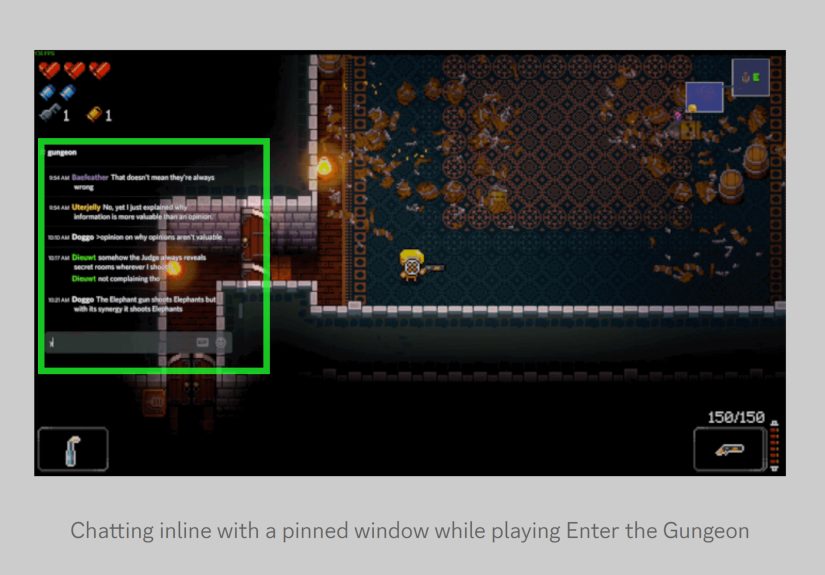
Discord rebuilt the overlay to be lighter and more compatible. Instead of forcing the full Discord app on top of your game, it uses
widgets (think: stream picture-in-picture, voice controls, chat, and notifications you can move around).
That redesign is great for performance and compatibilitybut it also means your overlay behavior can vary depending on your game’s display mode,
what other overlays are running, and whether Discord correctly “recognizes” the game window you’re playing.
Why Discord Overlay isn’t showing up (the usual suspects)
- Overlay is disabled (globally or just for that specific game).
- The game isn’t “registered” in Discord, so Discord doesn’t know where to display overlay widgets.
- You’re in true fullscreen and the new overlay can’t draw over it.
- Hotkey conflicts (your overlay keybind overlaps with an in-game bind or another overlay).
- Permission mismatch (Discord is running as normal user, game is running as adminor vice versa).
- Overlay wars: Steam, Xbox Game Bar, NVIDIA / AMD overlays, screen recorders, or GPU tools fight for the top layer.
- Scaling / multi-monitor quirks where the overlay loads… just not where you can see it.
- App glitches after an update (sometimes a restart fixes it; sometimes you need to refresh settings).
Now let’s fix it. Start with Fix #1 and go down the listmost people solve it by #2 or #3.
6 Ways to Fix Discord Overlay Not Working
Fix #1: Turn the overlay on (globally) and on (for the specific game)
This is the #1 cause: the overlay is enabled in one place but disabled in another. Discord lets you control overlay settings
globally and per-game, so it’s possible for the feature to be “on” but not for the title you’re currently playing.
- Open Discord and click the gear icon (User Settings).
- Go to Overlay and make sure Enable Overlay / Enable in-game overlay is on.
- Go to Registered Games (or “Game Activity” on some layouts).
- Find your game and make sure Overlay: ON for that title.
Pro tip: If the game isn’t listed, launch the game first, then check Registered Games again. If it still doesn’t appear,
try toggling “Activity Status” off/on (Discord sometimes needs a gentle nudge to recognize the window).
Fix #2: Switch the game to Borderless Windowed (or Windowed Fullscreen)
If your overlay disappears the moment you go fullscreen, this is your fix. Many overlay systemsDiscord includedbehave more reliably
in borderless windowed modes because the desktop compositor can still layer apps on top.
- Open your game’s Video / Display settings.
- Change Display Mode to Borderless Windowed or Windowed Fullscreen.
- Apply, then test the overlay again.
If you truly need exclusive fullscreen, check Discord’s Game Overlay settings for an option like
Enable legacy overlay. The legacy overlay can work differently than the revamped widget overlay, and can help in edge cases.
Fix #3: Check (and reset) overlay hotkeys + widget layout
Sometimes the overlay is “working,” but your hotkey isn’t. Other times, the overlay opensjust not the part you expect.
Discord can also use different shortcuts for “show overlay” versus “edit / move overlay widgets,” depending on your version and settings.
- In Discord, open User Settings → Keybinds.
- Look for overlay actions like “Toggle Overlay,” “Toggle Overlay Lock,” or similar.
- If you see a hotkey that collides with your game (or Steam / Game Bar), change it.
- If things look messy, set a clean keybind you’ll never press in-game (example: Ctrl + Shift + O).
If you open the overlay but widgets are off-screen (common with multi-monitor setups), use the overlay edit shortcut to bring widgets back
and drag them to a visible spot. Also check your overlay “pinned” settingssome widgets can be hidden until pinned on purpose.
Fix #4: Match admin permissions (and avoid “run as admin” mismatch)
Overlays often fail when the game and overlay app run at different permission levels. If your game is running as administrator and Discord isn’t
(or the other way around), the overlay may not be able to draw properly.
- Close Discord completely (don’t just click Xquit it from the system tray).
- Decide: run both as admin, or run neither as admin.
- Reopen Discord, launch your game, and test again.
Also check: Windows compatibility settings. If Discord or the game is forced into a compatibility mode, it can create weird overlay behavior.
Keep them on normal settings unless you have a specific reason.
Fix #5: Stop overlay conflicts (pick ONE overlay to rule them all)
If you have multiple overlays active, they can clash. Steam overlay, Xbox Game Bar, NVIDIA / AMD overlays, FPS counters, recording tools,
and even some RGB / peripheral apps can fight for that “top layer” your overlay needs.
Try this quick test: temporarily disable other overlays and see if Discord overlay appears. If it does, you’ve found the culprit.
- Steam Overlay: disable it for the game you’re testing.
- Xbox Game Bar: turn off Game Bar capture/overlay features temporarily.
- NVIDIA / AMD overlay: disable the in-game overlay or change its hotkey so it won’t collide.
- Recording tools: pause overlays or “HUD layers” inside the recorder settings.
Bonus: Some competitive titles and anti-cheat systems are sensitive about overlays. Discord’s revamped overlay is designed to be more compatible,
but if a specific game still blocks overlays, the safest path is to keep overlays off for that title.
Fix #6: Refresh Discord (restart, update, reset the overlay, reinstall if needed)
If none of the above fixed it, your overlay settings may be stuck after an updateor Discord may need a clean restart to re-hook to the game window.
Try these in order:
- Hard restart Discord: quit from the system tray, then reopen.
- Restart the game: some games only register overlay on launch.
- Update Discord: install updates and restart.
- Toggle overlay off/on: turn off overlay globally, restart Discord, turn it back on.
- Try legacy overlay: if your game only behaves in true fullscreen.
- Reinstall Discord: as a last resort (especially if Discord is acting glitchy in other ways).
If you stream your game window and “can’t see overlay in the capture,” that can be normal behavior depending on how you share:
some setups won’t capture overlay unless you share the entire screen instead of only the game window.
Fast diagnosis: find your specific problem in 60 seconds
If the overlay never shows in any game: Fix #1 → Fix #6.
If it works in one game but not another: Fix #1 (per-game toggle) → Fix #2 (display mode) → Fix #5 (conflicts).
If it worked yesterday and died today: Fix #6 (restart/update/toggle overlay) → Fix #5 (new overlay conflict) → Fix #2 (fullscreen setting got changed).
If you “open” overlay but see nothing: Fix #3 (keybind/layout) → check display scaling / multi-monitor placement.
How to keep the overlay from breaking again
- Stay in borderless windowed for games where you rely on overlay.
- Use unique hotkeys so Discord, Steam, and Game Bar aren’t all wrestling over the same keystroke.
- Limit overlays: if you need one overlay, disable the rest.
- Update Discord and GPU drivers regularly (old GPU layers + new overlays = “why is this happening”).
- Recheck Registered Games after major game updatessome games change executables and Discord stops recognizing them.
Extra: of real-world “overlay drama” (and what it teaches you)
If you’ve ever tried to fix Discord overlay at 1:00 a.m. while your friends chant “HELLOOOO? CAN YOU HEAR ME?” in voice chat,
congratulations: you’ve participated in a timeless gaming ritual. The overlay is one of those features you don’t think about… until it disappears,
at which point it becomes the feature you think about.
One of the most common patterns people run into looks like this: everything worked fine, then a game update (or a Discord update) hits, and suddenly
the overlay stops appearing. In many cases, the “fix” is hilariously simple: the game quietly reset your display mode back to exclusive fullscreen,
or Discord stopped recognizing the game’s executable after the update. The lesson? When overlay breaks overnight, don’t assume your PC is cursed
check borderless mode and Registered Games first. It’s the tech equivalent of “is it plugged in?” and it works way more often than anyone wants to admit.
Another classic: the Overlay Battle Royale. Steam overlay, Xbox Game Bar, GPU overlays, FPS counters, and recording software all want to be
the top layerlike five people trying to stand in the same doorway. The result is either (a) Discord overlay doesn’t show up, (b) it shows up but isn’t clickable,
or (c) it shows up behind something else so it’s basically a shy ghost. The fix tends to be boring but effective: turn off other overlays temporarily and see what happens.
Once you identify the conflict, you can usually keep the one overlay you actually use and disable the “nice-to-have” ones.
Then there’s the permissions trap: your game is running as administrator (maybe because of an old troubleshooting guide, maybe because Windows did something odd),
but Discord isn’t. You hit the overlay hotkey and… nothing. No error. No message. Just silence. This one feels unfair because it’s not a “setting” you changed
inside Discord; it’s a Windows-level mismatch. When you run both apps at the same privilege level, the overlay often pops right back like it was waiting for you
to stop making it climb a locked fence.
Finally, multi-monitor and scaling issues are the sneakiest. The overlay can technically be “on,” but it’s positioned off-screen or on a different monitor,
especially if you changed resolution, swapped displays, or adjusted Windows scaling. People describe it as “overlay not working,” but it’s more like
“overlay went on vacation.” Resetting the overlay layout (or entering overlay edit mode and dragging widgets back) is usually the move here.
The big takeaway from all these stories is simple: Discord overlay problems are usually not one mysterious bugthey’re the sum of normal things
(fullscreen modes, keybinds, conflicts, permissions) stacking in an unfortunate order. Work the fixes from the top down, and you’ll almost always
catch the culprit before you reach the nuclear option of reinstalling everything.