Table of Contents >> Show >> Hide
- What Makes A NAS Actually Look Like A NAS?
- Planning The Build Before Buying Parts
- Choosing A NAS Case That Looks The Part
- Motherboard, CPU, And RAM Choices
- Storage Layout: The Heart Of The NAS
- Operating System Options
- Networking: Do Not Build A Fast NAS With A Slow Door
- Making The Build Look Clean And Professional
- Security And Data Protection Basics
- Specific Example: A Balanced Six-Bay Home NAS
- Common Mistakes To Avoid
- Experience Section: What It Feels Like To Build A NAS That Looks Like A NAS
- Conclusion
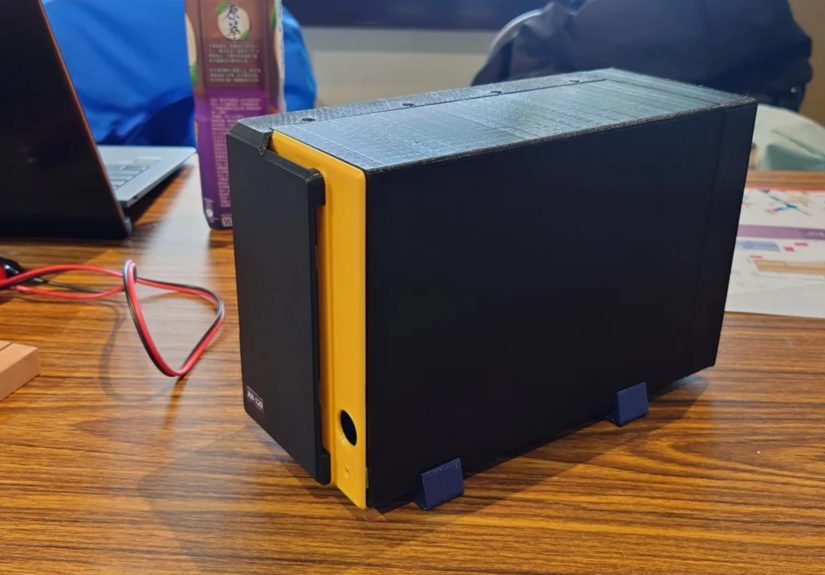
A home-built NAS can be many things: a quiet file server, a media vault, a photo archive, a backup target, a Plex playground, or that mysterious humming box your family learns not to unplug. But if we are honest, many DIY NAS builds look less like serious storage appliances and more like a gaming PC that gave up RGB lighting and started wearing cargo shorts. Building a NAS that really looks like a NAS means designing it around storage first: front-access drive bays, clean airflow, practical cabling, clear labeling, low noise, and enough expansion room that future you does not send present you an angry email.
The good news is that you no longer have to choose between a plastic consumer NAS with limited hardware and a full tower case that looks like it is waiting to mine crypto in 2017. Modern NAS cases, compact server chassis, efficient CPUs, 2.5GbE and 10GbE networking, ZFS-friendly operating systems, and better hot-swap options make it possible to build a machine that behaves like a storage appliance and looks like one too.
This guide walks through the design mindset, hardware choices, cooling layout, software options, and real-world lessons behind building a DIY NAS that earns its network-attached storage badge at first glance.
What Makes A NAS Actually Look Like A NAS?
A real NAS is not defined by a logo on the front. It is defined by function. At minimum, a convincing NAS should make drive access easy, run quietly, protect data properly, and sit comfortably in a home office, studio, closet, or small business environment without looking like an unfinished science project.
Front-access drive bays matter
The most obvious visual feature of a NAS is the drive bay layout. Commercial NAS systems from brands like Synology, QNAP, Asustor, and TerraMaster usually place drive trays at the front because storage devices are the whole point. If a drive fails, you should not have to remove the side panel, disconnect three cables, scare the dust bunnies, and whisper apologies to your motherboard.
For a DIY build, look for cases with hot-swap or front-access bays. Examples include compact NAS-focused cases such as the Jonsbo N-series, SilverStone CS-series, Fractal Node 804, and other small server-style enclosures. The exact case matters less than the principle: drives should be accessible, cooled, and organized.
Status lights are useful, not decorative
Drive activity LEDs, power indicators, and network lights are not just blinking jewelry. They help you understand what the system is doing. A NAS that looks like a NAS should communicate clearly. You do not need a front panel that resembles a spaceship dashboard, but a few practical indicators can save time during troubleshooting.
Small, sturdy, and storage-first
A traditional desktop tower can work as a NAS, but it usually does not feel purpose-built. A better NAS-style build is compact, boxy, and stable. It has a clean front, strong side ventilation, removable filters, room for multiple 3.5-inch drives, and a layout that separates hot drives from the rest of the system when possible.
Planning The Build Before Buying Parts
The best NAS build starts with a boring question: what will it actually do? Boring questions prevent expensive mistakes. A NAS for family photos and Time Machine backups has different needs than a NAS for 4K video editing, surveillance footage, Docker containers, virtual machines, or a Jellyfin media library that serves the entire neighborhood. Please do not serve the entire neighborhood unless you also enjoy explaining bandwidth usage to your internet provider.
Choose your primary use case
For basic file storage, you can use a modest processor, 8GB to 16GB of RAM, and a few large hard drives. For ZFS, snapshots, containers, and multiple users, 16GB to 32GB is a more comfortable starting point. For virtual machines, heavy media transcoding, large databases, or high-speed 10GbE file transfers, you may want more CPU cores, more RAM, NVMe cache or app storage, and a stronger network card.
Decide how many drive bays you need
A four-bay NAS is excellent for many homes. It supports useful layouts such as mirrored pairs, RAIDZ1, or a small parity-based array depending on the operating system. A six-bay or eight-bay system gives better expansion and more flexible redundancy. A twelve-bay system looks impressive, but it also creates more heat, more noise, more power draw, and more ways to spend money on hard drives while pretending it is “future-proofing.”
A practical rule: buy a case with at least two more bays than you think you need. Storage needs grow quietly. One day you are saving tax documents; the next day you have 14TB of RAW photos, Linux ISOs, drone footage, and a folder called “Sort Later” that has become a lifestyle.
Choosing A NAS Case That Looks The Part
The case is the visual identity of the build. It also determines cooling, noise, cable management, motherboard size, power supply type, and drive serviceability. A great NAS case makes the system feel intentional.
Hot-swap bays versus internal cages
Hot-swap bays are the most NAS-like option. They let you slide drives in and out from the front without opening the case. In a home environment, true hot swapping is not always necessary, but front-access trays are still convenient. Internal drive cages can be cheaper and quieter, but they often make maintenance harder.
If you choose a hot-swap case, check the backplane quality, supported drive interface, fan placement, and cable requirements. Some cases support SATA drives only, while others support SAS or SATA depending on the backplane. If you plan to use an HBA card, verify compatibility before ordering parts.
Airflow is not optional
Hard drives dislike heat. A NAS case should move air across every drive bay, not just around the motherboard. Look for front-to-back or side-to-side airflow paths, fan mounts near the drive cage, and removable dust filters. A case with twelve drives and one tiny fan is not a storage server; it is a toaster with file-sharing ambitions.
Noise control matters
NAS drives can click, hum, and vibrate. Multiple drives spinning together can turn a desk into a percussion instrument. Choose a rigid case, use vibration-dampened trays when possible, and avoid placing the NAS directly on a hollow wooden surface. Larger fans running slowly are usually better than small fans screaming like they just saw your electricity bill.
Motherboard, CPU, And RAM Choices
A NAS does not always need a monster processor. In many builds, efficiency is more important than raw speed. The system may run 24/7, so idle power matters. A low-power Intel, AMD Ryzen, Xeon, or embedded platform can all work depending on your needs.
CPU: efficient beats excessive
For simple file sharing, a modern low-power CPU is enough. For media transcoding, Intel Quick Sync can be valuable. For virtualization and containers, more cores help. For 10GbE transfers, encryption, and heavy parity calculations, avoid the absolute cheapest processor. The goal is balance: fast enough when needed, quiet and efficient the rest of the time.
Motherboard: count the connections
Before falling in love with a motherboard, count SATA ports, PCIe slots, M.2 slots, network ports, and memory slots. A Mini-ITX board can make a beautiful compact NAS, but it may limit expansion. Micro-ATX often gives a sweet spot: more PCIe flexibility without becoming a giant tower. ATX can be useful for big builds, especially if you need an HBA card, 10GbE NIC, GPU, or multiple expansion cards.
RAM: give ZFS room to breathe
TrueNAS and OpenZFS systems can run on modest memory, but more RAM improves caching and overall smoothness. ECC memory is strongly preferred when the platform supports it because a NAS is meant to protect data, not merely store it with crossed fingers. Non-ECC memory can work for many home builds, but if you are storing business files, irreplaceable photos, or client work, ECC support is a smart upgrade.
Storage Layout: The Heart Of The NAS
The storage layout should match your risk tolerance, performance needs, and expansion plans. This is where a NAS becomes more than a box full of disks.
Do not confuse RAID with backup
RAID, RAIDZ, mirrors, and parity arrays help keep data available when a drive fails. They do not protect you from accidental deletion, ransomware, fire, theft, file corruption, or the legendary “I thought that folder was old” mistake. A proper NAS still needs backups. The classic 3-2-1 rule remains a strong baseline: keep three copies of important data, on two types of media, with one copy off-site.
Mirrors are simple and resilient
Mirrored drives are easy to understand and quick to rebuild. A two-drive mirror is straightforward, and multiple mirror vdevs in ZFS can provide strong performance and manageable risk. The tradeoff is capacity efficiency: half your raw storage becomes redundancy.
RAIDZ and parity arrays save space
RAIDZ1, RAIDZ2, and similar parity-based layouts offer better usable capacity, especially with larger sets of drives. RAIDZ2 is often preferred for larger arrays because it can tolerate two drive failures. Rebuilds on large disks can take time, and during that period the array is under stress. That is another reason cooling, drive quality, and backups matter.
Use NAS or enterprise hard drives
NAS-class drives such as WD Red Plus, Seagate IronWolf, Toshiba N300, and enterprise-grade alternatives are designed for multi-drive environments. They usually handle vibration, 24/7 operation, and sustained workloads better than basic desktop drives. You do not need to buy the most expensive model, but avoid building your entire data strategy around bargain-bin mystery drives with “lightly used” in the description.
Operating System Options
The operating system shapes the daily experience. The best choice depends on whether you prefer appliance-like simplicity, ZFS power, flexible mixed-drive expansion, or container-heavy home lab features.
TrueNAS SCALE
TrueNAS SCALE is popular for ZFS-based storage, snapshots, replication, apps, and a polished web interface. It is a strong choice when data integrity is the priority and you are willing to plan storage pools carefully. It works well for users who want a serious NAS platform without building every service by hand.
Unraid
Unraid is loved for flexible drive expansion, Docker containers, virtual machines, and mixed-capacity arrays. It is especially attractive for media servers and home labs where convenience matters. It is not the same storage philosophy as ZFS-first systems, but it can be extremely practical.
OpenMediaVault and Linux-based builds
OpenMediaVault, Debian, Ubuntu Server, and other Linux-based approaches offer flexibility for users who enjoy configuring services directly. They can be lightweight, customizable, and powerful. The tradeoff is that you may spend more time maintaining the system yourself.
Networking: Do Not Build A Fast NAS With A Slow Door
A NAS is only as useful as its connection to the network. Gigabit Ethernet is fine for basic backups and documents, but it can bottleneck large file transfers. 2.5GbE has become an affordable upgrade for home users. 10GbE is excellent for video editing, large media libraries, multi-user workflows, and anyone who measures file transfers in coffee breaks.
If you upgrade the NAS to 10GbE, remember the rest of the chain: switch, client NICs, cables, and storage performance. A 10GbE port attached to slow drives may not deliver magic. Technology is powerful, but it is not a wizard.
Making The Build Look Clean And Professional
Appearance is not vanity. A clean NAS is easier to maintain, cooler, quieter, and less likely to become a cable jungle. Good physical design improves reliability.
Label every drive
Label each tray with bay number, drive serial number, capacity, and pool position. Keep a simple spreadsheet or printed note inside the case. When a drive fails, you want certainty, not a guessing game called “Which 14TB disk is screaming?”
Use proper cables
Short, high-quality SATA cables reduce clutter. If using an HBA card, choose appropriate breakout cables and route them cleanly. Avoid sharp bends and cable tension near drive backplanes. Cable management is not just for Instagram builds; it keeps airflow clear and maintenance sane.
Design for service
Leave enough room to remove fans, replace drives, access RAM, and clean filters. A beautiful NAS that requires partial disassembly for every maintenance task is not beautiful. It is a puzzle box with storage anxiety.
Security And Data Protection Basics
A NAS often holds the most important files in the house or business, so security should be part of the build from day one.
Use snapshots
Snapshots create point-in-time versions of files and datasets. They are extremely helpful for recovering from accidental deletion or unwanted changes. Schedule snapshots automatically and test restoration before you need it.
Set user permissions carefully
Do not give every user full access to everything. Create separate shares for media, documents, backups, and private folders. Use strong passwords, disable unused services, and avoid exposing the NAS directly to the internet unless you truly understand the risks.
Back up off-site
Use another NAS, external drives stored elsewhere, cloud backup, or a combination. A NAS can be the center of your backup plan, but it should not be the only copy of your data. One lightning strike, burglary, flood, or coffee incident can turn “centralized storage” into “centralized regret.”
Specific Example: A Balanced Six-Bay Home NAS
For a practical build, imagine a six-bay NAS-style case with a Micro-ATX motherboard, an efficient 4-core or 6-core CPU, 32GB of RAM, six NAS-class hard drives, a small SSD or mirrored SSDs for the operating system, and 2.5GbE networking. Add a quiet 120mm or 140mm fan setup that pushes air across the drives. Install TrueNAS SCALE if you want ZFS snapshots and replication, or Unraid if you want easier mixed-drive expansion and Docker-focused convenience.
This kind of build looks like a NAS because the drives are the star of the show. It is not overloaded with gaming hardware. It is not a random desktop case with drives hidden in awkward corners. It is compact, serviceable, and storage-first.
Common Mistakes To Avoid
Buying the case last
The case should guide the build, not become an afterthought. Drive count, cooling, motherboard size, and power supply compatibility all depend on the enclosure.
Ignoring power supply quality
Multiple hard drives draw extra power at spin-up. Choose a reliable power supply with enough SATA power connectors and stable output. Avoid sketchy adapters whenever possible.
Forgetting UPS protection
A UPS gives the NAS time to shut down cleanly during an outage. This is especially important for ZFS pools, active file transfers, and small businesses.
Skipping test restores
A backup you have never tested is a hopeful rumor. Periodically restore files to confirm your backup strategy works.
Experience Section: What It Feels Like To Build A NAS That Looks Like A NAS
The first time you build a NAS that truly looks like a NAS, you realize how different it feels from building a regular PC. A gaming PC build is often about performance, airflow, aesthetics, and maybe a dramatic amount of lighting. A NAS build is calmer. It asks practical questions. Can I reach the drives? Can I hear it from the next room? Can I replace a fan without inventing new vocabulary? Will the system still make sense two years from now when I have forgotten which cable goes where?
One of the most satisfying parts is sliding the drives into numbered bays. It feels official, almost ceremonial. Instead of hiding hard drives behind panels, the build says, “Yes, I am storage. That is literally my job.” Labeling the trays may seem overly cautious at first, but it becomes priceless later. When the operating system reports a failing disk by serial number, a clean label turns a stressful moment into a routine maintenance task.
Cable management is another lesson. In a normal desktop, a few messy cables might only offend your sense of order. In a NAS, messy cables can block airflow around drives that run all day. Shorter cables, careful routing, and a little patience make the machine easier to cool and service. It is not glamorous, but neither is crawling under a desk at midnight because one drive disappeared from the pool.
Noise is also more important than many builders expect. A NAS may live in a home office, bedroom closet, studio, or living room cabinet. Hard drives produce a low mechanical personality of their own. The solution is not always total silence. Instead, aim for a steady, soft sound profile: larger fans, rubber feet, balanced drive placement, and a rigid case. The best NAS noise is the kind you stop noticing.
The biggest experience-based lesson is to build for maintenance, not just assembly. Assembly happens once. Maintenance happens forever. Dust filters need cleaning. Drives need replacing. Software needs updates. Backups need checking. A NAS that looks professional on day one should still be understandable on day seven hundred. That means documenting the pool layout, saving configuration notes, keeping spare screws and trays, and resisting the urge to make everything unnecessarily complicated.
Finally, there is a quiet joy in having a storage system that looks intentional. It becomes the dependable appliance behind your digital life: photos, projects, videos, documents, backups, music, scanned receipts, and all the files you swear you will organize someday. A NAS that really looks like a NAS is not just about appearance. It is about confidence. You know where the data lives, how the system breathes, how it can grow, and what to do when something goes wrong. That is the difference between a box of drives and a real storage server.
Conclusion
Building a NAS that really looks like a NAS is about respecting the purpose of the machine. Start with the case, plan the drive layout, choose efficient hardware, cool the disks properly, label everything, and pick an operating system that matches your storage philosophy. A good NAS does not need to be flashy. It needs to be reliable, organized, quiet, expandable, and easy to maintain.
The ideal DIY NAS sits somewhere between a polished commercial appliance and a flexible custom server. It gives you the clean drive access and tidy footprint of a store-bought NAS, while keeping the upgrade freedom of a custom PC. Build it carefully, back it up properly, and it will become one of the most useful machines you own. It may not make coffee, but it will protect the photos of your coffee, and honestly, that is pretty important too.