Table of Contents >> Show >> Hide
- What Is Western Digital Data LifeGuard Diagnostic Tool?
- The Big Catch: It’s a Legacy Tool Now
- Installation and Interface: Functional, Not Fancy
- Core Features That Made It Popular
- How Accurate and Useful Is It in Real Life?
- Strengths of Western Digital Data LifeGuard Diagnostic
- Weaknesses You Should Not Ignore
- Data LifeGuard vs. Modern Alternatives
- Who Should Still Consider Using It?
- Final Verdict
- Real-World Experiences With Western Digital Data LifeGuard Diagnostic Tool
- SEO Tags
If hard drives had personalities, failing ones would be the dramatic coworkers who sigh loudly, miss deadlines, and then pretend nothing happened. That is exactly where Western Digital Data LifeGuard Diagnostic Tool used to step in. For years, it was the no-nonsense utility many PC users reached for when a WD drive started acting suspicious: random freezes, strange read errors, vanishing partitions, or that uniquely horrifying moment when an external drive shows up in Device Manager but not where your files actually live.
This Western Digital Data LifeGuard Diagnostic Tool review takes a close look at what the software does well, where it feels dated, and whether it still deserves a place in your troubleshooting toolkit. The short version: it was once one of the most practical manufacturer tools for checking WD hard drive health, running a quick or extended scan, and wiping a drive with zero-fill options. The catch is that it now belongs to the “useful, but very much legacy” category. It can still be relevant for older systems and older WD drives, but modern users need to understand its limits before trusting it like a digital fortune teller.
What Is Western Digital Data LifeGuard Diagnostic Tool?
Western Digital Data LifeGuard Diagnostic, often shortened to WD DLG or Data LifeGuard Diagnostics, is a drive testing utility designed primarily for Western Digital hard drives. Its job is simple: read the drive’s health information, run diagnostic tests, detect potential bad sectors, and help users decide whether a drive is healthy, shaky, or basically waving a tiny white flag.
The tool became popular because it offered several features that ordinary Windows disk checks did not package together in one place. Instead of forcing users to decode vague symptoms, it provided direct drive-level tests, pass/fail feedback, and erase options. For many DIY upgraders, repair shops, and cautious backup nerds, that made it a handy first stop when a WD drive looked suspicious.
Historically, the tool was available in Windows and bootable forms, which gave it an advantage when a system was unstable or when you wanted to test a drive outside the operating system. That flexibility helped it earn a solid reputation among people who prefer practical utilities over shiny dashboards and animated nonsense.
The Big Catch: It’s a Legacy Tool Now
Here is the part many reviews bury halfway down the page like it is an awkward family secret: the Windows version of Western Digital Data LifeGuard Diagnostics is retired. That matters because any honest review in 2026 has to judge the tool in two ways at once: how good it was at its job, and how sensible it is to rely on it today.
As a legacy utility, Data LifeGuard still has value for people working with older WD hard drives, older repair workflows, or archived software collections. But if you are expecting ongoing development, fresh compatibility fixes, modern interface polish, or full support for newer storage ecosystems, you are showing up to a reunion expecting a product launch. That is not what this tool is anymore.
Western Digital’s newer direction for HDD users is Kitfox, while SSD support has shifted into the newer SanDisk-branded dashboard path. So when evaluating Data LifeGuard, the right question is not “Is this the newest WD utility?” It is “Is this still a useful utility for diagnosing older WD drive problems?” That question gets a much more interesting answer.
Installation and Interface: Functional, Not Fancy
Data LifeGuard’s interface has always been more mechanic’s garage than Apple Store showroom. It is functional, compact, and not particularly interested in winning beauty contests. That is not a flaw. In fact, one of the best things about the tool is that it generally gets out of the way and lets you run the test you came to run.
Once launched, the program typically lists detected drives and basic information such as model number, serial number, capacity, and status. This is useful because a diagnostic utility should answer the first question immediately: “Am I testing the correct drive, or am I about to accidentally erase something I will cry about later?”
The learning curve is low. Even non-experts can usually figure out what to click without reading a novel-length manual. That ease of use was one reason the tool stayed popular for so long. It was not overloaded with enterprise jargon, performance graphs, or mysterious developer-style labels that make average users feel like they need a certification just to run a health check.
Core Features That Made It Popular
Quick Test
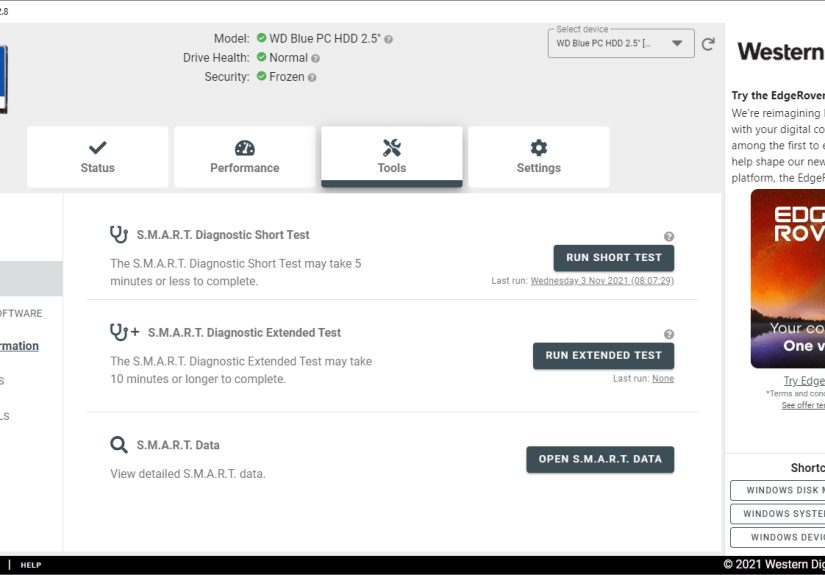
The Quick Test is the appetizer. It is designed to gather and verify Data LifeGuard information quickly, giving you a fast confidence check on whether the drive looks healthy at a glance. This is useful when you do not want to wait hours just to see whether the drive is obviously broken.
In practical terms, Quick Test is great for a first pass. If it fails immediately, that is your cue to back up data and stop pretending everything is fine. If it passes, that is encouraging, but not a guarantee of perfect health. Think of it as a drive saying, “I seem okay,” not “I promise to behave forever.”
Extended Test
The Extended Test is the main event. This is the deeper scan that checks the media more thoroughly and looks for bad sectors or read issues. On large drives, it can take a long time, which is annoying but normal. Hard drive diagnostics are one of those areas where speed and thoroughness rarely hold hands.
This is also the feature that gave Data LifeGuard much of its reputation. When a WD drive showed odd behavior, users often ran the Extended Test to find out whether the problem was just a file system hiccup or something more physical. In some cases, the tool could flag sectors that should no longer be written to. That sounds heroic, but it is important to be realistic: it can help identify and manage media problems, yet it does not magically restore a mechanically aging drive to factory-fresh condition. A hard drive is not a movie villain. Once it starts showing serious wear, it usually does not come back with a dramatic redemption arc.
Write Zeros
The Write Zeros feature is one of the most powerful and potentially dangerous options in the program. It can perform a quick erase or a full erase by overwriting data with zeros. This is useful when you want to wipe a drive, remove old partition remnants, or prepare hardware for reuse. It is not useful when you accidentally click it on the wrong drive and immediately reconsider every life choice that led you there.
For advanced troubleshooting, zero-fill operations sometimes help clear stubborn formatting issues or reset drives that are behaving strangely at the partition level. For resale, disposal, or clean reconfiguration, it is also a very practical tool. Just remember: this is destructive. There is no “just kidding” button afterward.
View Test Results
This feature sounds small, but it matters. Being able to view test results clearly is one of the reasons Data LifeGuard remained useful to regular users, not just repair technicians. A pass/fail result may not tell the whole story, but it does give you a plain-English checkpoint in a world where storage diagnostics often feel like cryptic horoscopes written by firmware engineers.
How Accurate and Useful Is It in Real Life?
In real-world use, Data LifeGuard was best as a triage tool. It was not the only thing you should trust, but it was a very good first checkpoint for WD drive health. If the tool failed a drive, that was a serious red flag. If it passed a drive, that was reassuring, but not permission to ignore symptoms forever.
This is where people sometimes misuse diagnostics. A passing result can make users overconfident, especially if the drive still clicks, disconnects, slows to a crawl, or throws operating system errors. On the flip side, a failing result can help you stop wasting time. Instead of spending six more hours swapping cables, reinstalling drivers, blaming Windows, and bargaining with the universe, you can recognize that the drive itself is probably the problem.
One of the smartest ways to use the tool is alongside other checks. CHKDSK can help identify logical file system issues. SMART data can reveal deeper health patterns. A second opinion from a broader utility like CrystalDiskInfo or SeaTools can also help you decide whether you are seeing a software quirk or genuine hardware decline.
Strengths of Western Digital Data LifeGuard Diagnostic
- Simple to use: Even beginners can usually navigate the interface without drama.
- Focused feature set: Quick Test, Extended Test, erase tools, and result viewing cover the basics that matter most.
- Good for WD-specific troubleshooting: It was built with Western Digital drives in mind, which gave it relevance for brand-specific health checks.
- Helpful for older repair workflows: If you work on legacy systems or older WD hard drives, the tool still makes sense in context.
- Bootable options were valuable: The older DOS-style approach could help when Windows itself was part of the problem.
Weaknesses You Should Not Ignore
- It is outdated: This is the headline weakness. Retired software carries compatibility and support risks.
- Limited modern relevance: Newer WD workflows are built around Kitfox or newer dashboard tools.
- Brand-specific mindset: It is not the universal all-drives solution many users actually need.
- Old-school interface: Functional, yes. Modern and polished, absolutely not.
- Pass results can be misunderstood: A healthy-looking report does not always rule out developing failure.
Data LifeGuard vs. Modern Alternatives
Data LifeGuard vs. CHKDSK
This comparison trips up a lot of users. CHKDSK is mainly about file system integrity and logical errors. Data LifeGuard is more about hardware-oriented drive diagnostics. They are not the same tool wearing different hats. One checks the house paperwork; the other inspects whether the foundation is cracking.
Data LifeGuard vs. Western Digital Kitfox
Kitfox is the modern successor for WD HDD diagnostics. It offers a more current interface, SMART-based health information, temperature monitoring, and updated erase and test capabilities. If you are working with supported modern WD drives on a current Windows system, Kitfox is usually the smarter choice.
That said, some longtime users still appreciate Data LifeGuard’s directness. It is less glossy, more blunt, and feels built for diagnosis first and ecosystem second. If you like tools that get to the point without a lot of dashboard theater, you can understand why it still has fans.
Data LifeGuard vs. Generic Drive Tools
Utilities like CrystalDiskInfo, SeaTools, or HDDScan often have broader compatibility. They are better when your system contains a mix of brands or when you want a second opinion. Data LifeGuard’s advantage was always its WD-specific focus. Its disadvantage is exactly the same thing.
Who Should Still Consider Using It?
You may still find value in Western Digital Data LifeGuard Diagnostic if you are working with an older WD hard drive, reviving a legacy PC, or following an established troubleshooting workflow built around older manufacturer utilities. In those situations, the tool remains recognizable, efficient, and useful.
You probably should not make it your first choice if you are on a modern system with newer storage hardware and expect official support, current updates, or broad compatibility. In that world, the better strategy is to use newer WD tools or reliable cross-brand diagnostics.
Final Verdict
Western Digital Data LifeGuard Diagnostic Tool earned its reputation honestly. It was practical, approachable, and good at the most important job a diagnostic utility has: helping users figure out whether a WD hard drive was healthy enough to trust. Its Quick Test and Extended Test gave it real troubleshooting value, while Write Zeros made it useful for drive prep, wipe jobs, and deeper maintenance work.
But this is not a “download it with total confidence and move on” recommendation anymore. It is a legacy utility with real strengths and real age. If you are troubleshooting an older WD hard drive, it can still be a very handy tool. If you are building a current toolkit for ongoing storage management, newer software makes more sense.
So the verdict is simple: excellent in its era, still useful in the right scenario, but no longer the default recommendation for everyone. In other words, Data LifeGuard is like a trusty old socket wrench. You absolutely keep it around because it still works, but you do not pretend it is the entire modern garage.
Real-World Experiences With Western Digital Data LifeGuard Diagnostic Tool
One reason this tool stuck in people’s memory is that it often showed up during genuinely stressful moments. Nobody launches a hard drive diagnostic utility because they are having the best day of their life. They open it because a drive has gone weird, a project folder vanished, or Windows suddenly starts moving at the speed of cold syrup. In those moments, Data LifeGuard had one big advantage: it looked serious enough to inspire confidence without being so technical that it scared people away.
A common experience was using the Quick Test first, mostly because humans are impatient and hope is a powerful drug. When the Quick Test passed, users felt relieved for about six minutes. Then they would think, “Maybe I should run the Extended Test too,” which was usually the correct move. That second test often told the more useful story. If a drive had developing media problems, the Extended Test could expose them in a way casual Windows checks sometimes did not. The emotional arc was very predictable: optimism, waiting, mild panic, then either relief or a shopping trip for a replacement drive.
Another real-world pattern involved old external WD drives that were still spinning but behaving oddly. A drive might mount once, disappear the next time, and then come back like nothing happened. In that kind of situation, Data LifeGuard was helpful not because it performed miracles, but because it forced a decision. If the tests failed, the next step was obvious: back up whatever you still could and stop treating the drive like a reliable storage location. That clarity saved users from wasting extra time on magical thinking.
There was also a practical repair-shop angle. Technicians liked utilities that did not require a ten-minute explanation before use. Data LifeGuard fit that style. Plug in the drive, identify the correct disk, run a quick test, then a longer one if needed. The interface was plain, but plain can be beautiful when you are diagnosing hardware for the fifth customer that afternoon and someone has already asked, “Can you save the wedding photos?” three times.
Of course, not every experience was glowing. Some users came away frustrated because a drive would pass one test and still behave terribly in daily use. That disconnect is part of why experienced troubleshooters never rely on a single utility. A drive can be “good enough” according to one diagnostic pass and still be unstable in the real world due to enclosure issues, cable trouble, controller weirdness, or failure that is only just beginning to show itself. Data LifeGuard was useful, but it was never a crystal ball.
In the end, the strongest experience people had with the tool was not excitement. It was trust. It felt like a utility made for solving a problem, not selling a platform. And in storage troubleshooting, that plainspoken honesty goes a long way.