Table of Contents >> Show >> Hide
If you’re an iPhone user who relies on Uber for everything from daily commutes to late-night taco runs, keeping the app updated isn’t optionalit’s essential. The Uber app evolves constantly, adding new safety tools, improving GPS accuracy, enhancing payment options, and occasionally fixing that one annoying bug that made your screen freeze right as your driver arrived. This guide walks you through exactly how to update the Uber app on your iOS device, why updates matter, troubleshooting tips, and expert insights to maximize your Uber experience. Think of it as your own tech-savvy co-pilotwith a sense of humor.
Why Updating the Uber App Matters
Updating Uber is more than tapping a button in the App Store. Each update often includes performance upgrades, new features, better navigation accuracy, stronger security layers, and design tweaks aimed at giving you a smoother rideliterally. U.S. tech authorities and reputable consumer-focused sites regularly emphasize that app updates can improve battery performance, reduce crashes, and close privacy vulnerabilities. In other words: outdated apps equal unnecessary headaches.
Benefits of staying updated
- Security patches: Uber frequently rolls out updates that strengthen privacy protections and secure your account from unauthorized access.
- Improved location services: Better pin accuracy ensures your driver picks you up at the right spotnot two streets away.
- Smarter ride suggestions: Features like ride preferences, better price estimates, and audio/quiet preferences work best on the newest app versions.
- Bug fixes: Say goodbye to frozen screens, odd glitches, or delayed notifications.
- New features: From teen accounts to redesigned safety hubs, Uber updates often bring tools riders never knew they needed.
How to Update the Uber App on Your iPhone or iPad
Updating the Uber app is simple, but iOS offers a few different ways to do it depending on your settings and preferences. Below are the easiest step-by-step methods.
Method 1: Update Uber Manually via the App Store
- Open the App Store on your iPhone or iPad.
- Tap your profile icon (top right corner).
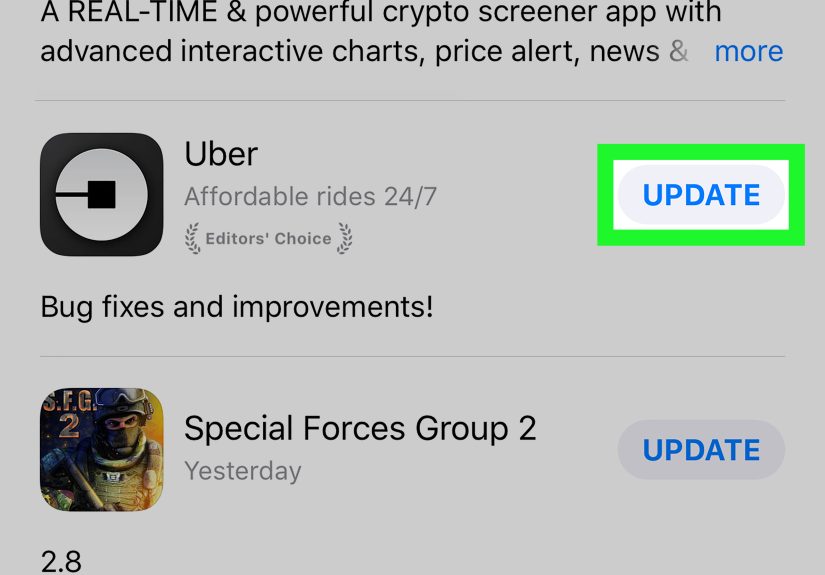
- Scroll down to see the list of pending updates.
- If Uber appears in the list, tap Update.
- Wait for the progress circle to finishonce done, you can reopen the app.
Pro tip: If the Uber app doesn’t show up, swipe down on the page to refresh the list. iOS loves a good refresh moment.
Method 2: Update Uber Automatically
If you’re the kind of person who forgets about updates until things stop working, automatic updates are your best friend.
- Open Settings on your device.
- Scroll down and tap App Store.
- Under Automatic Downloads, toggle on App Updates.
Once enabled, your iPhone will quietly handle updates in the backgroundeven while you sleep.
Method 3: Update Via Siri
Yes, Siri can update apps. And yes, she’ll do it with zero judgment.
- Say, “Hey Siri, update Uber.”
- If an update is available, Siri will handle the process.
- If no update exists, Siri will politely let you know.
How to Check the Current Version of the Uber App
If you’re unsure whether you’re running the latest version, take a peek at your app details:
- Open Settings.
- Scroll to General → iPhone Storage.
- Select Uber.
- Look for the version number at the top of the page.
You can also check the version inside the App Store by searching “Uber,” tapping on the app, and viewing the version history.
Troubleshooting Uber Update Issues
Even the smoothest rides hit a few potholes. If your Uber app refuses to update, try the following fixes.
1. Check your internet connection
Make sure you’re on stable Wi-Fi or have strong cellular data. Weak signals can stall updates indefinitely.
2. Restart your device
It works for 99% of tech issueswhy not this one?
3. Ensure you have storage space
Go to Settings → General → iPhone Storage. If your device is full, delete unused apps or old videos to free space for the update.
4. Sign out and back into your Apple ID
A quick reset can solve strange App Store glitches.
5. Delete and reinstall Uber
If all else fails, uninstall the app and download it fresh from the App Store. Your account data is safeit’s stored in the cloud.
How Often Should You Update the Uber App?
Most major tech sites recommend turning on automatic updates, as Uber pushes improvements frequentlyoften every 1–2 weeks. But if you prefer manual updates, check the App Store at least once per week to avoid missing critical features or security fixes.
What’s New in the Latest Uber Updates?
While update notes vary, common improvements in recent iOS updates include:
- Sharper real-time tracking
- New safety features such as PIN verification
- Improved in-app messaging
- Faster loading times
- Refined design elements
Uber rarely spoils surprisessome features quietly appear without fanfare, so staying updated ensures you don’t miss out.
of Expert Experience & Practical Tips
Updating the Uber app sounds simple, but real-world experience often reveals quirks that tutorials skip. For example, many riders notice that the app begins to lag most noticeably when iOS itself gets a major update. This usually happens when Apple releases new versions like iOS 18 or 19Uber then adjusts its app to match Apple’s framework changes. If your iPhone feels slow or the Uber map freezes after an iOS update, it’s almost guaranteed that Uber will roll out a patch within days. Keeping both your operating system and apps updated is the perfect one-two punch for performance.
During actual rider experiences, outdated Uber apps often cause issues like incorrect pickup points, disappearing ride options, or payment errors. Some riders report that scheduled rides fail to appear or notifications stop working entirely. Updating the app usually restores all missing features instantlyalmost like magic but more technical. Drivers experience the same problems; an old version may display inaccurate surge pricing or prevent trip requests from coming in smoothly.
If you travel internationally, updating your app becomes even more crucial. Uber tailors features by region, so certain in-app tools only work on the latest version. For example, some countries offer cash payments, Uber Moto rides, or autopay systems unique to their markets. Without updating, these features may not show up, leading you to miss out on cheaperor much coolerride options.
Many seasoned Uber riders also recommend updating the app before major holidays or big events. During busy seasons (New Year’s Eve, Thanksgiving travel, concerts, sporting events), Uber enhances surge algorithms and navigation to handle higher demand. An outdated app could put you at a disadvantage, slowing down your ability to grab a ride or receive accurate ETA updates.
Another insider tip: always check the update notes in the App Store. Uber often adds hidden gems like expanded Rewards programs, improved wheelchair-accessible vehicle options, or new account-sharing tools. These aren’t always announced widely, but power users notice them and benefit instantly.
If you’re an Uber One subscriber, updating is even more important. Subscription perksdiscounts, priority support, and waived delivery feesmay occasionally glitch on old app versions. Updating ensures your savings apply correctly during rides or Eats orders.
Finally, don’t forget that updating your Uber app helps drivers, too. The platform works best when both sides of the system run current software. A smoother experience for drivers means faster pickups, fewer delays, and happier riders. Updating the app is a small habit with surprisingly big benefits.
Conclusion
Keeping your Uber app updated on your iOS device ensures smoother rides, stronger security, better features, and fewer annoying glitches. Whether you update manually, automatically, or via Siri, the process is simpleand totally worth it. A well-maintained app equals a better travel experience every time you tap “Request Ride.”