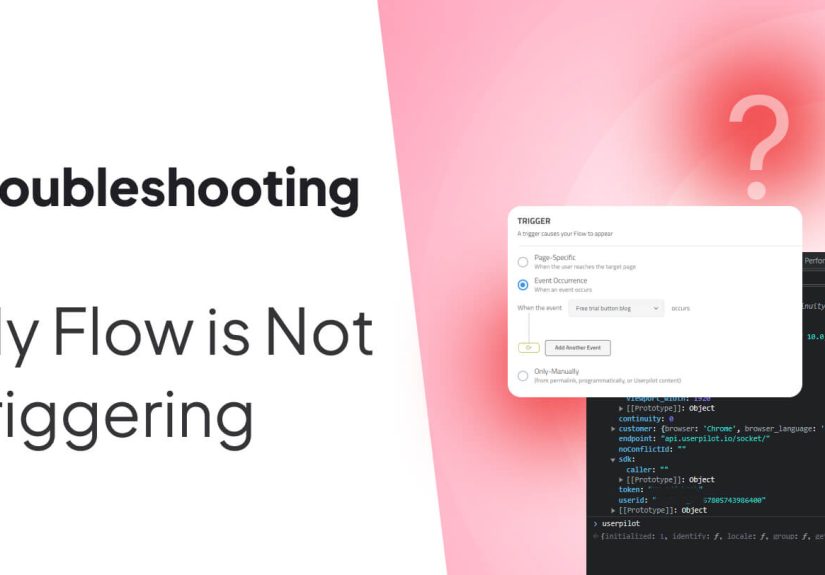
Table of Contents >> Show >> Hide
- What Does “Flow Not Triggering” Usually Mean?
- Start With the Fastest Check: Use the Flow Permalink
- Check Whether the Flow Is Actually Published
- Review the Trigger Type
- Verify Environment and Domain Settings
- Check Page Targeting and URL Rules
- Confirm the Test User Is in the Right Audience
- Inspect Frequency, Dismissal, and Flow History
- Make Sure Userpilot Is Installed Correctly
- Confirm That identify() Runs Correctly
- Handle Single Page Application Routing
- Check Whether the Event Is Actually Firing
- Inspect Element Detection for Tooltips and Driven Actions
- Look for Competing Flows or Throttling
- Test in the Right Mode
- Common Scenarios and Fixes
- A Practical Userpilot Flow Troubleshooting Checklist
- How to Prevent Flow Triggering Problems Before Launch
- Experience Notes: What Real Troubleshooting Often Looks Like
- Conclusion
A Userpilot flow that refuses to trigger can feel like a tiny product ghost: you built it, published it, targeted it, tested it, refreshed the page seventeen times, and still nothing appears. Before blaming the browser, the moon phase, or your product manager’s suspiciously optimistic roadmap, take a breath. Most Userpilot flow triggering problems come from a predictable set of causes: the flow is not fully published, the user does not match the audience rules, the page or domain targeting is too narrow, the user has already dismissed the flow, the SDK is not installed or identified correctly, an event is not firing, or the target element cannot be found.
This guide walks through practical troubleshooting steps for the common question: “Why is my Userpilot flow not triggering?” It is written for product managers, customer success teams, onboarding specialists, growth teams, and developers who need a clean diagnostic process instead of a panicked Slack thread titled “Userpilot is broken???”
What Does “Flow Not Triggering” Usually Mean?
In Userpilot, a flow is an in-app experience that can guide users through onboarding, highlight a feature, explain a workflow, collect input, or nudge users toward activation. When a flow does not trigger, it usually means one of three things:
- The flow never starts for the intended user.
- The flow starts in preview but does not appear in the live product.
- The first step appears, but later steps fail because navigation, element detection, or completion rules break.
These are different problems, so the first troubleshooting rule is simple: define the failure clearly. “It doesn’t work” is emotionally honest, but technically unhelpful. A better diagnosis sounds like this: “The published flow should trigger for new trial users on /dashboard after the create_project event, but my test user does not see it in staging.” Now you have a trail to follow.
Start With the Fastest Check: Use the Flow Permalink
If your Userpilot flow is not triggering automatically, test whether it can launch manually. A permalink is useful because it helps separate “the flow itself is broken” from “the targeting logic is blocking it.” Add the provided query string to a URL inside your app and load that page as a test user.
If the permalink works, the flow content is probably fine. Your issue is likely in trigger type, page targeting, audience rules, frequency, event conditions, or environment settings. If the permalink does not work, look closer at installation, publishing status, app token, browser blockers, or whether the Userpilot script is present on that page.
Check Whether the Flow Is Actually Published
This sounds obvious, but it is one of the easiest mistakes to make. A flow can look ready inside the builder while still having unpublished or pending changes. Confirm that the latest version has been pushed live. If you edited the copy, changed the audience, updated the page rule, or adjusted the trigger, publish again before testing.
A good habit is to create a short pre-launch checklist: build, save, review settings, publish, test as the intended user, then test again in the correct environment. Skipping the publish step is like baking cookies and leaving them in the oven with the heat off. Technically, you did “prepare” them. No one is impressed.
Review the Trigger Type
Userpilot flows can be configured with different trigger types, including page-specific triggering, event-occurrence triggering, and manual triggering through other content or a programmatic call. If your flow is set to “Only manually,” it will not appear automatically just because the user lands on the right page. It needs to be launched from a button, checklist task, Resource Center item, permalink, or JavaScript call.
Page-Specific Trigger
A page-specific flow appears when the user matches the flow’s domain, page, audience, and frequency conditions. Use this for onboarding prompts, feature announcements, and contextual guidance that should appear when someone visits a particular area of your product.
Event-Occurrence Trigger
An event-triggered flow appears only when the selected event occurs. For example, you might trigger a flow after a user creates their first invoice, uploads a file, invites a teammate, or clicks a specific feature. If the event never fires, is misspelled, is sent before the user is identified, or is tracked in the wrong environment, the flow will not trigger.
Manual Trigger
Manual triggering is useful when a flow should launch from a checklist, Resource Center module, button, or custom JavaScript action. It is also helpful for internal QA because manual triggers can bypass normal targeting rules. However, if you expected automatic behavior and selected manual only, congratulations: you found the culprit wearing a fake mustache.
Verify Environment and Domain Settings
Many teams install Userpilot across production, staging, local development, or preview domains. That is smart, but it also creates room for mismatch. A flow targeted only to production will not show on staging. A flow targeted only to staging will not show in production. A flow configured for one subdomain may not appear on another.
Check the domain rule carefully. If your app uses account-based subdomains, such as customer-a.example.com and customer-b.example.com, use an appropriate wildcard or matching rule. If your app uses dynamic preview URLs, make sure the rule is not too strict. Exact matching is great when the URL is stable; it is less great when every test link looks like it was assembled by a caffeinated robot.
Check Page Targeting and URL Rules
Page targeting is one of the most common reasons a Userpilot flow does not trigger. A flow may be set to appear only on a specific URL, path, or pattern. If the current page does not match that rule, Userpilot correctly decides not to show the flow.
Review whether your rule uses “contains,” “starts with,” “equals,” “ends with,” or regex matching. A path like /settings is not the same as /app/settings. A trailing slash can matter. Query parameters can change behavior. Dynamic IDs, such as /projects/92817/settings, may require pattern-based matching instead of exact matching.
Example
Suppose your flow should appear on /dashboard/projects, but your test user lands on /dashboard/projects?tab=active. If the rule is too strict, the flow may not appear. Change the rule to match the path more flexibly, then test again.
Confirm the Test User Is in the Right Audience
Userpilot audience rules can use user properties, company properties, product usage data, segments, events, and custom conditions. That gives you powerful targeting, but powerful targeting has a tiny downside: it can quietly exclude your test user.
Check the user profile and verify that the required properties are present and spelled exactly as expected. If your segment requires plan = Trial, but the app sends plan = trial, case sensitivity or inconsistent values may block the flow. If your segment requires role = admin, but your test account is owner, the flow is doing its job by not appearing.
Common Audience Rule Mistakes
- The user has not been identified yet.
- The property name is misspelled or uses different casing.
- The data type is inconsistent, such as sending “100” as a string in one place and 100 as a number elsewhere.
- The segment uses “all conditions” when you meant “any condition.”
- The user belongs to the wrong company or workspace.
- The event condition has not been met yet.
Inspect Frequency, Dismissal, and Flow History
A flow set to show only once will not keep appearing for the same user after it has already been seen, completed, or dismissed. This is usually a feature, not a bug. Nobody wants to see the same onboarding tooltip every time they log in for the rest of their career.
For testing, use a new test user, reset the user’s flow history, or temporarily change the frequency to trigger more often. Also check whether the flow was permanently dismissed. If the user clicked “X,” completed the flow, or reached the goal condition, Userpilot may stop showing it according to the flow’s recurrence settings.
Make Sure Userpilot Is Installed Correctly
If Userpilot is not installed on the page where you expect the flow to appear, no amount of targeting magic will help. Confirm that the Userpilot JavaScript snippet is present in the <head> section or installed through your approved method, such as Segment or Google Tag Manager. Also confirm that the app token matches the environment you are testing.
Open the browser console and check whether the Userpilot object is available. If the script is blocked, missing, or loaded from the wrong environment, flows and tooltips will not display. Also inspect the network tab for script-loading errors, content security policy restrictions, or blocked requests.
Installation Problems to Check
- The Userpilot script is missing from the target page.
- The production token is used in staging, or the staging token is used in production.
- A content security policy blocks the Userpilot script.
- An ad blocker, privacy extension, firewall, or browser setting blocks in-app content.
- Google Tag Manager is installed, but the tag does not fire on the target route.
Confirm That identify() Runs Correctly
Userpilot needs to know who the user is before it can evaluate user-specific audience rules. The userpilot.identify() call should include a unique user ID and any properties needed for segmentation, personalization, and targeting.
If identify() runs too late, never runs, runs before the SDK loads, or sends incomplete data, the flow may not trigger. The user might technically be on the right page, but Userpilot cannot confirm they are the right person. It is like a bouncer checking a guest list that has not loaded yet.
Developer-Friendly Check
Ask your developer to confirm that the current user ID, account ID, plan, role, signup date, lifecycle stage, and any trigger-related properties are being passed consistently. If your flow depends on company-level targeting, confirm that the company object includes a valid company ID.
Handle Single Page Application Routing
Single page applications are wonderful for speed and user experience, but they can confuse in-app guidance tools if route changes are not handled properly. In a traditional multi-page app, the browser reloads the page and scripts re-evaluate naturally. In an SPA, the URL can change while the document does not fully reload.
For React, Vue, Angular, and similar frameworks, call userpilot.reload() after route changes so Userpilot can re-check the current URL, page state, and eligible content. This is especially important when a user logs in, moves from onboarding to the dashboard, or navigates to a page where a flow should appear.
Check Whether the Event Is Actually Firing
If your flow uses an event-occurrence trigger, verify the event from the data side. Do not assume the event fired just because a user clicked something. Confirm that the event name appears in Userpilot with the expected user ID and metadata.
Event names should be consistent and descriptive. If your flow waits for created_project, but the app sends Create Project, project_created, or Created project, the trigger may never match. Choose a naming convention and treat it like a seatbelt: mildly annoying until it saves you from chaos.
Event Trigger Checklist
- Was the user identified before the event was sent?
- Is the event name exactly the one selected in the flow trigger?
- Is the event sent from the browser when immediate triggering is required?
- Is server-side tracking used only where appropriate?
- Is metadata included if the flow depends on event attributes?
- Is the event visible in the correct Userpilot environment?
Inspect Element Detection for Tooltips and Driven Actions
Sometimes the flow starts, but a step does not appear because Userpilot cannot find the element it needs to anchor to. This often happens when the selected element has dynamic IDs, changing CSS classes, responsive layout differences, hidden states, delayed rendering, or iframe boundaries.
Re-select the element using the Chrome extension or choose a more stable selector. Data attributes are usually better than fragile auto-generated class names. For example, data-testid="invite-team-button" is more reliable than .css-x9a712-button-green-final-final-v3, which looks like it was named during a thunderstorm.
Element Targeting Tips
- Use stable data attributes where possible.
- Avoid selectors based on dynamic IDs or changing class names.
- Make sure the element is visible when the step should appear.
- Check responsive layouts on different screen sizes.
- Avoid anchoring to elements inside iframes if they cannot be targeted.
- Add a delay or event-based trigger when the element renders after page load.
Look for Competing Flows or Throttling
If several in-app experiences are eligible at the same time, one may block another depending on your settings and user experience rules. This is intentional because showing five modals, three tooltips, and a survey at once is less “personalized onboarding” and more “digital confetti cannon.”
Review flow ordering, throttling, frequency, and other live experiences on the same page. If another flow is already active, your target flow may wait, fail to appear, or appear later than expected. During QA, temporarily disable competing flows or narrow the audience to only your test user.
Test in the Right Mode
Preview mode is useful for checking design, layout, copy, and basic step sequence. However, preview does not fully prove that live targeting, segmentation, events, or frequency rules will behave correctly. To validate real triggering behavior, test as an actual identified user in the intended environment.
A reliable test setup includes a staging domain, a known test account, a clear user ID, reset history, visible browser console, and a simple expected behavior statement. For example: “When user qa_admin_01 lands on /billing and has plan = trial, the billing education flow should trigger once.”
Common Scenarios and Fixes
Scenario 1: Flow Works in Preview but Not Live
Check publishing status, environment, domain targeting, audience rules, frequency settings, and whether the Userpilot snippet is installed on the live page. Preview validates design; live testing validates logic.
Scenario 2: Flow Triggers for One User but Not Another
Compare both user profiles. Look for differences in role, plan, company ID, signup date, events completed, flow history, and dismissed status. The “broken” user may simply be excluded by your targeting rules.
Scenario 3: Event-Based Flow Never Starts
Confirm the event is sent after the user is identified, appears in the correct environment, and matches the exact event name selected in Userpilot. If metadata is part of the trigger, verify that the metadata arrives in the expected format.
Scenario 4: Tooltip Step Does Not Show
Re-check the anchored element. It may be missing, hidden, inside an iframe, rendered too late, or selected with a fragile CSS selector. Re-select it and test on the same viewport size your users actually use.
Scenario 5: Flow Appears Once and Then Disappears Forever
Review frequency settings and user history. The user may have already completed, dismissed, or seen the flow. Reset the test user’s history or use a fresh account to verify behavior.
A Practical Userpilot Flow Troubleshooting Checklist
- Test the flow permalink to confirm the flow can launch manually.
- Confirm the latest version is published and not stuck in draft or pending changes.
- Review the trigger type: page-specific, event-occurrence, or manual.
- Check environment and app token: staging versus production.
- Verify domain targeting, including subdomains and wildcard needs.
- Validate page targeting and URL matching rules.
- Confirm the test user is identified with the correct user and company properties.
- Check audience and segment logic, including AND/OR conditions.
- Inspect frequency, dismissal, completion, and flow history.
- Verify the Userpilot SDK is installed and not blocked.
- For SPAs, confirm
userpilot.reload()runs after route changes. - For event-triggered flows, verify the event fires with the exact name and user ID.
- For tooltip or driven-action steps, re-check element detection.
- Look for competing flows, throttling, or active experiences.
- Test again with a clean user in the correct environment.
How to Prevent Flow Triggering Problems Before Launch
The best troubleshooting session is the one you never need. Before launching a Userpilot flow, define the audience, trigger, page rule, goal, and frequency in plain English. Then translate that plan into Userpilot settings. This helps catch logical mistakes before they become production mysteries.
Also create a tracking plan for events and properties. Decide exact names, casing, formats, and ownership. For example, if your onboarding flow depends on workspace_created, document who sends it, when it fires, whether it includes metadata, and where it can be verified.
Finally, keep QA boring. Boring is good. Use the same staging account, the same test user naming pattern, the same reset process, and the same launch checklist. The more consistent your QA process is, the less likely you are to chase random ghosts through your browser console.
Experience Notes: What Real Troubleshooting Often Looks Like
In real product teams, a non-triggering Userpilot flow rarely fails for one dramatic reason. It is usually a small mismatch hiding in a pile of reasonable assumptions. One team may say, “The flow is targeted to trial admins,” while engineering sends the role as Admin with a capital A and product operations built the segment around admin lowercase. Everyone is technically close. The flow is still invisible.
Another common experience is the staging-versus-production mix-up. A product manager tests on staging, but the flow is scoped to the production domain. Or the staging app uses a production token, so events appear somewhere unexpected. This creates the charming illusion that Userpilot is ignoring you personally. It is not. It is just obeying the wrong configuration very faithfully.
Event-triggered flows can be especially sneaky. A user clicks the right button, the UI changes, and everyone assumes the event fired. But the actual tracking call may be behind a failed promise, sent before identification, blocked by a condition, or named differently after a recent refactor. In these cases, the fix is not inside the flow builder. The fix is in the tracking implementation. Product teams should verify the raw event before changing the flow settings repeatedly.
Element targeting problems are another classic. A tooltip is built on a beautiful button in Chrome on a wide monitor. Then QA opens the app on a smaller screen, the button moves into a dropdown, and the tooltip has nowhere to land. Or the app uses dynamic classes generated by a frontend framework, so the selector that worked yesterday is useless today. Stable attributes, predictable layouts, and thoughtful fallback steps make a huge difference.
The most productive troubleshooting sessions usually involve both a non-technical and technical view. The product or customer success owner checks flow settings, audience, frequency, and page rules. The developer checks SDK loading, identification, route reloads, events, console errors, and element rendering. When those two people work from the same checklist, the issue often surfaces quickly.
A useful habit is to keep a “known good” test flow in Userpilot. Make it simple: one modal, all users, any page, trigger every time, limited to staging. If that flow appears, Userpilot installation is probably working and your broken flow has a settings or targeting issue. If that simple flow does not appear, investigate installation, identification, environment, blockers, or CSP rules first.
Another practical habit is documenting the expected trigger in one sentence before launch: “This flow should trigger once for identified trial workspace admins on /reports after they click Export for the first time.” That sentence becomes your troubleshooting map. If any part is false, the flow should not trigger. If every part is true and it still does not appear, you have narrowed the issue enough for a developer or Userpilot support to help quickly.
The biggest lesson is not to treat flow triggering as magic. It is a decision tree. Userpilot asks: Is the script installed? Is the user identified? Is the flow live? Is this the right domain? Is this the right page? Is this the right audience? Has the user already seen it? Did the event happen? Is the element available? If the answer is yes all the way down, the flow has a clear path to appear. If not, the flow is not broken; it is waiting for the conditions you told it to wait for.
Conclusion
When your Userpilot flow is not triggering, do not start by rebuilding it from scratch. Start with the permalink, then walk through settings, publishing status, trigger type, domain, page targeting, audience eligibility, frequency, installation, identification, SPA routing, events, and element detection. Most issues are found in these areas.
A flow that does not appear is usually not a mystery; it is a mismatch. The user is not eligible, the URL does not match, the flow already ran, the event did not fire, the SDK is not ready, or the target element is missing. Once you troubleshoot in a structured order, you can fix the real problem instead of changing random settings and hoping the onboarding gods smile upon you.
Note: This article is intended as a practical troubleshooting guide for Userpilot flow triggering issues. Always validate settings, user data, events, and installation details inside your own Userpilot account and application environment before publishing changes to production.