Table of Contents >> Show >> Hide
- Why Voice Chat Matters in Overwatch 2
- The Quick Answer: How to Turn On Voice Chat in Overwatch 2
- Step-by-Step Guide for PC Players
- How to Use Voice Chat on PlayStation
- How to Use Voice Chat on Xbox
- Best Voice Chat Settings for Clearer Communication
- How to Fix Overwatch 2 Voice Chat Not Working
- 1. Check Windows microphone permissions
- 2. Test the microphone in Windows
- 3. Set the correct default input and output devices
- 4. Leave and rejoin voice chat
- 5. Restart the game or console
- 6. Update audio drivers or headset firmware
- 7. Check party chat conflicts
- 8. Consider the Error -1002 fix path
- 9. Check whether your account has chat restrictions
- When to Use Voice Chat and When to Use Pings Instead
- Voice Chat Etiquette That Actually Helps You Win
- Real-World Experiences Using Voice Chat in Overwatch 2
- Final Thoughts
In Overwatch 2, great aim is lovely, sharp positioning is classy, and a well-timed ultimate is chef’s kiss. But if your team has the communication skills of five cats staring at different walls, matches can still go sideways fast. That is where voice chat comes in. Used well, it turns a random group of solo queue strangers into something that at least vaguely resembles a plan.
This guide walks you through how to use voice chat in Overwatch 2, how to join the right channel, how to fix the most common issues, and how to avoid sounding like you are broadcasting from the bottom of a cereal box. Whether you play on PC, PlayStation, or Xbox, the goal is simple: get you heard, get your teammates coordinated, and keep the drama level somewhere below reality TV.
Why Voice Chat Matters in Overwatch 2
Overwatch 2 is built around quick team decisions. A single sentence like “Reaper flanking left,” “Kiriko no Suzu,” or “Back up, we lost tank” can save an entire fight. Voice chat is faster than typing, less distracting than stopping to write an essay in match chat, and more precise than hoping your ping somehow conveys the emotional urgency of “please stop peeking Widow.”
That said, voice chat is not mandatory for every player. Overwatch 2 also has a solid ping system, which is useful when you do not want to speak or your mic is acting like it joined the enemy team. Still, for ranked play, grouped matches, and coordinated pushes, voice remains the easiest way to share fast information.
The Quick Answer: How to Turn On Voice Chat in Overwatch 2
If you just want the fast version, here it is:
- Launch Overwatch 2.
- Open Options or Settings.
- Go to Sound and review your Voice Chat options.
- Make sure the correct input device and output device are selected.
- Choose whether you want Open Mic or Push to Talk.
- If needed, bind your Push to Talk key in the controls menu.
- Join the right channel, usually Team Voice Chat or Group Voice Chat.
That is the skeleton. Now let’s put some actual meat on the hero shooter bones.
Step-by-Step Guide for PC Players
1. Open the game settings
Start Overwatch 2 and head into the main menu. Open the settings panel and go straight to the audio section. This is where the voice chat magic lives, or where it hides when it feels mischievous.
2. Check your voice chat settings
Inside the sound settings, look for the voice chat options. Overwatch has historically enabled voice chat by default, and on PC it commonly uses push-to-talk as the default speaking method. That is helpful if you do not want your teammates to hear every keyboard slam, chair squeak, or family member asking why you are yelling about a robot monk.
Review the available channel options and make sure you are set up to join the channels you actually want. In most matches, the important ones are:
- Team Voice Chat for communicating with your full team in a match
- Group Voice Chat for talking only with players you queued with
- Match Voice Chat in modes where broader voice options are available
3. Choose the right microphone and speakers
This step gets skipped all the time, and then people wonder why their toaster is apparently the selected microphone. Make sure Overwatch 2 is using the actual headset or mic you want. If your input device is wrong, you can talk all day and the game will still stare back at you with complete emotional indifference.
If you use a USB headset, Bluetooth mic, webcam mic, or audio interface, double-check both input and output. A wrong output device is why some players can “join chat” but hear absolutely nothing except the gentle hum of regret.
4. Set Open Mic or Push to Talk
Now decide how you want to speak.
Push to Talk is better if your room is noisy, you play near a fan, or your dog believes every team fight is a personal invitation to bark. It gives you more control and keeps comms cleaner.
Open Mic is more convenient if you play in a quiet room and want hands-free communication. It feels smoother, but it also means your teammates may hear your snack bag crinkle like a thunderstorm.
5. Bind your Push to Talk key
If you choose Push to Talk, visit the controls section and bind a key that feels natural. Many PC players like a key that is easy to reach without wrecking movement, such as a side mouse button or a nearby keyboard key. If the default key feels awkward, change it early. In the middle of a fight is not the ideal time to realize your voice key requires finger yoga.
6. Join the voice channel manually if needed
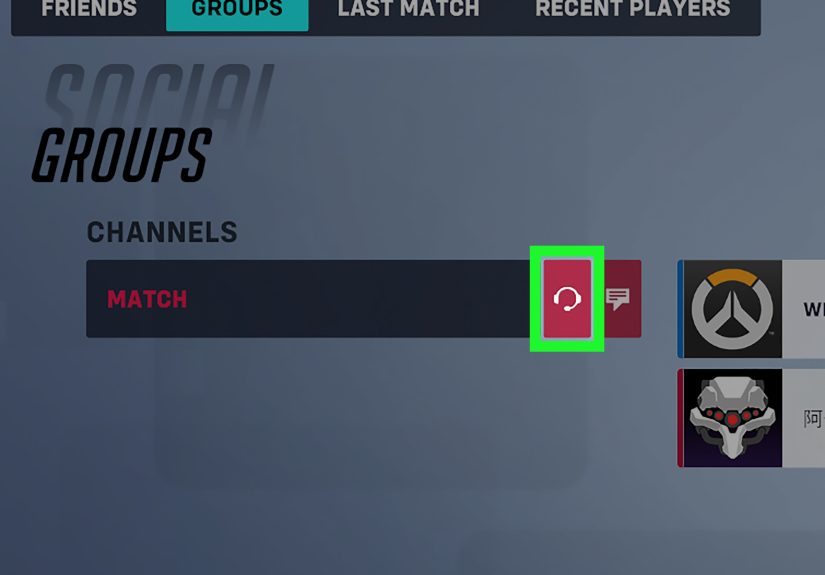
If voice chat is not auto-joining the way you expect, open the social or channels menu and manually join the appropriate channel. Depending on your current menu state or platform, you may need to click the headset icon or switch channels yourself. If you are grouped with friends, make sure you are not accidentally sitting in group chat while expecting random teammates in team chat to hear you.
7. Test before jumping into ranked
Before you bet your rank on your mic behaving, test things in the Practice Range, Quick Play, or a group lobby. Speak, watch for the speaking indicator, and ask a friend whether your mic sounds normal. Ten seconds of testing can save you from an entire match of “Hello? Can anyone hear me?” followed by total silence.
How to Use Voice Chat on PlayStation
Console players have an extra layer to manage because the console itself has audio and party-chat settings that can override the game.
- Open Overwatch 2 and check the in-game sound and voice settings.
- Make sure your headset, controller mic, or USB mic is selected correctly in the PlayStation Sound settings.
- Adjust the microphone level so your voice is being picked up clearly.
- Check whether your mic is muted using the controller mute button.
- If you are in a PlayStation party, make sure you switch from party chat to game chat when needed.
This is one of the biggest console gotchas. If you are sitting in party chat, your Overwatch team may not hear you at all. The fix is often simple: change the chat priority or switch to game chat through the PlayStation control center. Very often the problem is not Overwatch 2. It is just the console politely sending your voice somewhere else.
How to Use Voice Chat on Xbox
On Xbox, the formula is similar. You need the game settings to be correct, but you also need your console privacy and chat settings to cooperate.
- Open Overwatch 2 and review voice chat settings in the game.
- Check that your headset is connected and not muted.
- Make sure your Xbox privacy settings allow communication and multiplayer voice features.
- If you are in an Xbox party, disconnect or switch so you can return to game chat.
- Restart the console if chat is still acting haunted.
Xbox players should also pay attention to headset controls. Some headsets have separate game/chat balance dials, and if chat is turned all the way down, your teammates may technically be talking while sounding like ghosts in another dimension.
Best Voice Chat Settings for Clearer Communication
Once voice chat is working, you can improve the actual experience. Functioning is good. Functioning well is better.
Use Push to Talk for competitive matches
In ranked games, cleaner comms usually beat constant background audio. Push to Talk helps keep the channel focused on useful callouts instead of breathing, button mashing, and somebody making a sandwich with suspicious intensity.
Lower nonessential volume if teammates sound buried
If you struggle to hear comms over the game, reduce music or some effects volume slightly. You do not need the soundtrack to overpower the person warning you about the Tracer in your backline.
Mute individual players when needed
Blizzard has expanded mute and report tools, and recent updates have made it easier to manage specific players directly from the scoreboard. Use that. You do not have to choose between hearing everyone and hearing no one. If one player is being disruptive, mute that player and keep the rest of the channel alive.
Remember that behavior matters
Blizzard actively moderates disruptive chat behavior. Reported voice chat may be reviewed through temporary transcription systems, and repeated misconduct can lead to silences, suspensions, or loss of chat access. Translation: use comms to help your team, not audition for “Worst Teammate Alive.”
How to Fix Overwatch 2 Voice Chat Not Working
If voice chat still refuses to cooperate, work through these fixes one by one.
1. Check Windows microphone permissions
On PC, make sure Windows allows microphone access for apps and desktop apps. If system permissions are off, Overwatch 2 may never see your mic properly, even if your hardware is perfectly fine.
2. Test the microphone in Windows
Go into Windows sound settings, select your microphone, and run a quick test. If the mic fails there, the issue is not Overwatch 2. It is your broader system setup.
3. Set the correct default input and output devices
If Windows is still pointing to the wrong microphone or playback device, the game may inherit that confusion. Set the correct devices, then relaunch the game.
4. Leave and rejoin voice chat
Sometimes the channel itself needs a refresh. Leave the voice channel and join again. Yes, it sounds absurdly simple. Yes, it genuinely works sometimes. Technology enjoys a little drama.
5. Restart the game or console
For both PC and console players, a full restart is still one of the most effective quick fixes. Not glamorous, but neither is losing comms in overtime.
6. Update audio drivers or headset firmware
On PC, outdated audio drivers can cause weird behavior. On console, headset firmware or controller connection issues can produce equally weird results. If your setup is old enough to remember different patch metas, update it.
7. Check party chat conflicts
On PlayStation and Xbox, party chat often blocks game chat unless you intentionally switch over. If teammates cannot hear you but your friends in party chat can, there is your answer.
8. Consider the Error -1002 fix path
If you see the infamous voice chat error -1002, start with the sensible fixes first: restart the device, rejoin the party or channel, and update drivers. Some players also report success with a more advanced networking workaround, such as disabling IPv6 on PC, but treat that as a last-resort experiment rather than a universal cure.
9. Check whether your account has chat restrictions
If everything seems technically correct and voice still does not work, it is worth considering whether your account has a communication restriction due to behavior enforcement. Blizzard has been increasingly clear that voice and text chat access can be limited for disruptive players.
When to Use Voice Chat and When to Use Pings Instead
Voice chat is powerful, but it is not always the right tool for every second of every match.
Use voice chat for fast, strategic information:
- Enemy flanks
- Ultimate tracking
- Target focus
- Retreat calls
- Engage timing
Use the ping system when:
- You do not have a mic
- You do not want to talk
- Voice chat is crowded
- You need a quick directional alert
The smartest players often use both. Voice handles nuance. Pings handle speed. Together, they make your team communication feel much less like interpretive dance.
Voice Chat Etiquette That Actually Helps You Win
The best comms are short, calm, and actionable. You do not need to narrate every emotion you experience during a fight.
Good callouts: “Widow top right.” “Sigma one.” “Save Beat for Blade.” “Back out, reset.”
Bad callouts: “Why are you all throwing?” “Hello? Team?” “Bro what are you doing?” “I cannot believe this lobby.”
One of those styles helps your team. The other helps your blood pressure become a side quest.
Real-World Experiences Using Voice Chat in Overwatch 2
Here is the funny thing about voice chat in Overwatch 2: when it works well, it almost feels invisible. A tank says “go in three,” the Ana calls “nano ready,” the DPS announces a flank, and suddenly the whole team looks coordinated enough to deserve highlight music. Nobody is giving a TED Talk. Nobody is overexplaining. It is just crisp, useful information at the right moment.
In lower-pressure matches, voice chat can also make the game more fun. A group of friends joking through Quick Play can turn even a messy loss into a memorable match. You miss a shatter, someone laughs, the Mercy says “we absolutely did not see that,” and the mood stays light. Good voice chat adds personality to the game without hijacking it.
Solo queue is where the experience gets more interesting. Some matches are silent except for one brave soul making callouts into the void. Oddly enough, that can still help. Even if only one or two teammates talk back, the rest often listen. A simple “Reaper behind” or “touch point now” can be enough to change what your team does. You do not always need a full debate club. Sometimes you just need one clear voice steering the bus away from the cliff.
Then there are the less glamorous matches. You join team chat, hear a fan roaring like a jet engine, someone is chewing directly into the mic, and another player is arguing with a sibling about laundry. That is when Push to Talk starts looking like one of humanity’s greatest inventions. The good news is that Overwatch 2 gives you enough control to mute individuals, adjust volume, or leave a bad channel without giving up communication completely.
Console players often describe a different kind of frustration: the voice chat is “broken,” except it is really a party-chat conflict, a muted controller mic, or a privacy setting tucked away in the system menu. Once those are fixed, the game chat usually feels much more reliable. PC players, meanwhile, often run into Windows permission problems, wrong default devices, or audio software that decides to volunteer for sabotage at exactly the wrong time.
One of the most useful lessons from regular Overwatch 2 players is that voice chat works best when you treat it like a tool, not a stage. Make the callout, keep it brief, and move on. Calm players get heard more often than loud ones. Clear information beats emotional commentary almost every time.
There is also a nice middle ground for players who are not comfortable speaking much. You can stay in voice chat just to listen. That alone has value. Hearing ultimate plans, retreat calls, or flank warnings can improve your awareness even if you never say a word. Combine that with pings and you are still contributing to team coordination without turning your mic into a permanent roommate.
In the end, the best voice chat experience in Overwatch 2 is not about talking more. It is about talking better. A handful of smart, timely callouts can do more for your win rate than five minutes of noise. And if your comms stay calm, useful, and respectful, your teammates are far more likely to listen instead of reaching for the mute button like it is an ultimate ability.
Final Thoughts
If you want to use voice chat in Overwatch 2 effectively, the formula is simple: set up the right device, join the right channel, choose the speaking mode that fits your play style, and keep your comms useful. On PC, that usually means checking Sound settings, device selection, and Push to Talk. On console, it often means doing all of that plus making sure your platform is not trapping you in party chat.
Once your setup is solid, voice chat becomes one of the best tools in the game. It will not guarantee wins, of course. You still have to hit your shots, manage cooldowns, and avoid chasing a Moira into the abyss. But it absolutely gives your team a better chance to act like a team. And in Overwatch 2, that is often half the battle.