Table of Contents >> Show >> Hide
- What Are Read Receipts on Android?
- Can You Turn Off Read Receipts on Android?
- How To Turn Off Read Receipts in Google Messages
- How To Turn Off Read Receipts in Samsung Messages
- Why You Might Not See the Read Receipts Setting
- How To Check Your Default Messaging App
- What Happens After You Turn Off Read Receipts?
- Can You Turn Off Read Receipts for One Person Only?
- Read Receipts vs. Delivery Receipts: What Is the Difference?
- Why Turn Off Read Receipts on Android?
- Troubleshooting: Read Receipts Still Showing?
- Should You Turn Off RCS Completely?
- Privacy Tips for Android Text Messages
- Real-World Experiences: What It Feels Like To Turn Off Read Receipts
- Conclusion
- SEO Tags
Read receipts can be useful, thoughtful, and occasionally a tiny digital trap. One minute you open a message from your friend asking, “Can you help me move this weekend?” and the next minute your phone has quietly announced, “Yes, they saw this and are now pretending to be busy.” Rude? Maybe. Technically accurate? Also maybe.
If you want more privacy, fewer social expectations, or simply the freedom to read a message without immediately replying, learning how to turn off read receipts on Android text messages is a smart move. The good news: on most Android phones, it only takes a few taps. The slightly annoying news: the exact path depends on your messaging app, whether you use Google Messages or Samsung Messages, and whether your conversation is using RCS instead of old-school SMS.
This guide explains what read receipts are, why they appear, how to disable them in Google Messages and Samsung Messages, and what to do if the setting seems to be missing. Let’s give your texting life a little breathing room.
What Are Read Receipts on Android?
Read receipts are message status indicators that show when someone has opened or read your message. On Android, these are most commonly tied to RCS chats, also called Rich Communication Services. RCS is the modern upgrade to SMS and MMS. It supports features such as read receipts, typing indicators, high-quality photo sharing, better group chats, and messaging over Wi-Fi or mobile data.
Traditional SMS and MMS messages generally do not include true read receipts. They may show that a message was sent or delivered depending on your carrier and app, but they usually cannot tell you whether the other person actually opened the message. In other words, SMS is the “I dropped the letter in the mailbox” version of texting. RCS is the “I saw you open the envelope while standing by the window” version.
Can You Turn Off Read Receipts on Android?
Yes, you can turn off read receipts on most Android phones if you are using an RCS-enabled messaging app, especially Google Messages. When you disable read receipts, other people should no longer see when you have read their RCS messages. You can still receive and send texts normally.
However, there are a few important details:
- Read receipts usually apply to RCS chats, not regular SMS/MMS texts.
- Both people often need RCS enabled for read receipts to work.
- The setting may be called Send read receipts, Read receipts, Chat features, or RCS chats.
- Turning off read receipts may also affect what you can see from others, depending on the app and setup.
- Menu names can vary slightly by Android version, phone brand, carrier, and messaging app.
Now let’s get to the part you came for: turning the little tattletale off.
How To Turn Off Read Receipts in Google Messages
Google Messages is the default texting app on many Android phones, including many newer Samsung Galaxy devices, Pixel phones, Motorola phones, and other Android models. It is also the app Google recommends for RCS messaging.
Steps to Disable Read Receipts in Google Messages
- Open the Google Messages app on your Android phone.
- Tap your profile picture or account icon in the top-right corner.
- Tap Messages settings.
- Tap RCS chats. On some phones, this may appear as Chat features.
- Find Send read receipts.
- Turn the toggle off.
That’s it. Your Android phone should stop sending read receipts in RCS conversations. You can still send texts, receive texts, share photos, join group chats, and continue your normal messaging life without broadcasting every moment you open a message.
Should You Also Turn Off Typing Indicators?
While you are in the RCS chats menu, you may also see an option called Show typing indicators. This feature lets others see when you are typing. If read receipts feel too revealing, typing indicators may feel like your phone is narrating your every move: “They are typing… wait, no… they deleted it… now they are thinking… now they have given up.”
To turn off typing indicators, stay in the same RCS settings menu and switch off Show typing indicators. This gives you a little more privacy when composing messages, especially when your first draft is “Sure!” and your second draft is a carefully worded paragraph worthy of a legal department.
How To Turn Off Read Receipts in Samsung Messages
Some Samsung Galaxy phones still have Samsung Messages, although Samsung has been moving users in the United States toward Google Messages. If your phone uses Samsung Messages, the setting may be in a slightly different place.
Steps to Disable Read Receipts in Samsung Messages
- Open the Samsung Messages app.
- Tap the three-dot menu in the upper-right corner.
- Tap Settings.
- Look for Chat settings, Advanced Messaging, or a similar RCS-related menu.
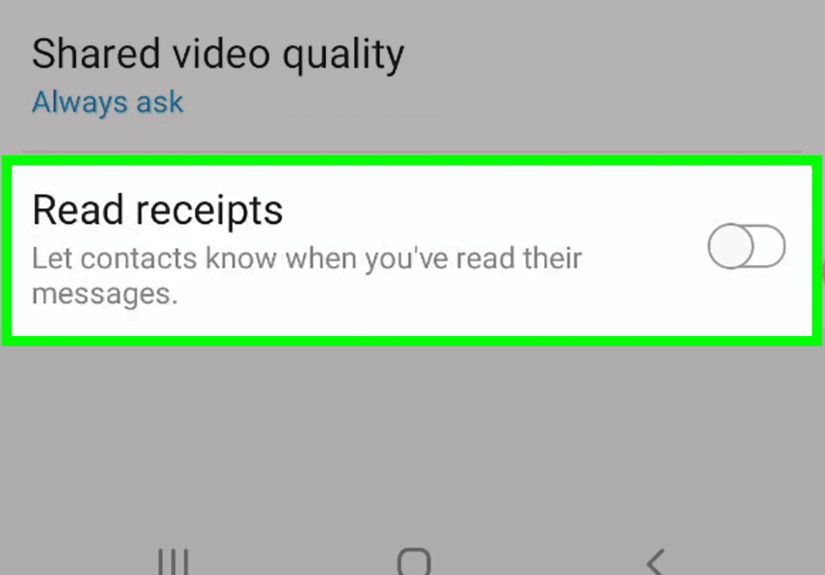
- Find Read receipts.
- Turn the setting off.
If you do not see these options, your carrier may not support RCS through Samsung Messages anymore, or your phone may already be using Google Messages as the default messaging app. In that case, open Google Messages and use the Google Messages steps above.
Why You Might Not See the Read Receipts Setting
If you are hunting through your messaging settings like you are searching for buried treasure and still cannot find read receipts, do not panic. There are several common reasons the option may be missing.
1. You Are Sending Regular SMS or MMS
Read receipts are usually an RCS feature. If your conversation is using SMS or MMS, there may be no read receipt setting to control because the feature is not active in that type of message. In Google Messages, RCS conversations may show signs such as “RCS message,” read indicators, typing indicators, or higher-quality media support.
2. RCS Is Turned Off
If RCS chats are disabled, the read receipt toggle may not appear. In Google Messages, go to Messages settings, then RCS chats, and check whether RCS is turned on. If you want to use RCS but hide read receipts, keep RCS enabled and turn off only Send read receipts.
3. Your Carrier or App Does Not Support It
Some carriers have changed how they support RCS and advanced messaging, especially on older messaging apps. If your app does not support RCS read receipts, the toggle may not exist. Switching to Google Messages often solves this because it is widely supported across Android devices and carriers.
4. Your App Needs an Update
Messaging features can change with app updates. Open the Google Play Store, search for your messaging app, and install any available update. After updating, reopen the app and check the settings again.
5. You Are Looking in the Wrong Messages App
Many Android phones have more than one messaging app installed. You may have Google Messages, Samsung Messages, a carrier-branded app, or another texting app. Make sure you are changing settings in the app you actually use as your default SMS app.
How To Check Your Default Messaging App
If you are not sure which app handles your texts, check your default messaging app in Android settings.
- Open Settings on your phone.
- Tap Apps.
- Tap Default apps.
- Tap SMS app.
- See which app is selected.
If Google Messages is selected, use the Google Messages instructions. If Samsung Messages is selected, use the Samsung Messages instructions. If a third-party app is selected, open that app and look for privacy, chat, messaging, or RCS settings.
What Happens After You Turn Off Read Receipts?
After you disable read receipts, people should not see when you have read their RCS messages. They may still see that a message was sent or delivered, depending on the app and conversation type. This is normal. Turning off read receipts does not necessarily hide delivery status.
Think of it this way:
- Sent usually means the message left the sender’s phone.
- Delivered usually means the message reached the recipient’s device.
- Read means the recipient opened or viewed the message.
When you turn off read receipts, you are mainly hiding that final “read” status from other people. You are not blocking messages, muting the conversation, deleting anything, or becoming invisible in the witness protection program of texting.
Can You Turn Off Read Receipts for One Person Only?
This depends on your messaging app. Some apps may offer conversation-specific settings, while Google Messages generally focuses on the main RCS read receipt toggle. If you only want more privacy with one contact, open that conversation, tap the menu or contact name, and check for conversation-specific options. If there is no read receipt setting there, your best option is to turn off read receipts globally.
You can also mute notifications for a specific person without disabling read receipts for everyone. Muting is helpful when one chat is too active, but it does not necessarily stop read receipts. For that, you still need the RCS read receipt setting.
Read Receipts vs. Delivery Receipts: What Is the Difference?
Many people confuse read receipts with delivery receipts, and honestly, phone companies did not make the naming especially cozy. Here is the simple version:
Delivery Receipt
A delivery receipt tells the sender that the message reached your phone. It does not mean you opened it, read it, understood it, agreed with it, or emotionally processed it.
Read Receipt
A read receipt tells the sender that you opened or viewed the message. This is the feature people usually want to turn off because it creates pressure to respond quickly.
If someone still sees “Delivered” after you disable read receipts, that does not mean the setting failed. It likely means delivery status is still working, while read status is hidden.
Why Turn Off Read Receipts on Android?
There are plenty of good reasons to disable read receipts, and none of them require you to be dramatic. Sometimes you are busy. Sometimes you need time to think. Sometimes you read a message while standing in line at the grocery store and cannot type a thoughtful reply while balancing eggs, coffee, and your last shred of patience.
More Privacy
Turning off read receipts gives you control over what your phone shares. You can read messages without sending a tiny status report to the other person.
Less Pressure to Reply Immediately
Read receipts can make normal delays feel personal. Disabling them helps reduce the expectation that every message requires an instant response.
Better Work-Life Boundaries
If coworkers, clients, or group chats message you outside work hours, read receipts can blur boundaries. Turning them off gives you room to respond when you are actually available.
Fewer Misunderstandings
People sometimes assume that “read” means “ignored.” In reality, it may mean “opened while walking into a meeting.” Removing read receipts can prevent unnecessary overthinking on both sides.
Troubleshooting: Read Receipts Still Showing?
If someone says they can still see when you read messages, try these fixes.
Restart Your Messaging App
Close the app completely and reopen it. Some settings do not apply cleanly until the app refreshes.
Restart Your Phone
Yes, it is the oldest tech advice in the book. It also works often enough to remain annoying.
Update Google Messages
Open the Play Store and update Google Messages. RCS features and menus can change over time, so an outdated app may behave differently.
Check RCS Settings Again
Go back to Messages settings, then RCS chats, and confirm that Send read receipts is still off.
Confirm Which App Is Default
If another messaging app is set as your default SMS app, changing settings in Google Messages may not affect your actual texting experience.
Should You Turn Off RCS Completely?
You can turn off RCS chats entirely, but most people do not need to. RCS gives you better media sharing, modern group chats, Wi-Fi messaging, typing indicators, and other useful features. If your only concern is privacy around read status, turn off Send read receipts instead of disabling RCS completely.
However, if RCS is causing problems, messages are stuck, or you prefer simpler SMS texting, you can disable RCS in Google Messages by going to Messages settings, then RCS chats, and turning off RCS chats. Just know that your conversations may lose modern features and fall back to SMS or MMS.
Privacy Tips for Android Text Messages
Turning off read receipts is a great start, but it is not the only way to make Android texting feel less exposed. Try these extra privacy-friendly habits:
- Turn off typing indicators if you do not want others to see when you are composing a reply.
- Use notification previews carefully, especially on your lock screen.
- Mute noisy group chats instead of leaving them in frustration.
- Keep your messaging app updated for security and feature improvements.
- Review your default messaging app after switching phones or carriers.
- Use screen lock protection so private texts are not visible to anyone holding your phone.
Real-World Experiences: What It Feels Like To Turn Off Read Receipts
Turning off read receipts sounds like a tiny settings change, but it can noticeably change how texting feels. Many Android users do it after realizing that read receipts create a weird sense of obligation. You open a message, the other person sees that you opened it, and suddenly your phone feels like it has assigned you homework.
One common experience is the “busy but not ignoring you” problem. Imagine you are at work and your sibling texts, “Can you call me later?” You open the message because you want to know whether it is urgent. It is not urgent, so you plan to call after your meeting. But because read receipts are on, your sibling may think, “They saw it. Why didn’t they answer?” Turning off read receipts removes that unnecessary tension. You still saw the message. You still care. You just do not need your phone to publish a timestamped emotional progress report.
Another familiar situation is group chats. Family chats, neighborhood chats, school chats, and friend groups can be wonderful, chaotic, or both before breakfast. If read receipts are active, people may notice who has seen the latest plan, joke, invitation, or debate about where to order pizza. Disabling read receipts gives you more freedom to catch up without becoming part of the conversation immediately. Sometimes you simply want to read the 37-message debate about toppings without being legally required to vote on mushrooms.
Read receipts can also affect dating and friendships. A delayed reply can be interpreted in a dozen ways, most of them invented by anxiety. Maybe someone is busy. Maybe they are driving. Maybe they opened the message while half-asleep and forgot to reply. Without read receipts, there is less room for people to build a courtroom case around a tiny “read” indicator. Texting becomes a little more relaxed and a lot less performative.
For work, the benefit can be even clearer. If clients, managers, or coworkers text you, read receipts may accidentally create the expectation that you are always available. Turning them off helps protect your time. You can read a message, decide whether it needs immediate action, and respond when you have a clear answer. That is especially useful for people who use one phone for both personal and professional communication.
There is also a simple comfort factor. Not every message needs to become a live tracking event. Sometimes privacy is not about hiding anything; it is about having a normal amount of space. Turning off read receipts lets you read, think, breathe, and reply like a human being instead of a customer service chatbot with thumbs.
The best part is that the change is reversible. If you miss read receipts, you can turn them back on in the same RCS settings menu. Some people like the transparency, especially with close family members or partners. Others prefer less visibility. Neither choice is wrong. The right setting is the one that makes your communication healthier, calmer, and less likely to involve someone texting “???” seven minutes after you read their message.
Conclusion
Learning how to turn off read receipts on Android text messages is simple once you know where the setting lives. In Google Messages, open the app, tap your profile icon, go to Messages settings, choose RCS chats, and turn off Send read receipts. In Samsung Messages, look under Settings, then Chat settings or Advanced Messaging, and disable Read receipts if the option is available.
The most important thing to remember is that Android read receipts usually belong to RCS chats, not basic SMS or MMS. If you cannot find the setting, check whether RCS is enabled, update your messaging app, confirm your default SMS app, or switch to Google Messages if your current app no longer supports advanced messaging features properly.
Read receipts are not evil. They are just not always necessary. Turning them off gives you more control, more privacy, and more time to reply without your phone acting like a tiny gossip columnist. And honestly, your peace of mind deserves at least one toggle switch.
SEO Tags
Note: Menu names can vary by Android version, phone model, carrier, and messaging app. If you do not see the exact wording listed above, look for similar options such as RCS chats, Chat features, Advanced Messaging, or Send read receipts.