Table of Contents >> Show >> Hide
- Before You Flip Switches: What’s Actually “Correcting” Your Text?
- iPhone & iPad: Turn Off Autocorrect (iOS / iPadOS)
- Android Phones & Tablets: Turn Off Autocorrect (Gboard, Samsung Keyboard, and More)
- Windows 11 (and Windows 10): Turn Off Autocorrect While Typing
- Mac (macOS): Turn Off Autocorrect System-Wide or Per App
- Chromebook (ChromeOS): Turn Off Autocorrect and Spell Corrections
- Browsers: When “Autocorrect” Is Really Spell Check
- Apps That Autocorrect Even If Your Device Doesn’t
- Troubleshooting: “I Turned It Off… Why Is It Still Autocorrecting?”
- Quick Reference: Turn Off Autocorrect in Under a Minute
- FAQ: The Stuff Everyone Wonders (and Nobody Wants to Google)
- Conclusion
Autocorrect is like that one friend who “helps” by rearranging your furniture while you’re asleep.
Sometimes it saves you from typos. Other times it turns “meeting at 3” into “meeting at 💀” and makes
you look like you’re texting during a haunted seance.
The good news: you can turn off autocorrect (or tame it) on basically every device you ownphones, tablets,
laptops, desktops, and even inside specific apps. The slightly annoying news: “autocorrect” can mean different
things depending on where you’re typing. So we’ll do this the smart way: identify what’s actually changing your
words, then shut down the right setting.
Before You Flip Switches: What’s Actually “Correcting” Your Text?
People call everything “autocorrect,” but there are a few different features that can mess with your typing.
Knowing which one you’re fighting saves a lot of “I turned it off… why is it still doing it?” energy.
- Autocorrect / Auto-correction: Automatically replaces a word as you type (usually after you hit space).
- Spell check: Underlines errors and suggests fixes, but doesn’t always replace words automatically.
- Predictive text / suggestions: Offers next-word suggestions or a suggestion strip (you choose what to insert).
- Auto-capitalization / smart punctuation: Changes casing, quotes, dashes, and punctuation automatically.
- App-level substitutions: Google Docs, Word, browsers, and some editors have their own autocorrect settings.
- Third-party keyboards/extensions: Gboard, SwiftKey, Grammarly, Microsoft Editoreach can add “helpfulness.”
With that out of the way, let’s turn off autocorrect device by devicestarting with the ones that cause the most chaos:
phones and tablets.
iPhone & iPad: Turn Off Autocorrect (iOS / iPadOS)
On iPhone and iPad, Apple keeps the autocorrect toggle in the Keyboard settings. When you turn it off, your device
should stop automatically replacing wordsthough you can still keep spell check or suggestions if you want.
Steps (Autocorrect Off)
- Open Settings.
- Tap General > Keyboard.
- Toggle Auto-Correction Off.
Optional: Keep It Calm Without Going Full “No Help Ever”
- Predictive text: If suggestions annoy you, toggle Predictive off too.
- Spell check: If you like red underlines but hate replacements, leave Check Spelling on.
- Text Replacement: If your phone keeps “correcting” a brand name or your friend’s name, check Text Replacement entriesyou might have accidentally set one up.
If You Use a Third-Party Keyboard on iPhone/iPad (Gboard, etc.)
Turning off Apple’s autocorrect doesn’t always control what a third-party keyboard does inside its own settings.
For example, in Gboard on iOS, you can open the Gboard app and toggle features like Auto-correction
in the keyboard settings.
Android Phones & Tablets: Turn Off Autocorrect (Gboard, Samsung Keyboard, and More)
Android is a choose-your-own-adventure: the steps depend on which keyboard you’re using. The most common keyboard
is Gboard, but Samsung phones often default to Samsung Keyboard.
Option A: Turn Off Autocorrect in Gboard
- Open Settings on your Android device.
- Go to System (or General management on some phones).
- Tap Languages & input > On-screen keyboard (or Virtual keyboard).
- Select Gboard > Text correction.
- Toggle Auto-correction Off.
Optional: Reduce the “Keyboard Has Opinions” Factor
- Suggestion strip / next-word suggestions: Turn off if you want a quieter keyboard.
- Auto-capitalization: If it keeps yelling your sentences into Title Case, disable it.
- Personal dictionary: Add weird names, slang, or product terms so your keyboard stops trying to “fix” them.
Option B: Samsung Keyboard (Common on Galaxy Phones)
Samsung labels things a little differently (because of course it does). Look for settings like Auto replace,
Predictive text, or Auto spell check under Samsung Keyboard’s typing/smart typing menu.
- Open Settings.
- Tap General management > Samsung Keyboard settings.
- Find Smart typing (or similar).
- Turn off Auto replace (and optionally predictive text).
Quick Reality Check for Android
If autocorrect still happens after you turn it off, you’re probably typing with a different keyboard than you think.
Go back to On-screen keyboard and confirm which keyboard is currently active.
Windows 11 (and Windows 10): Turn Off Autocorrect While Typing
Windows has its own “as you type” correction features. These can affect places like Settings search, some apps,
and certain text fieldsespecially if writing assistance is enabled.
Turn Off Autocorrect in Windows Settings
- Open Settings.
- Go to Time & language > Typing.
- Under spelling options, turn Autocorrect misspelled words Off.
- (Optional) Turn Highlight misspelled words off if you don’t want underlines.
Optional: Turn Off Text Suggestions (Physical Keyboard)
If Windows keeps popping up suggestions while you type on a physical keyboard, you can disable text suggestions
in the same Typing settings area.
Microsoft Word: Autocorrect Is a Separate Beast
Word has its own AutoCorrect system, which can stay active even if Windows autocorrect is off. To disable it:
- Open Word and go to File > Options > Proofing.
- Select AutoCorrect Options.
- On the AutoCorrect tab, clear Replace text as you type.
Mac (macOS): Turn Off Autocorrect System-Wide or Per App
macOS lets you disable autocorrection for the whole system or only in a specific app. If you do a lot of writing,
this flexibility is chef’s-kiss excellent.
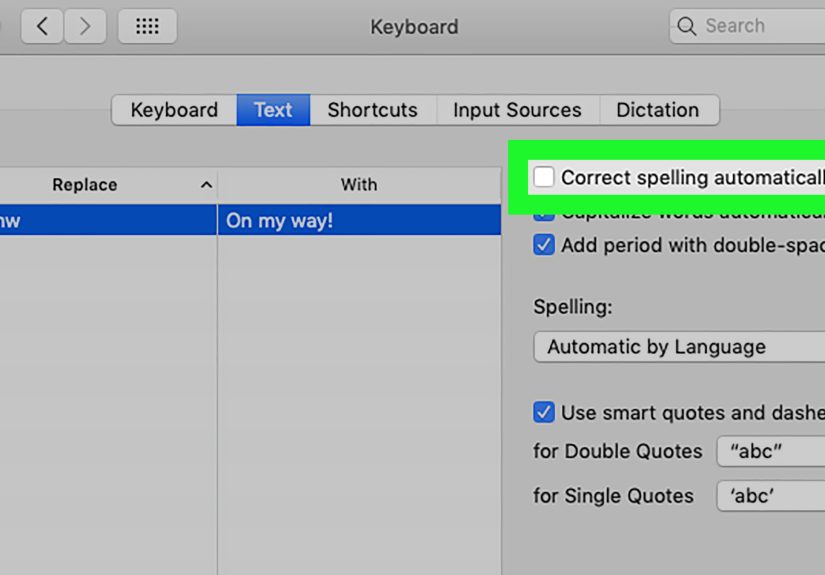
System-Wide: Turn Off “Correct Spelling Automatically”
- Open System Settings.
- Click Keyboard.
- Go to Text Input and click Edit.
- Toggle Correct spelling automatically Off.
- Click Done.
Per App: Turn Off Autocorrect Only Where You Want
If you only want autocorrect off in one app (say, your coding editor or a chat app where you type a lot of slang),
you can disable it from that app’s menu:
- Open the app.
- Click Edit > Spelling and Grammar.
- Click Correct Spelling Automatically so it’s unchecked.
Bonus: Related “Auto” Features You Might Want to Disable
- Auto-capitalization (if it keeps turning your casual vibe into a legal document).
- Smart quotes and dashes (great for novels; annoying for URLs, code, and product SKUs).
- Text replacements (helpful shortcutsunless you accidentally made one that sabotages you).
Chromebook (ChromeOS): Turn Off Autocorrect and Spell Corrections
Chromebooks have two places where corrections can happen: the keyboard input method (autocorrection while typing)
and Chrome browser spell check (red underlines and suggestions on web pages).
Turn Off Autocorrect for the Chromebook Keyboard
- Open Settings.
- Go to Device > Keyboard > Input settings.
- Select Input method.
- Next to your enabled keyboard, select the arrow to open its settings.
- Under Physical keyboard, turn Auto-correction Off.
Turn Off Spell Check in Chrome (On Web Pages)
- Open Chrome.
- Go to Settings > Languages.
- Under Spell check, toggle “Check for spelling errors when you type…” Off.
Browsers: When “Autocorrect” Is Really Spell Check
On desktops, most “autocorrect drama” inside web apps (Gmail, Slack, project tools, etc.) is actually the browser’s spell check
or writing assistance. Here’s where to shut it down.
Google Chrome (Windows/Mac/Chromebook)
Chrome has a dedicated spell check toggle under Languages. Turn it off to stop the browser from flagging and suggesting corrections
across websites.
Microsoft Edge (Windows/Mac)
Edge includes writing assistance options (including spell checking modes). If you’re seeing constant corrections or suggestions,
check Edge’s Languages settings and the writing assistance/spellcheck area.
Mozilla Firefox (Windows/Mac/Linux)
Firefox lets you disable spell checking as you type in Settings:
open Settings, stay on General, and in the Language section, uncheck Check your spelling as you type.
Apps That Autocorrect Even If Your Device Doesn’t
Some apps basically run their own mini-autocorrect universe. Two big ones: Google Docs and Microsoft Word.
If you turned off device autocorrect and things still change inside a specific app, check the app’s preferences.
Google Docs (Web): Turn Off Autocorrect/Substitutions
- Open a Google Doc.
- Click Tools > Preferences > Substitutions.
- Uncheck options like automatic capitalization, spelling corrections, or automatic substitution.
- Click OK.
Microsoft Word (Desktop): Turn Off Replace-As-You-Type
If Word keeps transforming what you type (smart quotes, numbered lists, “helpful” formatting), disable AutoCorrect as noted earlier
and consider reviewing “AutoFormat As You Type” options if they’re driving you up a wall.
Troubleshooting: “I Turned It Off… Why Is It Still Autocorrecting?”
This happens more than you’d think. Here are the most common causesand the fastest fixes.
1) You Turned Off the Wrong Thing
- Autocorrect vs. suggestions: If words aren’t replaced but suggestions appear, autocorrect is likely off and predictions are still on.
- Device vs. app: Google Docs and Word can keep correcting even when the device doesn’t.
- Keyboard mismatch: On Android, you may have turned off autocorrect in one keyboard while typing with another.
2) Multiple Languages Are Confusing the System
If your device thinks you’re typing in two languages at once, it may “correct” words into the wrong language.
Make sure your primary language and keyboard settings match how you actually write.
3) Your Keyboard Is “Learning” Weird Stuff
Some keyboards adapt to your typing habits. That’s great until it learns the wrong habits (like turning “defi” into “defy” forever).
In those cases, disabling autocorrector adjusting dictionary settingsusually gets you back in control.
4) Restart Helps More Than It Should
It’s not glamorous, but restarting the keyboard app, the browser, or the device can make newly changed settings actually apply.
Think of it as telling autocorrect, “No, I really meant it this time.”
Quick Reference: Turn Off Autocorrect in Under a Minute
| Device / App | Where to Turn It Off |
|---|---|
| iPhone / iPad | Settings > General > Keyboard > Auto-Correction (Off) |
| Android (Gboard) | Settings > System > Languages & input > On-screen keyboard > Gboard > Text correction > Auto-correction (Off) |
| Windows 11 | Settings > Time & language > Typing > Autocorrect misspelled words (Off) |
| Mac (system-wide) | System Settings > Keyboard > Text Input > Edit > Correct spelling automatically (Off) |
| Chromebook (keyboard) | Settings > Device > Keyboard > Input settings > Input method > Auto-correction (Off) |
| Chrome (browser spell check) | Chrome Settings > Languages > Spell check (Off) |
| Firefox | Firefox Settings > General > Language > Check your spelling as you type (Unchecked) |
| Google Docs | Tools > Preferences > Substitutions (disable spelling corrections / automatic substitutions) |
| Microsoft Word (desktop) | File > Options > Proofing > AutoCorrect Options > Replace text as you type (Unchecked) |
FAQ: The Stuff Everyone Wonders (and Nobody Wants to Google)
Will turning off autocorrect also turn off spell check?
Not always. Many devices let you disable autocorrect (automatic replacements) while keeping spell check (underlines/suggestions).
If you want zero interference, you may need to turn off both.
Can I turn autocorrect off in just one app?
On macOS, yesmany apps allow it through the Edit > Spelling and Grammar menu. On phones, it’s usually system-wide per keyboard,
though some apps offer their own writing tools.
Is there a middle ground?
Absolutely. A popular setup is: autocorrect off, spell check on, predictive text optional. That keeps you in charge while still
catching obvious mistakes.
Conclusion
Turning off autocorrect isn’t about rejecting technologyit’s about keeping your words your words. Autocorrect is fantastic
when you’re typing fast, tired, or juggling a toddler, a latte, and a one-handed text. But if it constantly “fixes” names, slang,
technical terms, or anything remotely modern, it can become the loudest coworker you never invited to the meeting.
The winning strategy is simple: disable autocorrect at the level where the changes are happening. If you’re on a phone, that’s usually
your keyboard settings. If you’re on a computer, it might be Windows typing assistance, macOS keyboard settings, or your browser’s spell check.
And if it only happens in one app (hello, Google Docs and Word), go straight to that app’s preferences.
Experiences: What It’s Like Living Autocorrect-Free (500+ Words)
Once people turn off autocorrect, the first experience is usually a mix of relief and mild panic. Relief because your phone finally stops
“helping” you spell your best friend’s name wrong. Panic because you realize you’ve been outsourcing spelling to a tiny robot that lives
inside your keyboard. (It’s okay. We’ve all been there.)
One of the most common “autocorrect horror stories” involves proper nouns: names, places, and brands. Maybe you work with a client
named “Aaliyah” and your phone insists it’s “Ally.” Or you type “Sequoia” (the OS name) and your keyboard keeps switching it to “sequins,”
which makes every tech conversation sound like a bedazzling craft project. Turning off autocorrect immediately stops those automatic swaps.
Suddenly, you’re not spending half your time tapping backspace, long-pressing the “right” spelling, and silently negotiating with your device.
Another classic experience is slang and internet language. Autocorrect isn’t always fluent in how humans actually talkespecially
online. It might transform “idk” into “IDK” (okay, fine), but then it tries to fix “brb,” “imo,” “lowkey,” “finna,” or niche community terms.
If you’re in gaming, crypto, coding, sports fandom, or basically any corner of the internet where words evolve weekly, autocorrect can feel like
your keyboard is constantly saying, “I don’t recognize that, so I’ve decided it’s wrong.” When autocorrect is off, you’re free to type
naturallyand your keyboard becomes more of a tool and less of a debate partner.
People who type in multiple languages often notice the biggest improvement. Autocorrect can get confused when you switch between English
and another language mid-sentence. It may “correct” perfectly fine words into the wrong language, or it may try to force accent marks and spellings
that don’t match what you mean. After turning autocorrect off (or limiting it to the right language settings), bilingual typing becomes smoother:
fewer random substitutions, fewer “why did you do that?” moments, and less time fighting the keyboard when you’re just trying to communicate.
There’s also a surprisingly professional benefit: fewer embarrassing work messages. Autocorrect loves to turn harmless words into something awkward
at the exact worst momentlike when you’re replying quickly to your boss, a customer, or a group chat with 27 people and one person who screenshots
everything. With autocorrect disabled (or at least tamed), your messages stay closer to what you intended. Yes, you may make more typos at first,
but they’ll be your typospredictable, fixable, and less likely to turn into accidental comedy.
The long-term experience tends to level out into a sweet spot: you get better at proofreading quick messages, you rely more on suggestion strips
(when you want them), and you build a small personal dictionary of names and niche terms. In other words, you go from “autocorrect victim” to
“autocorrect manager.” And that’s the goal: you’re still using smart toolsjust on your terms.