Table of Contents >> Show >> Hide
- Why Messages Don’t Always Sync Automatically
- Before You Start
- Method 1: Turn On Messages in iCloud
- Method 2: Use Text Message Forwarding
- Which Method Should You Choose?
- How to Fix Messages That Still Won’t Sync
- Privacy and Storage Tips You Should Know
- Common Questions About Syncing Messages Between iPhone and iPad
- Final Thoughts
- Real-World Experiences: What Syncing Messages Between iPhone and iPad Actually Feels Like
- SEO Tags
If your text threads are living a double life on your iPhone and refusing to show up on your iPad, do not panic. Your devices are not feuding behind your back. In most cases, the fix is simple. Apple gives you two practical ways to sync messages between an iPhone and iPad, and the best one depends on what you want: a full, cloud-based message history everywhere, or basic text forwarding from your iPhone to your iPad.
In this guide, you will learn exactly how to sync messages between iPhone and iPad using two easy methods, what each option actually does, when to use one over the other, and how to troubleshoot the usual hiccups without throwing either device dramatically onto the couch. Whether you are trying to keep iMessage conversations in sync, mirror SMS texts on your iPad, or make sure new messages appear on both devices, this walkthrough has you covered.
Why Messages Don’t Always Sync Automatically
Apple’s Messages app is smart, but it is not magic. For messages to sync properly, your iPhone and iPad need to be signed in to the same Apple Account, iMessage needs to be set up correctly, and the right syncing option needs to be turned on. If even one of those pieces is missing, your iPad may act like it has never met your iPhone in its life.
There is also a big difference between Messages in iCloud and Text Message Forwarding. They sound similar, but they are not twins. Messages in iCloud is designed to keep your full message history updated across devices. Text Message Forwarding is more like a relay system that lets your iPad send and receive messages through your iPhone.
So before you dive into settings, it helps to know which method fits your goal.
Before You Start
- Make sure your iPhone and iPad are signed in to the same Apple Account.
- Confirm that iMessage is turned on.
- Keep both devices connected to Wi-Fi. Your iPhone can also use cellular.
- Update both devices to the latest version available for the smoothest setup.
- If you plan to use Messages in iCloud, make sure you have enough iCloud storage.
This five-minute prep work saves a lot of later confusion. It is not glamorous, but neither is yelling at settings menus.
Method 1: Turn On Messages in iCloud
If you want the best overall way to sync messages between iPhone and iPad, this is it. Messages in iCloud keeps your conversations updated across your Apple devices, including your message history and attachments. It is especially useful if you want your older conversations to appear on a new or newly reset device.
What This Method Does
When Messages in iCloud is enabled, your message history is stored and synced through iCloud. That means if you send, receive, or delete a message on your iPhone, the same change can appear on your iPad too. This is the most seamless option for people who live inside the Apple ecosystem and want one shared messaging experience instead of separate message islands.
How to Turn On Messages in iCloud on iPhone
- Open Settings.
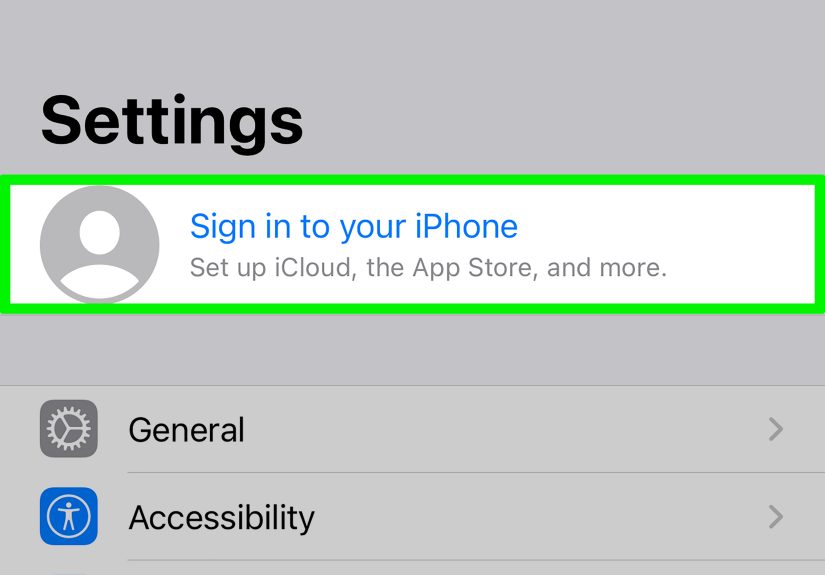
- Tap your name at the top.
- Tap iCloud.
- If needed, tap See All under the apps saved to iCloud.
- Tap Messages.
- Turn on Use on this iPhone.
How to Turn On Messages in iCloud on iPad
- Open Settings on your iPad.
- Tap your name.
- Tap iCloud.
- If needed, tap See All.
- Tap Messages.
- Turn on Use on this iPad.
Double-Check Send & Receive Settings
Now open Settings > Apps > Messages > Send & Receive on your iPhone and make sure the same phone number and email addresses are enabled for iMessage. On your iPad, verify that the iPad is signed in to the same Apple Account for Messages.
This step matters because a surprising number of syncing problems happen when one device is ready to receive messages at an email address that the other device is ignoring. It is like giving two people different maps and being shocked they do not meet at the same coffee shop.
Pros of Messages in iCloud
- Best for full message syncing across devices
- Keeps older conversations available
- Works well when setting up a new iPad
- Can sync iMessage, SMS, MMS, and RCS conversation history when properly configured
Things to Watch Out For
- It uses iCloud storage
- Deleting a message on one device can delete it everywhere
- The first sync can take time if you have years of conversations and a heroic collection of photo attachments
Method 2: Use Text Message Forwarding
If you do not want to rely on iCloud storage, or you simply want your iPad to receive the text messages that come through your iPhone, Text Message Forwarding is the other easy method. This is especially helpful if your goal is to mirror standard texts on your iPad without using full cloud sync for every conversation.
What This Method Does
Text Message Forwarding lets your iPhone relay SMS, MMS, and in many cases RCS-capable message traffic to your iPad. In plain English, your iPhone remains the main line for those messages, and your iPad gets to join the conversation.
This method is useful if you want to send and receive texts on your iPad, but you do not necessarily care about storing your entire message archive in iCloud.
How to Turn On Text Message Forwarding
- On your iPhone, open Settings.
- Tap Apps.
- Tap Messages.
- Tap Text Message Forwarding.
- Turn on your iPad in the device list.
- If a verification code appears on your iPad, enter it on your iPhone.
When This Method Is Better
- You want a simple setup without using more iCloud space
- You mainly care about current texting, not a fully synced long-term archive
- You prefer to keep messages on only some devices instead of every Apple device you own
Important Limitation
Your iPhone needs to be on and connected to Wi-Fi or cellular for forwarding to work properly. So if your iPhone is off, out of battery, or having a very bad day, your iPad may stop receiving forwarded texts.
Which Method Should You Choose?
Here is the simple answer:
- Choose Messages in iCloud if you want the most complete and automatic sync between iPhone and iPad.
- Choose Text Message Forwarding if you want your iPad to handle texts through your iPhone without relying on full iCloud message storage.
For most people, Messages in iCloud is the better long-term option. It feels cleaner, smarter, and less patchwork. But if you are trying to save iCloud storage space or want more control over which devices get your texts, Text Message Forwarding is still a perfectly valid choice.
How to Fix Messages That Still Won’t Sync
If you followed the steps and your messages still are not syncing, do not worry. This is common, and most fixes are straightforward.
1. Make Sure iMessage Is Enabled
Go to Settings > Apps > Messages on your iPhone and verify that iMessage is turned on. If it is off, syncing will not behave the way you expect.
2. Check Send & Receive on Both Devices
Open the Send & Receive settings and make sure the correct phone number and email addresses are selected. A mismatch here is one of the biggest reasons messages appear on one device but not the other.
3. Restart Both Devices
Yes, the oldest tech advice still works. Restart the iPhone and iPad, then reopen Messages. It is not exciting, but it fixes more weirdness than most people want to admit.
4. Toggle Messages in iCloud Off and Back On
If Method 1 is already enabled but syncing seems stuck, turn Messages in iCloud off, wait a moment, then turn it back on. That can kick-start the sync process again.
5. Sign Out and Back In to Messages If Needed
If your setup is still acting stubborn, sign out of Messages and sign back in with the same Apple Account. This is a more aggressive fix, but it can help when your account settings are out of step.
6. Check iCloud Storage
If you are using Messages in iCloud and you are low on storage, syncing may not behave the way you hoped. Heavy attachments, old videos, memes, screenshots, and group-chat chaos all count. Your devices may be emotionally prepared for that archive, but your storage plan may not be.
Privacy and Storage Tips You Should Know
Syncing messages is convenient, but it also changes how your conversations behave.
- If Messages in iCloud is on, deleting a thread on one device can delete it across your synced devices.
- Messages stored in iCloud are different from messages stored only in an iCloud device backup.
- If you share an iPad with family members, syncing messages to it may not be the smartest move unless that iPad is truly yours.
In other words, syncing is wonderful for convenience and mildly dangerous for anyone who forgets that an iPad on the kitchen counter is not exactly a vault.
Common Questions About Syncing Messages Between iPhone and iPad
Can I sync only iMessages and not regular texts?
Yes, that can happen depending on how you configure Messages in iCloud and Text Message Forwarding. iMessage uses your Apple Account, while traditional texts depend on your iPhone and carrier-based messaging setup.
Why is my iPad not showing up in Text Message Forwarding?
This usually means your iPad is not signed in to the same Apple Account, iMessage is not fully activated, or your devices need a quick reboot. In some cases, toggling iMessage off and on again on the iPhone helps bring the device list back.
Do I need my iPhone nearby?
For Text Message Forwarding, your iPhone needs to be on and connected. For Messages in iCloud, once sync is set up, your iPad can access synced conversations more independently.
Will old messages show up on my iPad?
Yes, if you use Messages in iCloud and let the initial sync finish. That is one of the biggest advantages of Method 1.
Final Thoughts
If you have been wondering how to sync messages between iPhone and iPad, the answer is refreshingly simple once you know the two methods Apple uses. Messages in iCloud is the best choice for most people because it keeps your conversations, attachments, and ongoing message history aligned across devices. Text Message Forwarding is a great alternative if you want simpler relay-based texting without leaning heavily on iCloud storage.
Whichever method you choose, the real goal is convenience. Your messages should follow you, not make you hunt them down like a detective in your own group chat. Set it up once, double-check your account settings, and your iPhone and iPad can finally start acting like teammates instead of estranged coworkers.
Real-World Experiences: What Syncing Messages Between iPhone and iPad Actually Feels Like
In real life, syncing messages between an iPhone and iPad is one of those small tech upgrades that feels trivial at first and then quickly becomes something you never want to lose. A lot of people discover this when they are working on an iPad, the iPhone is charging in another room, and a message comes in right when they need it. Instead of getting up, hunting for the phone, and forgetting why they stood up in the first place, they can reply instantly from the iPad. That is the kind of convenience that sounds minor until you experience it for a week.
For students, it can be surprisingly useful during classes or study sessions. You might be taking notes on an iPad, checking a class group message, or coordinating with a project team without switching devices every five minutes. For parents, it is handy when the iPhone is buried somewhere between a diaper bag, grocery list, and complete household chaos. For remote workers, syncing messages means client texts, appointment updates, and family check-ins can stay visible on a bigger screen while you work.
There is also a comfort factor. When syncing is set up properly, your conversations feel continuous. You can start a chat on your iPhone while waiting in line for coffee, continue it on your iPad at home, and not lose the thread. It makes the Apple ecosystem feel less like separate gadgets and more like one connected workspace with multiple screens.
Of course, the experience is not always perfect. People often run into the same annoyances: one device gets messages while the other lags behind, old threads fail to appear, or the iPad receives iMessages but not regular texts. The good news is that these problems are usually tied to settings, not some mysterious permanent flaw. Once people learn the difference between Messages in iCloud and Text Message Forwarding, the setup makes much more sense. That is often the breakthrough moment. Suddenly, the problem goes from “Apple is broken” to “Oh, I had the wrong toggle on.” Humbling, yes. Fixable, also yes.
Another real-world lesson is that syncing changes how you manage privacy. If your iPad is personal, the feature feels fantastic. If it is shared with a spouse, kids, or anyone who gets curious around unlocked screens, it can feel less fantastic very quickly. Some users love having every message everywhere. Others realize they only wanted convenience, not full transparency from the couch to the kitchen island. That is why choosing the right method matters so much.
Overall, the experience of syncing messages between iPhone and iPad is best described as quietly helpful. It does not scream for attention. It just saves time, reduces friction, and makes daily communication feel smoother. When it works, it fades into the background, which is exactly what good tech should do.