Table of Contents >> Show >> Hide
- What Are Spotify QR Codes?
- Why Use Spotify QR Codes?
- How To Share a Spotify QR Code for a Track on Mobile
- How To Scan a Spotify QR Code
- How To Share a Spotify Radio Station
- How To Create a High-Resolution Spotify Code
- Best Practices for Spotify Codes
- Troubleshooting: Why Your Spotify Code Will Not Scan
- Smart Ways To Use Spotify QR Codes
- Common Mistakes To Avoid
- Experiences and Practical Tips From Real-Life Spotify Code Use
- Conclusion
Sharing music used to mean texting someone a song title and hoping they did not accidentally play the wrong remix, a karaoke cover, or a suspiciously enthusiastic ukulele version. Thankfully, Spotify Codes make the whole process much cleaner. These scannable codes, often casually called Spotify QR codes, let people jump straight to a track, album, playlist, artist profile, or other Spotify content without typing, searching, or asking, “Wait, which version?”
If you want to share a favorite song, send someone a Spotify Radio station, promote your own music, or print a code on a flyer, Spotify gives you several easy ways to do it. The key is understanding that Spotify Codes are not exactly the same as regular QR codes. They look different, they scan inside the Spotify app, and they are designed specifically for Spotify content. In other words, they are QR-code-adjacent, like a cousin who shows up at the family barbecue wearing sunglasses indoors.
This guide explains how to share and scan Spotify QR codes for tracks and radio stations, how to generate high-quality codes, what to do when a code will not scan, and how to use these codes creatively without making your audience squint like they are reading an ancient treasure map.
What Are Spotify QR Codes?
A Spotify QR code, more accurately called a Spotify Code, is a scannable visual tag connected to content inside Spotify. When someone scans the code using the Spotify mobile app, Spotify opens the linked content directly. That content might be a song, album, playlist, artist profile, or a page generated from a Spotify URI.
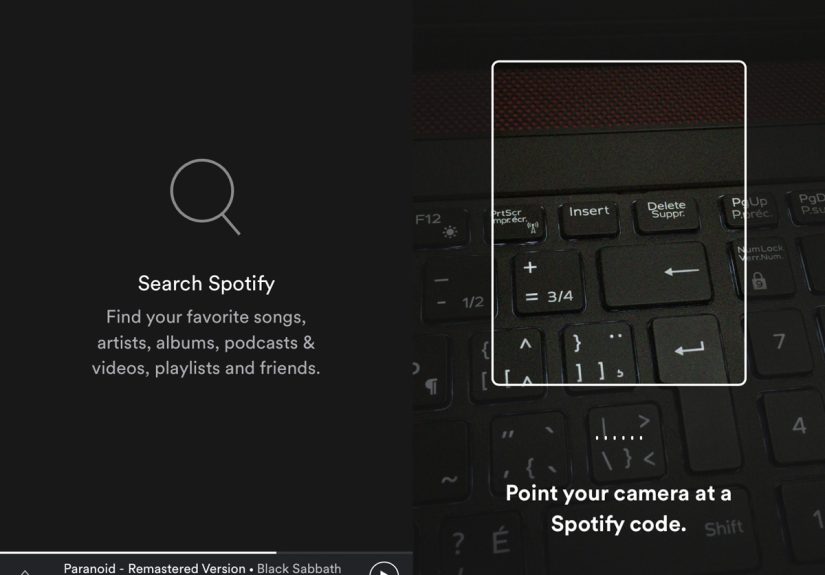
Unlike a standard QR code, which can be scanned by a phone camera and open almost any web page, a Spotify Code is meant to be scanned through Spotify’s own scanner. The scanner lives inside the Spotify app, under the Search tab. That means a regular phone camera may not understand the code, but Spotify will.
Spotify Codes vs. Regular QR Codes
The difference is simple: a regular QR code is a general-purpose doorway; a Spotify Code is a backstage pass for Spotify. A regular QR code can send people to websites, menus, payment pages, forms, and videos. A Spotify Code sends people to Spotify content.
This matters because people often search for “Spotify QR code” when they really mean “Spotify Code.” Both terms are commonly used, but if you are creating a guide, poster, event card, or social media caption, it is smart to say something clear like: Scan this in the Spotify app. That one sentence can save your audience from staring at their camera app wondering why nothing magical is happening.
Why Use Spotify QR Codes?
Spotify Codes are useful because they make music sharing fast, visual, and low-friction. A link is great in a text message, but a scannable code works beautifully on posters, printed cards, social graphics, phone screens, merch, classroom slides, party invitations, or music promotion materials.
For listeners, codes are convenient. For artists, podcasters, playlist curators, DJs, teachers, marketers, and small businesses, they are also a clever discovery tool. You can place a code on a flyer and send people straight to your new single. You can put one on a café table card and link to a house playlist. You can share a radio station at a party without passing your phone around like a fragile family heirloom.
How To Share a Spotify QR Code for a Track on Mobile
The easiest way to share a Spotify Code for a track is through the Spotify mobile app. This works on both iPhone and Android, although small menu labels may vary slightly depending on your app version.
Step 1: Open the Spotify App
Launch Spotify on your phone or tablet. Make sure you are signed in and connected to the internet. You do not need Spotify Premium just to create or scan Spotify Codes, but playback behavior may depend on whether you use Spotify Free or Premium.
Step 2: Find the Track You Want to Share
Search for the song, open it from your library, or find it inside an album or playlist. Be sure you are sharing the correct track. This sounds obvious until you accidentally share the instrumental version, the live version, or the “sped up” version that sounds like the artist drank six coffees and challenged time itself.
Step 3: Tap the Three-Dot Menu
Tap the three-dot icon next to the track title. On iPhone, this may appear as three horizontal dots. On Android, it often appears as three vertical dots. Spotify uses this menu for options such as Add to Playlist, Share, Go to Radio, and Show Spotify Code.
Step 4: Select Show Spotify Code
Scroll if needed and choose Show Spotify Code. Spotify will display the track artwork with a scannable code beneath it. This is the code another person can scan with Spotify.
Step 5: Share the Code
You can show the code on your screen so someone nearby can scan it, or take a screenshot and send it through Messages, Instagram, WhatsApp, email, or another app. If you are sharing online, a screenshot is often the quickest method. If you are printing it, use a high-resolution version from the Spotify Codes website for cleaner results.
How To Scan a Spotify QR Code
Scanning a Spotify Code is just as simple, but the scanner is inside Spotify rather than your default camera app.
Step 1: Open Spotify on Your Phone
Open the Spotify app on iPhone or Android. Spotify may ask for camera permission the first time you use the scanner. Allow access so the app can read the code.
Step 2: Tap Search
At the bottom of the app, tap Search. This opens Spotify’s search area, where you normally type song titles, artists, podcasts, or albums.
Step 3: Tap the Search Bar or Camera Icon
Tap the search bar, then tap the camera icon. In some app layouts, the camera icon may appear directly near the top-right area of the Search screen. Spotify occasionally updates its interface, so do not panic if your buttons look slightly different. The camera icon is the tiny hero of this story.
Step 4: Point Your Camera at the Spotify Code
Line up the Spotify Code inside the scanner. Keep your phone steady and make sure the code is bright, clear, and not cut off. When Spotify recognizes it, the app opens the linked song, album, playlist, artist profile, or other content.
Step 5: Scan From a Saved Image If Available
Some versions of Spotify allow you to scan from a saved image or screenshot by choosing an option such as Choose from Photos. This is helpful when someone sends you a Spotify Code image instead of displaying it on another screen. If your app does not show that option, ask the sender for the Spotify link as a backup.
How To Share a Spotify Radio Station
Spotify Radio is a feature that creates a collection of songs based on a track, artist, album, or playlist. It is useful when you like a certain sound but do not want to manually build a queue like a full-time music librarian.
How To Start Spotify Radio
To start Spotify Radio, open a song, artist, or album, tap the three-dot menu, and choose Go to Radio. Spotify will create a radio-style playlist based on that starting point. The station may update over time to keep recommendations fresh.
How To Share Spotify Radio
Once the Spotify Radio page opens, look for the three-dot menu or Share option. If Spotify gives you a sharing menu, you can copy the link, send it through another app, or display a Spotify Code if that option appears. The available options can vary by app version, device, region, and the exact type of radio page.
If you do not see a Spotify Code for the radio station itself, use this practical workaround: share the original track, artist, or album that created the station, then tell the person to tap the three-dot menu and choose Go to Radio. It is one extra step, but it keeps the recommendation accurate. Think of it as giving someone the recipe instead of only handing them the soup.
How To Create a High-Resolution Spotify Code
If you are sharing a code casually, a screenshot is usually fine. If you are printing it on a flyer, poster, album insert, business card, menu, or event invitation, use the official Spotify Codes website to generate a high-resolution version.
Step 1: Copy the Spotify URI
On desktop, open Spotify and find the content you want to share. Right-click the track, album, playlist, or artist profile. Open the Share menu and look for the option to copy the Spotify URI. In some desktop versions, you may need to hold a modifier key such as Alt, Option, or Ctrl for the URI option to appear.
Step 2: Paste the URI Into Spotify Codes
Go to the Spotify Codes generator and paste the Spotify URI into the box. The tool will generate a Spotify Code for that content. This is especially helpful for artists, marketers, and creators who need a crisp code for professional use.
Step 3: Customize the Code
You can adjust the background color, bar color, size, and file format depending on the options available. Keep contrast strong. A dark code on a light background or a light code on a dark background usually scans better than a trendy low-contrast design that looks beautiful but functions like a decorative napkin.
Step 4: Download and Test
Download the code and test it before posting or printing. Test it at the actual size people will scan. If the code is going on a poster, step back and scan it from a realistic distance. If it is going on a business card, print a sample and test it under normal lighting. The scanner does not zoom, so size and clarity matter.
Best Practices for Spotify Codes
Spotify Codes are easy to use, but a few small details can make the difference between “Wow, that opened instantly” and “Why am I taking a blurry photo of a rectangle?”
Keep the Rectangle Around the Code
Do not crop the code too tightly. Spotify Codes need a clear rectangular area so the scanner can recognize them. If you remove the surrounding shape or blend it into a busy background, the code may fail.
Use Strong Contrast
High contrast helps the scanner read the bars. Avoid placing a pale code on a pale background or a dark code on a dark image. Stylish design is great, but readability wins. Your code is not there to be mysterious.
Add a Clear Call to Action
Many people still do not know that Spotify Codes must be scanned in the Spotify app. Add text such as Scan in Spotify, Open Spotify and scan, or Search > Camera > Scan. A clear instruction can dramatically improve scan rates.
Do Not Make It Too Small
Small codes are harder to scan, especially on printed materials. If the code will be viewed from several feet away, make it larger. For close-up items like stickers, cards, or flyers, test before finalizing the design.
Avoid Distortion
Do not stretch, skew, warp, tilt, or squeeze the code. A Spotify Code should stay clean and proportional. If you want a creative design, decorate around the code rather than turning the code itself into a modern art project.
Troubleshooting: Why Your Spotify Code Will Not Scan
If a Spotify Code is not scanning, the problem is usually simple. Start with the basics before blaming the phone, the universe, or your friend’s questionable screen protector.
Check Camera Permission
Spotify needs permission to use your camera. On iPhone, check Settings, then Spotify, then Camera. On Android, open app permissions and allow camera access for Spotify.
Improve Lighting
Dim lighting, glare, reflections, and cracked screens can make a code harder to read. Increase screen brightness or move to better lighting. If scanning from paper, flatten the paper and avoid shadows.
Clean the Camera Lens
A smudged lens can turn a perfectly good code into a blurry rectangle of sadness. Wipe the camera lens gently and try again.
Use the Spotify App, Not Just the Phone Camera
Remember, Spotify Codes are designed for Spotify’s in-app scanner. Your phone’s regular camera app may not recognize them the way it recognizes standard QR codes.
Update Spotify
If the scanner is missing or behaving strangely, update Spotify from the App Store or Google Play. App updates often fix interface bugs and scanning issues.
Smart Ways To Use Spotify QR Codes
Spotify Codes are not only for texting songs to friends. They can be surprisingly useful in real-world situations.
For Artists and Bands
Artists can place Spotify Codes on posters, stickers, album packaging, merch tables, press kits, and social media graphics. A code can send listeners directly to a new single, artist profile, album, or playlist. For independent artists, this is a simple way to turn offline attention into streaming activity.
For Events and Parties
Hosting a birthday party, wedding reception, gym event, school dance, or road trip? Create a playlist and share the Spotify Code on the invitation or at the venue. Guests can scan it, follow the playlist, and keep the mood going long after the snacks disappear.
For Teachers and Classrooms
Teachers can use Spotify Codes for study playlists, language listening exercises, music history lessons, podcast episodes, or classroom ambience. Just make sure the content is appropriate for the students and the setting.
For Businesses
Cafés, boutiques, salons, and gyms can share branded playlists with customers. A small sign that says “Like the vibe? Scan our Spotify playlist” can make the experience feel more personal. It is also a subtle way to extend the brand beyond the physical location.
Common Mistakes To Avoid
The most common mistake is assuming every QR scanner can read Spotify Codes. It cannot. Tell people to scan inside Spotify. Another mistake is using a low-quality screenshot for print. Screenshots are convenient for messages, but they may look fuzzy on flyers or posters.
Also, avoid sharing a code without checking where it leads. If you changed a playlist title or updated its songs, the code should still work as long as the playlist URI stays the same. But if you delete a playlist and create a new one, the old code may no longer point where you want it to go.
Finally, do not hide the code inside a busy design. A code should be visible, readable, and easy to scan. If people need detective skills to find it, they may give up and go listen to something else. Nobody wants that. Well, maybe your rival playlist does.
Experiences and Practical Tips From Real-Life Spotify Code Use
Using Spotify Codes in everyday life feels a little like handing someone a musical shortcut. The best experiences happen when the code appears exactly where people already feel curious. For example, imagine someone hears a song playing at a small coffee shop and asks, “What playlist is this?” Instead of forcing the barista to repeat the playlist name over the espresso machine, the shop can place a small Spotify Code near the counter. Customers scan it, follow the playlist, and walk away with the café’s sound in their pocket. That is simple, useful, and much more charming than shouting over a blender.
At parties, Spotify Codes can also prevent the classic playlist chaos. If you create a playlist for a birthday, barbecue, study night, or road trip, place the Spotify Code in the group chat before the event. People can listen early, suggest songs, or save the playlist afterward. If you use Spotify Radio, you can start with one track that matches the mood, then share the track and tell guests to open its radio station. This works especially well when you want a vibe instead of a fixed playlist. Maybe the theme is “sunset drive,” “quiet focus,” or “cooking pasta like you are in a movie.” Spotify Radio can keep the sound moving without requiring you to manually pick every song.
For printed materials, testing is the habit that separates a smooth experience from a tiny disaster. A Spotify Code may look perfect on your laptop, then become too small once printed on a business card. Before ordering 500 cards, print one sample at home or at a local print shop and scan it from a normal distance. Check the lighting, the paper texture, and the contrast. Glossy paper can create glare, while dark backgrounds can reduce readability. If the code scans quickly on the first try, you are in good shape. If it makes you wave your phone around like you are trying to summon a spaceship, redesign it.
For artists and creators, Spotify Codes work best when paired with a clear reason to scan. “Listen now” is fine, but “Scan to hear the new single” is stronger. “Scan for our tour playlist” is even more specific. The more direct your call to action, the less thinking your audience has to do. Online attention is slippery; do not make people solve a puzzle before they hear your music.
One underrated tip is to keep a backup link ready. Spotify Codes are convenient, but links are still useful for people on desktop, people who cannot access the scanner, or people viewing your post on the same device they would use to scan. On social media, you can post the Spotify Code image and include a short instruction in the caption: “Open Spotify, tap Search, tap the camera, and scan.” If possible, include a regular Spotify link in your bio, story sticker, or comment as a backup. The code catches visual attention; the link catches everyone else.
In short, Spotify Codes work best when they are clear, tested, and placed with purpose. They are not just decorative music barcodes. They are tiny bridges between curiosity and listening. Use them well, and you make music discovery feel instant. Use them badly, and you create a fashionable rectangle that does absolutely nothing. Choose the bridge.
Conclusion
Spotify QR codes, or Spotify Codes, are one of the easiest ways to share tracks, playlists, artist profiles, albums, and Spotify Radio starting points. To share a track, open the content, tap the three-dot menu, and show or send the Spotify Code. To scan one, open Spotify, go to Search, tap the camera icon, and point your phone at the code. For Spotify Radio, start from a song, artist, or album, choose Go to Radio, then share the station if Spotify provides a share option. If not, share the original content and ask the listener to open Radio from there.
The best results come from simple design choices: use strong contrast, keep the rectangle intact, add a clear “Scan in Spotify” instruction, and test before printing. Whether you are sharing one perfect track with a friend or promoting a new release to the world, Spotify Codes make music discovery faster, cleaner, and a lot more fun.
Note: Spotify may update menu names or button locations over time, but the core process remains the same: open Spotify, use the three-dot menu to share content, and use the Search camera scanner to scan Spotify Codes.