Table of Contents >> Show >> Hide
- Quick Jump
- Before You Report: Pick the Right “Problem”
- Report a Technical Problem on Mobile (Facebook App)
- Report a Technical Problem on Desktop (Web Browser)
- Report Content (Posts, Profiles, Pages, Groups, Marketplace)
- Report a Hacked or Locked Account (Don’t Wrestle the Bug Form)
- Check Status in Your Support Inbox (Where Your Reports Go to Live Their Best Life)
- Pro Tips to Get Better Results When You Report a Problem on Facebook
- FAQ: Common Questions About Facebook Problem Reporting
- Real-World Experiences (Extra ): What Reporting a Facebook Problem Actually Feels Like
- Conclusion
Facebook is amazing at connecting you with old friends, distant cousins, and that one guy from high school who still thinks “first!” is a personality. It’s also amazing at occasionally doing weird stuffbuttons that stop working, comments that vanish, feeds that won’t refresh, or an account that suddenly acts like it belongs to someone named “Definitely Not A Hacker.”
The good news: Facebook does have reporting tools. The tricky part is choosing the right one and giving Facebook enough detail to actually fix the issue (instead of sending your report to the same mysterious place lost socks go).
This guide walks you through exactly how to report a problem on Facebook on mobile and desktop, plus how to report abusive content, scams, and account takeoverswithout keyword-stuffing your way into the algorithm’s timeout corner.
Before You Report: Pick the Right “Problem”
“Reporting a problem on Facebook” can mean three totally different things. Picking the right lane matters, because each lane sends your report to a different tool (and possibly a different black hole).
1) Something isn’t working (bugs, glitches, broken features)
Use this when Facebook is malfunctioning: the app crashes, photos won’t upload, notifications are stuck, pages won’t load, Messenger acts possessed, or a feature is clearly broken.
2) You need to report content (spam, harassment, impersonation, scams)
Use this when you’re reporting a post, comment, profile, Page, group, ad, or Marketplace listing because it violates rules. You’ll usually report directly from the content using a “Report” option.
3) You can’t access your account (hacked, locked out, disabled)
Use Facebook’s account recovery flows for thisespecially if you suspect a takeover. “Report a problem” is useful, but the fastest path is often the dedicated recovery tools.
Report a Technical Problem on Mobile (Facebook App)
If you’re using the Facebook app on iPhone or Android, you have two main ways to report technical issues: the classic menu path and the legendary “shake your phone” move. Yes, really.
Method A: Use Help & Support (the reliable, non-dramatic option)
- Open the Facebook app and go to the screen where the issue happens (if possible).
- Tap Menu (often the three lines).
- Scroll and tap Help & support.
- Tap Report a problem.
- Tap Continue to report a problem and follow the prompts.
- Describe what happened, and attach screenshots or screen recordings if you can.
Method B: Shake to Report (because Facebook chose chaos)
Facebook also supports reporting from the exact place you saw the issue by shaking your phone. If enabled, you can go back to the problem screen, give your phone a gentle shake, and you’ll see the option to report the issue.
If the shake gesture doesn’t work, don’t panicyour phone isn’t broken and you don’t need to start doing arm day workouts. The setting can be turned on or off, and the menu method above always works.
Include details (because “it’s broken” is not a diagnosis)
Facebook explicitly says reports help them identify and fix issuesand they value details like screenshots and context. So, help future-you by being specific:
- What you were trying to do: “Upload a 30-second Reel” beats “Posting.”
- What happened instead: “Stuck at 99% then fails” beats “Doesn’t work.”
- When it happened: include your time zone if it matters.
- Your setup: iPhone/Android model, app version, Wi-Fi vs. cellular, and any VPN/ad blocker.
Should you include logs?
When you report a problem, Facebook may collect technical data from the app (like activity logs, network logs, crash logs, and similar diagnostic info). If you’re given a choice to include diagnostics, it can help engineers reproduce and fix the bug faster. If you’re privacy-sensitive, read the prompt carefully and decide based on your comfort level.
Report a Technical Problem on Desktop (Web Browser)
On desktop, the steps are refreshingly straightforwardno shaking required (your laptop thanks you).
Desktop steps (Facebook.com in Chrome, Safari, Edge, etc.)
- Log in to Facebook on your computer.
- Click your profile picture (top-right area).
- Select Help & support.
- Click Report a problem.
- Choose the option that fits (commonly “Something went wrong” or similar).
- Add a clear description and attach screenshots if available.
If menus look different
Facebook updates its interface often. If the exact wording shifts, look for anything labeled Help, Help Center, Support, or Report a problem under your account/profile menu.
Reporting from a specific screen
It helps to recreate the issue first. If the bug happens on a particular Page, post composer, or settings screen, go there before you submit. A screenshot of the broken state can be the difference between “fixed next week” and “still broken in 2037.”
Report Content (Posts, Profiles, Pages, Groups, Marketplace)
Technical problems are one thing. Reporting content is another. For spam, harassment, impersonation, scams, or anything that seems like a Community Standards violation, Facebook’s best practice is to use the Report option near the content itself.
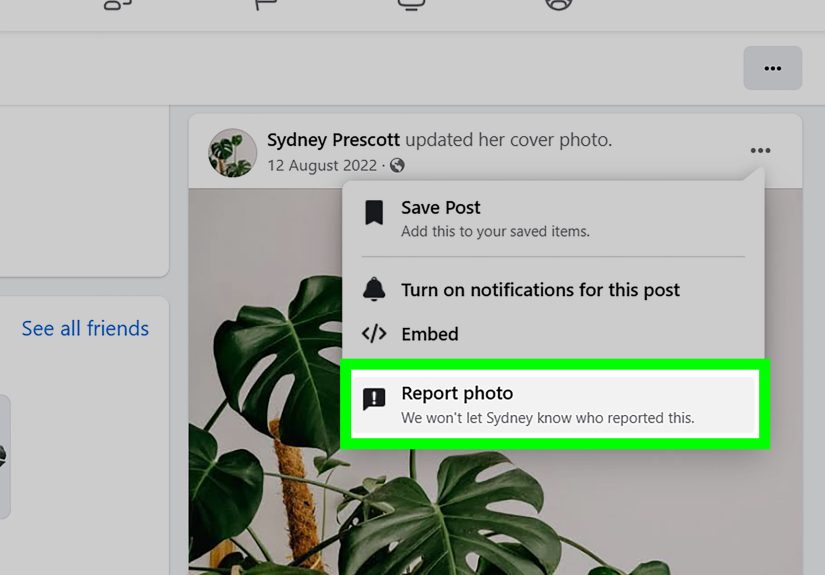
How to report a post (mobile or desktop)
- Find the post.
- Click/tap the three dots (or the dropdown/overflow menu) near the post.
- Select Report or Find support or report.
- Choose the reason that matches (spam, harassment, scam, nudity, hate, violence, etc.).
- Submit the report and follow any recommended safety steps.
How to report a profile
If someone is impersonating you, harassing you, or running a suspicious account, go to their profile and look for the options menu (often three dots). You’ll typically see a Report profile or similar path that guides you through the reason.
How to report a Page or group
Pages and groups also have an options menu (again: three dots, because that’s Facebook’s love language). Use the report flow and be specific about what’s happeningespecially if the issue is coordinated spam or scams.
Marketplace scams: report fast, document everything
If you suspect a scam in Facebook Marketplace, report the listing and/or seller through Marketplace reporting tools. Screenshot the listing, the profile, and the chat thread before anything disappears. If money or personal information is involved, consider reporting the incident to the FTC as well (more on that below).
If you don’t have an account (or can’t see the content)
Facebook provides limited options when you can’t access the content yourself. In some cases, you may need a friend with an account to report it using the report link near the post or profile.
Report a Hacked or Locked Account (Don’t Wrestle the Bug Form)
If you think your account has been hacked, the priority is recovery and securitynot just submitting a generic “something’s wrong” report. Facebook’s guidance commonly points to the dedicated recovery flow at facebook.com/hacked and recommends starting from a device you’ve used to log in before.
Fast recovery checklist
- Go to the official recovery flow and follow the steps to secure your account.
- Change your password to something unique and strong.
- Review login activity and remove suspicious devices/sessions.
- Turn on two-factor authentication (2FA).
- Check for changes to email, phone number, and security settings.
Newer option: in-app Support Hub (mobile)
Meta announced a centralized support hub rolling out in the Facebook and Instagram mobile apps, designed to bring support tools into one place and help people report account issues and recover access more easily. If you see a “Support hub” or similar entry inside the app, it’s worth usingespecially for account access problems.
Meta’s Account Recovery Hub (broader support)
Meta also provides an Account Recovery Hub experience for recovery steps across Facebook, Instagram, and Threads. If you’re bouncing between products or unsure which flow you need, this can help you find the right path without playing support-tool roulette.
Check Status in Your Support Inbox (Where Your Reports Go to Live Their Best Life)
When you report contentor submit certain types of issuesFacebook may send updates to your Support Inbox. This is where you can find messages from Facebook and, in some cases, check the status of reports you’ve made.
How to find Support Inbox on mobile
- Tap Menu.
- Tap Help & support.
- Tap Support Inbox.
How to find Support Inbox on desktop
- Click your profile picture (top right).
- Click Help & support.
- Click Support Inbox.
If you’re not seeing updates, that doesn’t always mean your report was ignored. Some reports don’t generate detailed follow-ups, and timelines can vary depending on the issue type.
Pro Tips to Get Better Results When You Report a Problem on Facebook
1) Reproduce the issue once (if safe to do so)
If the bug happens reliably, reproduce it one more time and capture a screenshot or screen recording. “Happened once last Tuesday” is hard to debug. “Here’s a 12-second screen recording showing the error” is a gift.
2) Keep your report structured
A simple template that doesn’t feel like a template:
- Steps: “Tap Notifications > open comment thread > app freezes.”
- Expected: “Thread opens.”
- Actual: “Spinner loops forever; then app closes.”
- Details: device, OS, app version, network type.
3) Update the app (yes, this is the “did you try turning it off and on” of social media)
Some issues are fixed silently in app updates. Before you report, confirm you’re on the latest version. If the issue persists, mention you already updatedso your report doesn’t get mentally filed under “user skipped step one.”
4) Don’t pay “Facebook support” strangers
Facebook is a magnet for impersonators offering “premium support” via random phone numbers, DMs, or sketchy emails. If someone asks for money, gift cards, or your login codes to “fix” your account, that’s not supportit’s a scam wearing a customer-service costume.
5) If it’s fraud, consider reporting to the FTC too
For scams involving money or identity theft, reporting to Facebook is importantbut it’s not the only place. The FTC’s fraud reporting site exists so patterns can be tracked and enforcement can happen. If you’ve been scammed (especially on Marketplace), filing an FTC report is a smart second step.
FAQ: Common Questions About Facebook Problem Reporting
Will Facebook respond to my “Report a problem” submission?
Sometimes you’ll get an update, often via Support Inbox. Other times, your report functions more like a diagnostic signal that helps Facebook identify patterns and fix issues at scale. Don’t take silence personallytake it as a sign to provide extra detail next time.
Is reporting a bug the same as reporting a post?
Nope. Bug reports target broken features. Content reports target violations (spam, harassment, scams, etc.). If you report a scam post using the bug form, it may not go to the right review path.
Can I report a problem if I’m locked out?
If you can’t log in, use the account recovery tools (like the hacked-account flow) rather than the in-app report tool. Recovery flows are built for exactly that scenario.
What if my issue is “Facebook is showing me creepy ads”?
You can report ads directly using the options menu on the ad itself. For broader fraud patterns, you can also report suspicious activity outside the platform through official fraud-reporting channels.
Real-World Experiences (Extra ): What Reporting a Facebook Problem Actually Feels Like
Let’s talk about the part guides don’t always say out loud: reporting a Facebook issue can feel like tossing a message in a bottle into the ocean… except the ocean is an app, and it’s also asking you to tag your bottle as “Something went wrong.”
Here are a few common scenarios people run into, plus what typically improves the odds of getting tractionbased on patterns widely shared by users and standard troubleshooting logic (not magical thinking, although that’s tempting).
Experience #1: “My post won’t upload” (and the progress bar is lying)
This usually happens at the worst timelike when you’re posting a graduation photo, a business announcement, or a perfectly timed meme. The first instinct is to retry ten times, which is emotionally valid but technically messy. A better approach: screenshot the failure state, note whether you’re on Wi-Fi or cellular, and try one controlled test (upload a smaller image or switch networks). Then report the problem with those details. “Fails on Wi-Fi, works on cellular” is a clue. “It hates me” is relatable, but harder to debug.
Experience #2: “My comments disappear” (or never show up)
The tricky part here is that “missing comments” can be caused by moderation filters, privacy settings, group rules, or a temporary glitch. If you’re reporting a technical issue, grab a screen recording that shows you submitting the comment and it vanishing, and include the context: where it happened (Page vs. group), whether it’s only on one device, and whether others can see the comment. If it’s a group/Page moderation issue, the right action may be contacting admins rather than filing a bug report.
Experience #3: “I got hacked and now everything is on fire”
When an account takeover happens, people often lose time chasing the wrong pathlike searching for a “Facebook phone number” (which is also how you meet scammers). The calmer, faster path is the official recovery flow, started on a familiar device if possible. Once you regain access, the “cleanup” matters: reset your password, enable two-factor authentication, and check that your email/phone weren’t swapped. If you run ads or manage Pages, review admin roles too. Think of it like changing your locks and checking whether someone copied your keys.
Experience #4: “Marketplace scamnow what?”
Marketplace scams often involve urgency: “Send a deposit now,” “Pay off-platform,” or “I’m shipping it tomorrow.” When things go sideways, the most helpful move is to document everything: listing screenshots, profile info, chat messages, payment receipts. Report the listing/seller in Marketplace, then consider filing an FTC report if money was lost or personal data was shared. The combo of platform reporting + official fraud reporting creates a paper trail that can matter later.
Experience #5: “I reported it… and nothing happened”
This is the most common emotional outcome. If the issue is a bug, try submitting one more report with tighter structure: steps, expected vs. actual, device/app version, and visuals. If it’s content, check your Support Inbox for status updates. If it’s an account access issue, use the dedicated recovery hubs rather than repeated bug reports. Most importantly: if you’re dealing with safety, threats, or active fraud, don’t rely on a single reportuse all appropriate channels.
Conclusion
Reporting a problem on Facebook doesn’t have to be a mystery quest. Use the in-app Help & support tools for technical issues, report content directly from the post or profile when rules are being broken, and switch to dedicated recovery flows if your account is hacked or locked. Add screenshots, keep your report specific, and check your Support Inbox for updates when available.
And remember: if “Facebook Support” shows up in your DMs asking for gift cards, that’s not supportthat’s a villain origin story. Use official tools, stay calm, and keep receipts.