Table of Contents >> Show >> Hide
- First, Figure Out What Kind of Roblox Lag You Have
- Universal Fixes to Reduce Lag on Roblox
- How to Reduce Roblox Lag on PC
- How to Reduce Roblox Lag on Mac
- How to Reduce Roblox Lag on Mobile
- How to Reduce Roblox Lag on Xbox One
- Best Internet Fixes for Roblox Lag
- Extra Tips for Low-End Devices
- Common Mistakes That Make Roblox Lag Worse
- Personal Experience: What Actually Helps Roblox Feel Smoother
- Conclusion
Roblox lag has a special talent for appearing at the worst possible moment. You are about to win a round, land a perfect jump, dodge a laser, or finally show off your carefully assembled avatar dripand suddenly your character freezes like a statue in a budget museum. The screen stutters. The audio hiccups. Your ping climbs into the clouds. Somewhere, a noob walks past you in slow motion.
The good news? Roblox lag is usually fixable. The slightly annoying news? “Lag” can mean several different problems. It might be low FPS, where the game looks choppy because your device is struggling. It might be network lag, where your internet connection is slow or unstable. It might be server lag, where the Roblox experience itself is overloaded or poorly optimized. Each type needs a different fix, so randomly pressing buttons like a panicked raccoon is not the best plan.
This guide breaks down how to reduce lag on Roblox across PC, Mac, mobile, and Xbox One. We will cover graphics settings, internet improvements, background apps, device cleanup, platform-specific fixes, and realistic expectations for older hardware. No magic “FPS booster” nonsense. No suspicious downloads. Just practical steps that actually make sense.
First, Figure Out What Kind of Roblox Lag You Have
Before fixing lag, you need to identify the villain. Roblox performance problems usually fall into three main categories: FPS lag, network lag, and server lag.
FPS Lag: When the Game Looks Choppy
FPS stands for frames per second. If your FPS is low, Roblox may feel like a slideshow wearing gaming headphones. This usually happens when your device cannot render the game smoothly. Large maps, heavy lighting, particle effects, shadows, detailed textures, and too many moving objects can all make FPS drop.
Signs of FPS lag include stuttering visuals, delayed camera movement, slow animations, and your device getting hot or loud. On PC and Mac, FPS lag often improves when you lower graphics quality or close background programs. On mobile, it often improves when you reduce heat, free storage, and close other apps.
Network Lag: When Your Inputs Feel Delayed
Network lag happens when your device has trouble communicating with Roblox servers. You press jump, but your character responds late. Other players teleport around. You get rubber-banding, where your character moves forward and then snaps backward like the game changed its mind.
Common causes include weak Wi-Fi, high ping, packet loss, busy networks, router problems, VPNs, firewalls, or playing on a server far from your region. Network lag is less about graphics and more about connection stability.
Server Lag: When Everyone Is Suffering Together
Sometimes your device is innocent. Some Roblox experiences are simply heavy, crowded, or not optimized well. If every player in the server is lagging, the problem may be the game server or the experience itself. Huge tycoon games, simulator games with tons of pets, or chaotic battle games with effects exploding everywhere can slow down even decent devices.
If only one Roblox experience lags while others run smoothly, the issue is probably that specific game. In that case, you can lower settings, switch servers, or accept that the experience is currently carrying more digital furniture than it can lift.
Universal Fixes to Reduce Lag on Roblox
1. Lower Roblox Graphics Quality
This is the fastest and most reliable fix for FPS lag. Roblox lets you choose automatic graphics or manual graphics. Automatic lets Roblox decide what your device can handle, but it does not always make the best choice. Manual mode gives you control.
To lower graphics quality in Roblox, join an experience, open the in-game menu, go to Settings, change Graphics Mode to Manual, then move the Graphics Quality slider left. Start low, then increase it one step at a time until the game looks decent without stuttering.
For low-end devices, graphics level 1 to 3 is usually the safest range. For mid-range laptops or phones, 4 to 6 may feel better. High settings are great for screenshots, but if your game runs like a potato trying to do ballet, lower the slider.
2. Close Background Apps
Roblox needs CPU, RAM, GPU power, and network bandwidth. If you have twenty browser tabs open, Discord streaming, Spotify running, a video editor exporting, and three update launchers fighting for attention, Roblox may not get enough resources.
Before playing, close heavy apps you do not need. Browsers are especially sneaky. One innocent-looking browser window can secretly contain a small city of tabs, ads, videos, and extensions.
3. Restart Your Device
Restarting sounds boring, but it works more often than people want to admit. A restart clears temporary memory problems, stops stuck background processes, refreshes network connections, and gives your device a clean start. It is the tech equivalent of taking a deep breath and pretending the last twenty minutes did not happen.
4. Update Roblox
Running an outdated Roblox app can cause bugs, crashes, connection problems, or performance issues. On PC and Mac, Roblox usually updates when launched. On mobile, update Roblox through the App Store or Google Play Store. On Xbox One, check your games and apps for available updates.
If Roblox suddenly starts lagging after working fine yesterday, an update may also be involved. In that case, restart the app, restart the device, and check whether Roblox has released another patch.
5. Check Roblox Server Status
If Roblox itself is having platform-wide issues, your device cannot magically fix it. Before spending an hour blaming your router, check whether Roblox services are experiencing outages or degraded performance. If the platform is down or unstable, the best “fix” is patience, snacks, and maybe touching grass briefly.
How to Reduce Roblox Lag on PC
Windows PCs can run Roblox very well, but they can also collect background clutter like a digital junk drawer. Here are the best PC-specific fixes.
Set Roblox Graphics to Manual
Start with the in-game graphics setting. Press Esc, open Settings, choose Manual graphics, and lower the quality slider. Test the same experience after each change. Do not judge performance from the Roblox home page; test inside an actual game.
Use a Wired Ethernet Connection
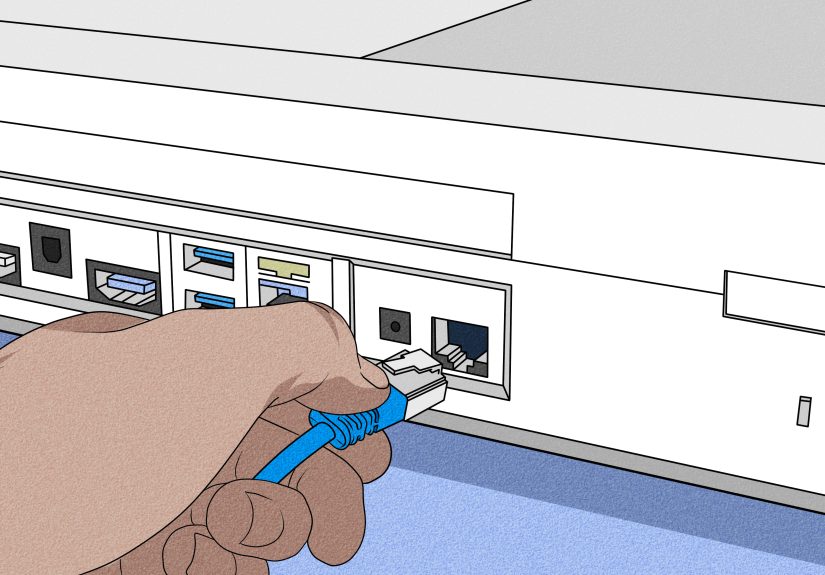
If you play on Wi-Fi and experience rubber-banding or delayed movement, use Ethernet if possible. A wired connection is usually more stable than Wi-Fi because it avoids signal interference, distance problems, and router drama. You do not need the fastest internet plan in the universe; you need a stable connection with low packet loss.
Move Closer to the Router
If Ethernet is not realistic, move closer to your router. Walls, floors, metal furniture, microwaves, and crowded apartment Wi-Fi can weaken your signal. Playing Roblox from the farthest corner of the house while your router hides behind a cabinet is not ideal.
Close Startup and Background Programs
Open Task Manager and check what is using CPU, memory, disk, and network. Close unnecessary apps before launching Roblox. Look for browsers, screen recorders, cloud syncing apps, game launchers, and update tools. Be careful not to end system processes you do not recognize.
Update Windows and Graphics Drivers
Outdated drivers can cause poor game performance. Use Windows Update to check for updates, including optional driver updates if appropriate. If your PC has an NVIDIA, AMD, or Intel graphics chip, use the official driver update tools or manufacturer website. Avoid random “driver booster” programs from the internet. They often create more chaos than they solve.
Use High Performance Power Settings
Laptops may reduce performance to save battery. Plug in your laptop while playing and choose a performance-focused power mode in Windows settings. Some gaming laptops also include manufacturer software with silent, balanced, and performance modes. Silent mode is nice for studying; performance mode is better for surviving a Roblox boss fight.
Free Up Storage Space
A nearly full drive can make Windows feel sluggish. Delete files you do not need, empty the Recycle Bin, and uninstall apps you never use. Keeping some free storage helps updates, caching, and general system performance.
How to Reduce Roblox Lag on Mac
Roblox on Mac can run smoothly, but performance depends heavily on your Mac model, available storage, heat, and background activity.
Lower Graphics Quality First
Just like on PC, the quickest fix is lowering Roblox graphics. Open the in-game settings, switch graphics to manual, and reduce the slider. If your MacBook is older, start at the lowest level and work upward slowly.
Quit Heavy Apps
On Mac, apps can keep running even after you close their windows. Right-click the app icon in the Dock and choose Quit, or press Command + Q. Pay special attention to browsers, video editors, music production software, screen recorders, and cloud storage syncing tools.
Check Activity Monitor
Activity Monitor shows what is using CPU, memory, energy, disk, and network. If one app is eating resources like it skipped breakfast, close it before playing Roblox. This is especially helpful on Macs with limited RAM.
Keep macOS Updated
Software updates can improve stability, security, and compatibility. Go to System Settings and check for macOS updates. If your Mac is very old and cannot update to newer macOS versions, Roblox may still run, but performance may be limited.
Keep Your Mac Cool
Heat can reduce performance. If your MacBook is hot, place it on a hard, flat surface instead of a bed or blanket. Soft surfaces trap heat and block airflow. When a laptop overheats, it may slow itself down to protect the hardware, which can make Roblox lag.
How to Reduce Roblox Lag on Mobile
Mobile Roblox lag is common because phones and tablets balance performance, battery life, heat, storage, and background apps all at once. Your phone is basically doing acrobatics while pretending everything is fine.
Lower Graphics in Roblox Mobile
Open a Roblox experience, tap the menu, go to settings, change graphics mode to manual, and lower graphics quality. On older phones, this can make a huge difference. Fancy lighting looks nice, but smooth gameplay usually matters more.
Close Other Apps
Close apps running in the background, especially video apps, social media, browsers, and games. Some apps continue using memory and network resources even when you are not actively looking at them.
Restart Your Phone or Tablet
A restart can clear temporary issues and help Roblox run better. This is especially useful if your phone has been on for days and is starting to act like it needs a vacation.
Free Storage Space
If your phone is nearly full, apps may lag, crash, or update poorly. Delete unused apps, old videos, duplicate screenshots, and downloads you no longer need. Roblox itself is not the only thing that needs space; your operating system also needs room to breathe.
Update Roblox and Your Operating System
On iPhone and iPad, update Roblox through the App Store and check for iOS or iPadOS updates. On Android, update Roblox through Google Play and check for system updates. Newer app versions often include bug fixes and compatibility improvements.
Avoid Playing While Charging on a Hot Device
Playing while charging can create extra heat, especially on older phones. Heat can cause thermal throttling, which means the device slows itself down. If Roblox starts lagging after ten or fifteen minutes, heat may be the reason. Let the device cool, remove thick cases if safe to do so, and play in a cooler spot.
Use Strong Wi-Fi Instead of Weak Mobile Data
Mobile data can work, but Roblox usually feels smoother on stable Wi-Fi. If your Wi-Fi is weak, move closer to the router. If your mobile data signal is poor, online gameplay may lag even if other apps seem fine.
How to Reduce Roblox Lag on Xbox One
Xbox One is convenient for Roblox, but it has older hardware compared with newer consoles. That means performance can vary depending on the experience. Some Roblox games run nicely; others may feel heavy, especially if they are packed with effects, pets, vehicles, or large maps.
Restart the Console
Do a full restart instead of just leaving the Xbox in standby. Press and hold the Xbox button on the controller, choose restart, or power cycle the console. This clears temporary issues and can improve sluggish performance.
Use Ethernet If Possible
For online games, Ethernet is one of the best upgrades you can make. If your Xbox One is connected over Wi-Fi and Roblox rubber-bands or disconnects, try a wired connection. A cheap Ethernet cable can sometimes outperform expensive “gaming” accessories that mostly glow dramatically.
Check Network Statistics
Xbox network settings can show useful details like latency, download speed, upload speed, and packet loss. High latency or packet loss can cause lag even if your download speed looks fine. Gaming needs stable data delivery, not just big speed-test numbers.
Close Other Games and Apps
If other games or apps are suspended in the background, close them. Also pause downloads and updates while playing Roblox. Downloading a huge game update during Roblox is like asking your internet connection to carry a piano and sprint.
Free Up Storage
Keep some storage available on your Xbox One. A nearly full drive can contribute to slower general performance. Remove games or apps you no longer use, especially if you are constantly juggling updates.
Try a Different Roblox Experience
If only one game lags badly on Xbox One, the experience may be too demanding for the console or poorly optimized. Try a simpler Roblox game. If simpler games run fine, your console and internet are probably okay.
Best Internet Fixes for Roblox Lag
Restart Your Modem and Router
Unplug your modem and router, wait about 30 seconds, then plug them back in. This can refresh your connection and fix temporary network issues. It is simple, but simple fixes are popular because they often work.
Reduce Network Crowding
If several people are streaming, downloading, video calling, and gaming at the same time, Roblox may lag. Pause large downloads and updates during gameplay. Ask nicely before turning off everyone else’s Wi-Fi, because family diplomacy matters.
Avoid VPNs and Proxies While Playing
VPNs and proxies can add extra routing distance, increase ping, or cause connection problems. Unless you specifically need one, turn it off before playing Roblox. A VPN might help privacy in some cases, but it is not automatically a lag reducer.
Check Firewall and Router Settings
Firewalls, antivirus tools, and routers can sometimes block or slow Roblox connections. If Roblox has trouble connecting, make sure it is allowed through your firewall. On managed networks such as school, library, or public Wi-Fi, Roblox may be restricted. In that case, do not try to bypass the rules; use a permitted network instead.
Extra Tips for Low-End Devices
If your device is older or budget-friendly, you can still improve Roblox performance by being realistic with settings.
Play Lighter Experiences
Not all Roblox games demand the same power. Obbies, simple roleplay maps, classic games, and smaller experiences often run better than massive simulators or detailed open-world games. If your device struggles, choose games that are easier to run.
Do Not Use Suspicious FPS Boosters
Be careful with third-party “Roblox lag fix” downloads. Many are unnecessary, unsafe, or misleading. Some may contain malware or ask for access they should not need. You do not need a mystery program to lower graphics, close apps, update drivers, or improve Wi-Fi.
Reinstall Roblox If Nothing Else Works
If Roblox lags, crashes, or behaves strangely even after basic fixes, reinstalling can help. Uninstall Roblox, restart your device, then install it again from the official source. This can fix corrupted files or broken updates.
Common Mistakes That Make Roblox Lag Worse
One common mistake is confusing graphics lag with internet lag. If the screen is choppy, lower graphics. If players teleport and your actions happen late, check your network. Another mistake is leaving downloads running in the background. Game updates, cloud backups, and video uploads can quietly destroy your ping.
Many players also max out graphics because they want Roblox to look better. That is understandable, but smooth gameplay usually beats pretty shadows. A clean 60 FPS at medium settings feels better than a beautiful slideshow at max settings.
Another mistake is ignoring heat. Phones, tablets, laptops, and even consoles slow down when they get too hot. If Roblox runs well at first but gets worse over time, heat may be the hidden problem. Give the device airflow and short breaks.
Personal Experience: What Actually Helps Roblox Feel Smoother
After testing and troubleshooting Roblox lag across different devices, one lesson becomes obvious: the best fix is usually not one giant miracle step. It is a stack of small improvements. Lower graphics a little, close background apps, improve the connection, restart the device, and avoid the heaviest experiences when your hardware is struggling. Each change may seem small, but together they can turn Roblox from “why am I frozen in midair?” into “okay, now we are gaming.”
On PC, the biggest improvements usually come from lowering graphics and closing background apps. Many players underestimate how much a browser can affect performance. A laptop with Roblox open, Chrome full of tabs, Discord running, and a recording tool active can feel much weaker than the same laptop running Roblox alone. For a low-end Windows laptop, I would rather play at graphics level 2 with smooth controls than level 8 with dramatic stutters every five seconds.
On Mac, heat and background apps are often the sneaky enemies. MacBooks are great everyday machines, but if they get hot, performance can dip quickly. Playing on a blanket or pillow is especially bad because it traps heat. A hard desk surface, closed background apps, and lower graphics can make Roblox feel much more stable. It may not turn an older MacBook into a gaming desktop, but it can absolutely reduce stutter.
On mobile, the “starts fine, then lags later” pattern is very common. That usually points to heat, battery-saving behavior, or memory pressure. Closing other apps helps, but cooling the device helps too. If your phone is warm and charging while Roblox is running, lag may get worse over time. Lower graphics, take breaks, and avoid playing heavy Roblox experiences while the phone is already hot.
On Xbox One, expectations matter. Some Roblox experiences are simply more demanding than others, and Xbox One hardware is older now. If one game lags but another runs fine, your console is probably not broken. The experience may be too heavy or the server may be overloaded. Ethernet helps a lot with network lag, but it will not fix a poorly optimized game that is pushing the console too hard.
The most useful troubleshooting habit is to test one change at a time. Lower graphics and test. Switch from Wi-Fi to Ethernet and test. Restart the device and test. Try a different Roblox experience and test. This prevents you from changing ten things at once and having no idea which fix actually helped. It is less dramatic than smashing every setting button, but much more effective.
Another practical habit is keeping a “Roblox ready” routine. Before playing, close heavy apps, pause downloads, plug in your laptop if needed, check Wi-Fi strength, and lower graphics for demanding games. It only takes a minute, and it prevents a lot of frustration. Think of it like stretching before sports, except the sport is avoiding lag in a blocky universe full of chaos.
Finally, remember that not every lag problem is your fault. Roblox servers can have issues. Individual experiences can be badly optimized. Your internet provider can have temporary problems. A game update can introduce bugs. The goal is not to control every possible variable; the goal is to eliminate the common ones. Once you have done that, you can play with more confidenceand fewer moments where your avatar freezes like it just remembered an embarrassing memory from 2019.
Conclusion
Reducing lag on Roblox starts with understanding the type of lag you are dealing with. For choppy visuals, lower graphics quality and close background apps. For delayed movement, rubber-banding, or disconnects, focus on your internet connection, router, firewall, and server stability. For PC and Mac, system resources matter. For mobile, heat and storage matter. For Xbox One, wired internet and realistic expectations are key.
The best setup is simple: use manual graphics, keep your device cool, update Roblox, close unnecessary apps, use stable Wi-Fi or Ethernet, and avoid overloaded experiences when your device is struggling. Roblox does not need to look like a Hollywood movie to be fun. Smooth gameplay beats fancy shadows almost every time.