Table of Contents >> Show >> Hide
- Why the iPad Is Great for PDF Reading
- Before You Start
- How to Read PDFs on an iPad in 9 Easy Steps
- Step 1: Find the PDF First
- Step 2: Open It in the Right App
- Step 3: Save a Copy So You Can Find It Again
- Step 4: Adjust the View for Comfortable Reading
- Step 5: Use Thumbnails, Page Navigation, or the Table of Contents
- Step 6: Search Inside the PDF
- Step 7: Highlight, Mark Up, or Sign When Needed
- Step 8: Make Important PDFs Available Offline
- Step 9: Upgrade Your App if Your Needs Grow
- Common Problems When Reading PDFs on an iPad
- Best Use Cases for Reading PDFs on an iPad
- Final Thoughts
- Extra Reading: Real Experiences Using an iPad for PDFs
- SEO Tags
Reading a PDF on an iPad should feel easy, not like you are negotiating with a stubborn office printer from 2009. The good news: Apple gives you several built-in ways to open PDF files, and if you want more power, a few excellent apps can turn your iPad into a surprisingly comfortable reading machine.
Whether you are opening a class handout, a contract, a cookbook, a boarding pass, or a 237-page report that definitely could have been an email, this guide walks you through exactly how to read PDFs on an iPad. You will learn how to open files, save them for later, search inside them, mark them up, and keep them available offline when Wi-Fi disappears at the worst possible moment.
If you have been searching for the best way to read PDFs on an iPad, open PDF files on iPad, or use an iPad PDF reader without getting lost in menus, you are in the right place.
Why the iPad Is Great for PDF Reading
The iPad hits a sweet spot between a phone and a laptop. It is big enough to display full PDF pages without making your eyes file a formal complaint, but light enough to carry around the house, the office, the classroom, or the airport gate where your flight has been delayed for the third time.
For casual reading, Apple’s built-in apps are usually enough. For studying, reviewing, signing, and heavy annotation, third-party apps such as Adobe Acrobat Reader, Goodnotes, PDF Expert, OneDrive, Dropbox, and other document tools can give you more control. In other words, your best PDF setup depends on what kind of reader you are: relaxed skimmer, highlighter enthusiast, or full-on digital paper warrior.
Before You Start
Make sure your PDF is somewhere your iPad can access. Most people get PDF files from one of these places:
- Email attachments
- Safari downloads
- Messages or AirDrop
- The Files app
- iCloud Drive, Google Drive, Dropbox, or OneDrive
- Apps like Books, Goodnotes, or Adobe Acrobat Reader
Once the file exists somewhere on your iPad or in connected cloud storage, you are ready to read.
How to Read PDFs on an iPad in 9 Easy Steps
Step 1: Find the PDF First
This sounds obvious, but it is where many people get tripped up. If somebody emailed you a PDF, open the message and tap the attachment. If you downloaded it from Safari, check the Downloads folder in the Files app. If a friend sent it through Messages, tap the file directly from the conversation.
If you cannot remember where it went, open Files and use the search bar. Type part of the document name, or even just “pdf” if your memory has clocked out for the day. The Files app is often the fastest way to gather documents from iCloud Drive and supported cloud services in one place.
Example: Let’s say your professor sends a syllabus named Spring_Media_Law.pdf. Tap the file in Mail, then choose where to open it. If you want to keep it, save a copy to Files so it does not vanish into the mysterious void of “recent attachments.”
Step 2: Open It in the Right App
There is more than one way to open a PDF on an iPad, and that is both helpful and mildly annoying. For most people, the easiest options are:
- Preview or Files: Best for quick opening, browsing, and basic reading.
- Books: Nice for saving PDFs in a simple library-style space.
- Adobe Acrobat Reader: Useful if you want a familiar PDF-focused app with stronger document tools.
- Goodnotes or PDF Expert: Great for study sessions, handwritten notes, or markup-heavy reading.
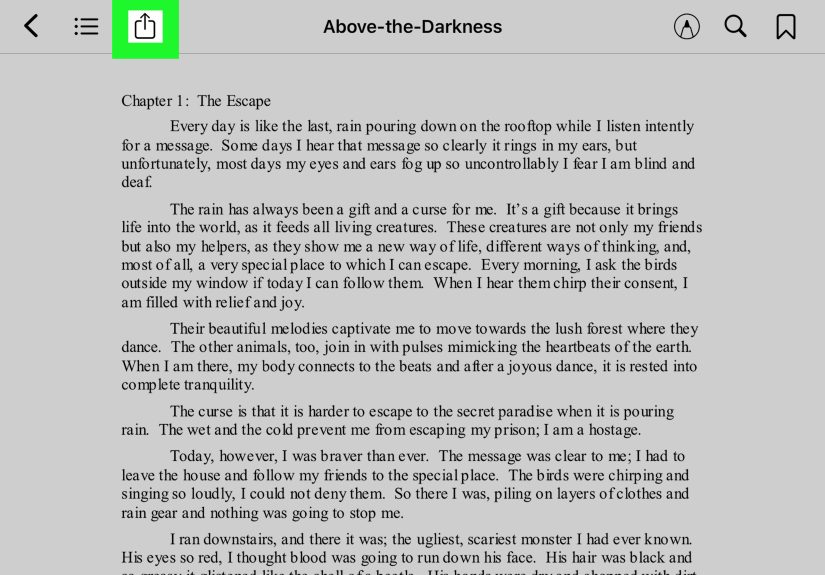
If a PDF opens in Safari, tap the share button and choose an app that suits the job. For basic reading, the built-in route is usually fastest. For long-term use, choose the app where you want the file to live.
Step 3: Save a Copy So You Can Find It Again
Reading a PDF once is easy. Finding it again three days later is where character is built.
Use the share button and save the PDF to Files, Books, or a cloud storage app. Give it a proper folder if it matters. “Stuff,” “More Stuff,” and “Important Stuff Final Final” are not ideal filing systems, even if they are extremely popular.
Good folder examples include:
- Work Contracts
- School Readings
- Travel Documents
- Home Manuals and Receipts
If you regularly read PDFs across devices, storing them in iCloud Drive or another synced service makes life much easier. Your future self will be weirdly proud of you.
Step 4: Adjust the View for Comfortable Reading
Now open the PDF and make it readable for your eyes, not just technically visible. Pinch to zoom in or out, rotate the iPad if landscape view makes charts or two-column pages easier to read, and tap the screen to show or hide toolbars.
For short documents, a full-page view is fine. For long reports, manuals, or dense handbooks, experiment with continuous scrolling if your app offers it. Some apps also include reading modes, theme adjustments, or screen-on options that help during longer sessions.
Pro tip: If the text looks tiny at full page, do not force yourself to squint heroically. Zoom in and scroll. PDFs were designed for layout fidelity, not always for comfort.
Step 5: Use Thumbnails, Page Navigation, or the Table of Contents
This is the step that separates efficient readers from people who swipe through 118 pages like they are looking for a missing sock.
Most PDF apps let you jump through the document using page thumbnails, a page scrubber, bookmarks, or a table of contents. These tools are especially useful for textbooks, manuals, legal files, and reports with sections.
If you are reading a recipe PDF, you may only need page 4. If you are reading a contract, you may want the section called “Termination” before you agree to anything dramatic. Learn the navigation tools early and you will save a lot of time.
Step 6: Search Inside the PDF
One of the best reasons to read digital PDFs on an iPad is search. Tap the search icon, type a word or phrase, and jump directly to it. This is incredibly useful for locating names, dates, policy terms, formulas, or chapter headings.
For example, if you are reviewing an employee handbook and only care about “vacation,” there is no reason to read the entire thing front to back unless you enjoy unnecessary suspense. Just search the word and move through the results.
Search works best on text-based PDFs. If the PDF is really just a scanned image, some apps may need text recognition or OCR before text becomes selectable and searchable. That is where tools like OneDrive or more advanced PDF apps can help.
Step 7: Highlight, Mark Up, or Sign When Needed
Reading is one thing. Working with the PDF is another. If you want to underline a quote, circle a diagram, add comments, or sign a form, the iPad handles that very well.
Apple’s Markup tools are good for quick edits. If you open a PDF in Books, Preview, Files, or another supported app, you can often highlight, draw, add text, and sign directly on the page. With an Apple Pencil, this gets even better. Suddenly your iPad feels less like a tablet and more like a neat stack of paper that never runs out.
If your workflow is more serious, such as reviewing contracts, grading student work, or annotating research articles, an app like Adobe Acrobat Reader, Goodnotes, or PDF Expert may be more comfortable. These apps are often better for repeated annotation, organized libraries, and exporting marked-up copies.
Step 8: Make Important PDFs Available Offline
Nothing teaches respect for offline access like trying to open a boarding pass with one bar of airport Wi-Fi and 182 strangers doing the same thing.
If the PDF matters, save it locally or make it available offline in your storage app before you leave home. This is smart for travel documents, tickets, class materials, work files, and anything you may need during a commute or flight.
A good rule is simple: if the document would cause stress if it vanished for an hour, store it offline. You can still keep a synced copy in the cloud for backup, but offline access is your safety net.
Step 9: Upgrade Your App if Your Needs Grow
If all you do is read the occasional file, the built-in Apple tools are probably enough. But if PDFs are a daily part of your life, it may be worth using a dedicated PDF reader for iPad.
Here is a simple way to choose:
- Use Files, Preview, or Books for quick reading and casual storage.
- Use Adobe Acrobat Reader for familiar PDF tools, searching, signing, and sharing.
- Use Goodnotes if you want to annotate lecture slides, readings, and study materials by hand.
- Use PDF Expert if you want a polished, productivity-focused PDF workspace.
- Use OneDrive, Google Drive, or Dropbox if your documents already live there and you want quick access inside your cloud workflow.
The best PDF reader for iPad is not always the fanciest one. It is the one that fits your actual habits.
Common Problems When Reading PDFs on an iPad
The PDF Will Not Open
Try another app first. If Safari struggles, use Files or Acrobat Reader. If a cloud app only previews the file, download it locally and open it from Files.
The Text Is Too Small
Zoom in, rotate to landscape, or use an app with better reading modes. Dense PDFs are often easier to read in a dedicated app than inside a browser preview.
The PDF Is a Scan, Not Searchable Text
That usually means it is image-based. Use an app that supports text recognition if you need to copy or search the content.
Annotations Are Not Where You Expect
If you move between apps and cloud services, save your changes clearly and reopen the file from the same storage location. With markup-heavy files, consistency matters more than people expect.
Best Use Cases for Reading PDFs on an iPad
The iPad works especially well for PDF reading in these situations:
- Students: Read lecture slides, journal articles, and study guides while highlighting with Apple Pencil.
- Professionals: Review proposals, contracts, reports, and forms without carrying a laptop everywhere.
- Travelers: Keep boarding passes, itineraries, tickets, and hotel confirmations offline.
- Homeowners: Store manuals, warranties, recipes, and renovation estimates in one place.
- Readers: Open magazines, e-books, printable planners, and long-form documents on a screen that is easier on the eyes than a phone.
In short, the iPad is not just good at reading PDFs. It is good at making them feel less like chores.
Final Thoughts
If you want the simplest answer to how to read PDFs on an iPad, here it is: find the file, open it in Files, Preview, Books, or a dedicated PDF app, then adjust the view, search the text, and save it somewhere organized. That covers the basics for almost everyone.
The beauty of the iPad is that it scales with you. It can be a quick viewer for one-off files, a portable study station for class notes, or a serious document tool for work. Start with the built-in apps, then move to a stronger PDF reader for iPad if your needs become more advanced.
And yes, once you get the hang of it, reading PDFs on an iPad really is easy. Which is nice, because the PDF itself will still be 86 pages longer than necessary.
Extra Reading: Real Experiences Using an iPad for PDFs
After the setup is done, the real question is not whether an iPad can read PDFs. It is whether it feels good enough to become part of your daily routine. For many people, the answer is yes, and usually faster than expected.
A student’s experience is often the easiest example. Imagine opening lecture slides in the morning, highlighting key definitions during class, then coming back at night to search the same PDF for a term that will probably show up on the exam. On paper, that would mean flipping through a pile of pages and trying to remember where you scribbled a note in the margin. On an iPad, the process feels more compact. Everything lives in one device, and even when the document is long, it is easier to jump around without losing your place.
For remote workers, the iPad often becomes a second-brain device. A laptop may still be better for writing large reports, but an iPad is wonderful for reading drafts, contracts, slide decks, onboarding packets, and meeting notes. Many people end up using it on the couch, at the kitchen table, or during travel because it is less formal than a laptop. That matters more than it sounds. A device that feels easy to pick up tends to get used more often.
Parents and busy households get another kind of benefit: convenience. One iPad can hold school forms, permission slips, appliance manuals, insurance PDFs, camp checklists, and digital tickets. Instead of digging through drawers for a stapled packet from six months ago, you can open a folder and find the exact file in seconds. It is not glamorous, but it is deeply satisfying in the way a labeled spice rack is satisfying.
Travel is where the iPad really proves itself. Reading a boarding pass on a phone works, but it can feel cramped, especially if you are also juggling hotel confirmations, maps, and reservation details. On an iPad, those same PDFs are easier to scan quickly. If they are saved offline, even better. The moment you realize you can open your travel documents without depending on a sketchy airport connection is the moment your stress level drops by about 37 percent.
There is also something surprisingly enjoyable about reading longer PDFs on an iPad when the document is well-formatted. Magazines, lookbooks, illustrated reports, cookbooks, and design presentations often look better on a tablet than on a phone or laptop. The page feels intentional. Images breathe a little. Charts make sense. Even dense reports can feel less hostile when you are holding the screen comfortably rather than hunching over a desk.
That said, not every experience is perfect. Some scanned PDFs are clunky. Some files come from cloud apps and open in strange ways. Some forms behave like they were built by chaos itself. But the iPad’s flexibility helps. If one app is awkward, another one usually handles the same file better. That freedom is a big reason the iPad has become such a useful PDF tool. It does not lock you into one reading style.
In everyday use, the best experience usually comes from a simple habit: keep your PDFs organized, pick one or two apps you trust, and save important files offline before you need them. Once that system is in place, reading PDFs on an iPad stops feeling like a task and starts feeling normal. And honestly, when a technology tool becomes boring in the best possible way, that is usually a sign it is working exactly right.