Table of Contents >> Show >> Hide
- What Is an MP4 File, Really?
- How to Play MP4 Videos on Windows the Easy Way
- Why an MP4 Video May Not Play on a Windows PC
- MP4 Troubleshooting on Windows: Fixes That Actually Help
- 1. Try a Different Media Player First
- 2. Update Windows and Your Graphics Driver
- 3. Install Missing Media Features on Windows N Editions
- 4. Check Whether the MP4 Uses a Problem Codec
- 5. Run the Video Playback Troubleshooter
- 6. Fix “Video Plays but There’s No Sound”
- 7. Fix Choppy, Laggy, or Stuttering Playback
- 8. Fix a Black Screen or Audio-Only Playback
- 9. If the File Still Won’t Open, Test Whether It Is Damaged
- Best Practices for Reliable MP4 Playback on Windows
- Quick Example Scenarios
- Final Thoughts
- Experiences and Real-World Lessons from Playing MP4 Videos on Windows PCs
If you have ever double-clicked an MP4 file and been rewarded with a black screen, missing audio, stuttering playback, or the emotional support message “Choose an app to open this file”, welcome to the club. MP4 is one of the most common video formats on the planet, but that does not mean every MP4 behaves like a polite houseguest. Some play instantly. Others walk into your Windows PC like they own the place and then refuse to cooperate.
The good news is that playing MP4 videos on a Windows computer is usually simple. The better news is that even when it is not simple, the fix is often not dramatic. You usually do not need to summon a tech wizard, sacrifice your weekend, or download suspicious “super codec packs” from sketchy corners of the internet. You just need the right player, the right settings, and a little troubleshooting logic.
In this guide, you will learn exactly how to open MP4 videos on a Windows PC, why some MP4 files refuse to play properly, and what to do when the video works about as smoothly as a shopping cart with one broken wheel. We will also cover sound problems, codec issues, choppy playback, Windows N editions, and practical fixes that work in real life.
What Is an MP4 File, Really?
Before troubleshooting anything, it helps to understand one annoying but important detail: MP4 is a container format, not a guarantee. Think of it like a lunchbox. The lunchbox may say “MP4,” but what is packed inside can vary. One file may contain H.264 video with AAC audio and play beautifully. Another may contain a codec your system or player does not handle well, which is when the drama begins.
That is why one MP4 file opens perfectly while another one on the same PC stutters, shows no picture, or plays video without audio. On Windows, the container matters, but the codec inside matters even more. This is the part many people skip, and then they blame the laptop, the app, the moon phase, or all three.
How to Play MP4 Videos on Windows the Easy Way
Method 1: Open the File with a Built-In Windows Player
For many users, the easiest answer is also the correct one. Windows lets you open an MP4 file directly from File Explorer.
- Open File Explorer.
- Find your MP4 file.
- Right-click the file.
- Select Open with.
- Choose a video player on your PC, such as Media Player.
If your Windows PC already has a modern media app set up correctly, the video may start immediately. That is the best-case scenario, and frankly, we love that for you.
If nothing happens, or the wrong app opens, move to the next method and set a better default player.
Method 2: Change Your Default Video Player
If your PC keeps opening MP4 files in an app that behaves like it is doing you a personal favor, changing the default app can save a lot of frustration. Set a reliable media player as the default for .mp4 files so every double-click works the way it should.
A good default player should do three things well: open fast, support common codecs, and fail less dramatically than your old app. On modern Windows systems, Microsoft’s Media Player app is usually a strong first choice for everyday playback.
Method 3: Use Windows Media Player Legacy if You Prefer It
Some people still like Windows Media Player Legacy because it feels familiar, simple, and delightfully old-school. That is fine. Nostalgia is free. On Windows 11, it may need to be added as an optional feature.
That said, if you specifically use Windows Media Player Legacy and your MP4 file refuses to play, do not assume the file is broken. Legacy playback can be more sensitive to codec support than the newer Media Player app, especially with modern video files. In plain English: your old player may be the one struggling, not the video.
Why an MP4 Video May Not Play on a Windows PC
When MP4 playback fails, the issue usually falls into one of these buckets:
- Unsupported codec: The file is MP4, but the video or audio inside uses a codec your app does not support well.
- Corrupted file: The video was interrupted during download, transfer, recording, or editing.
- Outdated graphics driver: Playback problems like flickering, black screens, freezing, or artifacting may come from the GPU driver.
- Windows edition limitations: If you use a Windows N edition, media components may be missing until you install the Media Feature Pack.
- App-specific bug: Sometimes the file is fine, but one player does not like it.
- Hardware acceleration conflicts: A feature meant to improve playback can sometimes cause stutter or display glitches on certain systems.
Now let us get to the part you actually came for: fixing the problem.
MP4 Troubleshooting on Windows: Fixes That Actually Help
1. Try a Different Media Player First
This is the fastest diagnostic move. If the MP4 file will not play in one app, try opening it in another. If it works elsewhere, your file is probably fine and your original player is the problem. That is useful information, because it keeps you from wasting time on unnecessary file repairs or panic-Googling.
If the video plays in another app, keep using that app or reset the original one. If the video fails everywhere, keep troubleshooting because the issue is more likely the file, codec, or system environment.
2. Update Windows and Your Graphics Driver
Video playback depends heavily on graphics components. If playback is choppy, freezes, shows a green or black screen, or looks corrupted, update your graphics driver. This is especially important if the issue started after a Windows update, after installing a new app, or on a laptop that has not been maintained since dinosaurs roamed the earth.
Use Windows Update first, then check your PC maker or GPU maker for current drivers. If your computer uses Intel, AMD, or another graphics platform, keeping the driver current can solve video playback glitches, stuttering, and rendering problems surprisingly often.
For branded PCs from Dell, HP, Lenovo, ASUS, and similar manufacturers, using the support page for your specific model can be smarter than downloading random files from the internet and hoping for the best. “Hope-driven driver management” is not a real IT strategy.
3. Install Missing Media Features on Windows N Editions
If you are using a Windows N edition, media playback problems may happen because some media technologies are not included by default. In that case, install the Media Feature Pack. Without it, video apps and media functions may not behave normally, and MP4 playback can fail even when the file itself is fine.
This fix is easy to miss because the file looks normal and the player looks normal, but the operating system is missing pieces behind the scenes. It is like trying to bake a cake and only later discovering someone forgot to include the oven.
4. Check Whether the MP4 Uses a Problem Codec
The most compatible MP4 files usually use H.264 video and AAC audio. If your file was created by a camera, drone, editor, screen recorder, or phone app using a less friendly setup, Windows playback may be inconsistent depending on the app and your installed components.
If the file came from a newer device or was exported in a high-efficiency format, converting it to a standard H.264/AAC MP4 can solve the issue quickly. This is often the smartest fix when one strange MP4 keeps failing while all your other MP4 files work fine.
In other words, do not fight the file for three hours if a clean conversion solves the problem in five minutes.
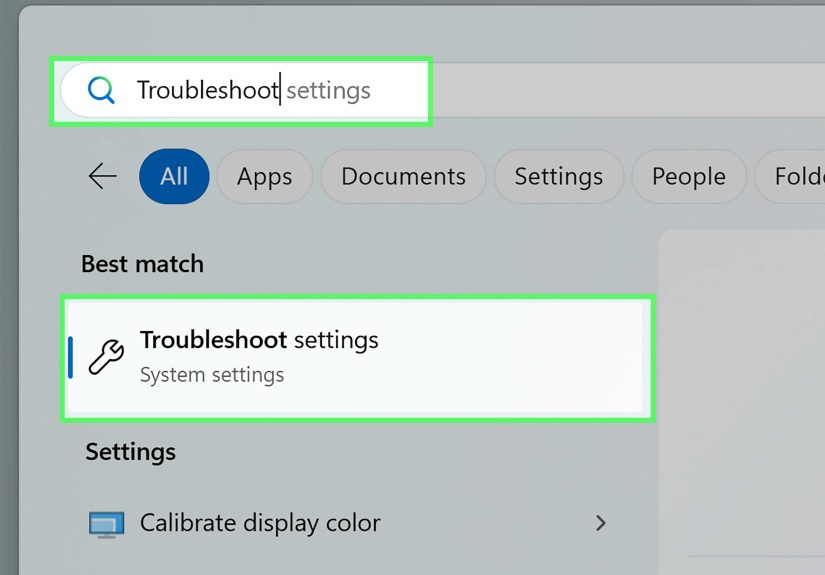
5. Run the Video Playback Troubleshooter
Windows and several PC makers provide a video playback troubleshooter or guided troubleshooting steps. This can help detect settings issues, broken components, or app-related problems. It is not magic, but it can catch obvious problems fast and save you from manually checking every setting like a detective in pajama pants.
If you are not sure where to start, running the built-in troubleshooter is a reasonable move before deeper fixes.
6. Fix “Video Plays but There’s No Sound”
If your MP4 video plays but the audio does not, the problem is often one of three things: the wrong playback device, muted app volume, or unsupported audio encoding.
Start with the simple checks:
- Make sure the app is not muted.
- Check that Windows is sending sound to the correct speaker, headset, or monitor.
- Test another video file.
- Restart the player.
- Update your audio and graphics drivers if sound issues started recently.
If only one MP4 file has no sound, the audio track inside that file may be the culprit. In that case, converting the file to a more compatible format often fixes the issue faster than trying to force one picky player to cooperate.
7. Fix Choppy, Laggy, or Stuttering Playback
Stuttering video is the digital equivalent of a hiccup during a speech. It is distracting, annoying, and impossible to ignore. Here are the most common causes:
- The PC is underpowered for the file’s resolution or bitrate.
- The graphics driver is outdated or unstable.
- The player is having trouble with hardware acceleration.
- The file is stored on a slow external drive or network location.
- Too many background apps are competing for system resources.
Try copying the video to your local drive, closing heavy background apps, restarting the PC, and updating the driver. If the issue continues in one player only, test another app. If playback improves when hardware acceleration is disabled in that app, you have likely found the conflict.
8. Fix a Black Screen or Audio-Only Playback
Sometimes the timer moves, the sound plays, and the screen stays black like it is making an artistic statement. This often points to a video decoding issue, graphics driver problem, or a codec mismatch.
Try these steps:
- Open the file in a different player.
- Update your graphics driver.
- Reboot the PC.
- Test another MP4 file.
- Convert the problem file to H.264/AAC MP4.
If only one file has this issue, the file’s encoding is probably unusual. If many files do it, your player, driver, or Windows media components deserve the side-eye.
9. If the File Still Won’t Open, Test Whether It Is Damaged
Not every broken video is a codec problem. Sometimes the file itself is incomplete or corrupted. Common clues include:
- The file size seems too small for the video length.
- The transfer was interrupted.
- The file came from a failing USB drive, SD card, or external disk.
- The video starts but stops early.
- No player can open it.
Try copying the file again from the original source. If you downloaded it, download it again. If you recorded it yourself, test the original media location. A fresh copy often saves you from chasing fake software problems.
Best Practices for Reliable MP4 Playback on Windows
If you want fewer playback headaches in the future, these habits help:
- Keep Windows updated.
- Keep your graphics driver reasonably current.
- Use a dependable default video player.
- Prefer standard MP4 files with H.264 video and AAC audio when exporting or converting.
- Avoid downloading random codec bundles from untrusted websites.
- Store large videos on a fast local drive when possible.
- Use the newer Media Player app for modern playback instead of relying only on older legacy tools.
That last point matters more than people think. Many playback problems are not “Windows can’t play MP4.” They are really “this one old app is grumpy about this one modern file.” That is a very different problem, and thankfully, a much easier one to solve.
Quick Example Scenarios
Scenario 1: Your MP4 Opens but There Is No Audio
Try another MP4. If other files play with sound, the issue is likely the audio track inside that specific file. Convert it to a standard MP4 with AAC audio.
Scenario 2: The Screen Is Black but You Hear Sound
Update the graphics driver, then try another player. If that fails, re-encode the file to H.264.
Scenario 3: Nothing Opens on a Windows N PC
Install the Media Feature Pack, restart the system, and test the file again.
Scenario 4: The Video Stutters Only in One App
That usually points to the app rather than the file. Switch players, update the app, or adjust hardware acceleration settings.
Final Thoughts
Playing MP4 videos on a Windows PC is usually simple, but the word usually is doing a lot of work there. When everything is aligned, you just double-click and watch your video. When things go wrong, the fix normally comes down to one of a few causes: the wrong player, missing media features, outdated drivers, unsupported codecs, or a damaged file.
The most useful thing to remember is that MP4 is not one single predictable recipe. It is a container, and the contents matter. Once you understand that, troubleshooting gets much easier. Instead of angrily blaming Windows for every bad playback moment, you can narrow the issue down like a calm and slightly smug computer detective.
Start simple. Test another player. Update the driver. Check whether you are on a Windows N edition. Convert the file if needed. Most playback problems do not require heroic measures. They just need the right fix applied in the right order.
Experiences and Real-World Lessons from Playing MP4 Videos on Windows PCs
One of the most common experiences people have with MP4 playback on Windows is assuming that all MP4 files are basically the same. That belief usually lasts right up until the moment a video from a phone, camera, drone, or editor refuses to play. A student might record a class project on a newer smartphone, send the file to a Windows laptop, and discover that the video opens with sound but no picture. A parent might transfer family clips from a camera to a desktop PC and find that some open perfectly while others act cursed. An office worker may receive a client video that works fine on one machine but stutters badly on another. These situations are frustrating, but they all point to the same truth: the file extension is only part of the story.
Another common experience is that built-in playback works well until one particular file shows up and ruins the mood. That is when many users go down the classic rabbit hole: restart the app, restart the PC, click random settings, question every life choice, and eventually search for help. In practice, the smartest step is often the least dramatic one: try a different player. If the file works there, you instantly know your problem is not the video itself. That tiny test can save an hour of unnecessary troubleshooting.
People also run into problems after major Windows updates or graphics driver changes. A laptop that played videos smoothly last month suddenly starts dropping frames, showing a black screen, or flickering during playback. This feels mysterious, but it is actually a very normal pattern. Video playback depends on graphics drivers and hardware decoding more than most people realize. In real-world use, updating the driver from the PC maker or graphics vendor often fixes issues that seem much scarier than they are.
Then there is the silent-video experience, which deserves its own support group. You open an MP4, the picture looks great, the progress bar moves confidently, and absolutely no sound comes out. At first, users think the speaker is broken. Then they test another file and everything is fine. This usually leads to the realization that the specific file’s audio format is the problem, not the computer. Once people understand that, they stop blaming Windows and start solving the actual issue.
Windows N users often have a different experience altogether. Everything looks normal on the surface, but media playback behaves strangely because some media components are not installed by default. That can be confusing because the PC does not always explain the missing piece clearly. Once the Media Feature Pack is installed, the system suddenly makes a lot more sense. It is one of those fixes that feels oddly satisfying because the solution is simple, but not obvious.
The biggest lesson from real-world MP4 playback on Windows is this: most issues are fixable without extreme measures. You do not need to flood your PC with random codec packs, install five mystery apps, or declare war on your laptop. A methodical approach works better. Check the player. Check the file. Check Windows features. Check the driver. And if the file is encoded in a less compatible way, convert it once and move on with your day. Calm troubleshooting beats chaotic clicking every single time.