Table of Contents >> Show >> Hide
- Why Liking, Commenting, and Sharing Matter on TikTok
- How to Like a TikTok Video
- How to Comment on TikTok
- How to Share a TikTok Video
- What Is Reposting on TikTok?
- How Likes, Comments, and Shares Affect Your For You Page
- Privacy Tips Before You Like, Comment, or Share
- Why You May Not Be Able to Like, Comment, or Share
- Best Practices for Liking TikToks
- Best Practices for Commenting on TikTok
- Best Practices for Sharing TikToks
- Quick Troubleshooting Checklist
- Common Mistakes Beginners Make on TikTok
- Experience-Based Tips: What It Feels Like to Learn TikTok Interactions
- Conclusion
TikTok moves fast. One minute you are watching a chef turn leftover rice into something magical, and three swipes later you are emotionally invested in a raccoon eating grapes. Somewhere in that delightful chaos, you may want to like a video, leave a comment, share it with a friend, or save it for later because your brain has officially reached “I need this again” status.
This quick guide explains how to like, comment, and share on TikTok in simple, beginner-friendly steps. It also covers what these actions actually do, how they affect your For You feed, what to do when something is not working, and how to interact without accidentally becoming “that person” in the comment section.
Whether you are brand-new to TikTok, helping a family member understand the app, or just want a clean refresher, this guide keeps things practical, clear, and mildly less confusing than TikTok slang after midnight.
Why Liking, Commenting, and Sharing Matter on TikTok
On TikTok, likes, comments, and shares are more than cute little buttons. They are signals. When you interact with a video, TikTok uses that activity to better understand what you enjoy. Like more cooking videos, and your For You page may start looking like a virtual food court. Comment on dog grooming clips, and suddenly every fluffy golden retriever in America wants screen time.
For regular users, these features help personalize the app. For creators, they are important engagement signals. A video with strong engagement can reach more people, start conversations, and build a community around a topic. For businesses and personal brands, likes, comments, and shares can help measure whether content is actually connecting with viewers.
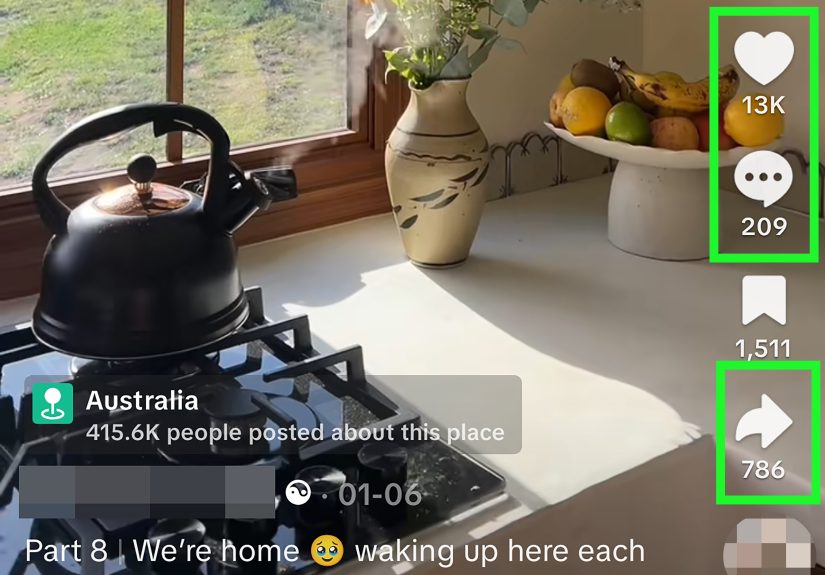
The good news? You do not need to be a social media wizard to use these tools. TikTok keeps the main interaction buttons right on the video screen, usually along the right side of the app.
How to Like a TikTok Video
Liking a TikTok video is the easiest interaction on the platform. It tells TikTok, “Yes, please give me more of this.” It also gives the creator a small boost and lets them know their content landed well.
Step-by-Step: How to Like a TikTok
- Open the TikTok app.
- Find a video you enjoy.
- Tap the heart icon on the right side of the screen.
- When the heart turns red, your like has been added.
You can also double-tap the video itself to like it. This is the classic TikTok move: fast, satisfying, and just dramatic enough to make your thumb feel productive.
How to Unlike a TikTok Video
Changed your mind? No problem. Tap the red heart again. The like will be removed. This is helpful if you accidentally like something while trying to pause the video, which is basically a rite of passage for new TikTok users.
Where to Find Your Liked TikTok Videos
To see videos you have liked:
- Tap Profile at the bottom of the app.
- Look for the liked videos tab, usually shown with a heart icon.
- Tap it to browse your liked videos.
Depending on your privacy settings, your liked videos may be visible only to you or to others. If you want to manage this, go to your privacy settings and look for the liked videos visibility option. Many users keep liked videos private, especially if their likes include oddly specific content such as “tiny kitchens,” “emotional piano covers,” or “goats yelling like humans.” No judgment.
How to Comment on TikTok
Comments are where TikTok becomes a conversation. A good comment can make people laugh, answer a question, support a creator, or add context. A bad comment can make everyone wish the internet came with a timeout chair.
Step-by-Step: How to Leave a Comment
- Open the TikTok app and go to the video you want to comment on.
- Tap the comment bubble icon on the right side of the screen.
- Type your comment in the text box.
- Tap the send button to post it.
Your comment may appear immediately unless the creator has filters or comment approval settings turned on. Some creators filter spam, offensive comments, or specific keywords to keep their comment section clean.
How to Reply to a Comment
To reply to someone else’s comment, open the comment section, find the comment, and tap Reply. This keeps the conversation organized under that comment instead of floating randomly like a sock lost in the laundry.
How to Mention Someone in a TikTok Comment
If you want a friend to see a video, you can mention them in a comment by typing the @ symbol followed by their username. For example, you might type, “@username this is the pasta trick I was talking about.”
Use mentions thoughtfully. Tagging a friend in one perfect video is helpful. Tagging them in 47 videos before breakfast may result in a friendship performance review.
How to Share a TikTok Video
Sharing is one of TikTok’s most useful features. You can send a video to a friend, copy the link, share it to another app, send it through direct messages, or use TikTok’s repost feature when available.
Step-by-Step: How to Share a TikTok
- Open the video you want to share.
- Tap the Share button, usually shown as an arrow on the right side of the video.
- Choose where you want to share it, such as TikTok messages, text message, email, Instagram, Facebook, or another app.
- Follow the prompts to send or post the video.
You may also see options like Copy link, Save video, Repost, or Not interested, depending on the video, your region, your device, and the creator’s privacy settings.
How to Copy a TikTok Link
Copying a link is useful when you want to paste a TikTok video into a message, document, email, or group chat. Tap the share arrow, then choose Copy link. After that, paste the link wherever you want to send it.
How to Share a TikTok Through Direct Message
If you and another user can message each other on TikTok, you may be able to send videos directly in the app. Tap the share button, select the friend or group, and send the video. TikTok’s messaging options may vary depending on age, privacy settings, mutual following status, and account restrictions.
What Is Reposting on TikTok?
Reposting is different from sending a video privately. When you repost a TikTok, you are sharing it with your friends or community so it may appear in their For You feed. Think of it as saying, “I endorse this chaos,” but in a friendly social media way.
How to Repost a TikTok
- Open the video you want to repost.
- Tap the share arrow.
- Tap Repost if the option appears.
- Add a short thought if TikTok gives you that option.
Not every video will show the repost option. Availability can depend on app version, account settings, region, or the specific video.
How to Undo a Repost
If you reposted something by accident, return to the same video, tap the share button, and look for the option to remove or undo the repost. Once removed, your repost should no longer be shared through your repost activity.
How Likes, Comments, and Shares Affect Your For You Page
TikTok’s For You feed is personalized. Your interactions help shape what you see. Liking a video, commenting on a topic, sharing a clip, watching a video to the end, or skipping quickly can all help TikTok understand your preferences.
For example, if you like several videos about beginner guitar lessons, comment on a musician’s tutorial, and share a song cover with a friend, TikTok may show you more music-related content. If you stop engaging with that topic, your feed may gradually shift again.
This is why your For You page can feel oddly accurate. It is not reading your mind. It is reading your thumbs.
Privacy Tips Before You Like, Comment, or Share
Before you interact, it helps to understand what other people can see. TikTok’s privacy settings can affect your liked videos, comments, direct messages, and who can engage with your content.
Check Who Can See Your Liked Videos
Your liked videos may be private by default, but it is smart to check your settings. Go to your profile, open settings and privacy, then review privacy options related to liked videos. Choose the setting that feels comfortable for you.
Think Before You Comment
Comments can be public. Before posting, ask yourself: Would I say this in a room full of people holding iced coffee and phone cameras? If the answer is no, maybe rewrite it.
Helpful comments include compliments, questions, jokes that do not punch down, and genuine discussion. Avoid harassment, spam, personal attacks, or sharing private information.
Review Direct Message Settings
If you want to share TikToks through direct messages, your messaging settings matter. Some users limit who can message them. Teen accounts may also have additional safety settings. If you cannot send a video to someone, privacy settings may be the reason.
Why You May Not Be Able to Like, Comment, or Share
Sometimes TikTok buttons do not behave the way you expect. Before blaming your phone, your Wi-Fi, or the moon, check these common reasons.
The Creator Turned Off Comments
Creators can choose who can comment on their posts. They may allow everyone, followers, friends, or no one. If the comment box is missing or unavailable, the creator may have restricted comments.
Your App Needs an Update
Outdated apps can cause missing features or strange glitches. Visit the App Store or Google Play Store and check whether TikTok has an update available.
Your Internet Connection Is Weak
If likes are not sticking, comments will not send, or shares fail, your connection may be unstable. Try switching between Wi-Fi and mobile data, then reopen the app.
The Video Has Sharing Restrictions
Some creators limit downloads, duets, stitches, or sharing options. If you do not see a specific sharing feature, it may not be available for that video.
Your Account Has Temporary Limits
If TikTok detects unusual activity, such as liking too many videos too quickly or posting repetitive comments, some features may be temporarily limited. Slow down and use the app normally. TikTok is fun, but it is not a thumb-speed Olympic event.
Best Practices for Liking TikToks
Likes are simple, but they still shape your experience. Use them intentionally if you want a better For You page.
Like What You Actually Want to See Again
If you like every random video, your feed may become a digital junk drawer. Like videos that match your interests, humor, hobbies, or learning goals. This helps TikTok recommend more relevant content.
Use “Not Interested” When Needed
If a video is not your style, press and hold the video or use the share menu to find Not interested. This can help reduce similar content in your feed.
Do Not Like Just to Be Polite
If you follow friends, family members, or coworkers, you may feel obligated to like every post. You do not have to. Engagement should be genuine. Your For You page will thank you.
Best Practices for Commenting on TikTok
A great comment can add value to a video and even earn likes of its own. The best TikTok comments usually fall into one of four categories: funny, helpful, curious, or supportive.
Ask a Real Question
Instead of writing “cool,” try asking something specific: “What camera did you use?” or “How long did this recipe take from start to finish?” Specific questions are more likely to get replies.
Add Context
If a video covers a topic you know well, add useful information without sounding like a human lecture slide. For example: “Small tip: chilling the dough for 20 minutes can help cookies spread less.” That is helpful. “Actually, as a cookie scholar…” may be a little much.
Keep Humor Friendly
TikTok loves jokes, but tone can get lost online. Avoid jokes that target someone’s appearance, identity, disability, accent, or personal life. Funny is good. Cruel is lazy.
Best Practices for Sharing TikToks
Sharing is powerful because it moves content beyond the original viewer. A shared TikTok can become a group chat joke, a helpful tutorial, a product recommendation, or the reason your aunt now knows what “delulu” means.
Share With the Right Person
Before sending, ask whether the video matches the recipient’s interest. A dog training tip? Send it to your friend with a puppy. A 12-part theory about a celebrity feud? Maybe choose your audience carefully.
Add a Short Message
When sharing through text or direct message, add context. For example: “This is the workout stretch I mentioned” or “This made me think of your cat.” A little context makes the share feel personal instead of random.
Respect Privacy
Do not share private, embarrassing, or sensitive videos to mock someone. If a video involves a real person in a vulnerable moment, think carefully before spreading it further.
Quick Troubleshooting Checklist
If liking, commenting, or sharing is not working, run through this quick checklist:
- Update the TikTok app.
- Check your internet connection.
- Restart the app.
- Make sure the creator allows comments or sharing.
- Review your privacy and direct message settings.
- Try clearing the app cache.
- Log out and back in if the issue continues.
- Report the issue through TikTok settings if nothing works.
Common Mistakes Beginners Make on TikTok
Accidentally Liking Videos
Double-tapping is convenient, but accidental likes happen. If you see the heart turn red and you did not mean it, tap the heart again to remove the like.
Commenting Without Reading the Caption
Many answers are already in the caption or pinned comment. Before asking, take five seconds to check. This can save you from becoming the person who asks, “Where is this?” under a video captioned “Chicago.”
Sharing the Wrong Video
When sending several videos in a row, it is easy to share the wrong one. Check before you send, especially if your group chats include coworkers, parents, or anyone who does not need to know your niche meme preferences.
Experience-Based Tips: What It Feels Like to Learn TikTok Interactions
Learning how to like, comment, and share on TikTok sounds simple, but the real experience is often funnier than the instructions. At first, many users open the app thinking they will watch one or two videos. Then the For You page turns into a tiny entertainment tornado. You like a recipe, comment on a travel tip, share a cleaning hack, and suddenly the app believes you are a chef, interior designer, stand-up comedian, and part-time raccoon enthusiast.
One of the most useful habits is learning to like with intention. In the beginning, it is tempting to tap the heart on everything that makes you smile. That is not wrong, but after a while your feed can become too broad. If you want TikTok to show you better videos, like the content you genuinely want more of. For example, if you are learning photography, like camera tutorials, editing tips, and behind-the-scenes shoots. If you only like random prank videos, do not be surprised when your For You page turns into a prank festival with suspiciously loud sound effects.
Commenting also becomes easier with practice. A good TikTok comment does not need to be long. Sometimes a simple, specific response works best: “This helped me fix my settings,” “The second tip worked,” or “Please make a part two.” The more useful your comment is, the more likely people are to respond. The comment section can feel like a mini-community when people are asking questions, sharing experiences, and adding extra advice.
Sharing is where TikTok becomes social in the most natural way. A video can say, “This is us,” “Try this recipe,” “I found the exact thing we were discussing,” or “Please laugh at this with me.” The best sharing habit is adding a quick note so the other person knows why you sent it. Instead of dropping a video link with no context, write, “This explains the iPhone setting I mentioned” or “This is the coffee recipe I want to try.” It feels more personal and less like you are launching TikToks into the void.
Another real-world tip: do not panic if a feature looks slightly different on your phone than it does in someone else’s tutorial. TikTok updates often, and features can vary by account, region, device, and app version. The share button may show different options. Repost may appear for one user but not another. Comment filters may be available in one account and missing in another. The core idea stays the same: look for the heart, comment bubble, and share arrow.
Finally, treat TikTok interactions like real conversations. Like what you enjoy. Comment with respect. Share things that are useful, funny, or meaningful. Avoid spammy behavior, arguments for sport, and comments that would make your future self quietly close the laptop. TikTok is at its best when interaction feels human, not robotic. A thoughtful like, a helpful comment, or a perfectly timed share can make the app more enjoyable for you and for the people on the other side of the screen.
Conclusion
Liking, commenting, and sharing on TikTok are simple actions, but they have a big impact on how you experience the app. A like tells TikTok what you enjoy. A comment opens the door to conversation. A share helps a video travel to friends, group chats, and new audiences. Once you understand the heart icon, comment bubble, share arrow, repost option, and privacy settings, TikTok becomes much easier to use.
The best approach is simple: interact with purpose. Like videos you truly enjoy, comment in a way that adds value, and share content that fits the person receiving it. Keep your privacy settings in mind, respect creators and other viewers, and remember that your thumbs are quietly training your For You page every time you tap.