Table of Contents >> Show >> Hide
- Why Apps Are Not Downloading on Your iPhone
- 1. Check Your Internet Connection First
- 2. Pause, Resume, or Prioritize the Download
- 3. Restart Your iPhone
- 4. Check Your Apple Account and Payment Method
- 5. Free Up iPhone Storage Space
- 6. Make Sure App Store Downloads Are Allowed on Cellular Data
- 7. Check Screen Time and App Store Restrictions
- 8. Update iOS and Check App Compatibility
- 9. Reset Network Settings as a Last Simple Fix
- What to Do If Only One App Will Not Download
- What to Do If App Updates Are Not Downloading
- Extra Troubleshooting Tips for Stubborn App Store Problems
- Personal Experience: What Usually Works When iPhone Apps Refuse to Download
- Conclusion
Few modern problems feel as oddly personal as an iPhone refusing to download an app. You tap Get, smile confidently, and then your phone responds with the digital equivalent of a blank stare. The app sits there saying Waiting, Loading, or nothing at all. Suddenly, downloading a weather app feels like negotiating a peace treaty.
The good news: when apps are not downloading on an iPhone, the cause is usually simple. It may be a weak internet connection, a stuck App Store process, low storage, a billing verification issue, Screen Time restrictions, or an iOS glitch that just needs a gentle push. You do not need to be a technician, wear a tiny Apple Genius Bar lanyard, or whisper motivational quotes to your phone.
This guide walks you through 9 easy ways to fix apps not downloading on an iPhone, using practical steps that work for common App Store download problems. Whether your iPhone app download is stuck, paused, slow, or blocked by a mysterious message, start at the top and move down the list.
Why Apps Are Not Downloading on Your iPhone
Before fixing the issue, it helps to understand what might be happening behind the scenes. The App Store needs several things to work smoothly: a stable internet connection, enough storage, a valid Apple Account, permission to install apps, and an iOS version that supports the app you want.
If one of those pieces breaks, the App Store may stop downloading apps, freeze on “Waiting,” ask for billing verification, or fail without a clear explanation. Annoying? Yes. Fixable? Also yes.
Common signs of an iPhone app download problem
- The app icon appears but stays stuck on Waiting or Loading.
- The App Store button spins but never installs the app.
- You see a message about billing, verification, restrictions, or payment.
- Downloads work on Wi-Fi but not on cellular data.
- Only one app refuses to download while others work normally.
- App updates fail even though new downloads sometimes work.
Now let’s fix the tiny drama happening inside your phone.
1. Check Your Internet Connection First
The App Store cannot download apps without a reliable internet connection. That sounds obvious, but this is often the culprit. Your iPhone may show Wi-Fi bars while the network itself is moving slower than a sleepy turtle in a traffic jam.
What to do
- Open Safari and visit a website to test whether the internet actually works.
- Switch from Wi-Fi to cellular data, or from cellular data to Wi-Fi.
- Move closer to your router if the Wi-Fi signal is weak.
- Turn Airplane Mode on for 10 seconds, then turn it off.
- Restart your router if other devices are also struggling.
If your iPhone apps are not downloading on Wi-Fi, try cellular data. If they are not downloading on cellular, connect to Wi-Fi. This quick switch often reveals whether the issue is the App Store or simply the network.
Also, if you use a VPN, temporarily turn it off and try the download again. Some VPNs or private networks can interfere with App Store connections, especially if the server location causes regional or verification confusion.
2. Pause, Resume, or Prioritize the Download
Sometimes the app download is not broken; it is just stuck in line, taking a dramatic pause like it is waiting for applause. iOS lets you pause, resume, or prioritize downloads directly from the Home Screen.
How to pause and resume an app download
- Find the app icon on your Home Screen.
- Tap the icon once to pause the download.
- Wait a few seconds.
- Tap it again to resume.
How to prioritize an app download
- Touch and hold the app icon that is stuck.
- Tap Prioritize Download if the option appears.
- Give it a minute and watch whether the download starts moving.
This is especially useful when several apps are downloading or updating at once. Your iPhone may be trying to update a pile of apps in the background, and the one you actually need is politely waiting behind a calculator update from 2019.
3. Restart Your iPhone
Restarting your iPhone is the classic tech fix because it works more often than people want to admit. A restart clears temporary glitches, refreshes system processes, and gives the App Store a clean chance to behave like a responsible adult.
How to restart most newer iPhones
- Press and hold the side button and either volume button.
- Drag the power slider when it appears.
- Wait about 30 seconds after the iPhone turns off.
- Press and hold the side button again until the Apple logo appears.
After your iPhone restarts, open the App Store and try downloading the app again. If the problem was a temporary software hiccup, this may be the only fix you need.
4. Check Your Apple Account and Payment Method
Yes, even free apps can be blocked by Apple Account or billing issues. If the App Store displays messages like Verification Required or There is a billing problem with a previous purchase, your iPhone may stop app downloads until you update your payment information.
This does not always mean the app costs money. It may mean a previous subscription, unpaid balance, expired card, changed bank details, or family payment setting needs attention.
How to check your payment method
- Open Settings.
- Tap your name at the top.
- Tap Payment & Shipping.
- Sign in if asked.
- Update, remove, or add a valid payment method.
Once the payment issue is resolved, return to the App Store and try the download again. If you are using Family Sharing, the organizer’s shared payment method may also affect purchases and downloads.
5. Free Up iPhone Storage Space
If your iPhone storage is nearly full, apps may not download or update properly. Apps need room for the download file, installation process, temporary data, and sometimes extra in-app content after launch. In other words, a 200 MB app may need more than 200 MB of breathing space.
How to check iPhone storage
- Open Settings.
- Tap General.
- Tap iPhone Storage.
- Review the storage recommendations and app list.
If storage is low, delete apps you no longer use, remove old videos, clear large message attachments, or move photos and videos to cloud storage. You can also enable Offload Unused Apps, which removes rarely used apps while keeping their documents and data.
Smart storage tip
Look for apps with huge cached data, such as social media, video, music, and messaging apps. Deleting and reinstalling those apps can sometimes free up surprising amounts of space. Your iPhone may be carrying digital leftovers like a fridge after Thanksgiving.
6. Make Sure App Store Downloads Are Allowed on Cellular Data
If apps download on Wi-Fi but not on cellular data, your App Store cellular settings may be blocking downloads. This is common when people are away from Wi-Fi and wonder why a new app refuses to install.
How to check cellular download settings
- Open Settings.
- Tap Apps, then tap App Store. On some iOS versions, App Store appears directly in Settings.
- Look for Cellular Data.
- Make sure App Store is allowed to use cellular data.
- Check App Downloads settings if available, especially for larger downloads.
If you have a limited data plan, use Wi-Fi for large app downloads. But if you need an app right now, allowing cellular downloads can solve the issue immediately.
7. Check Screen Time and App Store Restrictions
Screen Time is useful for managing children’s devices, limiting purchases, and preventing accidental app installs. It is also very good at quietly blocking downloads while you stare at your phone wondering what ancient curse you have triggered.
How to check App Store restrictions
- Open Settings.
- Tap Screen Time.
- Tap Content & Privacy Restrictions.
- Tap iTunes & App Store Purchases.
- Make sure Installing Apps is allowed.
You should also check age restrictions if a specific app will not download. Some apps have age ratings, regional limitations, or content categories that may be blocked by Screen Time settings.
For Family Sharing users
If the iPhone belongs to a child in a Family Sharing group, Ask to Buy may require approval before the app downloads. In that case, the download may not be broken at all. It may simply be waiting for a parent or guardian to approve the request.
8. Update iOS and Check App Compatibility
Some apps require a newer version of iOS. If your iPhone is running an older version, the App Store may refuse to install the app or may offer only an older compatible version when available.
How to update your iPhone
- Back up your iPhone if possible.
- Connect to Wi-Fi.
- Open Settings.
- Tap General.
- Tap Software Update.
- Install any available update.
Updating iOS can fix App Store bugs, improve compatibility, and patch security issues. If your iPhone cannot run the iOS version required by the app, you may need to use an alternative app, access the service through Safari, or upgrade your device eventually.
Check the app’s requirements
In the App Store, scroll down on the app page and look for compatibility information. If the app requires a newer iOS version than your iPhone supports, no amount of tapping the Get button will change its mind. The button is stubborn because the requirement is real.
9. Reset Network Settings as a Last Simple Fix
If you have tried everything above and apps still are not downloading, reset your network settings. This can fix deeper connection problems involving Wi-Fi, cellular, VPN, or APN settings.
Important: this does not erase your photos, apps, messages, or personal files. However, it does remove saved Wi-Fi passwords, VPN settings, and cellular network preferences. Make sure you know your Wi-Fi password before doing it, unless you enjoy crawling behind the router to read tiny stickers.
How to reset network settings on iPhone
- Open Settings.
- Tap General.
- Tap Transfer or Reset iPhone.
- Tap Reset.
- Tap Reset Network Settings.
- Enter your passcode and confirm.
After the iPhone restarts, reconnect to Wi-Fi and try downloading the app again. This step is especially helpful if your iPhone connects to the internet inconsistently or if App Store downloads fail only on certain networks.
What to Do If Only One App Will Not Download
If every other app downloads normally, the problem may not be your iPhone. It may be the app itself. The app could be temporarily unavailable, removed from your region, incompatible with your iOS version, or affected by a developer-side issue.
Try these quick checks
- Search for another app and try downloading it.
- Check whether the app is available in your country or region.
- Read the app’s compatibility requirements.
- Check whether the app was previously purchased with a different Apple Account.
- Try downloading the app again later.
If the app is no longer available in the App Store, you may not be able to install it again. This sometimes happens when developers remove apps, stop supporting older iOS versions, or replace old apps with new versions.
What to Do If App Updates Are Not Downloading
When app updates are not downloading on an iPhone, use the same basic fixes: check internet, storage, payment method, restrictions, and iOS updates. You can also update apps manually from the App Store.
How to manually update iPhone apps
- Open the App Store.
- Tap your profile picture or account button.
- Scroll to available updates.
- Tap Update next to one app, or tap Update All.
If one update fails repeatedly, delete and reinstall the app only if you know your data is backed up or stored in an account. For example, reinstalling a streaming app is usually low-risk. Reinstalling a note-taking, editing, or game app without backup can be less fun than stepping on a charging cable barefoot.
Extra Troubleshooting Tips for Stubborn App Store Problems
If the 9 easy fixes above do not solve the issue, here are a few extra steps worth trying before contacting Apple Support.
Check Apple System Status
Sometimes the App Store itself has an outage or service issue. If Apple’s App Store service is down, your iPhone may be perfectly fine. In that case, the best fix is patience, which is unfortunately not available as a downloadable app.
Sign out of Media & Purchases
If your Apple Account seems stuck, open Settings, tap your name, then check Media & Purchases. Signing out and back in may refresh your App Store access. Make sure you know your Apple Account password before signing out.
Confirm date and time settings
Incorrect date and time settings can cause connection and verification issues. Go to Settings > General > Date & Time and turn on Set Automatically if it is off.
Contact Apple Support
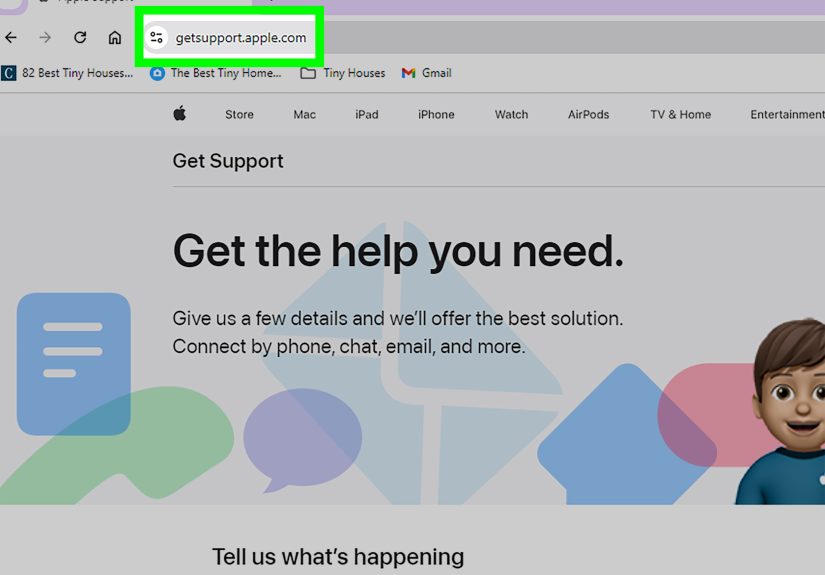
If you still cannot download apps after checking network, storage, payment, restrictions, iOS, and account settings, it may be time to contact Apple Support. This is especially important if your Apple Account is locked, your payment method will not verify, or multiple Apple services are not working.
Personal Experience: What Usually Works When iPhone Apps Refuse to Download
In real-world troubleshooting, iPhone app download problems tend to fall into patterns. The trick is not to panic or randomly change every setting on the device. Start with the simplest fixes because they solve the majority of cases.
The first pattern is the “fake Wi-Fi” problem. The iPhone shows Wi-Fi bars, but nothing actually loads. This often happens in coffee shops, hotels, schools, airports, or offices where the network requires a login page. The App Store quietly fails because the phone is technically connected to Wi-Fi but not fully connected to the internet. Opening Safari usually exposes the problem immediately. If a login page appears, complete it and try the App Store again.
The second common pattern is low storage. Many users see a little free space and assume that is enough. But app installation needs extra temporary room. A phone with only a few hundred megabytes free may struggle even with small downloads. In these cases, removing old videos, clearing large message threads, or offloading unused apps often fixes the problem fast. Storage cleanup is not glamorous, but neither is living with 47 screenshots of parking locations from three years ago.
The third pattern is billing verification. This one surprises people because it can block free app downloads. A user may say, “But I am downloading a free app!” True, but the App Store may still need the Apple Account billing issue resolved. An expired card, unpaid purchase, or changed payment method can stop downloads until the account is updated. Once the payment method is fixed, downloads usually start working again.
The fourth pattern involves Screen Time restrictions. This is very common on family devices, school-managed devices, and phones previously used by someone else. A parent may have disabled app installation months ago and forgotten about it. Or a child’s device may be waiting for Ask to Buy approval. If the App Store button is missing, greyed out, or refusing downloads without a clear technical reason, restrictions should be checked early.
The fifth pattern is the stuck download queue. When several apps are updating, one app may freeze on Waiting. Pressing and holding the app icon and choosing Prioritize Download can work surprisingly well. Pausing and resuming the download is another quick fix. It is the iPhone version of saying, “Hello? Are we still doing this?”
For stubborn cases, restarting the iPhone is still one of the best steps. People often avoid it because it feels too simple, but temporary App Store glitches, background update conflicts, and account refresh issues can clear after a restart. If that fails, resetting network settings is a reasonable final step before seeking support, especially when the problem appears only on certain Wi-Fi networks or after using a VPN.
The best approach is a calm checklist: test the internet, restart the download, restart the iPhone, check payment, free up storage, review cellular settings, inspect Screen Time, update iOS, then reset network settings. Follow that order and you will fix most iPhone App Store download problems without turning your afternoon into a tech-support soap opera.
Conclusion
When apps are not downloading on an iPhone, the problem is usually not as mysterious as it looks. Start with your internet connection, pause and resume the download, restart the device, and check your Apple Account. Then move on to storage, cellular permissions, Screen Time restrictions, iOS updates, and network settings.
The App Store depends on several small systems working together. If one gets stuck, downloads may fail. But with these 9 easy fixes, you can usually get your apps downloading again in minutes. Your iPhone gets its app. You get your sanity back. Everybody wins, except maybe the spinning download circle.