Table of Contents >> Show >> Hide
- What Is FinalCrypt, Exactly?
- When FinalCrypt Makes Sense on Linux
- Before You Start: A Quick Reality Check
- How to Install FinalCrypt on Linux
- How to Encrypt Files with FinalCrypt on Linux
- How to Decrypt Files with FinalCrypt
- Using FinalCrypt from the Linux Command Line
- Best Practices for Real Security
- Common Mistakes That Can Ruin Your Weekend
- FinalCrypt vs. GPG vs. LUKS
- Real-World Experience: What It’s Like to Use FinalCrypt on Linux
- Conclusion
- SEO Tags
If you’ve ever looked at a folder full of tax records, contracts, client files, or backup archives and thought, “Wow, this would be a terrible thing to leak,” welcome to the club. Linux gives you plenty of ways to protect data, but FinalCrypt takes a very specific route: file-level encryption built around unique key material instead of a single all-powerful password. That makes it interesting, a little nerdy, and absolutely worth understanding before you click anything that says “Encrypt.”
This guide walks through how to encrypt files with FinalCrypt on Linux, how to decrypt them safely, how to install the tool, and how to avoid the mistakes that turn “privacy” into “well, that file is gone forever.” We’ll keep it practical, readable, and slightly more fun than a command manual written by a toaster.
What Is FinalCrypt, Exactly?
FinalCrypt is a cross-platform file encryption tool for Linux, Windows, and macOS. Its big pitch is that it uses a one-time-pad-style approach with unique key material, plus an automatic key workflow that can generate and match keys for you. In plain English, that means it is designed for file encryption, not full-disk encryption, and it expects you to treat key files like precious cargo.
That distinction matters. FinalCrypt is not the same thing as LUKS, which protects entire block devices and shines when you want to encrypt a whole drive or partition. It is also not the same thing as GPG, which is often used for public-key encryption, sharing encrypted files, and signing data for integrity. FinalCrypt lives in the “I want to encrypt these files or folders and control the key material myself” lane.
That lane can be great for sensitive archives, portable backups, confidential work folders, legal files, research notes, private photos, and anything you want protected before it ever touches cloud storage. It can also become chaos if you lose the keys. So yes, there is power here. There is also responsibility. And probably a strong beverage.
When FinalCrypt Makes Sense on Linux
FinalCrypt is a smart choice when you want to protect selected files instead of your entire system. Maybe you have a folder of contracts you sync across machines. Maybe you keep client deliverables on an external SSD. Maybe you want to encrypt a project archive before uploading it anywhere. In those cases, file-level encryption is flexible because it lets the rest of your Linux system stay normal while the sensitive material stays locked down.
It is less ideal when your real goal is “protect the whole laptop if it gets stolen.” That is where full-disk or full-volume encryption, such as LUKS, usually makes more sense. FinalCrypt can complement those tools, but it does not replace them.
Before You Start: A Quick Reality Check
Before installing anything, understand the golden rule of FinalCrypt: your key files matter just as much as your encrypted data. If you lose the right keys, you may not be able to recover the files. That is not drama. That is the design.
Here’s the smart setup before you begin:
- Use a separate key location, ideally removable storage or a protected offline location.
- Back up your key directory before encrypting anything important.
- Start with a harmless test folder instead of your one-and-only life archive.
- Keep encrypted files and key files separate.
- Decide whether you want GUI convenience or CLI control.
If you ignore those steps, you are not “being adventurous.” You are just auditioning for a future support headache.
How to Install FinalCrypt on Linux
On Linux, you generally have three realistic ways to run FinalCrypt: the portable TGZ package, the DEB or RPM installer, or the Java bytecode JAR. The easiest path for most desktop users is the Linux package or the portable build.
Option 1: Use the Portable TGZ Build
This is a solid choice if you want to avoid a traditional install and keep FinalCrypt self-contained.
After extracting, you can launch the FinalCrypt executable directly. The portable directory can also be moved elsewhere if that fits your workflow better.
Option 2: Install the DEB or RPM Package
If you prefer a more standard Linux app install, use the package that matches your distro.
Installed builds are placed in /opt/FinalCrypt/, and you can launch FinalCrypt from your applications menu.
Option 3: Run the JAR with Java 8
If you use the standalone JAR, make sure Java 8 is available. The JAR route is handy when you want a very portable Java-based setup or need access to the command-line interface from the bytecode package.
If your Linux machine already has a working Java 8 environment, this option is straightforward. If not, install Java first, then come back with the confidence of someone who has already defeated one dependency dragon today.
How to Encrypt Files with FinalCrypt on Linux
Now for the good part. Here is the cleanest beginner-friendly workflow using the GUI.
Step 1: Create a Safe Test Folder
Do not start with your only copy of important files. Create a small test folder with a few sample documents or images. If everything works the way you expect, move on to real data afterward.
Step 2: Prepare a Key Directory
Create a dedicated folder for your FinalCrypt keys, or better yet, use a separate USB drive or external device. The point is to avoid keeping your encrypted files and their keys side by side like a front door with the key taped to it. That is not security; that is decoration.
Step 3: Open FinalCrypt
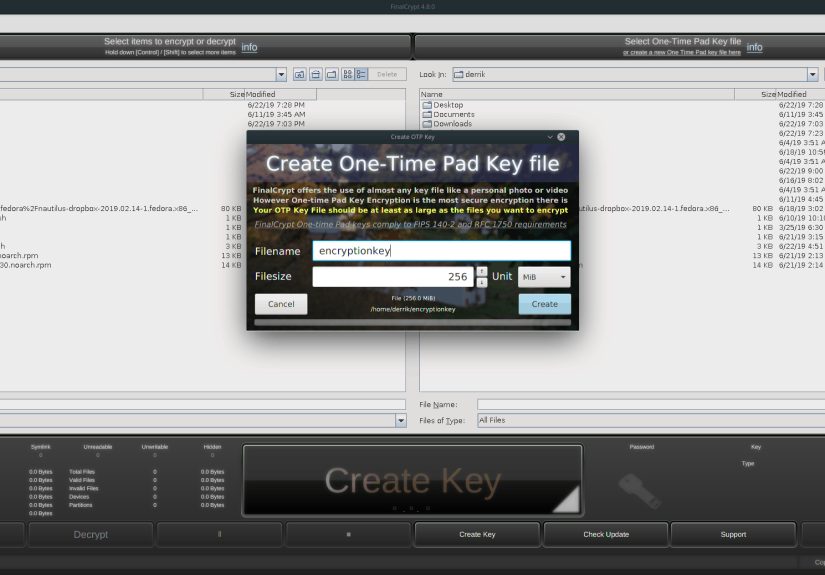
Launch the app and point it to two things: your key location and the target files or folders you want to encrypt. FinalCrypt’s automatic key workflow is designed to create key files during encryption and match them again during decryption, which is one of the tool’s biggest usability advantages.
Step 4: Encrypt the Files
Once the key directory and target are selected, start the encryption process. FinalCrypt will process the selected files and produce encrypted versions based on the key material. Depending on your setup, size of files, and whether you are using automatic key handling, this can feel surprisingly simple for something so sensitive.
Step 5: Verify Before You Celebrate
After encryption finishes, do not immediately delete anything original unless you are fully confident the workflow completed correctly. Verify the output, note where the keys are stored, and make sure the key backup exists. This is not the moment for optimism. This is the moment for boring, beautiful verification.
How to Decrypt Files with FinalCrypt
Decryption is basically the reverse trip, but it only works if you still have the correct keys. That is why key management is the whole game.
- Open FinalCrypt.
- Select the correct key directory or key file.
- Select the encrypted target file or folder.
- Run the decrypt operation.
- Open the restored file and confirm it is usable.
If the wrong key is used, or if the right key is missing, you are not going anywhere. FinalCrypt is not trying to be forgiving. It is trying to be secure.
Using FinalCrypt from the Linux Command Line
If you like automation, scripting, or simply enjoy the feeling of typing commands that make you look like you know what you’re doing, FinalCrypt’s CLI is surprisingly capable.
Start with the manual page:
For a safe dry run, use test mode first:
Once the test output looks right, run the real command:
There is also a manual key mode that lets you encrypt a single target with a single key file, but it is generally not the recommended path for everyday use. FinalCrypt’s own documentation nudges users toward automatic key handling for a reason: it is harder to make catastrophic mistakes when the software manages the matching logic for you.
Useful Advanced Options
--passwordadds an optional password, but passing it directly on the command line can expose it in process listings.--password-promptis safer because it prompts instead of showing the password on the command line.--reuse-keysis for experts only and breaks the one-time-pad rule, so most people should stay far away from it.--disable-MACactivates Non-MAC mode and is also an expert feature. It removes some safety checks, so this is not the button to click just because it sounds cool.--symlinkincludes symbolic links, but that can cause double encryption, which is exactly as fun as it sounds.
If you want to automate password entry securely, avoid stuffing passwords straight into scripts. A safer pattern is to use a password prompt with redirected input, so the secret does not casually lounge around in your shell history or process list like it pays rent there.
Best Practices for Real Security
1. Separate Keys from Data
Do not store encrypted files and their keys in the same place. If both end up in the same synced cloud folder, congratulations, you have created an inconvenient filing system, not strong protection.
2. Back Up the Key Directory
Back it up before encrypting important files, and consider keeping a second backup offline. FinalCrypt is very honest about the consequences here: lose the keys, lose access.
3. Test on Disposable Files First
Run your first experiments on dummy files. Practice encrypting, decrypting, and confirming file integrity before using any irreplaceable data.
4. Keep Linux Itself Healthy
Encryption is not magic dust. A compromised machine, malware, careless permissions, or sloppy removable-media habits can still cause trouble. Protect the system, patch it, and treat key storage seriously.
5. Use Logs for Troubleshooting
FinalCrypt stores logs under ~/.finalcrypt/log/. If something goes sideways, that is one of the first places worth checking.
Common Mistakes That Can Ruin Your Weekend
Mistake one: encrypting real files before testing the workflow. This is the digital equivalent of skydiving because the brochure looked nice.
Mistake two: keeping the only key copy on the same laptop as the files. If the device dies, gets stolen, or gets “cleaned up” by an overenthusiastic human, both data and keys can vanish together.
Mistake three: using advanced options like key reuse or Non-MAC mode without understanding the consequences. Just because a command exists does not mean it is a personality trait.
Mistake four: assuming file encryption replaces disk encryption. It does not. They solve different problems.
Mistake five: putting passwords directly in shell history or scripts. Linux remembers more than you think, and it has absolutely no interest in protecting you from yourself.
FinalCrypt vs. GPG vs. LUKS
| Tool | Best For | Strength | Main Trade-Off |
|---|---|---|---|
| FinalCrypt | Encrypting selected files and folders with dedicated key material | Fine-grained file protection and flexible key handling | Key management can be unforgiving |
| GPG | Encrypting files for sharing, signing, and identity-based workflows | Great for public-key encryption and signatures | Less focused on the “simple local file vault” use case |
| LUKS | Encrypting an entire drive, partition, or removable disk | Excellent full-volume protection | Not designed for selectively encrypting a few files inside a normal filesystem |
In other words, use FinalCrypt when your goal is “protect these files.” Use LUKS when your goal is “protect this drive.” Use GPG when your goal is “protect and share this data in a public-key workflow.” Pick the right wrench for the right bolt.
Real-World Experience: What It’s Like to Use FinalCrypt on Linux
In practice, using FinalCrypt on Linux feels less like using a mainstream consumer app and more like using a focused security tool built by someone who assumes you are willing to think. That is not a criticism. In fact, for the right user, it is part of the appeal.
The first experience most Linux users have is probably this: installation is not especially hard, but you do need to choose your route. If you install a DEB or RPM package, life is pretty normal. If you run the portable TGZ or JAR version, it feels a bit more hands-on. That is not necessarily bad. Linux users are not usually frightened by a tarball. Mildly annoyed, maybe. Frightened, rarely.
Once the app is open, the experience becomes much clearer. You quickly realize that FinalCrypt is not obsessed with looking trendy. It is obsessed with doing a job. The moment you point it at a key directory and a target folder, the software is basically telling you, “I can help, but you need to know where your keys live.” That makes the workflow feel serious in a good way. It encourages discipline.
One of the most useful lessons people learn after a few runs is that FinalCrypt works best when you build a routine around it. For example, you might keep a dedicated USB drive for key files, back it up once, label it clearly, and never leave it plugged in longer than necessary. Then you keep a small test folder around anytime you update your workflow. That habit turns the tool from “complicated encryption app” into “predictable part of my security process.”
Another common experience is the realization that encryption is only half technical and half emotional. The technical side is easy to describe: install, choose key location, encrypt, verify, decrypt when needed. The emotional side is subtler. You become much more aware of how many files you really should have protected a long time ago. Old passport scans. Archived invoices. Unpublished manuscripts. Medical paperwork. The folder named “misc_final_REAL_final2” that absolutely contains something important, even if nobody remembers what. FinalCrypt tends to make people clean up their data habits simply because it forces them to think more carefully.
On Linux specifically, the CLI experience is where advanced users start to smile. Test mode is genuinely useful. It lets you simulate the operation before committing, which is exactly the kind of feature you appreciate after one bad scripting mistake in life. The password-handling options also reveal something important: the tool’s documentation clearly understands that automation can create security risks if you are careless. That honesty is refreshing.
The biggest challenge in real-world use is not encrypting files. It is building a reliable key strategy. Users who succeed with FinalCrypt usually do the same things: they separate keys from data, they maintain backups, they document their own process, and they avoid “expert” switches unless they truly need them. Users who struggle usually skipped one of those steps because everything seemed fine right up until it really, really wasn’t.
So the overall experience? FinalCrypt on Linux can be powerful, practical, and impressively direct. It is not a toy, and it does not babysit you much. But if you want file-level encryption with deliberate control over key material, that seriousness is exactly what makes it useful.
Conclusion
Learning how to encrypt files with FinalCrypt on Linux is less about memorizing one magic command and more about understanding the workflow. Install the right build, create a separate key location, test on throwaway files, encrypt carefully, verify your results, and back up your keys like your future sanity depends on it. Because it does.
Used well, FinalCrypt can be a strong option for protecting sensitive files on Linux without encrypting your entire system. Used carelessly, it can become a very efficient way to lock yourself out of your own data. The good news is that the difference between those two outcomes is mostly discipline, not wizardry.