Table of Contents >> Show >> Hide
- Start Here: Figure Out What “Broken” Actually Means
- What to Do Before You Touch Anything Else
- How to Download Data from a Broken iPhone
- How to Download Data from a Broken Android Phone
- When Direct Recovery Does Not Work
- When a Repair Shop Makes Sense
- How to Avoid This Nightmare Next Time
- Best Recovery Strategy by Situation
- Experience-Based Lessons From Real-World Broken Phone Recoveries
- Conclusion
There are few modern tragedies more dramatic than dropping your phone, hearing that sound, and immediately realizing your photos, messages, notes, and oddly important screenshots of Wi-Fi passwords may now be trapped behind a dead screen. The good news is that a broken phone does not always mean broken access to your data. The bad news is that your best recovery method depends on how the phone is broken.
If the device still powers on, connects to a computer, or has already been syncing to the cloud, your chances are pretty solid. If it will not boot, will not charge, and never backed up anything, the situation gets much trickier. In other words, this is not one problem. It is a whole family of problems wearing the same cracked-glass disguise.
This guide walks through the safest, smartest ways to download data from a broken phone on both iPhone and Android. We will cover what to do first, how to recover data from cloud backups, how to pull files to a computer, when repair shops can help, and when it is time to accept that your phone has become an expensive paperweight with trust issues.
Start Here: Figure Out What “Broken” Actually Means
Before you try random cables from that mystery drawer in your kitchen, identify the type of damage. The recovery path changes fast depending on the symptom.
1. The phone turns on, but the screen is cracked
This is the best-case “bad” scenario. If the touchscreen still works, back up everything immediately to the cloud, a computer, or external storage.
2. The phone turns on, but the screen is black or touch is dead
You may still be able to recover data if the phone is unlocked, previously trusted with a computer, or can be controlled with an external display or mouse. Android usually offers more flexibility here than iPhone.
3. The phone is stuck in a boot loop or won’t fully load
Cloud data may still be available even if local data is hard to reach. In many cases, the smartest move is to check what was already syncing before doing anything else.
4. The phone is dead from water damage, battery failure, or board damage
This is where recovery gets difficult. You may need professional repair just to power the device long enough to unlock it and pull data.
What to Do Before You Touch Anything Else
When a phone breaks, panic is natural. So is making it worse. Start with these rules:
- Stop charging it repeatedly if the phone has water damage or is getting unusually hot.
- Do not factory reset it unless you already confirmed your backups are complete.
- Do not install random “miracle recovery” apps on a damaged device. Many are useless. Some are shady.
- Check cloud access first because the easiest download may already be waiting in iCloud, Google Photos, Google backup, or a carrier cloud service.
- Use original or known-good cables. A charge-only cable will waste your time and your patience.
Think of it like this: your job is not to be a phone surgeon. Your job is to avoid turning a recoverable problem into a permanent one.
How to Download Data from a Broken iPhone
iPhone recovery is usually strongest when you already used iCloud or made a computer backup. Direct file access from an iPhone is more limited than on Android, so your options depend heavily on what was already set up before the accident.
Check iCloud First
If your iPhone had iCloud syncing enabled, start there. Sign in to your Apple account on iCloud.com or a trusted Apple device and check for:
- Photos and videos
- Contacts
- Notes
- Files in iCloud Drive
- Calendars and reminders
This is the fastest way to download data from a broken iPhone because the phone itself may not need to cooperate at all. If iCloud Photos was on, your photo library may already be safely available on the web or through iCloud for Windows. If Contacts and Notes were syncing, those may be there too.
Restore an iCloud Backup to a New iPhone
If the old iPhone is too damaged to use, restoring from an iCloud backup onto a replacement device is often the cleanest path. During setup on the new iPhone, choose to restore from iCloud Backup. This can bring back app data, settings, photos, messages, and other synced content depending on what was included in the backup.
One important detail: an iCloud backup is generally restored during setup, not as a casual drag-and-drop download later. So if your goal is “get my stuff back,” a replacement iPhone may be the easiest bridge.
Use a Computer Backup If You Already Made One
If you previously backed up your iPhone to a Mac through Finder or to a Windows PC through Apple Devices or iTunes, congratulations: Past You deserves a trophy. You may be able to restore that backup to another iPhone and recover most of your data quickly.
Computer backups are especially useful when you need a fuller restore and do not want to rely entirely on cloud storage. They can also be faster than downloading everything again from the internet, which is nice if your Wi-Fi moves like it is being paid by the hour.
Connect the Broken iPhone to a Computer
If the iPhone still turns on, you may be able to connect it to a Mac or PC and import certain files. But there is a catch: iPhones usually need to be unlocked and, in many cases, must display the Trust This Computer prompt. If the screen is dead and you cannot confirm trust, direct recovery becomes much harder.
On Windows, you can often import photos and videos through the Photos app once the phone is connected, unlocked, and trusted. On Apple systems, app file sharing may let you copy files from supported apps, but iPhone does not behave like a normal USB storage drive for all content.
What If the iPhone Screen Is Black but the Phone Still Works?
Try basic recovery first: charge it, force restart it, and see whether the display comes back. If the phone vibrates, rings, or shows signs of life but the screen stays black, you may need a screen repair before you can unlock it and approve a computer connection.
That can feel annoying because your data is technically right there, yet emotionally located on another planet. Still, replacing the screen temporarily is often cheaper and safer than gambling on unproven recovery software.
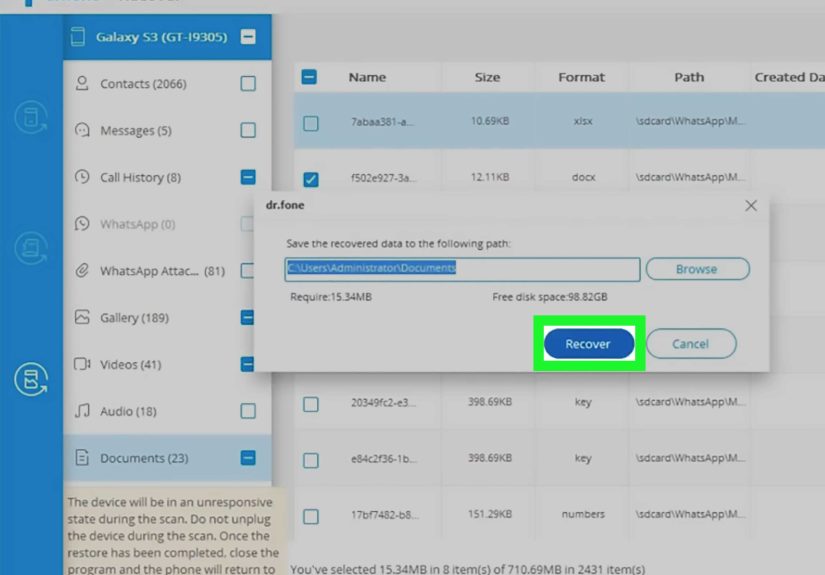
How to Download Data from a Broken Android Phone
Android phones usually offer more ways to pull files from a broken device, especially if the phone still powers on. Your success rate depends on brand, Android version, whether USB file transfer was allowed, and whether your data was already synced to Google or another cloud service.
Check Your Google Account Backup
Android can back up content, settings, app data, call history, SMS on some devices, and other system information to your Google account. If backup was enabled, you may be able to restore that data during setup on another Android phone.
This is one of the easiest ways to recover data from a broken Android phone because the old device does not always need to be functional anymore. The catch is that not every app backs up every piece of data, so do not expect magic. Expect a very useful partial rescue.
Check Google Photos and Other Cloud Apps
If your photos and videos were syncing through Google Photos, open Google Photos on the web and download what you need. Also check Google Drive, Gmail attachments, Google Contacts, Dropbox, OneDrive, carrier cloud storage, or any app you used regularly.
Many people assume their phone held everything locally, only to discover half their digital life has already been living in the cloud rent-free.
Connect Android to a PC or Mac with USB
If the phone still powers on and the screen works enough to unlock it, connect it to a computer with a data cable and choose File Transfer mode if prompted. On Windows, the device may appear in File Explorer. From there, you can copy photos, videos, downloads, documents, and some app folders.
This method is especially effective for media files and documents. It is less reliable for app-specific data that stays protected inside Android’s sandbox.
Use an External Display, Mouse, or Keyboard
On some Android phones, especially certain Samsung Galaxy models, a broken screen does not necessarily end the game. If the device supports video output over USB-C, you may be able to connect it to an external display and control it with a mouse or keyboard through a hub. That lets you unlock the phone, enable file transfer, open cloud apps, or run Samsung Smart Switch to create a backup.
This trick is one of the most useful recovery moves for a black-screen Android phone. It feels a little absurd, like giving your phone a desk job, but it works when the hardware supports it.
Use Samsung Smart Switch
If you have a Samsung device, Smart Switch is worth trying. It can back up contacts, photos, videos, messages, notes, and more to a PC or Mac, then restore them to another Samsung phone later. For Galaxy owners, this can be a lifesaver when the old phone still powers on but is too damaged for normal use.
Carrier Backup Tools Can Help Too
Some carriers offer their own cloud backup and transfer tools. Verizon Content Transfer, AT&T Personal Cloud, and similar services can preserve contacts, photos, videos, and sometimes additional device content. These are most helpful if they were already enabled before the phone broke or if the old device is still functional enough to connect briefly.
When Direct Recovery Does Not Work
Sometimes the phone powers on, but you still cannot get the files. Here are the usual reasons:
- The device is locked and you cannot unlock it.
- The computer was never trusted before the screen failed.
- The USB port is damaged.
- The internal storage is encrypted and the phone will not boot far enough to decrypt it.
- The data you want lives inside apps that do not expose files directly.
Modern iPhones and Android phones are much more secure than older models. That is excellent for privacy and terrible for last-minute rescue missions. In many cases, there is no legitimate shortcut around device encryption and passcode protection. If the phone cannot boot and unlock properly, the best realistic option is often to repair the device enough to access it normally.
When a Repair Shop Makes Sense
If your phone contains irreplaceable data, a professional repair shop may be the smartest next move. Apple-authorized service, Samsung-authorized service, Geek Squad, and uBreakiFix by Asurion can sometimes repair screens, ports, or power issues well enough for you to unlock the device and copy your data. Best Buy also advertises data recovery services with an initial diagnostic and estimate.
The important mindset shift is this: you may not need a full repair for long-term use. You may only need the phone revived for one glorious hour so you can back it up, export your files, and retire it with dignity.
How to Avoid This Nightmare Next Time
Every broken-phone recovery story ends with the same lesson: backups are boring until they become the most romantic thing in your life.
- Turn on iCloud Backup or Google backup.
- Enable photo syncing with iCloud Photos or Google Photos.
- Make an occasional computer backup.
- Keep enough cloud storage available.
- Use a good case, but do not trust it like it is medieval armor.
- Test your backup once in a while so you know what is actually being saved.
Best Recovery Strategy by Situation
If your phone still turns on and unlocks
Back up to the cloud immediately, then copy files to a computer.
If your iPhone screen is dead but the phone works
Check iCloud first. If needed, repair the screen long enough to unlock the phone and trust a computer.
If your Android screen is dead but the phone works
Try an external display, mouse, or USB connection. Then use file transfer, Google cloud services, or Smart Switch.
If the phone will not boot
Check cloud data first, then consider professional repair to restore temporary access.
If you never backed up anything
Your chances depend heavily on whether the device can still power on, unlock, and communicate with a computer. If not, professional repair is usually your best shot.
Experience-Based Lessons From Real-World Broken Phone Recoveries
In practice, most broken phone recoveries follow a few familiar patterns, and they are worth knowing because they save time and false hope. One common situation is the shattered-screen iPhone that still vibrates, rings, and charges. People often assume the data is gone because they cannot see anything. In reality, the data is often perfectly fine. The problem is access. If iCloud Photos and iCloud backup were already enabled, the owner can sign in on the web, check what is there, and often recover the most valuable content within minutes. The drama is high, but the solution is surprisingly calm.
Another very common case is the Android phone with a dead display but a living motherboard. This is where users sometimes get lucky. If the phone supports video output over USB-C, connecting it to a monitor and plugging in a mouse can bring the device back to life in a completely unexpected way. Suddenly, a “dead phone” is acting like a tiny desktop computer. At that point, the owner can unlock the phone, enable file transfer, open Google Photos, or run Smart Switch. It feels ridiculous the first time you see it, but ridiculous and effective is still effective.
Then there is the heartbreaking scenario where the phone powers on, but the person never enabled backups and never trusted the phone with a computer. This is where recovery usually slows down. Modern phones are designed to protect data from strangers, thieves, and random computers. Unfortunately, that protection also blocks the rightful owner when the screen dies at the wrong moment. In those cases, a temporary screen replacement is often the turning point. Once the phone can be unlocked, the data rescue becomes much more ordinary.
Water damage creates a different kind of chaos. Some people keep pressing the power button every ten minutes like optimism is a repair strategy. Usually, that only increases the risk. The better approach is to stop charging the phone, let a technician inspect it, and avoid repeated boot attempts if the device is heating up or behaving erratically. Sometimes the repair is not about making the phone fully healthy again. It is about stabilizing it just long enough to copy the photos, export the contacts, and move on.
The biggest lesson from all these recoveries is simple: cloud sync is not glamorous, but it is undefeated. When people already have iCloud, Google backup, Google Photos, or a carrier cloud service set up, the conversation changes from “Can I save anything?” to “How do I want to download it?” That is a much nicer question. The moral of the story is not that broken phones are harmless. It is that preparation turns a disaster into an inconvenience, and inconvenience is a beautiful upgrade from catastrophe.
Conclusion
If you need to download data from a broken phone, do not start with panic and do not start with random recovery software. Start with the basics: figure out whether the phone still powers on, check cloud services first, then move to computer transfer or a temporary repair. For iPhone, iCloud and computer backups are usually the strongest safety nets. For Android, Google backup, Google Photos, USB file transfer, and tools like Samsung Smart Switch often give you more recovery routes.
The real secret is not a hidden button or hacker trick. It is using the most boring features on your phone before disaster strikes. Backups may not be exciting, but neither is losing five years of family photos because your phone decided to kiss the sidewalk at full speed.