Table of Contents >> Show >> Hide
- Snapchat “Boomerang” in plain English: Bounce vs. Loop
- Before you start: a 20-second setup that saves 20 minutes
- Method 1: Create a Boomerang-style Snap with Bounce (iPhone & Android)
- Method 2: Make an endless Loop Snap (the quick “Boomerang-ish” option)
- Method 3: If Bounce isn’t showing up, here are practical workarounds
- Posting your Boomerang: Chat vs. Story (and why it matters)
- Troubleshooting: the most common “why isn’t this working?” fixes
- FAQ
- Creator Experiences: What Actually Works in the Wild
- Conclusion
Snapchat is basically a camera with commitment issues: it wants everything to disappear… except the moments you want to watch five times in a row. Enter the Boomerangthat hypnotic forward-and-back loop that makes a coffee pour look like a tiny movie trailer.
Here’s the catch: Snapchat doesn’t usually label the feature “Boomerang.” Instead, it gives you two close cousinsLoop and Bounce. If you learn where those buttons live, you can make Boomerang-style Snaps on both iPhone and Android in under a minute (or, realistically, in under a minute plus 14 seconds of “wait, where did the icon go?”).
Snapchat “Boomerang” in plain English: Bounce vs. Loop
When people say “Boomerang on Snapchat,” they usually mean one of these:
- Bounce: plays your clip forward, then backward, then repeats. This is the closest match to Instagram’s Boomerang vibe.
- Loop: replays the clip from the beginning over and over until the viewer taps away. It’s more “endless replay” than “back-and-forth.”
If your goal is that classic “forward → reverse → forward” motion, you want Bounce. If your goal is “watch this again until your thumbs give up,” you want Loop.
Before you start: a 20-second setup that saves 20 minutes
1) Update Snapchat
Snapchat’s tools can change placement (and sometimes names) across updates. If you don’t see Loop/Bounce options, updating is the fastest fix.
2) Confirm you’re recording a video Snap (not a photo)
Bounce and Loop apply to video. Hold the capture button to record (instead of tapping for a still photo).
3) Decide where it’s going: Chat, Story, or Memories
- Chat: quick, casual, and perfect for reactions.
- Story: best if you want more people to see the loop.
- Memories: great if you want to save and reuse the clip later.
Method 1: Create a Boomerang-style Snap with Bounce (iPhone & Android)
This is the most “Boomerang” method because it creates that forward-and-back repeat. Snapchat calls it Bounce.
- Open Snapchat and go to the Camera screen.
- Record a short video by pressing and holding the capture button. (Aim for 2–5 seconds so you have enough to choose from.)
- After recording, look for the playback/loop controls on the editing screen (often shown as repeat/loop-style icons).
- Tap to select “Bounce.” Snapchat will give you a slider/timeline to choose which part of the clip should bounce.
- Drag the slider to highlight the best momentusually a tight 1–2 second action (a jump, a wink, a toast, a hair flip, a high-five).
- Preview it. If it looks chaotic, shorten the selected segment and try again. (Boomerangs love simplicity.)
- Add any finishing touches: text, stickers, music, captions, or doodles.
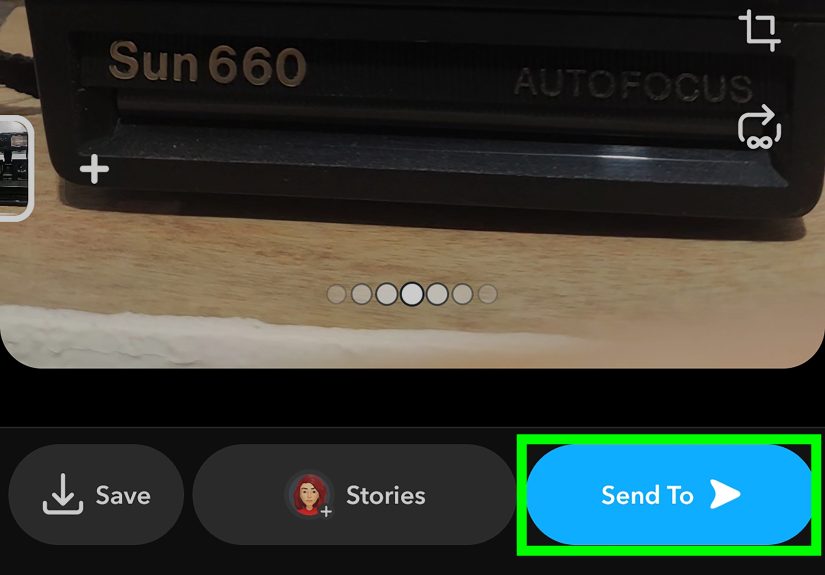
- Tap Send To (for friends), My Story (for a Story post), or Save (to keep it in Memories/camera roll, depending on your settings).
Bounce tips that make your clip look “wow” instead of “why”
- Pick one clear motion. A single action reads better than a busy scene. If three people are moving and a dog is sprinting through frame, Bounce will turn it into modern art (the confusing kind).
- Use the slider like a highlight reel. Trim to the most satisfying momentlike the exact second the latte foam swirls.
- Keep the camera steady. If you pan fast, Bounce creates a dizzy “ping-pong” effect. When in doubt, plant your elbows like you’re filming a nature documentary.
- Lighting matters. Bounce exaggerates motion blur. Bright, even light = cleaner loop.
- Make it seamless. Choose a segment where the start and end frames look similar (e.g., hand near the same position). That’s the secret to “perfect loop” energy.
Method 2: Make an endless Loop Snap (the quick “Boomerang-ish” option)
If you want the viewer to be able to replay your video continuously (without the back-and-forth reverse), use Loop. This is also great when Bounce feels too “bouncy” for the moment.
- Record a video Snap by holding the capture button.
- On the edit screen, find the Loop/repeat option (often represented by a repeat/loop symbol).
- Select the loop setting so the video plays repeatedly until the viewer taps to move on.
- Add any text/stickers, then Send or Post.
Loop vs. Bounce: when to choose which
- Choose Bounce when you want a playful “rewind” vibe (jump shots, celebrations, quick gestures, comedic moments).
- Choose Loop when you want a smooth rewatch (a scenic view, a dance move, a satisfying process like stirring, pouring, or unboxing).
Method 3: If Bounce isn’t showing up, here are practical workarounds
Sometimes the icon layout looks different, a feature hasn’t rolled out on your device yet, or you’re simply staring directly at the button while your brain pretends it’s invisible. If Bounce is missing:
Workaround A: Use Loop + a simple motion
Many “Boomerang” moments still work with Loop alone. Record a short clip with a clean repeating action (waving, clinking glasses, spinning an object), then set it to Loop. It won’t reverse, but it still delivers that looped, punchy feel.
Workaround B: Save the clip and boomerang it in a trusted editor
If you need a true forward-and-reverse loop and Snapchat won’t cooperate, save the video to your device and use a reputable video editor that can reverse and loop clips. Then upload the finished boomerang back into Snapchat as an upload from your camera roll.
Quick privacy note: if you use third-party apps, pick well-known editors and review permissions. If an app seems weirdly excited about your contacts list, it does not deserve your cinematic masterpiece.
Posting your Boomerang: Chat vs. Story (and why it matters)
Sending in Chat
Chat is ideal for quick reactions and inside jokes. Looping can keep the Snap on-screen until your friend taps away (great for “Waitdid you see that?” moments). Bounce is perfect for punchy comedic loops.
Posting to Your Story
Stories are where Boomerang-style clips shine because people are already in “rapid-scroll entertainment mode.” Keep it short, visually clear, and readable without sound. Add a caption that explains the moment in one line.
Saving to Memories for reuse
If you make a great Bounce, save it. The best looping clips tend to be timeless (coffee pours, pets, celebrations, travel moments), and you’ll thank yourself later.
Troubleshooting: the most common “why isn’t this working?” fixes
“I don’t see Bounce or Loop anywhere.”
- Update Snapchat and restart the app.
- Confirm it’s a video Snap (hold to record).
- Check the edit screen icons carefully; playback options can be grouped or represented by a repeat-style symbol.
- If you’re on a very old device/OS version, some features may be limited. Consider using the Loop workaround or editing externally.
“My Bounce looks messy or jittery.”
- Shorten the selected Bounce segment to 1–2 seconds.
- Use brighter lighting to reduce motion blur.
- Stabilize the phone (lean it against something if needed).
“It loops forever and won’t stop.”
That’s Loop doing its job. If you want it to play once, switch the playback setting back to a single play option.
“The audio feels weird.”
Bounce is visual-first. If the sound gets awkward, lower it, add music, or let the clip be silent with captions.
FAQ
Does Snapchat have “Boomerang” like Instagram?
Snapchat doesn’t always label it “Boomerang,” but Bounce delivers the same forward-and-reverse looping effect. Loop is also available for endless replay.
Can I Boomerang a video from my camera roll?
Yes. Upload the clip into Snapchat from your camera roll, then apply available playback options (or pre-edit it into a boomerang in an editor first). If Snapchat won’t offer Bounce for that upload, external editing is the most reliable route.
What’s the best “Boomerang” length?
For Bounce, the best result usually comes from selecting a tight 1–2 second action. For Loop, keep it short enough that rewatching feels satisfying, not exhausting.
Is Bounce better for iPhone or Android?
The steps are essentially the same. Minor differences are usually icon placement and how features roll out across app versions.
Creator Experiences: What Actually Works in the Wild
If you’ve ever tried to make a “simple” Boomerang and ended up recording 27 versions of the same toast, welcome to the club of people with taste. In real-life use, the difference between a Boomerang that makes people stop scrolling and one that gets the silent treatment is rarely the button you pressed. It’s the moment you chose and how cleanly it loops.
Creators who get consistent results tend to build their Boomerangs around “micro-stories”tiny actions with a clear start, peak, and reset. Think: a friend tossing a hat up and catching it, a dog doing one perfect head tilt, a sparkler drawing a quick shape, a basketball swish from a stable angle, or that oddly satisfying swirl when you stir iced coffee. These actions work because they have a natural rhythm that looks good when repeated. A Boomerang isn’t trying to capture a whole event; it’s trying to bottle a single beat of it.
Another common pattern: the best Bounce clips usually start and end on similar frames. You’ll see creators nudge the Bounce slider until the first frame and last frame “match” in body position or object placement. That’s what makes the loop feel intentional instead of accidental. For example, if someone is waving, the loop feels seamless when the hand is at roughly the same height at the beginning and the end of the selected segment. If the hand starts low and ends high, the reverse motion can look like a glitchy teleport. (Fun for horror vibes; less fun for brunch.)
Lighting and background are the quiet heroes, too. A busy background can make Bounce look chaotic because everything appears to “move” when the clip reverses. Creators often step one pace to the left to get a clean wall behind them, or angle the camera so the action is separated from the background. Even a small changelike turning so a window light hits your subjectcan turn “muddy loop” into “crisp loop.”
Then there’s camera stability. In the wild, people don’t hold a phone still; they breathe, laugh, and get bumped by someone who’s reaching for fries. But Bounce exaggerates tiny shakes because the motion repeats. A simple trick creators use is bracing elbows against the torso, leaning the phone on a cup, or filming against a railing. It’s not about being “pro”it’s about giving the loop a clean anchor so the action is the star.
Finally, captions matter more than you’d think. The most shared Boomerangs often pair the visual loop with one short line that tells viewers what to notice: “Watch the spoon,” “Wait for it,” “The ending gets me every time,” or “POV: you try to be chill.” That single sentence gives the viewer a reason to watch the loop twice (which is basically the whole point). If you’re posting to a Story, creators often keep text high on the screen, away from UI elements, and use contrast so it’s readable in a half-second glance.
So yesBounce is the “Boomerang button,” and Loop is the backup plan. But what really makes it work is choosing a simple action, trimming it tightly, keeping the camera steady, and adding just enough context that people understand why they’re watching it again. If you do that, your Boomerang won’t just loop. It’ll stick.
Conclusion
To do a Boomerang on Snapchat, record a video Snap and use Bounce for the classic forward-and-reverse loop. If you want continuous replay instead, use Loop. Both work on iPhone and Android, and the difference between “meh” and “mesmerizing” comes down to trimming the right moment and keeping it clean.