Table of Contents >> Show >> Hide
- Quick reality check: what “disable WhatsApp calls” can mean
- Way 1: Turn off WhatsApp call notifications at the iOS/iPadOS level
- Way 2: Mute WhatsApp call alerts inside WhatsApp (ringtone + vibration)
- Way 3: Silence Unknown Callers in WhatsApp (your anti-spam shield)
- Way 4: Block specific contacts (the “not today, buddy” option)
- Way 5: Schedule “no WhatsApp calls” time using Focus or Screen Time
- Common questions (so you don’t end up rage-googling at midnight)
- Short conclusion
- Real experiences and practical lessons (the extra )
- SEO tags (JSON)
WhatsApp calls can be greatuntil they show up like an uninvited guest at the exact moment you’re in class, in a meeting,
or trying to do that sacred “one quick nap” that always turns into a full reboot of your soul.
If you’re thinking, “How do I turn WhatsApp calls off on my iPhone or iPad?” you’re in the right place.
Here’s the honest truth up front: WhatsApp doesn’t currently offer a single magic switch that says “Disable all calls forever.”
But you can get very closeeither by stopping call alerts, blocking specific people (or strangers),
and automating quiet time so calls never interrupt you again.
Quick reality check: what “disable WhatsApp calls” can mean
People say “disable calls” but often mean one of these:
- Stop the ringing and pop-ups (you don’t want the interruption).
- Block unknown/spam callers (you don’t want random numbers calling you).
- Block a specific person (you want peace without changing your whole setup).
- Silence calls at certain times (sleep, school, work, workouts, “do not perceive me” hours).
The five methods below cover all of that. Pick the one that matches your lifeor stack them like a productivity sandwich.
Way 1: Turn off WhatsApp call notifications at the iOS/iPadOS level
This is the most direct way to stop WhatsApp calls from loudly announcing themselves on your device.
When you turn off notifications for WhatsApp, you typically stop call banners, lock-screen alerts, and sounds.
Step-by-step (iPhone and iPad)
- Open Settings.
- Tap Notifications.
- Find and tap WhatsApp.
- Toggle Allow Notifications Off.
If you still want messages but hate call noise
iOS doesn’t always let you split “calls” and “messages” into totally separate notification systems for WhatsApp.
But you can often reduce the chaos by keeping notifications on while turning off the loud parts:
- Sounds: Off (your phone stays quieter)
- Lock Screen: Off (no surprise full-screen moments)
- Banners: Off (less pop-up drama)
- Notification Center: On (so you can check later)
- Badges: Optional (for the “I’ll look when I feel like it” vibe)
What to expect: You may still see missed calls inside WhatsApp’s Calls tab, but the “ringing in your face”
behavior is greatly reduced or eliminated.
Way 2: Mute WhatsApp call alerts inside WhatsApp (ringtone + vibration)
If you don’t want to globally shut down notifications, WhatsApp’s own notification controls can help you
make calls dramatically less annoyingespecially by changing the call ringtone and vibration behavior.
Step-by-step
- Open WhatsApp.
- Tap Settings (bottom right on iPhone; iPad layout may vary).
- Tap Notifications.
- Look for Call notifications (or Calls settings).
-
Set the Ringtone to the quietest option available (some versions allow None),
and set Vibrate to Off or minimal.
Why this works (and when it doesn’t)
This method is great when you still want message notifications but want calls to be “quiet guests.”
However, if you’re getting full-screen call alerts that feel like they cut through everything,
pair this with Way 1 or Way 5 for best results.
Way 3: Silence Unknown Callers in WhatsApp (your anti-spam shield)
Getting random WhatsApp calls is annoyingly common: spam, scams, wrong numbers, or someone who thinks
calling you at 2:07 a.m. is a personality trait.
WhatsApp includes a privacy setting called Silence Unknown Callers. When enabled,
calls from numbers you don’t know won’t ringbut they can still appear in your call list in case
it was actually important.
Step-by-step
- Open WhatsApp.
- Tap Settings.
- Tap Privacy.
- Tap Calls.
- Turn on Silence Unknown Callers.
Best for: anyone who wants WhatsApp for messaging but doesn’t want to be reachable by every
random number with Wi-Fi.
Way 4: Block specific contacts (the “not today, buddy” option)
If the problem isn’t “calls” but rather who is calling, blocking is the cleanest solution.
Once blocked, that contact can’t message you or call you on WhatsApp.
How to block someone from a chat
- Open the chat with the person.
- Tap their name/number at the top.
- Scroll down and tap Block Contact.
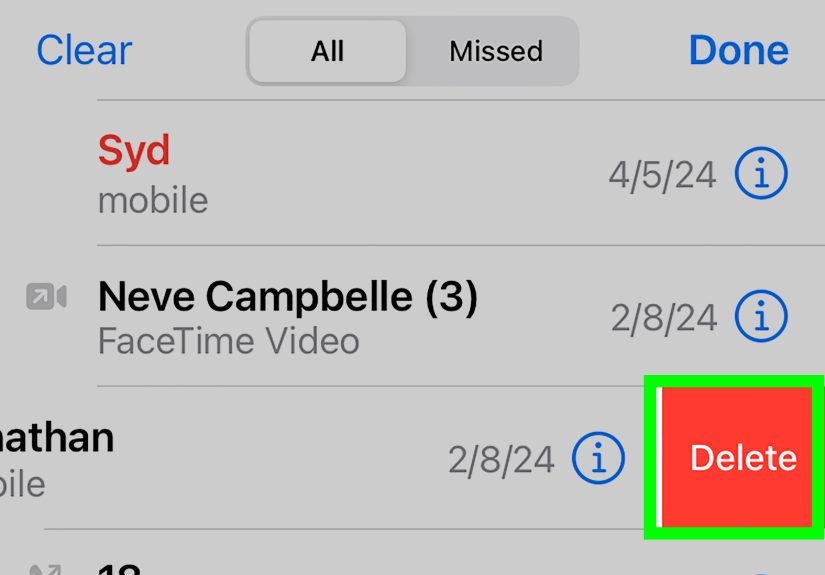
How to block from the Calls tab
- Go to Calls in WhatsApp.
- Tap the caller, then open their info page.
- Select Block (and Report if it’s spam/scam).
Pro tip: If you’re blocking a spammer, reporting helps WhatsApp improve protection overall.
It’s like returning your shopping cartsmall act, big civilization energy.
Way 5: Schedule “no WhatsApp calls” time using Focus or Screen Time
This is the power move: instead of manually fighting WhatsApp calls all day, you set your device to automatically
silence WhatsApp during the times you care about mostsleep, work, study blocks, family dinner, or your “I’m off-grid”
hour where you pretend you live in a cabin even though you’re in an apartment with excellent Wi-Fi.
Option A: Focus mode (fast and flexible)
- Open Settings > Focus.
- Choose a Focus (like Do Not Disturb, Work, or Sleep).
- Tap Apps.
- Select WhatsApp under apps you want to silence (or only allow a short list of apps you truly need).
- Set a schedule (time-based), or turn it on manually from Control Center when you want instant quiet.
Why it’s useful: Focus can keep your phone functional while stopping WhatsApp from barging in.
For many people, this feels like “disabling calls,” because the interruption disappears.
Option B: Screen Time Downtime (stronger boundaries)
If you want WhatsApp to be unavailable during certain hours (and reduce notifications during that window), Screen Time is
the stricter, more “parental-controls-but-make-it-adult” approach.
- Open Settings > Screen Time.
- Tap Downtime and set your schedule.
- Make sure WhatsApp is not in the Always Allowed list.
Best for: people who want WhatsApp to stop being a 24/7 open doorespecially overnight.
Common questions (so you don’t end up rage-googling at midnight)
“Can I disable WhatsApp calls on iPad but keep them on iPhone?”
Yesusually by configuring notifications and Focus separately on the iPad. Turn off WhatsApp notifications on the iPad
(Way 1), or use a Focus schedule that’s stricter on iPad than on iPhone (Way 5). If you truly never want WhatsApp calls to reach
the iPad, disabling WhatsApp notifications there is the simplest “device-specific” fix.
“Does Silent Mode stop WhatsApp calls?”
Silent Mode helps with general sound, but WhatsApp call behavior can still vary depending on notification settings.
If your goal is “no call interruptions,” Silent Mode alone is usually not enough. Use Way 1 or Way 5.
“Why am I suddenly getting more WhatsApp calls?”
Two common reasons: (1) your number has been added to more groups or shared more widely, and (2) spam/scam activity rises in waves.
Turning on Silence Unknown Callers (Way 3) is the quickest relief.
“Will I still see missed calls?”
Often yes. Most “disable” strategies are about stopping the interruption. You may still see missed calls inside WhatsApp,
which is actually helpfulbecause you’re still informed without being ambushed.
Short conclusion
If you want the fastest fix, start with Way 1 (turn off WhatsApp notifications) or Way 3 (silence unknown callers).
If you need a smarter long-term solution, Way 5 (Focus/Screen Time) turns your iPhone or iPad into a “quiet by default” device.
And when one specific person is the problem, Way 4 is the cleanest boundary you can set in two taps.
Real experiences and practical lessons (the extra )
People usually don’t go looking for “disable WhatsApp calls” because everything is going great. It’s almost always a story.
Sometimes it’s the group chat that discovered calling and now treats it like a “reply-all” button. Sometimes it’s a relative
who prefers voice calls and thinks texting is a phase you’ll grow out of. And sometimes it’s workbecause nothing says
“healthy boundaries” like a WhatsApp call landing during your lunch break with the urgency of a breaking news alert.
One of the most common patterns is this: someone turns off all WhatsApp notifications (Way 1), enjoys the peace for a day,
and then realizes they also missed messages they actually cared about. That’s when the setup becomes more intentional:
keep message notifications, but mute call alerts inside WhatsApp (Way 2), and use Focus for the times you really
can’t be interrupted (Way 5). It’s less “scorched earth” and more “I control the doorbell.”
Another real-world situation: people get spam calls in bursts. It’s quiet for weeks, then suddenly there are three unknown
callers back-to-back like it’s a telemarketer parade. In those moments, Silence Unknown Callers (Way 3) feels like someone
finally invented curtains for your phone. The best part is psychological: you’re not forced to block everyone you don’t know.
You’re just choosing not to be instantly reachable by strangers. The calls still show up in your call list, so if it was
your dentist, you can call back. If it was “Free Crypto Investment Opportunity #492,” you can ignore it forever.
The “block a specific person” route (Way 4) tends to come with emotional hesitation. People worry it will look dramatic.
But in practice, blocking is often the simplest fix for repeated unwanted callsespecially if someone doesn’t respect “Please text me.”
A middle ground some people use is: mute call alerts first, then block if the behavior continues. Boundaries can be a staircase,
not a trapdoor.
Finally, Focus and Screen Time are the unsung heroes for students, remote workers, and anyone who needs predictable quiet.
The biggest “aha” moment is realizing you don’t have to remember to silence WhatsAppyour phone can do it automatically.
That means fewer interruptions during deep work, fewer late-night wake-ups, and fewer moments where you answer a call just
because you panicked when it rang. Once you’ve lived with a scheduled quiet window, it’s hard to go back. It’s like trying
to sleep with the lights on after you’ve discovered curtains.