Table of Contents >> Show >> Hide
- What Your Channel Description Does (And Why It’s Worth Updating)
- Before You Edit: A Quick Checklist
- Way 1: Change Your Channel Description on a Computer (YouTube Studio)
- Way 2: Change Your Channel Description on a Phone (YouTube Studio App)
- How to Write a Channel Description That Actually Helps Your Channel
- SEO Notes Without the Keyword Stuffing
- Example Channel Descriptions You Can Adapt
- Troubleshooting: Why Your Updated Description Might Not Appear
- Mini Strategy: When Should You Update Your Channel Description?
- Conclusion
- Experiences: What It’s Like Updating a Channel Description in Real Life (And What Actually Helps)
Your YouTube channel description is the little “About me” blurb that does a surprisingly big job: it tells new viewers what you publish,
helps the right people find you, and (if you write it well) saves you from answering the same “What is this channel?” comment for the
900th time. It lives in your channel’s About area and often shows up as a quick summary on your channel pageso it’s one of the
first things people read when they’re deciding whether to subscribe or quietly back away into the algorithmic bushes.
The good news: changing it takes about a minute. The better news: you can do it in two easy wayson a computer or on your phone.
In this guide, you’ll get step-by-step instructions for both, plus smart writing tips, examples, and a real-world “what actually worked”
experience section at the end.
What Your Channel Description Does (And Why It’s Worth Updating)
Think of your channel description as a storefront sign and a mini elevator pitch rolled into one. It helps viewers answer:
“Is this for me?” quickly.
It sets expectations
A clear description tells people what you make (tutorials, reviews, vlogs, interviews), who it’s for (beginners, busy parents, power users),
and what they’ll learn or feel (save time, laugh, level up, relax).
It supports discoverability
You don’t need to play keyword bingo, but using natural phrases related to your niche (your main topics, your audience, your format) helps YouTube
and viewers understand your channel’s focus. The goal is clarity, not a robotic list of terms.
It’s a trust signal
A description that reads like a real human wrote it (with a bit of personality) makes you feel legitimateespecially for new channels.
If your current description is “welcome to my channel lol,” it’s not “wrong,” but it’s also not doing you any favors.
(Unless your channel niche is, specifically, “welcome to my channel lol.” In that case: iconic.)
Before You Edit: A Quick Checklist
- Keep it concise: You have limited space, and people skim.
- Lead with value: Put the “what you get here” in the first 1–2 lines.
- Be specific: “Tech videos” is broad. “Budget Android phones, PC builds, and troubleshooting” is useful.
- Sound like you: Friendly, expert, funny, calmwhatever fits your brand.
- Avoid policy landmines: Don’t promise what you can’t deliver; don’t include misleading claims.
Way 1: Change Your Channel Description on a Computer (YouTube Studio)
This is the most straightforward method if you’re already working on content from a laptop or desktop.
You’ll edit your channel description inside YouTube Studio.
Step-by-step (Desktop/Web)
- Open your browser and go to YouTube Studio (you can also click your profile icon on YouTube and choose Studio).
- In the left-hand menu, click Customization.
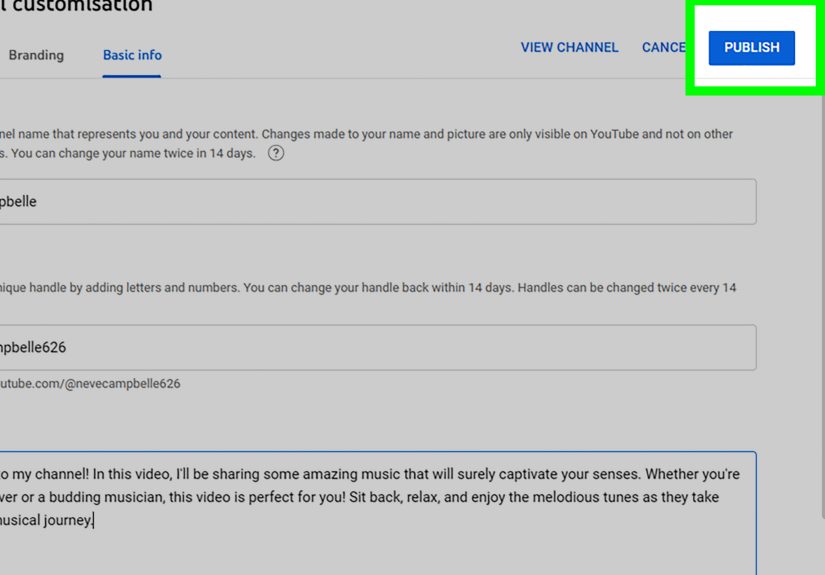
- Select the Basic info tab.
- Find the Description field and update your channel description text.
- Click Publish to save your changes.
If you don’t see “Customization”
Don’t panicYouTube isn’t mad at you. Usually this happens because:
- You’re not in YouTube Studio (you’re on regular YouTube). Switch to Studio.
- You’re on a restricted/managed account or brand account with limited permissions.
- Your interface is slightly different due to updateslook for “Channel customization” or “Customize channel.”
Pro tip: Update other “Basic info” items while you’re here
If your channel description is changing because your content focus shifted, check your channel links, name/handle, and branding consistency too.
Even small mismatches can confuse new viewers (“Why does your banner say cooking but your description screams crypto?”).
Way 2: Change Your Channel Description on a Phone (YouTube Studio App)
If you’re more mobile-first, you can update your channel description directly in the YouTube Studio app.
This is great for quick editslike when you rebrand, start a new series, or realize your description still says “New videos every Friday”
even though it’s currently Tuesday of the following year.
Step-by-step (Mobile: YouTube Studio app)
- Open the YouTube Studio app and sign in to the correct channel.
- Tap your profile picture (or the channel icon) to access channel settings/profile editing.
- Tap Edit (often a pencil icon or “Edit channel profile”).
- Next to Description, tap Edit, then type your updated channel description.
- Tap Save to apply the changes.
Common mobile hiccups (and quick fixes)
- Wrong channel: If you manage multiple channels, switch accounts inside the Studio app first.
- Edits not showing: Give it a short moment, refresh your channel page, or check from another device.
- “Save” is disabled: This can happen if nothing changed, or if there’s an unsupported character/format in your text.
How to Write a Channel Description That Actually Helps Your Channel
Editing is easy. Writing is where the magic happens. Here’s a practical framework that keeps your description clear, human, and searchable
without sounding like a spreadsheet that learned English yesterday.
1) Start with a one-sentence “what this channel is” line
This is the line that catches skimmers. Make it specific and audience-focused.
- Example (Home DIY): “Weekly DIY projects and home fixes you can actually finish in a weekend (yes, even if you ‘measure by vibes’).”
- Example (Tech): “Practical tech reviews and tutorialsphones, laptops, and troubleshootingso you buy smarter and stress less.”
- Example (Fitness): “Strength workouts and mobility routines for busy people who want results without living at the gym.”
2) Add 2–4 lines with your content pillars
“Content pillars” are your main recurring topics. If someone subscribes, what will they consistently get?
- Short tutorials (5–10 minutes)
- Product comparisons (budget vs premium)
- Beginner-friendly walkthroughs
- Monthly live Q&A
3) Add your schedule (only if you can keep it)
Posting cadence can help, but only if it’s realistic. If your schedule is unpredictable, say something like:
“New uploads when life allowssubscribe so you don’t miss the good stuff.”
4) Add your credibility, lightly
You don’t need a brag parade. Just enough to build trust.
- “I’m a former IT support lead…”
- “I’ve renovated three small homes…”
- “I’m a working mom testing meal prep in real life…”
5) End with a simple call to action
A friendly CTA works better than a hard sell. For example:
“Subscribe for weekly tips” or “Hit subscribe if you like practical, no-fluff tutorials.”
SEO Notes Without the Keyword Stuffing
YouTube is a search engine and a recommendation engine. Your channel description should help with clarity, not become a dumping ground for keywords.
Here’s what works in the real world:
- Use 1–2 primary phrases naturally: e.g., “YouTube channel description,” “YouTube Studio,” “About section,” “channel branding.”
- Include related terms where relevant: your niche topics, your audience, your format.
- Front-load meaning: put the most important info in the first 1–2 lines.
- Write for humans first: the algorithm tends to reward what viewers respond toclarity builds trust, trust builds clicks and watch time.
Example Channel Descriptions You Can Adapt
Example 1: Budget Tech Channel
“Welcome! I post honest tech reviews and step-by-step tutorials for people who want great gear without overspending.
Expect budget phone reviews, laptop recommendations, and quick fixes for everyday tech headaches. New videos weeklysubscribe and save yourself
from rage-Googling at 2 a.m.”
Example 2: Cooking for Beginners
“Simple recipes, smart shortcuts, and meal prep that doesn’t taste like punishment. I share beginner-friendly cooking videos,
20–30 minute dinners, and tips to make your kitchen life easier. Subscribe for new recipes and ‘why didn’t anyone tell me this earlier’ tricks.”
Example 3: Personal Finance (Friendly, Not Scary)
“Personal finance made practical: budgeting, saving, debt payoff, and investing basics explained in plain English.
If money topics make your brain do the Windows shutdown sound, you’re in the right place. New videos every weeksubscribe and build confidence.”
Troubleshooting: Why Your Updated Description Might Not Appear
1) You forgot to publish/save
On desktop, you must click Publish. On mobile, you must tap Save. This sounds obvious, but so is sunscreenand people still ignore it.
2) You’re viewing a cached version
Refresh the page, reopen the app, or check in an incognito/private window. Sometimes changes take a short moment to propagate across devices.
3) You edited the wrong channel/account
If you have a personal channel plus one or more Brand Accounts, double-check you’re editing the correct one in YouTube Studio.
4) Your text triggers filters or formatting issues
Overly spammy text, excessive symbols, or unusual characters can sometimes cause saving problems. Keep it clean and readable.
Mini Strategy: When Should You Update Your Channel Description?
- Rebrand: new niche, new tone, or new content pillars.
- New series launch: highlight it at the top for a month.
- Seasonal shift: e.g., holiday recipes, back-to-school organization, summer travel.
- Audience clarity: when you realize “everyone” is not an audience.
- Milestone credibility: awards, certifications, or meaningful achievementskeep it honest and relevant.
Conclusion
Changing your YouTube channel description is quick, but it’s not “just a bio.” It’s your channel’s first impression, your clarity statement,
and your chance to guide the right viewers toward subscribing. Use the desktop method when you want full control and easy editing, and use the
mobile YouTube Studio method when you need a fast update on the go. Then write a description that’s specific, human, and front-loaded with value
so viewers instantly understand what you do and why they should stick around.
Experiences: What It’s Like Updating a Channel Description in Real Life (And What Actually Helps)
Here’s the part people don’t tell you: most creators don’t struggle with changing the channel descriptionthey struggle with deciding what to say
without sounding generic or salesy. The first time you update your About section, it’s easy to overthink it. You open the box, type three sentences,
delete them, type five more, delete those too, and suddenly you’ve spent 40 minutes producing a single line that reads like it was written by a
motivational poster. (You know the one: “Dream big. Upload bigger.”)
One of the most useful approaches is treating the description like a “promise” you can keep. For example, if you run a tech channel, saying
“I review the latest gadgets” sounds impressiveuntil you realize “latest” implies you buy every new release. A more realistic promise might be:
“I test the best-value phones and laptops and show you what’s worth your money.” That’s specific, honest, and it attracts the kind of viewer
who wants practical advice, not unboxings with dramatic music and a fog machine.
Another real-world lesson: the top line matters more than you think. People often see only a snippet before they click deeper, so the first
sentence needs to carry the weight. When creators rewrite their first line from “Welcome to my channel” to a value statement like
“Quick fixes and tutorials for everyday tech problems,” they usually notice fewer confused comments and more relevant subscribersbecause
viewers self-select into the right audience.
It’s also common to update your channel description after a content pivot. Maybe you started with general lifestyle content, then realized
your audience responds most to one categorylike home organization, beginner cooking, or travel hacks. In practice, the best pivot descriptions
don’t pretend the old content never happened. They simply guide expectations going forward: “This channel now focuses on X,” or “You’ll mostly
see Y here,” and then they list 2–3 content pillars. That clarity reduces bounce. People don’t feel tricked; they feel informed.
A surprisingly helpful habit is revisiting the description every quarter (or every time you start a new series). Not to rewrite everything
just to make sure it still matches reality. If you promise weekly uploads but life got chaotic, it’s better to soften the promise than to leave
a stale claim that makes you look unreliable. Viewers can forgive inconsistency; they don’t love misinformation. (Even accidental misinformation.)
Finally, the best channel descriptions usually have a little personality. Not “stand-up comedy special” energyjust a human touch.
A single friendly line like “Subscribe if you like practical tips without the fluff” can make you feel approachable and confident at the same time.
And if you’re worried about sounding “too salesy,” remember: a clear description is a service. You’re helping viewers decide if they belong here.
The right people will appreciate it. The wrong people will scroll away. That’s not a lossit’s good filtering.