Table of Contents >> Show >> Hide
- Why People Cancel an Amazon Prime Free Trial
- Before You Cancel: Check Your Trial End Date
- Simple Way #1: Cancel Your Amazon Prime Free Trial on a Desktop or Mobile Browser
- Simple Way #2: Cancel Your Amazon Prime Free Trial in the Amazon Shopping App
- Desktop vs. App: Which Method Is Better?
- What If You Forgot and Amazon Already Charged You?
- Common Mistakes to Avoid
- Should You Cancel Immediately or Wait Until the Last Day?
- How to Confirm Your Amazon Prime Free Trial Is Really Canceled
- Can You Get Another Amazon Prime Free Trial Later?
- Final Thoughts
- Experiences Related to Canceling an Amazon Prime Free Trial
- SEO Tags
If you signed up for Amazon Prime “just to see what all the fuss was about” and now your calendar is quietly inching toward surprise charge territory, you are not alone. Free trials are great until they become paid memberships while you are busy doing literally anything else. The good news? Canceling an Amazon Prime free trial is usually straightforward once you know where Amazon hides the right button. The better news? You have two simple ways to do it, and neither requires detective-level skills.
In this guide, you will learn exactly how to cancel an Amazon Prime free trial on a desktop browser or in the Amazon Shopping app, what happens after you cancel, how to avoid the most common mistakes, and what to do if you forgot and got charged anyway. We will also cover a few real-life scenarios that can save you money, stress, and one deeply unnecessary conversation with your bank statement.
Why People Cancel an Amazon Prime Free Trial
There is no dramatic reason required here. Maybe you wanted fast shipping for one order. Maybe you joined for Prime Video and finished the show in a heroic weekend. Maybe you wanted a deal during a sales event and now your mission is complete. Or maybe you took a hard look at your subscriptions and realized your budget is starting to resemble a streaming buffet nobody asked for.
Whatever the reason, canceling before the trial converts to a paid plan is the smart move if you do not plan to keep using Prime. Amazon Prime renews automatically, which means the trial can roll into a paid membership unless you end it before the billing date. Translation: your future self will appreciate today’s five-minute effort.
Before You Cancel: Check Your Trial End Date
Before you tap anything, confirm when your free trial actually ends. This matters because timing affects whether you can keep using Prime benefits until the trial expires and whether you are at risk of getting charged soon.
On your Prime membership page, Amazon typically shows your renewal date or next billing date. This is the number to watch. If you still have several days left, you may see an option to set the membership to end on the renewal date instead of cutting it off immediately. That can be useful if you still want to squeeze in one last free shipping order, one last movie night, or one last “I absolutely need this random cable by tomorrow” moment.
What Usually Happens When You Cancel
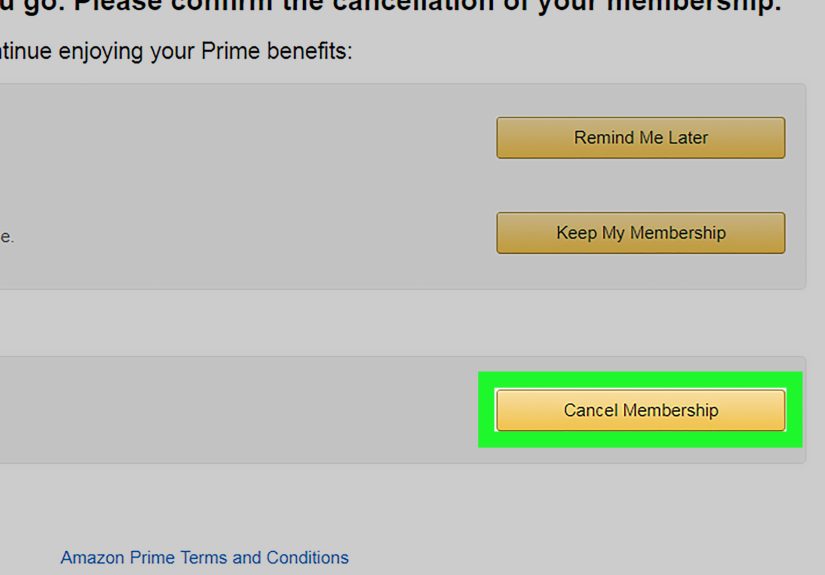
When canceling, Amazon may show several screens designed to make you pause, reconsider, hesitate, question your life choices, and maybe stay subscribed. Do not panic. That is normal. You may see options like:
- Remind Me Later
- Keep My Benefits
- Cancel My Benefits
- Continue to Cancel
- End on [date]
The wording can vary slightly by device, account type, or current Amazon interface. The key is simple: keep going until you reach the final confirmation that your Prime trial will end. If you stop midway, your membership may remain active. In other words, this is not the time to click away and assume the internet handled it for you.
Simple Way #1: Cancel Your Amazon Prime Free Trial on a Desktop or Mobile Browser
If you are using a laptop, desktop, or even a mobile browser, this is the classic route. It is also a good option if you prefer to see everything on a larger screen and make sure you catch the final confirmation page.
Step-by-Step Instructions
- Go to Amazon and sign in to the account that has the Prime free trial.
- Hover over or tap Accounts & Lists.
- Select Prime Membership or go to your Prime management page.
- Find Manage Membership, Update, Cancel, and More, or a similar menu.
- Choose End Membership or the cancel option shown on your screen.
- Read the prompts carefully. Amazon may offer reminders, monthly plan switches, or a chance to keep benefits until the renewal date.
- Continue until you see a final cancellation confirmation.
That is it. If Amazon gives you the option to end the trial on the renewal date, many people choose that so they can keep Prime perks until the last day without paying. Just make sure the final screen confirms that the membership will not renew.
Why the Browser Method Works Well
The browser version makes it easier to review your renewal date, compare options, and avoid tapping the wrong button in a tiny menu. It is especially useful if you are trying to cancel calmly and not while standing in line, half-awake, or multitasking with the attention span of a squirrel.
Simple Way #2: Cancel Your Amazon Prime Free Trial in the Amazon Shopping App
If you signed up on your phone and want to keep everything in one place, the app method is just as useful. This is the fastest route for people who do most of their Amazon shopping from mobile.
Step-by-Step Instructions
- Open the Amazon Shopping app.
- Tap the Profile icon.
- Scroll until you find Manage Prime Membership or a similar Prime option.
- Open the membership settings menu.
- Tap Manage Membership or the equivalent dropdown.
- Select End Membership.
- Follow the prompts until the cancellation is fully confirmed.
Again, watch out for extra screens. Amazon may ask whether you want a reminder before renewal, whether you want to keep benefits, or whether you would rather switch to another plan. If your goal is to avoid getting charged, continue until the app confirms the trial is ending.
When the App Method Is the Better Choice
The app is ideal when you want to cancel right away and you already have your Amazon account signed in on your phone. It is also useful if you are traveling, working away from your laptop, or trying to fix the issue during a random flash of responsibility at 11:47 p.m.
Desktop vs. App: Which Method Is Better?
Both methods work. The “best” one depends on how you use Amazon:
- Use the browser if you want a clearer view of your renewal date and all cancellation prompts.
- Use the app if you want a quick mobile fix and already manage your account on your phone.
If you are worried about missing a detail, use the browser. If you are confident and just want the job done, the app is perfectly fine. Either way, the golden rule is the same: do not stop until you see confirmation.
What If You Forgot and Amazon Already Charged You?
First, breathe. This happens a lot. Second, check whether you have used any Prime benefits after the charge. If you were billed but have not used the membership, you may be eligible for a refund. Amazon’s terms and help guidance also note that if you cancel within a short period after converting from a free trial to a paid membership, you may qualify for a full refund.
In plain English: if you forgot to cancel and noticed the charge quickly, do not just sigh dramatically and move on. Go to your Prime settings, cancel the membership, and review the refund information. If the page is unclear, contact Amazon customer service through your account support area and ask directly about refund eligibility.
The faster you act, the better. Waiting while continuing to use benefits makes a refund less likely or may reduce the amount you get back.
Common Mistakes to Avoid
1. Stopping Too Soon
This is the biggest one. Some users click the first cancel-related button and assume the job is done. Amazon often uses multiple confirmation screens. If you leave early, the membership may stay active.
2. Choosing “Remind Me Later” by Accident
This option can be helpful, but it is not cancellation. It is just a reminder. If you need the trial ended now, keep moving through the cancellation flow.
3. Confusing “Pause” With “Cancel”
If Amazon offers a pause option, that is not the same as ending the membership. A pause may stop billing later under certain circumstances, but it does not mean your current cancellation request is complete.
4. Clicking Links in Suspicious Emails
If you receive an email claiming your Prime trial is about to renew, do not automatically click the link in the message. Go directly to the Amazon app or type Amazon’s site into your browser and check your account there. This helps you avoid phishing scams dressed up like “helpful reminders.”
Should You Cancel Immediately or Wait Until the Last Day?
There are two schools of thought here.
The responsible planner approach: cancel as soon as you sign up, as long as Amazon confirms your benefits continue until the end of the trial. This reduces the chance you forget. It is the subscription equivalent of meal prep: not thrilling, but undeniably effective.
The squeeze-every-last-drop approach: wait until close to the renewal date so you can keep using the benefits. This can work if you are organized and actually remember. It can also fail spectacularly if life gets busy and the charge sneaks through.
For most people, the smartest move is to cancel early after checking that the membership will end on the renewal date. If you are offered a reminder three days before renewal, that can be useful too, but reminders are only helpful if you do not ignore them like a gym membership email in February.
How to Confirm Your Amazon Prime Free Trial Is Really Canceled
Do not rely on vibes. Confirm it properly.
- Go back to your Prime membership page.
- Look for wording that shows the membership will end on a specific date or will not auto-renew.
- Check your email for a cancellation confirmation from Amazon.
- Take a screenshot if you like having receipts for digital life decisions.
This step matters because many people think they canceled when they only reached one of the earlier prompt pages. A quick double-check can save you from a future charge and a future mood.
Can You Get Another Amazon Prime Free Trial Later?
Sometimes, yesbut not always right away. Amazon generally limits free-trial eligibility, and many guides note that you usually need to wait before qualifying again. In practice, whether you can get another trial later depends on your account history and Amazon’s current offer rules. So if this is your one free shot for now, it makes sense to use it wisely and cancel on time if you are not planning to pay.
Final Thoughts
Canceling an Amazon Prime free trial is not difficult once you know where to look. The two easiest methods are simple: use a browser through your Prime membership page or use the Amazon Shopping app through your profile and membership settings. In both cases, the most important thing is to continue all the way through the prompts until Amazon confirms the cancellation.
If you remember only one thing from this article, make it this: do not trust the first cancel button. Trust the final confirmation. That one is the hero. Everything before it is just the opening act.
And if you forgot and got charged, do not assume the money is gone forever. Check your refund eligibility right away, especially if you have not used the paid benefits. A small mistake does not have to become a permanent monthly guest in your finances.
Experiences Related to Canceling an Amazon Prime Free Trial
One of the most common experiences people have with an Amazon Prime free trial starts with good intentions and ends with a very specific thought: “Wait, why was I charged?” A lot of users sign up for Prime during a busy moment. They want fast shipping for a birthday gift, household item, holiday order, or a last-minute purchase that somehow became urgent because time management briefly left the building. In that moment, the free trial feels like a practical tool. The problem is that most people do not sign up for subscriptions when they are calm, focused, and ready to create a spreadsheet. They sign up while rushing. And rushed decisions are how free trials become paid memberships.
Another familiar experience is the “I thought I canceled already” problem. This happens when someone reaches the first or second prompt, sees language that looks cancellation-related, and leaves the page too soon. Later, they discover the membership stayed active because the final confirmation step was never completed. This is why so many users now make a point of looking for a confirmation email or returning to the Prime page to verify that the trial is set to end on a specific date. It sounds slightly obsessive, but it is actually practical. In a world of auto-renewals, screenshots are a form of self-care.
There is also the opposite experience: people who cancel almost immediately after signing up. That may sound odd at first, but it is actually a smart habit. Many subscribers know they want the free trial benefits for a limited time and do not trust themselves to remember the billing date later. So they sign up, use the trial, and cancel the same day after confirming the benefits will remain until the end of the trial period. This approach removes the mental burden of remembering one more date in a life already packed with passwords, renewals, appointments, and the mysterious disappearance of all matching socks.
Then there are the people who discover that canceling is more emotional than expected. Not because Prime is a great romance, but because subscription services are designed to make leaving feel inconvenient. A user may begin the process, see reminders of shipping perks, streaming access, or special deals, and briefly wonder whether canceling is worth it. Sometimes that reflection is useful. Sometimes it is just marketing with better timing. The helpful lesson from this experience is that it is okay to pause and ask a simple question: “Did I actually use this enough to pay for it?” If the answer is no, canceling is not a loss. It is just good money management wearing sensible shoes.
Finally, many people come away from the experience with one long-term habit: they become much more intentional with free trials in general. After canceling Prime once, they often start setting reminders, canceling early, checking renewal terms immediately, or reviewing subscriptions more regularly. In that way, the experience becomes useful beyond Amazon. It teaches a broader digital survival skill. Free trials are not bad. They can be genuinely helpful. But they work best when you treat them like temporary tools, not background apps running forever in your financial life. And honestly, that is a pretty good lesson for the modern internet.