Table of Contents >> Show >> Hide
- Step 1: Define what “workstation” means for you (because needs are not one-size-fits-all)
- Step 2: Choose the location like you’re picking a tiny film set
- Step 3: Build or choose the desk (DIY-friendly options that don’t feel like a science fair)
- Step 4: Ergonomics first (because a workstation shouldn’t hurt)
- Step 5: Add creator-friendly upgrades (lighting, camera, audio)
- Step 6: Power and cable management (the difference between “clean” and “chaos”)
- Step 7: Building a video editing workstation (hardware that matches the job)
- Step 8: How to film your workstation build video (simple workflow, better results)
- Final check: test the workstation like it’s a product (because you’re the customer)
- Conclusion
If you’ve ever edited a video with your laptop balanced on a cereal box while your mouse skated across a throw pillow… congratulations: you’ve invented the “neck cramp workstation,” a time-honored tradition. The good news? Building a real workstation (and filming the whole glow-up as a satisfying video) isn’t complicated. It just needs a plan, a few smart measurements, and the courage to admit you own at least three “temporary” cable tangles that have lived permanently under your desk since 2022.
This guide walks you through building a workstation that’s comfortable, clean, and creator-readymeaning it works for everyday tasks and looks good on camera for Zoom calls, tutorials, streaming, or a “build with me” workstation video. You’ll get ergonomic setup basics, desk and gear options (DIY and store-bought), cable and power strategies, lighting/audio upgrades, and a simple filming workflow so your final video doesn’t feel like it was shot inside a haunted aquarium.
Step 1: Define what “workstation” means for you (because needs are not one-size-fits-all)
Before you buy anything or cut a single board, decide what the workstation must do. A workstation for email and spreadsheets is different from a workstation for 4K video editing and color grading. Start with your top three use cases:
- Office / school: long typing sessions, video calls, maybe a second monitor.
- Creator / video: editing, storage, fast exports, accurate display, decent audio.
- Gaming / streaming: high refresh monitors, cable routing, mic/camera, lighting.
Then list your “non-negotiables” (space, budget, noise limits, shared room, pets who believe cables are gourmet spaghetti). This keeps you from building a beautiful setup… that blocks the closet door.
Step 2: Choose the location like you’re picking a tiny film set
Mind the light and glare
If your monitor faces a bright window, your eyes will spend the day fighting reflections like they’re in an action movie. Place your screen to reduce glareoften by sitting at an angle to windows and controlling light with shades or blinds. If you’ll be on camera, choose a spot where you can put light in front of you (not behind you), or you’ll look like a witness on a true-crime show.
Check outlets, internet, and noise
Make a quick “infrastructure scan.” Where are outlets? Can you run power safely without creating a trip line? Is Wi-Fi reliable, or do you need Ethernet? And what’s the ambient noiseAC vents, street sound, echo from hard floors? A workstation that looks great but sounds like you’re broadcasting from inside a shoebox will get old fast.
Pick a background you won’t hate later
If your workstation video includes talking-head shots, choose a background that’s not chaotic. A simple shelf, a plant, or a tidy wall works. Your viewers should notice your buildnot your laundry doing an interpretive dance in the corner.
Step 3: Build or choose the desk (DIY-friendly options that don’t feel like a science fair)
Your desk is the foundation. If it wobbles, everything else feels worsetyping, mousing, filming, and your overall mood. You have three realistic paths: buy, hack, or build.
Option A: Buy a desk (fastest path to “done”)
If you want a clean build video without sawdust, buy a solid desk with enough depth (so the monitor isn’t crammed against your face) and a stable frame (especially if you’re mounting monitor arms). If you want sit-stand flexibility, a height-adjustable standing desk can help you vary posture throughout the day. The key is to avoid marathon standing sessionsmovement beats “standing forever.”
Option B: “Hack” a desk (IKEA cabinets + top = big surface, clean look)
A popular approach is using cabinets or drawer units as the base and adding a plywood or countertop top. The upside: tons of surface area, built-in storage, and a custom look without complicated joinery. The downside: you must plan height carefully so your shoulders aren’t shrugged all day.
Option C: DIY build (a sturdy desk you can proudly film)
If your goal is a workstation build video, DIY is incredibly satisfying. A few approachable builds:
- Pipe desk + butcher block: quick assembly, industrial style, great “time-lapse friendly” build. Measure twice, because pipes do not care about your optimism.
- Adjustable DIY desk: ideal if you want sit/stand options without buying a full standing desk. Expect more stepsalso more bragging rights.
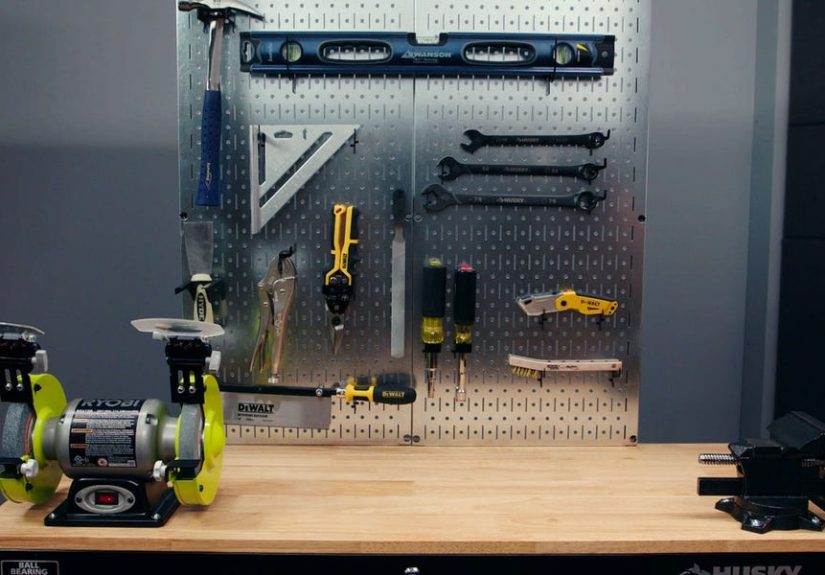
- Workbench-style desk: rock-solid, easy to customize with shelves, pegboards, or a PC tower bay.
Desk height reality check: “Standard desk height” might be fine for some bodies and terrible for others. Aim for a setup where your elbows can stay close to your body and bend comfortably while typing, without lifting your shoulders.
Step 4: Ergonomics first (because a workstation shouldn’t hurt)
The most underrated workstation upgrade is not a new keyboardit’s neutral posture. You’re building a setup that supports your body so you can work longer with less strain. Use these basics as your default starting point, then fine-tune.
Chair and lower body setup
- Feet supported: flat on the floor or on a footrest if needed.
- Knees comfortable: roughly around a right angle, with no pressure behind the knees.
- Lower back supported: use lumbar support (built-in or a small cushion/roll).
Don’t chase a “perfect posture statue.” The real goal is variation: sit differently, stand sometimes, take short breaks, and move.
Keyboard and mouse placement
- Elbows near your sides: keep arms relaxed, with elbows bent roughly in the 90–120° neighborhood.
- Wrists neutral: avoid bending wrists up/down while typing or mousing.
- Mouse close: keep it near the keyboard so you don’t reach all day.
Monitor position and viewing distance
Place your monitor directly in front of you. Set the top of the screen at or slightly below eye level, and keep a comfortable distanceoften around an arm’s lengthso your eyes aren’t constantly refocusing. A monitor arm makes this dramatically easier, especially if you switch between sitting and standing.
Laptop users: don’t let the laptop trap you
If a laptop is your main machine, consider a stand (or a stack of sturdy books) plus an external keyboard and mouse. This lets the screen come up toward eye level while your hands stay in a comfortable position.
Step 5: Add creator-friendly upgrades (lighting, camera, audio)
If your “workstation video” includes recording voiceovers, filming overhead shots, or taking video calls, these upgrades pay off immediatelyand they make your space look intentionally built, not accidentally assembled.
Lighting: make your face look like a face
For video calls and on-camera segments, aim for light in front of you. Soft light is flattering and reduces harsh shadows. A basic three-point approach (key, fill, and a subtle back/rim light) can elevate your image fast. If you’re filming with a phone, remember: phones generally need more light than your eyeballs doso “looks bright to me” may still be “looks grainy on camera.”
Camera placement: eye level beats mystery angles
Put your webcam or camera at eye level (or slightly above) and centered. Avoid low angles unless you’re intentionally filming “documentary footage of my nostrils.” If you’re recording a build video, consider a second angle: an overhead tripod/arm for hands-on steps plus a front-facing angle for explanations.
Audio: fix the echo before you buy your fifth microphone
Most “bad audio” in home setups is room echo, not mic quality. If the room is lively (hard floors, bare walls), add soft materials: a rug, curtains, fabric panels, or simple acoustic treatment. Even small improvements can make voice sound clearer and more professional.
Step 6: Power and cable management (the difference between “clean” and “chaos”)
A workstation video is basically a cable-management documentary whether you planned it or not. Give cables a system, and your future self will send you a thank-you card.
Protect your gear
Use a quality surge protector for your home office or editing setup. Look for enough outlets, a sensible layout (so big plugs don’t block everything), and safety features like indicator lights and automatic shutoff on some models.
Route cables in layers
- Under-desk tray: mount a tray to hold power bricks and excess cable length.
- Velcro ties: bundle by “type” (power, display, audio) so troubleshooting is easy.
- Labeling: tiny labels save big headaches when something stops working.
- Service loop: leave a little slack so you can move gear without yanking plugs.
If you use a standing desk, plan for movement: route cables so they can flex without snagging, and keep power bricks secured so they don’t dangle like a chandelier of sadness.
Step 7: Building a video editing workstation (hardware that matches the job)
If your workstation is for video editing, prioritize stability and speed where it matters: CPU/GPU, enough RAM for your resolution, and fast storage for active projects. You don’t need the most expensive everythingyou need the right balance.
RAM: match your footage
For common editing workflows, 16 GB can work for HD projects, but 32 GB (or more) is typically recommended for 4K and higher-resolution media. If you do heavy motion graphics or multi-app workflows, more RAM can help keep things smooth.
GPU: don’t ignore VRAM
Many modern editors benefit from a capable GPU, especially for effects, color, and accelerated playback. Pay attention to GPU memory (VRAM) if you work with higher resolutions or GPU-heavy effects.
Storage: use the “three-lane highway” approach
- Lane 1: OS + apps on a fast SSD.
- Lane 2: active projects + scratch/cache on a fast SSD (often NVMe).
- Lane 3: archive storage (large HDD, external drive, or NAS) plus a real backup.
This separation helps editing feel snappier because your system isn’t juggling everything on one drive.
Connectivity: plan for your workflow
If you dump footage from fast external drives or cameras, make sure you have ports that match your gear (USB-C, high-speed USB, Thunderbolt where relevant). For reliability, consider wired networking if you move large files or work from a server/NAS.
Step 8: How to film your workstation build video (simple workflow, better results)
Now the fun part: turning your build into a video people actually want to watch. The secret isn’t fancy gearit’s clarity. Viewers want to see what you’re doing, understand why you chose it, and feel like they could copy it without summoning a contractor.
Plan a short “story” before you hit record
- Hook: show the “before” workstation (yes, even if it’s chaoticespecially if it’s chaotic).
- Goal: “I’m building a workstation for editing and calls in a small room.”
- Constraints: budget, space, noise, shared room, etc.
- Payoff: the final reveal + quick tour + what you’d do differently.
Capture two angles (minimum)
- Overhead or 45° down angle: perfect for assembly steps, tools, and cable management.
- Front-facing angle: for short explanations and the final tour.
Use a tripod or clamp mount so footage isn’t shaky. If you’re using a phone, lock focus/exposure when possible so brightness doesn’t “breathe” every time your hand moves.
Light it like you mean it
Put your main light slightly above and in front of your face (or your work surface for overhead shots). If shadows are harsh, add a reflector or a second softer light. For a simple setup, a single soft key light plus a little ambient room light can look great.
Record audio with intention
If your camera audio is echo-y, record voiceover later. A basic USB mic can sound excellent in a treated space. If your room is echo-prone, even hanging a blanket off-camera (seriously) can improve voice clarity.
Edit for pace (and use time-lapse responsibly)
Desk builds include repetitive stepsscrews, brackets, cable ties. Speed them up, but keep key moments in real time: measurements, tricky assembly, and “here’s why I routed cables this way.” Most editors let you change clip speed/duration or use time remapping to create fast-motion sequences while keeping important explanations easy to follow.
Final check: test the workstation like it’s a product (because you’re the customer)
- Comfort test: type for 10 minutes, then adjust chair/keyboard/monitor.
- Call test: jump into a video call and check lighting, camera angle, and background.
- Audio test: record 30 seconds of voice and listen for echo or hiss.
- Workflow test: open your heaviest project (or multitask) and see what bottlenecks appear.
- Cable test: unplug and replug one devicecan you do it without spelunking?
Conclusion
A great workstation is a blend of comfort, function, and a little creative flair: the desk supports your gear, the ergonomics support your body, and the lighting/audio support your on-camera life. Build it with intention, film it with clarity, and you’ll end up with a space that improves your day and a video that helps someone else level up their setup.
Bonus: of real-world experiences (the stuff nobody tells you until you’re already holding a drill)
Here’s the honest pattern that shows up in almost every workstation build story: the first version is never the final version. People plan the desk, buy the gear, cable-manage like a champ, and then discover one tiny reality that changes everythinglike the fact that their chair armrests collide with the desk, or their “perfect” monitor height makes their neck angry after two days.
One common experience: underestimating depth. A desk that’s too shallow forces your monitor closer, your keyboard closer to the edge, and your shoulders into a subtle forward hunch. On video, it looks fine. In real life, it feels like your upper back is quietly filing a complaint with HR. A quick fix people love is a monitor arm: it reclaims desk space, improves viewing angles, and makes it easy to tweak position when something feels “off.”
Another frequent lesson: cable length is a plot twist. You can measure your room perfectly and still get defeated by a power brick that won’t reach the under-desk tray or an HDMI cable that’s two inches short (two inches is the distance between “clean build” and “why is my monitor on the floor”). Builders who are happiest long-term tend to do two things: they buy a couple of longer, quality cables up front, and they create a “service loop” so devices can move without yanking plugs. It’s not glamorousuntil you adjust your desk height and nothing gets ripped out like a cartoon.
Filming the build teaches its own lessons. The most common regret is not capturing the “before” clearly. Viewers love transformation, and creators love proof. Even a 10-second clip of the old setup makes the final reveal feel twice as satisfying. The second regret is filming everything from one anglebecause the one angle inevitably blocks the one step people actually want to see. A cheap overhead clamp or a second phone as a wide shot can save the edit.
And then there’s the sound. Many creators learn (the hard way) that a nice-looking room can still sound terrible. Hard surfaces create echo that makes voice thin and distant. The simplest “experienced builder” fix isn’t a fancy microphoneit’s softening the room: a rug under the desk, curtains, a fabric wall hanging, or basic acoustic panels. Once the echo drops, suddenly your existing mic sounds “pro,” and you didn’t even have to name it something aggressive like the ThunderCast X9000.
Finally, the most universal experience: you’ll adjust something after a week. That’s not failurethat’s how a workstation becomes your workstation. The best builds stay flexible: monitor arms that move, lighting you can reposition, storage that evolves, and cable routing that doesn’t punish you for changing your mind. Build it sturdy. Set it neutral. Then let real life do the final calibration.