Table of Contents >> Show >> Hide
- Why Is My Android Microphone Volume So Low?
- Important: Android Usually Has No Universal Mic Gain Slider
- Method 1: Fix and Optimize Your Android Phone’s Built-In Microphone
- Method 2: Use App Settings, Better Recording Tools, or an External Microphone
- Should You Download a Microphone Booster App?
- Quick Troubleshooting Checklist
- When It Might Be a Hardware Problem
- Real-World Experience: What Usually Works Best
- Conclusion
Few things are more annoying than saying, “Can you hear me now?” and realizing you have accidentally become the human version of a distant voicemail from 2007. Low microphone volume on Android can make calls, voice notes, video meetings, recordings, and livestreams sound weak, muffled, or oddly far awayeven when you are speaking normally and holding the phone like a responsible adult.
The good news: in most cases, your Android microphone is not broken. It may be blocked by dust, covered by a case, routed through the wrong Bluetooth device, restricted by app permissions, or limited by the recording app you are using. The slightly less glamorous news: Android does not usually include one magic “microphone volume” slider that boosts your voice everywhere. Instead, the best approach is to improve how your phone captures sound, then use app-level audio tools or an external microphone when you need a stronger signal.
This guide explains how to boost microphone volume on Android using two easy, realistic methods. No engineering degree. No suspicious “super mic booster 9000” app that wants access to your location, contacts, and emotional weaknesses. Just practical steps that actually help.
Why Is My Android Microphone Volume So Low?
Before boosting anything, it helps to know what is really happening. When people say their Android microphone volume is low, they usually mean one of four things:
- The other person can barely hear them on phone calls.
- Voice recordings sound quiet, muffled, or distant.
- Apps like Zoom, Google Meet, WhatsApp, Messenger, or Instagram capture weak audio.
- Videos recorded on the phone have poor voice clarity.
The cause can be physical, software-related, app-specific, or accessory-related. A clogged microphone opening can reduce volume dramatically. A phone case or screen protector can cover the mic hole. Bluetooth earbuds may secretly take over as the active microphone. Privacy settings can block microphone access. Some apps also apply noise suppression, automatic gain control, or compression that may help in one situation and make your voice sound thin in another.
So the goal is not simply to make the microphone “louder.” The real goal is to make your voice clearer, closer, and easier for apps to capture.
Important: Android Usually Has No Universal Mic Gain Slider
On many Android phones, you can increase media volume, ringtone volume, call volume, and alarm volume. Those settings control what you hear from the speaker or headphones. They do not usually control how loudly your microphone records your voice.
Some Android skins, custom ROMs, professional audio apps, camera apps, or external microphones may offer microphone gain controls. But on a typical Samsung Galaxy, Google Pixel, Motorola, OnePlus, or other mainstream Android phone, you should not expect a simple system-wide “mic volume” slider in Settings.
That is why this guide focuses on two reliable methods:
- Fix and optimize the built-in microphone so Android captures your voice properly.
- Use app settings, recording tools, or an external microphone when you need stronger, cleaner sound.
Method 1: Fix and Optimize Your Android Phone’s Built-In Microphone
This is the easiest and most important method. A built-in microphone that is blocked, misrouted, or restricted will sound bad no matter how many apps you install. Start here before downloading anything.
1. Clean the Microphone Opening Carefully
Your phone’s microphone opening is tiny, and tiny holes have a talent for collecting lint, dust, pocket fuzz, makeup, crumbs, and mysterious debris from the planet’s least scientific environment: your pocket.
Most Android phones have a primary microphone near the bottom edge, close to the charging port. Many models also include secondary microphones near the top or camera area for noise cancellation and video recording. If one of these openings is blocked, your audio may sound muffled or quiet.
Turn off the phone first. Remove the case. Look for small holes along the bottom and top edges. Gently clean around them with a soft, dry brush. A clean toothbrush with soft bristles can work if you are careful. Avoid pushing needles, pins, or metal objects into the microphone hole. That is not cleaning; that is tiny phone surgery without a license.
If you use compressed air, use it lightly and from a distance. Strong pressure can push debris deeper or damage delicate parts. After cleaning, record a short voice memo and compare the sound.
2. Remove the Case, Screen Protector, or Dust Plug
Cases are wonderful until they turn your $900 phone into a walkie-talkie inside a sock. Some thick cases, waterproof cases, cheap protective covers, adhesive films, or decorative dust plugs can partially cover the microphone.
Take off the case and make a test call or recording. If your voice suddenly sounds louder and clearer, the case is the villain. You do not have to dramatically throw it into the sea, but you may need a better-fitting case with correctly aligned microphone cutouts.
This is especially common after buying third-party cases online. The listing says “compatible,” but the mic cutout is a millimeter off. Unfortunately, microphones are not generous about millimeters.
3. Check Microphone Permissions
If your microphone is quiet only in one app, check that app’s permission first. Android lets you control which apps can access the microphone. If permission is denied or limited incorrectly, the app may not capture your voice at all.
Open Settings, then go to Security & privacy or Privacy. Tap Permission manager, then choose Microphone. Select the app and allow microphone access while the app is in use.
Menu names vary by brand and Android version. On some phones, the path may be Settings > Apps > See all apps > [App Name] > Permissions > Microphone. For video meeting apps, voice recorders, camera apps, messaging apps, and social apps, this setting matters a lot.
4. Make Sure the Global Microphone Toggle Is On
Newer Android versions include privacy controls that can disable microphone access for all apps. This is great for privacy and terrible when you forget it is enabled five minutes before a meeting.
Swipe down from the top of the screen to open Quick Settings. Look for a Microphone access tile. If it is off, turn it back on. You can also check privacy settings from the main Settings app.
If people suddenly cannot hear you in any app, this global microphone toggle is worth checking immediately. It is the Android version of putting tape over your own mouth and wondering why the meeting is quiet.
5. Turn Off Bluetooth and Test Again
Bluetooth accessories often cause confusing microphone problems. Your phone may route audio through earbuds, a headset, a car system, a smartwatch, or a speakerphone accessory without making it obvious.
Turn off Bluetooth completely and record a test voice memo using the built-in microphone. Then make a call or test the same app again. If the sound improves, your phone was likely using a Bluetooth microphone with poor input quality or a weak connection.
If you need Bluetooth, forget old devices you no longer use. Re-pair your earbuds or headset. Also check whether the app lets you choose the audio input source.
6. Restart and Update Your Phone
Yes, “restart your phone” sounds like advice from a tired help desk wizard, but it works surprisingly often. Temporary audio glitches, background app conflicts, and frozen services can cause microphone issues.
Restart your Android phone, then test the microphone again. After that, check for updates by going to Settings > System > System update or the equivalent menu on your device. Manufacturers sometimes fix audio, Bluetooth, and app compatibility problems through software updates.
Also update the app where the microphone sounds low. A stale video meeting app can behave like it was trained by a potato.
7. Test the Microphone in More Than One App
Do not judge your microphone from one app alone. Record a voice memo. Record a video. Try a phone call. Send a short voice message in a messaging app. If your microphone sounds good everywhere except one app, the app is probably the problem.
Some phones also include built-in diagnostics. Samsung users may be able to test the microphone through the Samsung Members app. Motorola users may find microphone testing inside the Device Help or diagnostics tools. These tests help separate hardware problems from app problems.
Method 2: Use App Settings, Better Recording Tools, or an External Microphone
Once the built-in microphone is clean and working, the second method is to improve the way your app captures audio. This is where you can get closer to a true microphone boost.
1. Check Audio Settings Inside the App
Many apps manage microphone input differently. Google Meet, Zoom, WhatsApp, Telegram, Instagram, TikTok, camera apps, and voice recorder apps may all process your audio in their own way.
In meeting apps, confirm that the microphone is not muted and that the correct input device is selected. In Zoom, Google Meet, and similar apps, microphone permission must be allowed in Android settings. If you use earbuds, confirm whether the app is using the phone mic or the headset mic.
Some apps also include noise reduction, echo cancellation, automatic volume adjustment, or background noise suppression. These tools can be helpful in a noisy room, but they may sometimes reduce voice fullness or make speech sound thinner. If an app gives you audio-processing options, test them one at a time.
2. Try a Recording App With Audio Processing
If your goal is better voice notes, interviews, podcasts, singing, lectures, or short-form videos, use a recording app with audio enhancement features. Apps such as Dolby On and other dedicated recorders can apply noise reduction, limiting, equalization, and loudness processing after capture.
This does not magically change the hardware inside your phone. Instead, it improves the final recording so your voice sounds clearer, more balanced, and easier to hear. Think of it as giving your audio a quick shower, haircut, and cup of coffee.
For best results, place the phone closer to your mouth, aim the microphone toward you, record in a quieter space, and avoid covering the mic with your hand. Even the best app cannot rescue audio recorded from across the room next to a blender.
3. Use a Camera App That Lets You Choose the Audio Source
If your issue happens during video recording, your default camera app may not offer enough control. Some camera apps allow you to choose an audio source, such as the camcorder microphone, voice recognition source, or external microphone. The exact results depend on your phone and Android’s audio system.
Open Camera, for example, includes audio source settings for video recording. On some devices, changing the audio source may affect automatic gain control or external microphone support. It is not guaranteed on every phone, but it is worth testing if your recorded videos sound too quiet.
Record a ten-second sample with each setting, then listen with headphones. Choose the one with the clearest voice and least background noise.
4. Use an External USB-C or Lavalier Microphone
If you regularly record content, teach online, livestream, attend important meetings, or make videos, an external microphone can be the biggest upgrade. A small USB-C microphone, wired lavalier mic, or compatible wireless mic can place the microphone closer to your mouth and capture a stronger signal.
Most modern Android phones support many USB-C audio accessories, but compatibility can vary by phone, app, and microphone model. Test your setup before an important call, interview, wedding speech, product review, or dramatic ukulele performance.
For speech, a lavalier microphone clipped near your collar often gives a clear, consistent voice level. For video creators, a compact directional USB-C microphone can reduce room noise and focus more on the person speaking. For meetings, a wired headset with a decent inline mic may outperform cheap Bluetooth earbuds.
5. Improve Your Recording Environment
Microphone volume is not only about settings. Your environment matters. Hard walls, empty rooms, fans, traffic, air conditioners, and kitchen appliances can make your voice sound weaker or more distant.
Move closer to the phone. Face the microphone. Record in a room with curtains, rugs, furniture, or soft surfaces. Turn off fans when possible. Avoid holding the phone flat on a desk if the microphone is on the bottom edge. Keep your hand away from the mic opening.
These simple habits often improve Android microphone volume more than any booster app.
Should You Download a Microphone Booster App?
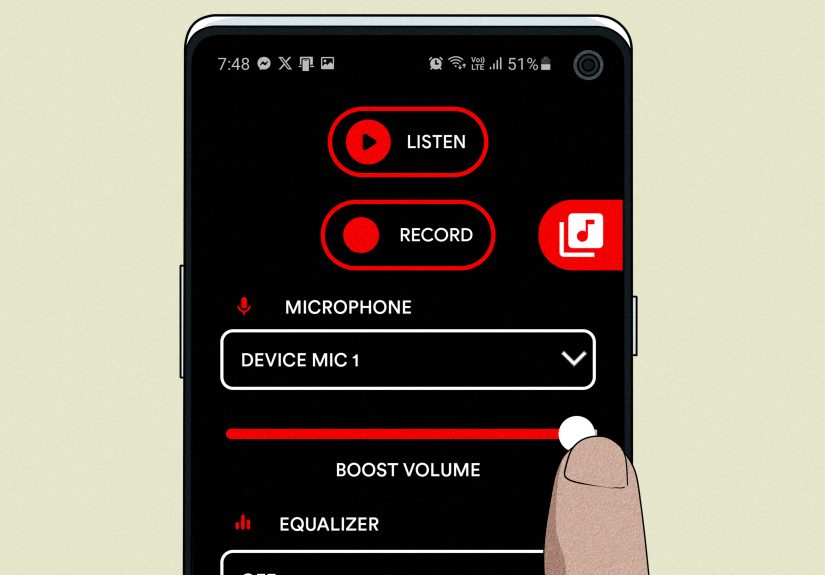
Be careful. Some “microphone booster” apps claim they can increase microphone gain across Android. A few may work for recording inside that specific app, but many cannot boost your microphone system-wide because Android restricts how apps access and modify audio input.
Before installing any app, check the developer, reviews, permissions, update history, and privacy policy. A microphone app should not need unnecessary access to contacts, SMS, or sensitive personal data. If an app promises unbelievable results and looks like it was designed during a thunderstorm, skip it.
For most users, a reputable recording app, proper permissions, a clean microphone, and better placement are safer and more effective.
Quick Troubleshooting Checklist
- Clean the microphone holes with a soft, dry brush.
- Remove the phone case and screen protector for testing.
- Check app microphone permissions.
- Make sure the global microphone access toggle is on.
- Turn off Bluetooth and test the built-in microphone.
- Restart the phone and update Android.
- Update the app where the mic sounds low.
- Record test audio in multiple apps.
- Try a recording app with audio processing.
- Use an external mic for serious recording or meetings.
When It Might Be a Hardware Problem
If your Android microphone stays quiet in every app after cleaning, restarting, updating, removing the case, and testing without Bluetooth, the hardware may be damaged. Water exposure, drops, dust buildup, or internal component failure can affect microphone performance.
Warning signs include crackling, total silence, sound only working on speakerphone, voice recording failure, or one microphone working while another does not. In that case, back up your data and contact the phone manufacturer, carrier, or a reputable repair shop.
A repair technician can test the microphone module and determine whether it needs cleaning, replacement, or deeper board-level repair. If the phone is under warranty, avoid poking tools into the microphone opening or opening the device yourself.
Real-World Experience: What Usually Works Best
In everyday use, the fastest fix is often embarrassingly simple. Many low microphone volume problems start with the phone case. A user may buy a rugged case, snap it on, and suddenly everyone says, “You sound far away.” Remove the case, and the voice returns like a podcast host entering the studio. That is why testing without the case should be one of the first steps, not the last.
The second common issue is pocket debris. A microphone hole can look clean at a glance but still be partly blocked. After careful brushing, voice notes may sound noticeably brighter and louder. This is especially common for people who carry phones in jeans, bags, work pants, or dusty environments. The microphone opening is small, and small openings do not need much blockage to cause big problems.
Bluetooth is another sneaky troublemaker. Many people assume their phone is using the built-in mic, but the audio is actually routed through earbuds sitting on a desk, a car system in the driveway, or a headset with a weak microphone. Turning Bluetooth off is a quick reality check. If your voice suddenly improves, you have found the culprit.
For content creators, the most reliable upgrade is usually not a booster app. It is microphone distance. A phone placed three feet away will usually sound worse than a modest lavalier mic clipped eight inches from your mouth. Audio follows a simple rule: closer is clearer. This is why a basic external mic can make Android recordings sound more professional than any dramatic software trick.
For meetings, consistency matters more than raw volume. A wired headset often gives steadier sound than cheap wireless earbuds. Wireless earbuds can sound convenient, but some models prioritize battery life and noise filtering over microphone quality. If coworkers say your audio fades in and out, test with a wired headset or the phone’s built-in microphone.
For video recording, app choice can matter. Some default camera apps aggressively process sound. Others keep things natural but quiet. Testing a dedicated camera app with audio source options can reveal a better setup for your device. Make short test clips instead of guessing. Say the same sentence each time, stand in the same spot, then compare with headphones. Your ears will tell you more than a settings menu ever will.
For voice notes and casual recordings, a processing app can help. Noise reduction and loudness tools can make speech easier to understand, especially in bedrooms, classrooms, offices, and small studios. But processing works best when the original recording is decent. If the microphone is covered, too far away, or pointed at a noisy fan, the app will struggle. Software can polish audio; it cannot resurrect a whisper recorded from another zip code.
The best routine is simple: clean the mic, remove obstructions, check permissions, turn off Bluetooth, test multiple apps, and then upgrade the recording method only if needed. That order saves time and avoids unnecessary downloads. It also prevents the classic mistake of installing five booster apps when the real problem was a dusty mic hole and a case with bad cutouts.
Conclusion
Learning how to boost microphone volume on Android is really about improving microphone input, not chasing a hidden magic slider. Start with the basics: clean the microphone, remove anything blocking it, check permissions, disable Bluetooth for testing, restart the phone, update software, and compare recordings across apps.
If you still need louder or clearer audio, move to the second method: use app-level audio settings, recording apps with processing, camera apps with audio source controls, or an external USB-C or lavalier microphone. These upgrades can make a major difference for calls, meetings, voice notes, interviews, and videos.
Your Android phone already has capable audio hardware. It just needs a clean path, the right permissions, and sometimes a little help from better recording tools. In other words, your microphone may not be shyit may simply be buried under lint, Bluetooth confusion, and one very suspicious phone case.
Note: This article is based on current Android, Google, Samsung, Motorola, Zoom, Open Camera, Dolby, RØDE, and major tech-support guidance. Menu names may vary depending on Android version, phone brand, carrier software, and app updates.