Table of Contents >> Show >> Hide
- Before You Start: Where “Clip Art” Went (and What Replaced It)
- Method 1: Add Clip Art in Word Using Online Pictures (Best for Classic “Clip Art” Looks)
- Method 2: Use Stock Images, Icons, and Stickers (Modern “Clip Art” That Looks Polished)
- Method 3: Insert Clip Art You Downloaded (PNG, SVG, JPG)
- Method 4: Add Clip Art with an Office Add-in (Pickit and Similar Tools)
- Method 5: The Classic Clip Art Pane (Word 2010/2007 and Some Older Mac Setups)
- Make Your Clip Art Behave: Wrapping, Positioning, and Sizing
- Keep Your Document Fast: Compress Pictures and Avoid the “Email Bounce”
- Accessibility Bonus: Add Alt Text (Your Future Self Will Thank You)
- Troubleshooting: When Clip Art Doesn’t Show Up (or Acts Like a Gremlin)
- Conclusion
- Field Notes: 10 Real-Life Clip Art Situations (and What Actually Works)
- SEO Tags
Clip art is like hot sauce: a tiny dash can make your document pop, but if you dump in half the bottle, everyone starts sweating and no one remembers the point of the page. The good news? Adding clip art to Microsoft Word is still easy. The slightly weird news? Word doesn’t always call it “Clip Art” anymore.
In this guide, you’ll learn the best ways to insert clip art in Microsoft Wordwhether you’re using Microsoft 365, Word 2021/2019/2016/2013, Word for the web, or an older classic like Word 2010. We’ll also cover practical formatting tricks (wrap text without chaos, remove backgrounds, compress images, and keep your file from turning into a 47MB email attachment that makes IT sigh loudly).
Before You Start: Where “Clip Art” Went (and What Replaced It)
If you remember the old Office Clip Art gallerythe one packed with cartoonish office workers, celebratory confetti, and a suspicious number of smiling lightbulbsyou’re not imagining it. Microsoft retired the classic Clip Art library, and modern Word versions lean on Online Pictures (searching the web) plus built-in Stock Images, Icons, and Stickers that feel like “clip art’s cooler, better-lit cousin.”
Translation: you can absolutely still add “clip art” to Word. You just do it through slightly different doors depending on your Word version.
Method 1: Add Clip Art in Word Using Online Pictures (Best for Classic “Clip Art” Looks)
This is the closest modern equivalent to the old clip art search. Word lets you search online and then filter results to show actual clip-art-style images.
Steps (Windows desktop Word: Microsoft 365 / Word 2021 / 2019 / 2016 / 2013)
- Click in your document where you want the clip art to appear.
- Go to the Insert tab.
- Select Pictures > Online Pictures.
- Type a keyword (example: “graduation cap”, “coffee”, “warning sign”) and press Enter.
- Use the results Filter, then set Type to Clipart (or a similar clip-art filter).
- Click an image thumbnail to select it, then choose Insert.
Steps (Word for the web)
Word for the web supports inserting pictures (including online images), but the menu layout can look different than desktop Word. Look for Insert > Pictures and choose an option such as “Online Pictures” (if available) or insert from your device and use web-sourced clip art you’ve downloaded.
Search tips that actually work
- Use simple nouns first: “dog,” “calendar,” “microscope.” Then get fancy: “dog silhouette,” “calendar icon,” “microscope cartoon.”
- Add style words: “outline,” “flat,” “vector,” “cartoon,” “black and white,” “minimal.”
- Try synonyms: “trash can” vs. “bin,” “presentation” vs. “talk,” “email” vs. “envelope.”
Copyright reality check (the not-so-fun part)
When you insert images from online search, you’re responsible for using content appropriately. If your Online Pictures search offers a licensing filter (like “Creative Commons only”), use it when you need images that are easier to reuse especially for business docs, marketing materials, or anything public-facing. If you’re unsure, choose Microsoft’s built-in stock library (next method) because it’s designed for Office use.
Method 2: Use Stock Images, Icons, and Stickers (Modern “Clip Art” That Looks Polished)
If your goal is “professional and clean” (instead of “my document is auditioning for a 2006 newsletter award”), this is your best option. Microsoft 365 includes a built-in library of images and illustrations that behave nicely in Word.
Steps (Microsoft 365 and newer Word versions that include Stock Images)
- Place your cursor where you want the graphic.
- Go to Insert > Pictures > Stock Images.
- Browse categories such as Images, Icons, Stickers, Illustrations, and more.
- Use the search bar to find what you need.
- Select one or more items, then click Insert.
Why icons are the secret weapon
Icons in Word are often vector-based (SVG-style), which means they resize cleanly and can usually be recolored. Want a “phone” icon in your brand color? Easy. Want it 6 inches tall without pixel fuzz? Also easy. Icons are basically clip art that went to design school.
Method 3: Insert Clip Art You Downloaded (PNG, SVG, JPG)
Sometimes you already have the perfect piece of clip artdownloaded from a reputable source, provided by your design team, or living in a folder called “FINAL_final_2_use_this_one” (a folder name that has never lied to anyone, ever). In that case, just insert it like any picture.
Steps (Windows and Mac desktop Word)
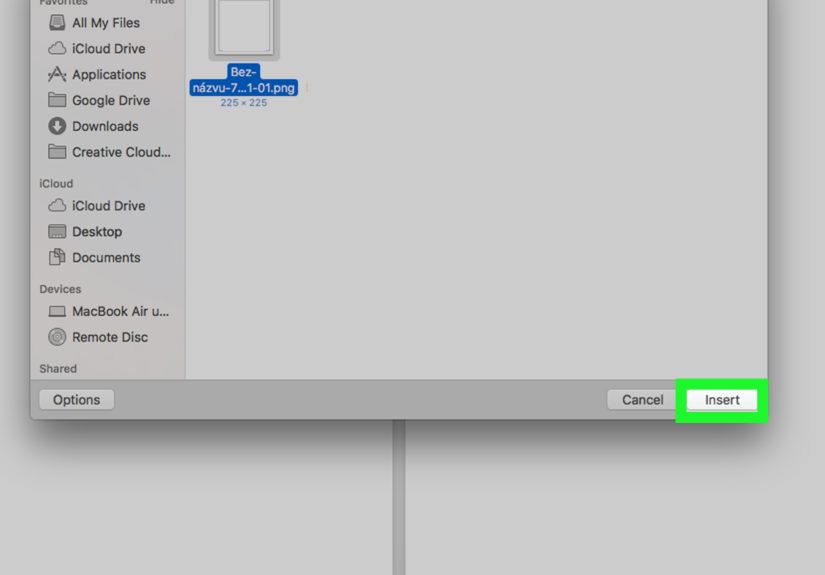
- Go to Insert > Pictures.
- Choose This Device (Windows) or the equivalent option on Mac.
- Select your image file (PNG is great for transparent backgrounds; SVG is great for scalable icons).
- Click Insert.
File-type quick guide
- PNG: Best for clip art with transparent backgrounds.
- SVG: Best for icons/illustrations you want to recolor and scale sharply.
- JPG: Fine for photos, but usually not ideal for clip art backgrounds.
Method 4: Add Clip Art with an Office Add-in (Pickit and Similar Tools)
If you want a built-in “clip art browser” feel, Office add-ins can bring that vibe back. One commonly referenced option is the Pickit Free Images add-in, which opens a task pane where you can search and insert images without leaving Word.
Typical steps (desktop Word)
- Go to Insert and find Add-ins (or Store).
- Search the add-in store for an image/clip-art add-in (example: Pickit).
- Add it, then open the task pane from the ribbon and search for images.
Pro tip: add-ins are great when you need lots of visuals quickly, but always double-check licensing/usage terms, especially for commercial documents.
Method 5: The Classic Clip Art Pane (Word 2010/2007 and Some Older Mac Setups)
If you’re using Word 2010 (or similar-era Office), you may still have the original Clip Art button and a task pane that searches installed collections and (optionally) online content.
Steps (Word 2010 / 2007)
- Click where you want the image.
- Go to Insert > Clip Art (usually in the Illustrations group).
- In the Clip Art task pane, type a keyword in the search box and click Go.
- If you see an option like Include Office.com content, enabling it may expand results (depending on how the software is configured).
- Click a clip to insert it.
Older Word for Mac “Clip Gallery” notes
Some older Mac versions described a Clip Gallery or “Insert > Picture > Clip Art” workflow. If you’re on a modern Mac version of Word, you’ll likely use the same Insert Pictures / Online Pictures / Stock Images approach as Windows.
Make Your Clip Art Behave: Wrapping, Positioning, and Sizing
Inserting clip art is half the battle. The other half is preventing your document from turning into a game of “Why is my image teleporting every time I press Enter?”
Use Wrap Text like a grown-up
Click the image, then look for Wrap Text (often under Picture Format). Common choices:
- In Line with Text: The safest option. The picture behaves like a big letter in a sentence.
- Square: Text forms a neat box around the image. Great for side-by-side layouts.
- Tight: Text hugs the shape more closely (best when the background is clean or removed).
- Behind Text / In Front of Text: Useful for watermarks and overlaysalso useful for accidentally hiding your entire paragraph.
If the spacing looks weird, check More Layout Options and adjust the distance between text and image. You can also fine-tune wrapping with Edit Wrap Points for Tight/Through styles.
Resize without distortion
- Drag from a corner handle to keep proportions (no squished humans, please).
- Hold Shift if your version of Word requires it to constrain proportions.
- For precise sizing, use the Size controls in the Picture Format panel.
Crop and remove backgrounds (when you need that “real clip art” look)
If your image has a chunky white rectangle around it, you have options:
- Crop it: select the image > Picture Format > Crop.
- Remove Background (for photos and some raster images): select the image > Picture Format > Remove Background, then refine with “Mark Areas to Keep/Remove.”
Note: background removal doesn’t work the same for vector images, so if you’re using an icon (SVG-style), you typically don’t need background removal anywayicons usually arrive “clean.”
Keep Your Document Fast: Compress Pictures and Avoid the “Email Bounce”
A few high-resolution images can balloon a Word file fast. If your document feels sluggish or your sharing platform starts giving you the side-eye, compress your pictures.
Compress images in desktop Word
- Select any picture in your document.
- Go to Picture Format > Compress Pictures (or use File-level compression options, depending on version).
- Choose a resolution/quality level and apply it to one image or all images.
If you need a crisp printout, don’t over-compress. If this is a “send it in Slack” doc, you can usually compress more aggressively without anyone noticing.
Accessibility Bonus: Add Alt Text (Your Future Self Will Thank You)
Alt text helps people using screen readers understand what your image communicates. It also helps in shared environments where images might not load right away.
How to add alt text in Word
- Right-click the image and choose View Alt Text or Edit Alt Text (wording varies).
- Write a clear description that explains the image’s purpose in your document.
In some Microsoft 365 setups, Word may even suggest alt text automatically (you can accept it, edit it, or replace it with something better). The goal isn’t poetryit’s clarity.
Troubleshooting: When Clip Art Doesn’t Show Up (or Acts Like a Gremlin)
“I can’t find the Clip Art button.”
That’s normal in newer versions. Use Insert > Online Pictures and filter for clipart, or use Stock Images and Icons instead.
“My image won’t move where I want.”
Switch wrapping from In Line with Text to Square or Tight, then drag it. If it keeps snapping back, look for options like Fix Position on Page vs. moving with text.
“The background remover is missing.”
Make sure you’ve selected a picture (not a shape group), and check that you’re in the Picture Format tab. If you’re working with a vector icon, background removal usually isn’t applicable.
“Online Pictures search isn’t working.”
Confirm you’re connected to the internet and that your organization’s security settings aren’t blocking online content. In some workplaces, online image insertion is restricted by policy.
Conclusion
Adding clip art to Microsoft Word today is less about a single “Clip Art” button and more about choosing the best source: Online Pictures when you want classic clip-art-style graphics, Stock Images and Icons when you want clean, modern visuals, and downloaded PNG/SVG files when you already know what you need. Once inserted, a little formatting magicwrap text, resize smartly, remove backgrounds, compress imagesturns “random picture on a page” into a document that looks intentional (and not like it was assembled at 11:58 PM).
Field Notes: 10 Real-Life Clip Art Situations (and What Actually Works)
Below are common “in the trenches” scenarios people run into when adding clip art to Wordplus what tends to work best. Consider this the survival guide for when your document is due, your cursor is blinking dramatically, and your clip art is doing interpretive dance around your paragraphs.
1) The flyer that needs personality (but not chaos). Flyers love visuals, but they also love alignment. If you’re making a one-page event flyer, use Icons (calendar, location pin, phone) rather than random clip art. Icons stay sharp when scaled and usually match each other stylistically, which makes the whole page feel designed instead of “collected.”
2) The school worksheet problem: “I need a cute picture of a frog… yesterday.” Online Pictures is your friend heresearch “frog cartoon outline” and filter to clipart. Then set Wrap Text to In Line with Text if the image keeps drifting. Worksheets are basically Word’s version of corralling cats; keep the image behavior predictable.
3) The corporate report that must look like it owns a blazer. In reports, clip art can look out of place fast. Swap it for Stock Images or clean Illustrations. If you must use “clip art,” stick to minimal, monochrome styles and keep sizes consistent. One oversized mascot graphic next to serious quarterly numbers can feel like a prank. (Unless it’s a very brave company.)
4) The “why is there a white box?” mystery. This usually happens when you insert a JPG with a background. If you can, use PNG with transparency. If you can’t, try Remove Background or choose a different image. Spending 20 minutes trying to “remove background” from a low-contrast photo is how timelines get hurt.
5) The resume template that came with decorative graphics you didn’t ask for. Many templates use shapes, headers, or layered objects. If you can’t select the graphic in the main body, check the header/footer area (double-click near the top margin) or open the Selection Pane (in some Word versions) to find the object. Worst case: copy your text into a clean document and rebuild the layout with your own icons.
6) The image that shoves text like it pays rent. This is usually Wrap Text set to Square/Tight with big spacing. Use More Layout Options and reduce the distance from text. Or switch to Top and Bottom if you want the image to sit neatly between paragraphs.
7) The group project doc where everyone inserts images differently. The fastest way to make a document look inconsistent is letting five people pick five unrelated art styles. Pick a “visual rule”: “icons only,” “flat illustrations only,” or “black-and-white clipart only.” Consistency beats “cool” every time.
8) The “my Word file is huge” panic. This happens when images are inserted at high resolution and then resized smaller on the page. Resizing doesn’t reduce file size by itself. Use Compress Pictures. If you need to keep quality, compress lightly. If it’s internal-only, compress more aggressively.
9) The “can I use this image legally?” worry. If this is for anything public-facing, use built-in Stock Images when possible or apply licensing filters in Online Pictures. If you’re downloading from a third-party library, read the license. (Not exciting, but very exciting for avoiding awkward emails later.)
10) The final boss: printing. Some clip art looks fine on screen but prints muddy. If the image is important, do a quick print preview or test page. If it’s an icon, choose a darker color or thicker style. Printers have a special talent for turning light gray into “is this even there?”
The big takeaway: you don’t need more clip artyou need the right clip art, inserted the right way, and formatted so it behaves. Once you get comfortable with Online Pictures, Stock Images, and Icons, Word stops feeling like it’s arguing with you and starts feeling like it’s helping you.