Table of Contents >> Show >> Hide
- What “Head Tracking Gestures” Means on iPhone
- Why Use Head Tracking Gestures on iPhone?
- What You Need Before You Start
- How to Turn On Head Tracking on iPhone
- How to Make Head Tracking Feel Natural Instead of Ridiculous
- If Your iPhone Uses Switch Control for Head Tracking
- How AirPods Head Gestures Fit In
- Best Everyday Uses for Head Tracking on iPhone
- What Head Tracking Does Well, and What It Does Not
- Troubleshooting Common Head Tracking Problems
- Real-World Experiences With Head Tracking Gestures on iPhone
- Final Thoughts
- SEO Tags
If you have ever looked at your iPhone and thought, “This would be easier if my face could do some of the work,” congratulations: Apple apparently had the same thought. Head Tracking on iPhone is one of those accessibility features that sounds like it belongs in a sci-fi trailer, but in practice it is surprisingly useful, practical, and much less dramatic than a robot uprising.
At its core, Head Tracking lets you control an onscreen pointer with the movement of your head. Instead of tapping the screen, you point with small head movements and trigger actions by holding steady for a moment, which is often called “dwell.” For some people, that is a convenience trick. For others, it can be a seriously helpful way to use an iPhone with less hand movement. Either way, it is one of the more fascinating built-in iPhone features you can try right now.
This guide explains what Head Tracking gestures on iPhone actually are, how to turn them on, how to make them usable in real life, what common mistakes to avoid, and why you should not confuse this feature with the separate head-gesture shortcuts available on some AirPods. Similar names, very different jobs. Apple really does like keeping us alert.
What “Head Tracking Gestures” Means on iPhone
Before you dive into settings, it helps to sort out the terminology. Apple uses the words head tracking in a few different contexts, and that can make things confusing fast.
- Head Tracking for iPhone control: This is the accessibility feature that uses the front camera to move a pointer around the screen so you can navigate hands-free.
- AirPods head gestures: This is the nod-yes or shake-no trick for answering calls, replying to notifications, or dismissing Siri prompts on supported AirPods.
- Dynamic head tracking for audio: This is the Spatial Audio feature that changes how sound feels when you move your head. Great for movies. Not a way to open Messages.
So if your goal is to control your iPhone without touching it much, the feature you want is the accessibility version. If your goal is to reject a call with a tiny “nope” motion while carrying groceries, that is the AirPods version. If your goal is to make a movie soundtrack feel like it is floating in space, that is the audio version. Same phrase family, very different relatives.
Why Use Head Tracking Gestures on iPhone?
The obvious reason is accessibility. People with limited hand mobility, repetitive strain issues, tremors, or temporary injuries may find Head Tracking much easier than constant tapping and swiping. But even beyond accessibility, there are plenty of everyday moments where hands-free iPhone control is helpful.
Maybe your hands are messy while cooking. Maybe your phone is mounted on a stand during a workout. Maybe you are following a recipe, reading lyrics, scrolling through notes, or keeping an eye on a timer while you do something else. In those cases, the ability to move a pointer with your head can feel less like a novelty and more like a tiny quality-of-life upgrade.
It is not always faster than using your fingers. Let’s be honest: a thumb still wins the speed contest most days. But Head Tracking can be more comfortable, more accessible, and surprisingly effective once you adjust the settings to fit how you naturally move.
What You Need Before You Start
You do not need a weird helmet, an external webcam, or a PhD in settings menus. You do need a supported iPhone, an updated version of iOS, and a front camera with a clear view of your face. Good lighting matters too. If your face is mostly a shadow and your phone is wobbling around on a couch cushion, the feature is not going to shine.
For the best experience, set your iPhone on a stable surface or stand. Keep it about face level and not too far away. Think comfortable desk distance, not “reading a billboard across a parking lot.” A clean front camera also helps. Smudges are the natural enemy of every smart feature ever made.
Finally, give yourself permission to practice for a few minutes. Head Tracking is one of those tools that feels slightly odd at first, then makes a lot more sense once your brain stops trying to oversteer.
How to Turn On Head Tracking on iPhone
- Place your iPhone on a stand, table, or other stable surface.
- Open the Settings app.
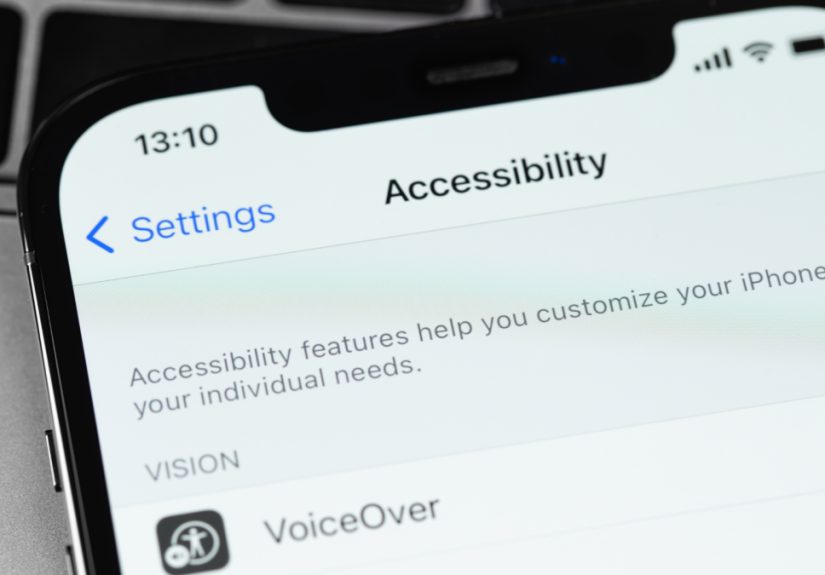
- Tap Accessibility.
- Tap Head Tracking.
- Turn Head Tracking on.
- Watch for the onscreen pointer to appear.
- Move your head gently left, right, up, and down to see how the pointer responds.
- Hold the pointer over an item long enough to trigger the default action if dwell is enabled.
If you do not see a dedicated Head Tracking menu, do not panic and do not assume your phone has personally betrayed you. Apple has exposed related head-movement controls under Switch Control in some earlier or alternate workflows. In that case, go to Settings > Accessibility > Switch Control and look for Head Tracking options there.
How to Make Head Tracking Feel Natural Instead of Ridiculous
1. Use tiny movements
The biggest beginner mistake is moving too much. You do not need full owl mode. Small, controlled movements usually work better than dramatic turns. Think “subtle nod from across a meeting,” not “I am auditioning for physical theater.”
2. Keep the phone steady
Head Tracking is easier when the iPhone stays still. A stand turns the feature from “interesting” into “actually usable.” If the phone moves every time you breathe near it, the pointer will feel slippery and annoying.
3. Fix your lighting
The front camera needs a decent view of your face. Soft, even light is your friend. Backlighting, deep shadows, and a bright window directly behind you are not. If the feature seems inconsistent, lighting is one of the first things worth changing.
4. Adjust speed and sensitivity
If Head Tracking is available through Switch Control on your setup, you may see controls for pointer speed and tracking mode. These settings matter a lot. Too fast, and the pointer skates around like it had three espressos. Too slow, and everything feels like you are steering a shopping cart with one wheel stuck.
5. Use dwell wisely
Dwell is what makes head-based control feel complete. Instead of physically tapping, you hover on an item for a set amount of time and the iPhone performs the selected action. A shorter dwell time feels snappier, but it can also cause accidental taps. A longer dwell time is safer, but slower. There is no universal best setting. The sweet spot is the one that matches your patience level and neck behavior.
6. Enable helper features when available
Features such as Snap to Item, tracking modes, and dwell options can make the experience much smoother. These settings are especially helpful if your head movements are slight, if you tire easily, or if you struggle to land on small buttons.
If Your iPhone Uses Switch Control for Head Tracking
Some users will encounter Head Tracking as part of Apple’s broader Switch Control system rather than as a standalone toggle. That is normal. In this setup, your iPhone may offer more advanced options, including facial-expression actions, pointer speed adjustments, and different tracking modes.
This can sound complicated, but it is actually useful. Switch Control is designed for customized access, so it gives you more ways to tailor how the pointer behaves. If the basic Head Tracking setup feels close-but-not-quite-right, exploring Switch Control may give you the extra fine-tuning you need.
In other words, if the simple version is “plug and play,” the Switch Control version is “plug, play, customize, tweak, and eventually become weirdly proud of your settings.”
How AirPods Head Gestures Fit In
Now for the other head-gesture feature people often mean when they search for this topic. On supported AirPods models, Apple lets you use head gestures to respond to Siri and call or notification prompts. Nod up and down to accept or reply. Shake side to side to decline or dismiss.
This is not the same as full iPhone Head Tracking. It does not move a pointer around your screen. It is more like a hands-free shortcut for quick responses. Still, it is genuinely useful. If your iPhone or AirPods announce a call while your hands are full, a small nod can be much easier than scrambling for the screen.
If you want this feature to work reliably, make sure the necessary Siri announcement settings are enabled. Without those, your AirPods will not magically interpret every head bob as a command. Which is probably good for anyone who listens to energetic music.
Best Everyday Uses for Head Tracking on iPhone
Reading and scrolling
Head Tracking works well for moving through reading material when your iPhone is on a stand. It is especially handy for recipes, notes, lyrics, or long articles where you mostly need simple navigation.
Mounted-phone tasks
If your iPhone is attached to a desk stand, wheelchair mount, bedside holder, or fitness setup, Head Tracking can make quick interaction much easier than reaching out repeatedly.
Low-touch workflows
Some people simply want to touch their phone less. Maybe their hands are gloved, damp, sore, busy, or occupied with another task. Head Tracking gives them another input method instead of forcing every interaction through touch.
Accessibility support
This is where the feature matters most. For users with physical or motor limitations, Head Tracking can reduce effort, increase independence, and make the iPhone more flexible. It is not a gimmick in that context. It is a meaningful accessibility tool.
What Head Tracking Does Well, and What It Does Not
Head Tracking is great for pointer movement, dwell-based selection, and basic hands-free control. It is not always ideal for fast, precise, high-speed interaction. Tiny buttons, dense interfaces, or apps packed with small controls can still feel tricky. Long sessions may also tire your neck if your settings are too sensitive or your screen is positioned poorly.
It also works best when your environment is calm. A shaky car ride, bad lighting, or a phone that keeps shifting around will make the feature feel less impressive. Head Tracking is clever, but it is not magic. It still benefits from a good setup.
That said, once the phone is steady, the lighting is decent, and your dwell timing feels right, the experience can be impressively smooth. It starts to feel less like “controlling a phone with my head” and more like “using another input method that happens to be attached to me already.”
Troubleshooting Common Head Tracking Problems
The pointer feels jumpy
Reduce movement, steady the phone, improve lighting, and lower the pointer speed if that option is available. Jumpiness often comes from either over-movement or a less-than-ideal camera view.
The pointer is too slow
Increase the speed setting if your configuration offers it. Also check the phone’s distance. If it is too far away, subtle movements may not translate as smoothly.
I keep activating the wrong thing
Increase the dwell duration slightly. Accidental activation is often a timing problem, not a feature problem.
I cannot find the setting
Look under both Accessibility > Head Tracking and Accessibility > Switch Control. The exact menu path can vary depending on iOS version and how Apple has organized the feature on your device.
The feature works, but it feels exhausting
Raise the phone to a more natural height, reduce pointer speed, and use smaller movements. Ergonomics matter more here than people expect. Your neck should not feel like it is doing overtime.
Real-World Experiences With Head Tracking Gestures on iPhone
The first real experience most people have with iPhone Head Tracking is a mix of curiosity, skepticism, and a tiny bit of accidental chaos. You turn it on, see the pointer appear, move your head half an inch, and the cursor glides across the screen like it has somewhere important to be. Your immediate reaction is usually some version of, “Okay, that is cooler than I expected,” followed quickly by, “Wow, I am absolutely overdoing this.” That learning curve is normal.
In everyday use, the feature tends to feel most natural when the iPhone is mounted in front of you and your task is simple. Reading an article, jumping between controls, checking timers, opening a menu, or selecting a large button can feel surprisingly smooth. The experience gets even better after a few minutes, because your body starts to understand that tiny motions are enough. Once that clicks, the feature stops feeling like a trick and starts feeling like a genuine alternate input method.
One common experience is how helpful Head Tracking can be in “hands busy, brain busy” moments. Picture someone cooking with flour on their hands, glancing at an iPhone on a counter stand. Tapping the screen is annoying. Washing up every 20 seconds is worse. But moving the pointer, pausing over a control, and letting dwell do the work? That feels pretty great. The same thing applies when someone is stretching, exercising, recovering from hand strain, or using a bedside mount. In those moments, Head Tracking is not flashy. It is just useful.
There is also a privacy-and-convenience angle with Apple’s separate AirPods head gestures. When a call comes in or Siri reads a notification, being able to nod “yes” or shake “no” without speaking can feel unexpectedly elegant. It is one of those features that sounds silly until you are in a quiet elevator, holding coffee, or standing in a loud public place where talking to your earbuds feels like performing improv for strangers. Then it suddenly feels genius.
That said, not every real-world experience is perfect. Smaller buttons can still be fiddly. Fast scrolling is not always graceful. If the phone is too low, too far away, or wobbling around, the whole thing gets frustrating fast. Some users also notice mild neck fatigue during longer sessions, especially when they are trying too hard to be precise. Usually, the fix is not “give up”; it is “move the phone, calm down, and reduce the sensitivity.” Very glamorous advice, but effective.
The most realistic takeaway is this: Head Tracking on iPhone feels best when you stop expecting it to replace touch in every situation. It is not here to beat your thumb in a speed competition. It is here to give you another way to interact. For accessibility users, that can be a big deal. For casual users, it can be one of those hidden iPhone features that makes you say, “I did not think I needed this, but now I kind of love it.”
Final Thoughts
Head Tracking gestures on iPhone are not a gimmick hiding in Accessibility to look futuristic. They are a real control method with real value, especially for users who need a low-touch or hands-free way to navigate. The trick is understanding which Apple feature you are using, setting it up in the right environment, and giving yourself a few minutes to tune it properly.
If you want full screen control, use iPhone Head Tracking. If you want quick yes-or-no responses through your earbuds, use AirPods head gestures. If you want movie audio to follow your ears into another dimension, use dynamic head tracking for Spatial Audio. Apple loves making one phrase do three jobs, but once you separate them, the whole picture gets much easier.
And once everything is dialed in, controlling your iPhone with head movements stops feeling weirdly futuristic and starts feeling refreshingly practical. Which is a pretty nice place for any feature to land.