Table of Contents >> Show >> Hide
- Why Discord won’t open in the first place
- 12 simple fixes to try when Discord won’t open
- 1. Check whether Discord is actually down
- 2. Fully quit Discord and kill background processes
- 3. Restart your computer
- 4. Run Discord as an administrator
- 5. Make sure your date and time are correct
- 6. Turn off your VPN or proxy temporarily
- 7. Check your firewall and antivirus settings
- 8. Clear Discord cache and corrupted app data
- 9. Update Discord using a fresh installer
- 10. Update your operating system
- 11. Try the browser version and fix browser issues
- 12. Reinstall Discord completely
- Extra tips if Discord still won’t open
- What to try first, in order
- Real-world experiences with the “Discord won’t open” problem
- Conclusion
- SEO Tags
Discord is supposed to open in seconds. You click the icon, expect memes, voice chat, or a flood of unread messages, and instead… nothing. No window. No login screen. No glorious ping of digital chaos. Just silence. If Discord won’t open, the good news is that the problem is usually fixable without doing anything dramatic like sacrificing your headset to the tech gods.
In most cases, Discord fails to launch because of a stuck background process, corrupted cache files, browser junk, permission issues, VPN or proxy conflicts, firewall interference, or a broken install. Sometimes the problem is on Discord’s side. Sometimes it’s your computer being extra. Either way, this guide walks you through 12 simple fixes that actually make sense, whether you’re using Windows, Mac, or the browser version.
Start with the quick stuff first, then move toward the heavier fixes only if you need them. That way, you don’t go full nuclear when a polite little restart would have done the job.
Why Discord won’t open in the first place
When Discord refuses to launch, the cause usually falls into one of a few buckets. The app may still be running in the background, which blocks a clean relaunch. Its cache or AppData files may be corrupted. Your network settings, firewall, proxy, VPN, or antivirus may be interfering with startup. On the browser side, outdated cached data, broken cookies, or an aggressive extension can also stop Discord from loading properly.
That is why the best way to fix a Discord not opening issue is not to guess wildly. It is to work through the most likely causes in a sensible order.
12 simple fixes to try when Discord won’t open
1. Check whether Discord is actually down
Before you start blaming your laptop, check whether the problem is on Discord’s end. If Discord is having a service outage, the app may hang, fail to connect, or refuse to load completely.
Open Discord in your browser if you can, or check the Discord status page from another device. If there is an outage, your best fix is patience. Not satisfying, sure, but at least you can stop rearranging your settings like a frantic IT raccoon.
2. Fully quit Discord and kill background processes
This is one of the most common fixes because Discord often appears closed while a background process is still running. When that happens, clicking the icon again does basically nothing.
On Windows: open Task Manager, find every Discord process, and choose End task.
On Mac: open Activity Monitor, locate Discord, and force quit it.
After that, relaunch Discord normally. If a stuck process was the problem, this can solve it in under a minute.
3. Restart your computer
Yes, yes, the classic “have you tried turning it off and on again” advice. It became a cliché because it works. A restart clears temporary glitches, closes hidden processes, and resets system resources that may be preventing Discord from opening.
If Discord froze during an update or your system has been running since the Bronze Age, a reboot is often the fastest cleanup method.
4. Run Discord as an administrator
Sometimes Discord does not have the permissions it needs to launch correctly, especially on Windows systems with stricter account settings.
Right-click the Discord shortcut and choose Run as administrator. If this works, you can set Discord to always run with admin rights through its Properties and Compatibility settings.
This fix is especially useful when Discord starts acting up after an update, install, or permissions change.
5. Make sure your date and time are correct
This one sounds weird until it works. Incorrect date, time, or time zone settings can break secure connections and prevent apps from launching or signing in properly.
Set your device to update time automatically. On Windows, go to Settings > Time & language > Date & time. On Mac, open System Settings > General > Date & Time.
If your clock is off by more than a little, Discord may fail before it even gets a chance to show you an error.
6. Turn off your VPN or proxy temporarily
VPNs and proxy servers are useful, but they can also interfere with Discord, especially during startup, updates, or login attempts. If Discord won’t open or gets stuck loading, temporarily disable your VPN and turn off manual proxy settings.
On Windows: check Settings > Network & internet > Proxy and make sure manual proxy settings are off unless you truly need them.
If Discord opens normally after that, you’ve found the culprit. Your VPN or proxy may not be playing nicely with Discord’s connection requirements.
7. Check your firewall and antivirus settings
Security software can be overprotective in the same way a tiny dog thinks it can defeat a delivery truck. Firewalls and antivirus tools sometimes block Discord from launching, updating, or connecting.
Review your security settings and make sure Discord is allowed through the firewall. If you use third-party antivirus software, temporarily disable it just long enough to test whether Discord opens. If it does, add Discord as an exception instead of leaving your protection off.
Do this carefully. The goal is troubleshooting, not inviting chaos into your machine.
8. Clear Discord cache and corrupted app data
Corrupted cache files are a frequent reason Discord stops opening. The app relies on stored data to launch quickly, but if those files go bad, startup can break.
On Windows, common folders to clear include:
%AppData%Discord%LocalAppData%Discord- Cache, Code Cache, and GPU Cache inside the Discord folders
On Mac, look in:
~/Library/Application Support/Discord/Library/Application Support/Discordin some reinstall cases
After deleting the relevant Discord cache or support files, restart your computer and open Discord again. This sounds mildly scary, but it is a standard fix for broken installs and launch problems.
9. Update Discord using a fresh installer
If Discord is outdated or its updater is stuck, the app may refuse to open. A fresh installer often repairs the problem without much drama.
Download the latest installer from Discord’s official website and run it. In many cases, this updates the app and replaces broken files at the same time. Think of it as Discord getting a clean shirt and a second chance.
This is one of the best fixes when Discord stopped opening right after an update or you suspect the installation is incomplete.
10. Update your operating system
Old system software can create compatibility issues with modern apps. If Discord suddenly stopped working after your system fell behind on updates, install the latest Windows or macOS updates and try again.
On Windows, check Windows Update. On Mac, open Software Update. Keeping your operating system current also helps with security, stability, and driver compatibility. In other words, it is good housekeeping, but for computers.
11. Try the browser version and fix browser issues
If the desktop app refuses to cooperate, try Discord in Chrome or Firefox. If the web version works, the issue is likely with the desktop app rather than your account.
If the browser version also fails, do these quick checks:
- Clear cache and cookies
- Update your browser
- Disable suspicious extensions
- Try another browser
In Firefox, Troubleshoot Mode is especially useful because it temporarily disables extensions and helps you figure out whether an add-on or hardware acceleration is causing the problem. This is a smart move when Discord loads in one browser but not another.
12. Reinstall Discord completely
If nothing else has worked, do a full reinstall. Uninstall Discord, remove leftover Discord folders from AppData or Application Support, restart your device, then install the newest version from the official source.
This is usually the fix that ends the argument. It clears broken program files, wipes corrupted leftovers, and gives Discord a clean launch path. If the app has been damaged by a failed update, partial uninstall, or weird file conflict, reinstalling is often the best final answer.
Extra tips if Discord still won’t open
Look for a hardware acceleration problem
Hardware acceleration helps Discord perform better, but on some systems it causes crashes, blank windows, or startup failures. If Discord opens briefly and then dies, or if it works in one environment but not another, graphics handling may be involved.
This is more common on Windows PCs with driver weirdness or after major graphics updates. Updating your GPU driver may help, and if you can access Discord settings at all, disabling hardware acceleration is worth testing.
Check for internet or DNS issues
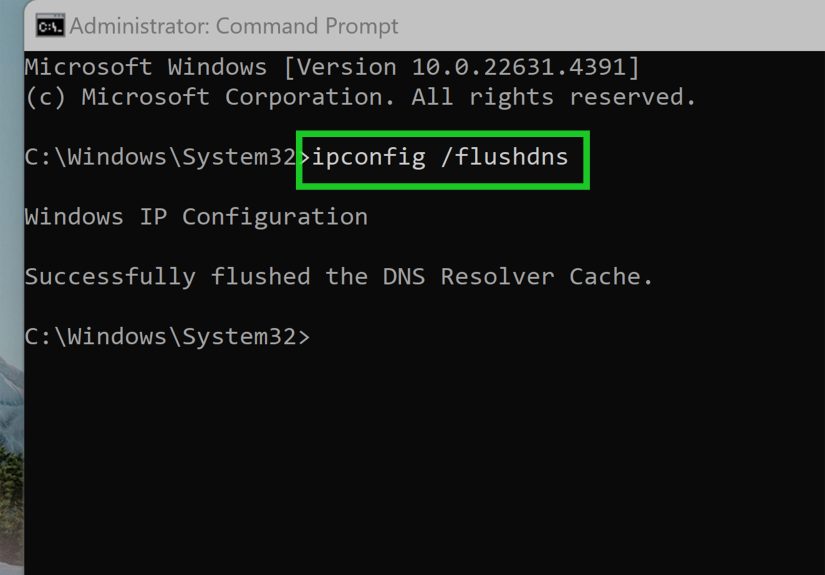
If Discord opens but gets stuck before the interface fully loads, the problem may be network-related rather than purely app-related. Flushing DNS on Windows with ipconfig /flushdns, restarting your router, or switching networks can sometimes get Discord moving again.
If the web version also struggles, that is an even bigger hint that your connection is part of the problem.
Watch for signs of malware or a broader system issue
If Discord is not the only app misbehaving, pause and consider the bigger picture. Random startup failures across multiple apps can point to malware, corrupted system files, or a damaged user profile. In that case, Discord may just be the loudest symptom, not the whole disease.
What to try first, in order
If you want the short version, here is the smartest order:
- Check Discord status
- Kill Discord background processes
- Restart your computer
- Run Discord as administrator
- Turn off VPN or proxy
- Check firewall and antivirus
- Clear Discord cache
- Use a fresh installer
- Try the web version
- Clear browser cache and disable extensions
- Update your operating system
- Reinstall Discord completely
Real-world experiences with the “Discord won’t open” problem
What makes this issue so annoying is that it rarely looks the same for everyone. One person clicks Discord and absolutely nothing happens. Another gets a gray screen. Someone else sees the splash window for two seconds and then it vanishes like it owes rent. That is why so many people assume the problem is huge when, in reality, the fix is often pretty small.
A very common experience is the “phantom Discord” problem on Windows. You close the app, go about your day, come back later, and now Discord won’t open at all. The reason turns out to be that Discord never fully closed in the first place. There is still a process hanging around in Task Manager, quietly blocking every new launch attempt like a bouncer with a grudge. The second that process is ended, Discord opens normally, and you feel both relieved and mildly insulted.
Another frequent scenario happens after an update. Discord was working fine yesterday, then today it refuses to launch. In cases like that, the app’s updater may have stalled or left behind corrupted files. People often spend far too long clicking the icon over and over, as if the fifth click will inspire personal growth in the application. Usually, a fresh installer or a full reinstall fixes it faster than wishful thinking ever will.
Browser users have their own special version of the problem. Discord might open in Chrome but not Firefox, or it might fail in one browser profile while working perfectly in another. That often points to cached data, cookies, extensions, or browser acceleration settings. The frustrating part is that the account itself is fine. The issue is local, hidden, and just annoying enough to waste an entire lunch break.
Mac users often describe the problem a little differently. Instead of “it won’t open,” they may say Discord bounces in the Dock and then disappears, or it opens halfway and hangs. In those cases, force quitting through Activity Monitor, clearing Application Support files, or reinstalling the app tends to help. It feels dramatic the first time, but once you have done it, you realize it is basically digital housekeeping.
And then there is the universal experience: the fix you were sure would be complicated turns out to be restarting the computer. Not glamorous. Not heroic. But effective. Sometimes Discord doesn’t need a deep forensic investigation. It just needs your machine to take a nap and come back with a better attitude.
Conclusion
If Discord won’t open, do not jump straight to the scariest fix. Start simple. Check whether Discord is down, kill any stuck processes, restart your computer, and rule out easy culprits like VPNs, firewall conflicts, and bad cache files. If the problem goes deeper, a fresh installer or full reinstall usually gets the job done.
The big takeaway is this: Discord launch issues are annoying, but they are usually repairable. Work through the fixes in order, test after each step, and you will probably have the app running again before your group chat decides you have gone missing in action.