Table of Contents >> Show >> Hide
- Before You Start: Know What You’re Turning Off
- Method 1: Turn Off AdBlock Completely in Chrome
- Method 2: Pause AdBlock on One Website Only
- Method 3: Limit AdBlock’s Site Access Instead of Fully Disabling It
- Method 4: Turn Off Chrome’s Built-In Ad Blocking for a Site
- What If the Website Still Says AdBlock Is Enabled?
- Safety Tips Before You Disable AdBlock
- Which Method Should You Use?
- Frequently Asked Questions
- Conclusion
- Real-World Experiences: What It’s Actually Like to Disable AdBlock in Chrome
Sometimes AdBlock is the hero of your browsing life. It swats away autoplay videos, blinking banners, and those suspicious “You are our 1,000,000th visitor” pop-ups like a caffeinated ninja. But every now and then, even heroes need a coffee break. A site may ask you to disable AdBlock to read an article, finish a checkout, load a video player, or access a page that simply refuses to behave when ads are blocked.
If that sounds familiar, you are in the right place. This guide walks through 4 easy ways to disable AdBlock in Google Chrome, whether you want to turn it off completely, pause it for one site, limit where it runs, or deal with Chrome’s own built-in ad controls. The goal is simple: help you get the page working without turning your browser into a carnival of pop-ups.
One important note before we begin: when people say “AdBlock,” they often mean one of two things. First, they may be talking about a browser extension like AdBlock or Adblock Plus. Second, they may be referring to Chrome’s own built-in blocker for intrusive ads. Those are not exactly the same thing, so the right fix depends on what is doing the blocking in the first place.
Before You Start: Know What You’re Turning Off
This guide is mainly for desktop Chrome on Windows, Mac, Linux, and Chromebook. If you are using Chrome on Android or iPhone, the experience is different, and desktop-style Chrome extensions are not the main story there. On desktop, ad blocking is usually controlled by an extension, while Chrome itself also has a setting that can block certain annoying ad experiences.
It is also smart to check whether your browser is managed by a school or workplace. If it is, some extension settings may be locked down. In plain English: your IT department may have the final say, and Chrome may politely ignore your plans.
Method 1: Turn Off AdBlock Completely in Chrome
If you want to disable AdBlock across the entire browser, this is the fastest and most direct option. Think of it as putting the extension on the bench instead of just asking it to stop yelling at one website.
How to do it
- Open Google Chrome.
- Click the three-dot menu in the upper-right corner.
- Go to Extensions and then Manage Extensions.
- Find AdBlock, Adblock Plus, or whatever ad blocker you installed.
- Use the toggle switch to turn it off.
That’s it. Once the toggle is off, the extension stops running in Chrome until you turn it back on. Refresh the page you were trying to use, and in many cases the “please disable your ad blocker” message will disappear like it was never there.
When this method is best
Use this approach when multiple sites are breaking, when you want to test whether the ad blocker is the problem, or when you need a quick full-browser fix. It is especially helpful for troubleshooting. If a site works after you disable the extension, congratulations: you have found the culprit without needing a detective hat.
Why this method works
Most ad-blocking extensions filter page content, scripts, and network requests. When you switch the extension off in Chrome’s extension manager, those rules stop applying. That makes this the cleanest way to confirm whether an extension is interfering with video players, comment boxes, paywalls, or interactive tools.
Method 2: Pause AdBlock on One Website Only
This is the Goldilocks option. You do not want to disable AdBlock everywhere. You just want one website to stop sulking and load properly. In that case, pause the blocker only for the site you trust.
How to do it with AdBlock
- Open the website that is asking you to disable your ad blocker.
- Click the AdBlock icon near the address bar.
- Choose the option to Pause on this site or open more pause options.
- Confirm the change and refresh the page.
How to do it with Adblock Plus
- Open the site in Chrome.
- Click the Adblock Plus icon.
- Select the option to pause on this site or add the site to the allowlist.
- Reload the page.
This keeps your blocker active everywhere else while giving one site a hall pass. If you are reading a local news article, using an online classroom portal, or trying to complete a purchase on a store that breaks when scripts are filtered, this is usually the best move.
Why site-level pausing is often smarter
Disabling AdBlock only where needed is better for convenience and privacy. You still get your cleaner browsing experience on the rest of the web, and you avoid the “whoops, I forgot to turn the blocker back on” problem. It is like cracking one window instead of removing the entire roof.
Method 3: Limit AdBlock’s Site Access Instead of Fully Disabling It
Here is the more polished method that many people overlook. Chrome lets you control how much access an extension has to websites. So instead of switching AdBlock off completely, you can tell Chrome when that extension is allowed to read and change site data.
How to change site access in Chrome
- Open Chrome.
- Click Extensions near the address bar, or go to Manage Extensions.
- Find your ad blocker and click Details.
- Look for the site access setting that says the extension can read and change your data on websites you visit.
- Choose one of these options:
- On click the extension runs only when you activate it.
- On specific sites the extension runs only where you allow it.
- On all sites the extension runs everywhere.
If you want a semi-permanent solution, choose On specific sites. That way, the blocker stays active where you want it and stays quiet where it causes trouble. This is a great middle ground for people who use a handful of websites that do not play nicely with ad blockers but still want a cleaner browser overall.
Why this method is underrated
Because it feels a little more “pro.” You are not just disabling AdBlock in Chrome. You are managing extension permissions with precision. For bloggers, researchers, online shoppers, and people who use business tools in the browser all day, this method can save time and reduce frustration in the long run.
Method 4: Turn Off Chrome’s Built-In Ad Blocking for a Site
Here is the twist: sometimes the issue is not your AdBlock extension at all. Chrome itself can block intrusive ads on sites with poor ad experiences. If a page seems broken and you do not even have a classic ad blocker installed, Chrome’s own setting may be involved.
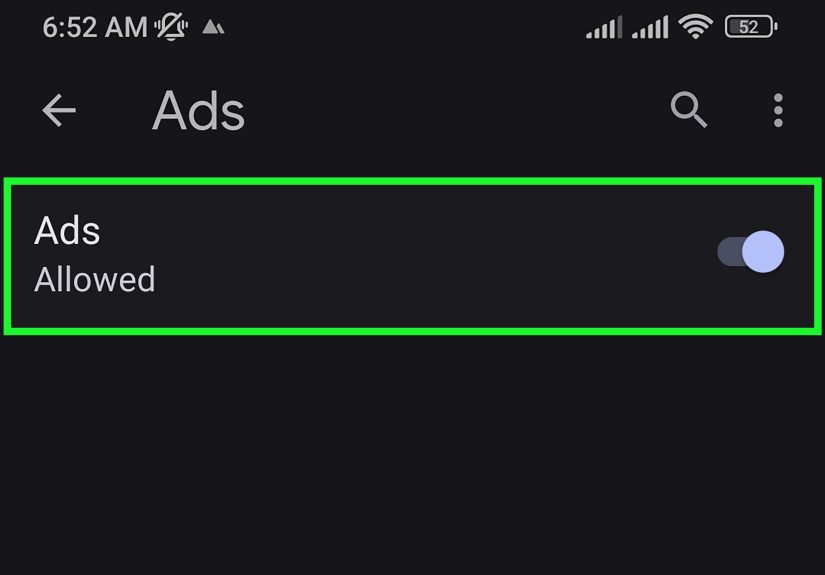
Allow ads on one site
- Open the website in Chrome.
- Click the icon to the left of the web address.
- Open Site settings.
- Find Intrusive ads under permissions.
- Change it to Allow.
- Reload the page.
Allow ads on all sites
- Open Chrome Settings.
- Go to Privacy and security.
- Select Site settings.
- Under Additional content settings, choose Intrusive ads.
- Select the option that allows sites to show ads.
This method is useful when Chrome is blocking a site’s ad experience even without a third-party extension. It is less common than extension-based blocking, but it matters because plenty of people blame “AdBlock” for problems that actually come from Chrome’s own settings.
What If the Website Still Says AdBlock Is Enabled?
Ah yes, the classic moment: you disable the blocker, refresh the page, and the website still acts like you are smuggling an ad blocker in your backpack. Annoying, but common.
Try these quick fixes
- Refresh the page twice. Some sites cache the anti-adblock message.
- Disable other privacy extensions. Tracker blockers, script blockers, and security tools can look like ad blockers to websites.
- Check for multiple ad blockers. You may have both AdBlock and Adblock Plus installed, or another extension doing similar work.
- Clear site data and reload. Cookies or cached scripts may be keeping the warning alive.
- Try Incognito mode. In Chrome, extensions are typically off there unless you explicitly allow them.
If the site still refuses to cooperate, there may be another blocker involved at the browser, DNS, VPN, or security-app level. In other words, the page may not be accusing the right suspect.
Safety Tips Before You Disable AdBlock
Let’s be honest: some websites are perfectly fine, and some look like they were assembled in a basement by a roulette wheel. So before you disable your ad blocker, use a little judgment.
- Disable ad blocking only for sites you trust.
- If a site becomes a pop-up festival, turn the blocker back on and leave.
- Review your installed extensions regularly and remove any you do not recognize.
- Be careful with fake “security” prompts or fake ad blockers. Not every extension with a shield icon is your friend.
That last point matters. Browser extensions can be incredibly useful, but they also deserve the same skepticism you would give a stranger who asks for your house keys and promises to water the plants.
Which Method Should You Use?
If you want the shortest answer, here it is:
- Use Method 1 if you want to turn AdBlock off everywhere.
- Use Method 2 if one specific site is the problem.
- Use Method 3 if you want more control and fewer future headaches.
- Use Method 4 if Chrome’s own ad settings are the real issue.
For most people, pausing AdBlock on one site is the sweet spot. It solves the problem without giving the entire internet permission to redecorate your screen with banner ads.
Frequently Asked Questions
Can I disable AdBlock in Chrome without uninstalling it?
Yes. You can turn the extension off from Manage Extensions, pause it on a specific site, or limit its site access. Uninstalling is not required unless you want to remove it permanently.
Does disabling AdBlock affect all websites?
Only if you turn the extension off entirely. If you pause it for one site or use specific site access, the change can stay limited to the pages you choose.
Why do some websites ask me to disable my ad blocker?
Because many sites depend on ad revenue to fund content, and some page features break when scripts or ad-related resources are filtered. Other sites simply use anti-adblock detection more aggressively than necessary.
Should I disable AdBlock on every site that asks?
No. Use common sense. If the site is trusted and you want to support it, fine. If it looks sketchy, leave your blocker on and protect your browser like it is the last clean room in the building.
Conclusion
Learning how to disable AdBlock in Google Chrome is less about giving up your ad blocker and more about using it wisely. Sometimes you need to switch it off globally. Sometimes a single-site pause is enough. Sometimes the real issue is Chrome’s built-in intrusive ads setting. Once you know the difference, the fix becomes quick, practical, and much less annoying.
The best strategy is simple: keep ad blocking enabled by default, disable it only when necessary, and use the most limited option that solves the problem. That way your favorite sites can function, your browser can stay useful, and your screen does not suddenly look like Times Square on a sugar rush.
Real-World Experiences: What It’s Actually Like to Disable AdBlock in Chrome
In real life, disabling AdBlock in Google Chrome is usually less dramatic than people expect. Nobody hears thunder. No browser alarm goes off. You click a toggle, refresh a page, and hope the website stops acting like you personally offended its ad team. But the experience does vary depending on the kind of site you are visiting, and that is where things get interesting.
A common example is a news site. You click a headline because you genuinely want to read about something useful, and instead you get an overlay telling you to whitelist the domain. If you pause AdBlock just for that site, the article often loads normally, and the ads are manageable. Not delightful, of course, but manageable. This is the happy path. You get the content, the publisher gets its ad impressions, and nobody has to start a philosophical debate about the future of the open web.
Then there are shopping websites. These can be surprisingly sensitive to ad blockers because some coupon tools, chat widgets, embedded payment frames, or product recommendation boxes rely on scripts that blockers sometimes interfere with. A lot of people think the checkout page is broken for mysterious reasons when the real issue is that an extension is blocking a script the site expects to load. Turning AdBlock off for the store, even temporarily, can make the difference between “Place Order” working and “Why is this button dead inside?”
Streaming and media websites are another story. Some of them detect ad blockers quickly and stop video playback until you disable the extension. Others technically load the page but leave the player stuck on a spinning circle forever, like it is meditating. In those cases, site-level pausing is usually the cleanest solution. Turning the blocker off for everything just to watch one clip feels like using a chainsaw to open a cereal box.
Productivity tools can also behave strangely. An online document editor, school portal, or dashboard may not even show ads, yet an ad blocker can still interfere with page elements if the tool uses third-party scripts or shared domains. That is why Chrome’s site-access controls are so useful in day-to-day browsing. People who work in Chrome for hours often discover that the smartest setup is not “always on” or “always off,” but “on specific sites only.” Once you dial that in, life gets calmer.
There is also the human side of the experience. Some users feel weird disabling AdBlock because they have spent years training themselves never to trust the average website. That caution is fair. The best real-world habit is to disable blocking only on sites you recognize, and only as much as needed. If the page turns into a confetti cannon of pop-ups, autoplay audio, and miracle skin cream banners, that is your sign to back away slowly and re-enable the blocker immediately.
So the practical experience is this: disabling AdBlock in Chrome can be easy, useful, and sometimes necessary, but the best results come from doing it selectively. In most cases, a one-site pause or a site-access tweak solves the problem without sacrificing the rest of your browsing experience. That is the sweet spot, and once you find it, you stop treating the issue like a crisis and start treating it like routine browser maintenance.