Table of Contents >> Show >> Hide
- Before You Start: Know What’s Actually Taking Up Space
- Way #1: Use Built-In Storage Cleanup Tools (Fast + Safe)
- Way #2: Remove the Big Stuff (Apps + Large Files + “Accidental Archives”)
- Way #3: Clear Caches and Clutter (Browsers, Temporary Data, and Ongoing Habits)
- Quick Recap: The 3 Ways (Pick One, or Stack Them)
- Common Real-Life Cleanup Experiences (500+ Words of “Yep, That Happens”)
- Conclusion
Let’s get one tiny (but important) thing out of the way: your hard drive doesn’t actually hold your computer’s “memory.”
That’s RAM’s job. Your hard drive (or SSD) holds storageapps, photos, downloads, and the mysterious “stuff” you swear you didn’t install.
So when people say “clear the memory on my hard drive,” they usually mean: free up disk space, reduce clutter, and get the computer
running smoothly again. Good news: you can do that without deleting your entire life, your operating system, or your sense of hope.
Before You Start: Know What’s Actually Taking Up Space
A five-minute “storage reality check” saves you from randomly deleting files like you’re defusing a bomb in a movie.
On Windows, open Settings > System > Storage. On Mac, open System Settings > General > Storage.
You’ll typically see categories like Apps, Documents, Photos, System Data, and Downloads.
Your mission isn’t to become a minimalist monk. Your mission is to clear out the junk and the accidental hoarding.
Way #1: Use Built-In Storage Cleanup Tools (Fast + Safe)
If your computer had a “clean up after yourself” feature, this is it. Built-in tools are designed to remove
temporary files, caches, and system leftovers without you spelunking into suspicious folders.
On Windows: Storage Cleanup + Storage Sense + Disk Cleanup
-
Open Storage settings: Go to Settings > System > Storage.
Look for options like Temporary files or Cleanup recommendations. -
Review “Temporary files” carefully: You’ll often see items like system temp files, thumbnails,
recycle bin contents, and update leftovers. Select what you’re comfortable removing and run the cleanup.
Tip: Double-check anything labeled “Downloads” so you don’t delete something you meant to keep. -
Turn on Storage Sense (the automatic helper): Storage Sense can run on a schedule (or when space gets low)
to remove unnecessary temporary files and manage the recycle bin. You can customize how aggressive it should be
with Downloads and cloud placeholders, so it doesn’t “help” you into regret. -
Use Disk Cleanup for deeper system cleanup (especially older Windows setups): Search for “Disk Cleanup,”
choose your drive, and consider “Cleanup system files” to remove system-level leftovers.
On Mac: Storage Management Recommendations
-
Open Storage: Go to System Settings > General > Storage.
You’ll see storage categories and recommendations. -
Use built-in recommendations: macOS can help you find large files, reduce clutter, and manage
storage-heavy categories like applications, documents, messages, and media. -
Empty the Trash: On a Mac, deleting files doesn’t actually free space until the Trash is emptied.
(Your Trash can quietly become a second hard drive. A haunted one.)
Why this works: Temporary files and old system leftovers add up slowlylike pennies in a couch,
except the couch is your computer and the pennies are 18 GB of “temporary” files from 2022.
Way #2: Remove the Big Stuff (Apps + Large Files + “Accidental Archives”)
If Way #1 is sweeping the floor, Way #2 is removing the treadmill you’ve been using as a coat rack.
The fastest way to free space is to delete or move the largest things you don’t need.
Step 1: Uninstall apps you don’t use
Old games, trial software, duplicate apps, and “helpful” manufacturer utilities can eat storage without permission.
If you haven’t opened an app in months and it isn’t essential, it’s a candidate.
- Windows: Settings > Apps > Installed apps, then sort by size (or at least scan for big offenders).
-
Mac: Review large apps in Storage settings or Applications, then uninstall what you don’t use.
If an app has its own uninstaller, use it.
Step 2: Find and handle huge files (the real space-eaters)
The usual suspects: videos, RAW photos, old phone backups, installers, downloaded ZIP files, and “final_final_really_final.mp4.”
You have three smart options:
- Delete what you truly don’t need.
- Move large files to an external drive (great for videos and photo libraries).
- Offload to cloud storage (especially for files you rarely open).
Step 3: Clean your Downloads folder like it’s a junk drawer
Downloads is where good intentions go to retire. It’s usually packed with installers you used once,
duplicate PDFs, and 47 copies of the same image because you forgot you already downloaded it.
Sort Downloads by size, delete what you don’t need, and move anything important into a named folder
(so you can actually find it later).
Practical example: The “video project” rescue
Let’s say you edited a family vacation video or a school project. The exported file might be 2–6 GB,
but the project files and raw footage can be 30–200 GB. If you’re done with the project, archive it:
move the folder to an external drive, or compress and store it in the cloud. Your computer instantly breathes easier.
Way #3: Clear Caches and Clutter (Browsers, Temporary Data, and Ongoing Habits)
Caches are like snacks. A little is fine. But if you never clean up, you’ll eventually lose your couch
under a mountain of chip bagsexcept the couch is your storage drive.
Browser cleanup: clear cache (and cookies when it makes sense)
Browsers store cached images, scripts, and site data to load pages faster. Over time, this can grow large.
Clearing cache is generally safe. Clearing cookies can log you out of sites and reset preferences, so do it intentionally.
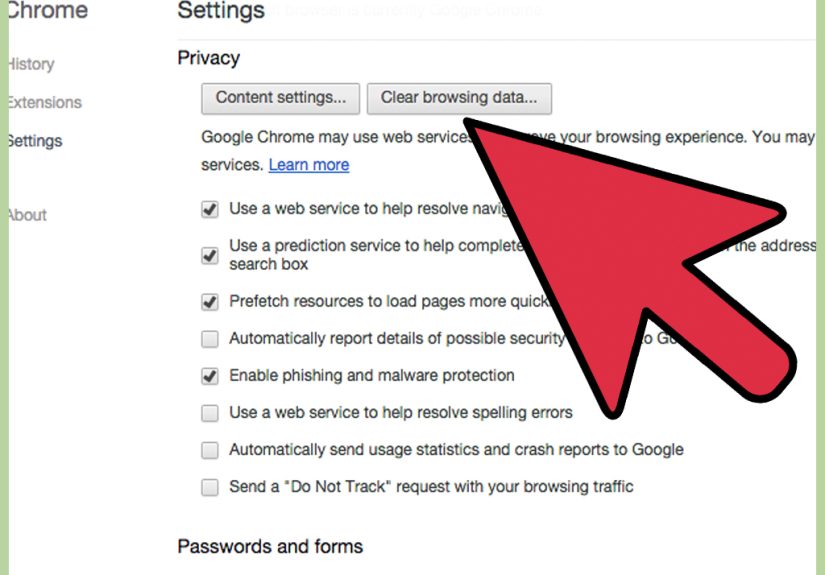
Chrome (quick method)
- Open Chrome.
- Click the three-dot menu, then choose Delete browsing data.
- Select a time range (like “All time” if you want a full cleanup).
- Choose Cached images and files (and cookies only if you’re okay signing back in).
- Click Delete data.
Firefox (clear cache and site data)
- Open Firefox Settings.
- Go to Privacy & Security.
- Under Cookies and Site Data, choose Clear Data.
- Select cached content (and cookies/site data if needed), then confirm.
Clear temporary clutter you forgot existed
- Empty Recycle Bin / Trash: Files aren’t truly gone (or space-freeing) until you empty it.
- Remove old installers: If you have EXE/DMG installers you already used, delete them.
- Clean up old device backups: Phone backups and sync folders can be huge.
- Check for duplicate files: Multiple copies of photos, documents, and downloads can quietly multiply.
Set it and forget it (without losing important stuff)
The best cleanup is the one you don’t have to remember. Consider these low-effort habits:
-
Windows: Configure Storage Sense to run automatically and only clear Downloads files
after a safe amount of time (or not at all if you rely on Downloads). - Mac: Use Storage recommendations and get in the habit of emptying Trash weekly.
- Cloud offloading: Keep rarely used files online-only when possible, so you keep access without keeping bulk.
Bonus: If you’re selling/donating the computer, do a proper wipe
Freeing space is one thing. Protecting your personal data is another. If the device is leaving your hands,
consider a built-in reset/erase option that removes personal files and settings more thoroughly than manual deleting.
-
Windows: Use “Reset this PC” and consider the option that cleans the drive for harder recovery
(this can take longer, but it’s designed for handing off a device). - Mac: Use “Erase All Content and Settings” (when available) to reset the Mac and remove your data.
Quick Recap: The 3 Ways (Pick One, or Stack Them)
- Way #1: Use built-in cleanup tools to remove safe-to-delete junk quickly.
- Way #2: Remove the big stuffunused apps, huge files, and Downloads clutter.
- Way #3: Clear caches and create habits so storage doesn’t refill overnight like a magic trick.
Common Real-Life Cleanup Experiences (500+ Words of “Yep, That Happens”)
If you’ve never run out of disk space at the worst possible moment, congratulations on your calm and orderly universe.
For the rest of us, storage problems tend to show up like a surprise pop quizusually when you’re trying to install an update,
export a video, or download something important right now.
Experience #1: The “Downloads Folder Time Capsule”
One of the most common situations goes like this: someone checks Storage settings, sees the drive is nearly full,
and panics. Then they discover Downloads is holding years of installers, screenshots, duplicate documents, and random ZIP files.
The funny part? Many of those files were used once and then abandonedlike a gym membership you keep “meaning to cancel.”
The smart lesson from this experience is simple: treat Downloads as a temporary landing pad, not a permanent home.
Once a week (or once a month if you’re feeling ambitious), open Downloads, sort by size, and delete what you don’t need.
Anything important gets moved into a named folder like “Work,” “School,” “Taxes,” or “Photos.” The goal is not perfection;
the goal is preventing Downloads from becoming a second operating system.
Experience #2: The “I Didn’t Know Apps Could Be That Huge” Moment
Another classic: someone swears they don’t have many filesno giant photo library, no movies, no big games.
But their drive is still full. The culprit is often installed apps, especially creative software,
modern games, and tools that store large libraries (sample packs, offline maps, cached content).
In real life, the fix usually isn’t “delete everything.” It’s “uninstall what you don’t use” and “move what can be moved.”
For example, if a game hasn’t been played in a year, uninstalling it is painless because you can always reinstall later.
If a creative app has a library folder, moving that library to an external drive can save dozens of gigabytes.
The biggest improvement often comes from removing just two or three large apps you’ve outgrown.
Experience #3: The Browser Cache That Quietly Ate Your Lunch
People don’t always believe browser data can matteruntil they check and find multiple gigabytes stored in cached files.
This shows up a lot for heavy streamers, online shoppers, research deep-divers, and anyone with 38 open tabs (no judgment;
that’s basically a personality trait now).
The real-world takeaway: clearing cached images and files is a safe first step when you’re short on space.
Clearing cookies is useful for privacy or troubleshooting, but it’s also the reason you suddenly can’t remember your login
for a website you “definitely use all the time.” (Again: no judgment. We all live like that.)
A balanced approach is to clear cache regularly and save full cookie wipes for when you actually want a reset.
Experience #4: The “I Need Space Today” Emergency Plan
When space is urgently neededlike you’re trying to install a critical updatethe best quick wins tend to be:
run built-in cleanup tools, empty the recycle bin/trash, clear temporary files, and delete or move one or two huge files.
This is why Way #1 and Way #2 pair so well: first you clear safe junk, then you tackle the big items.
The final lesson from most real-life cleanups is surprisingly cheerful: once you do this once, it gets easier forever.
After the first big cleanup, Storage Sense (or your own monthly “Downloads sweep”) can keep your drive from refilling.
Think of it like brushing your teeth: annoying, necessary, and a lot better than the alternative.
Conclusion
Clearing “memory” on your hard drive really means reclaiming storage spaceand you can do it without turning your computer
into a blank slate. Start with built-in cleanup tools, remove the biggest storage hogs, and then tame caches and clutter
so the problem doesn’t come roaring back next week. Your future self (and your update installer) will thank you.