Table of Contents >> Show >> Hide
Windows 7 gadgets were the digital equivalent of sticky notes for power usersexcept instead of reminding you to buy milk, they reminded you that your RAM was gasping for air and your Wi-Fi signal had wandered off into the wilderness. Long before modern widgets started trying to look cute, Windows 7 gadgets had a simpler mission: put useful system data right on the desktop so you could spot trouble before your PC started sounding like a leaf blower.
If you still run Windows 7 on an older machine, a lab PC, or that one stubborn family computer that refuses to retire, the right monitoring gadget can make life much easier. You can keep an eye on CPU load, memory usage, network throughput, disk activity, GPU temperature, battery life, and wireless strength without opening Task Manager every five minutes like an anxious stock trader. That is exactly where these gadgets shine: instant, always-visible information.
Still, let’s put the brakes on the nostalgia bus for one second. Windows 7 is no longer supported, and Microsoft warned years ago that desktop gadgets could introduce security risks. So if you plan to use them today, use common sense: trusted files only, minimal internet exposure, and preferably an older secondary machine rather than your mission-critical computer. The gadgets below are the best choices from the classic Windows 7 era, judged by usefulness, readability, and how much real monitoring value they provide instead of just taking up space and looking important.
A Quick Reality Check Before You Install Anything
There are two truths about Windows 7 monitoring. First, the OS itself already includes solid built-in tools like Task Manager, Resource Monitor, and Performance Monitor. Second, gadgets win on convenience because they stay visible on the desktop. Think of built-in tools as a full doctor’s appointment and gadgets as a blood pressure cuff you wear all day. One gives you deep diagnostics, while the other gives you fast warning signs.
That makes gadgets ideal for people who want to spot patterns at a glance: a CPU that spikes every time a browser opens, a hard drive that stays hammered at 100%, or a wireless signal that drops harder than your motivation on a Monday morning. The best gadgets are the ones that show meaningful data clearly, refresh quickly, and do not require a microscope to read.
What Makes a Great Windows 7 Monitoring Gadget?
The best Windows 7 system monitoring gadgets usually do at least one of three things really well: they present important data clearly, they stay lightweight, and they save you from digging through menus. Fancy skins are nice, but when your PC is acting weird, function beats fashion every time. A gadget that instantly shows CPU, RAM, or network behavior is far more useful than one that looks like it belongs in a sci-fi movie but tells you absolutely nothing.
The 13 Best Windows 7 Gadgets for System Monitoring
1. CPU Meter
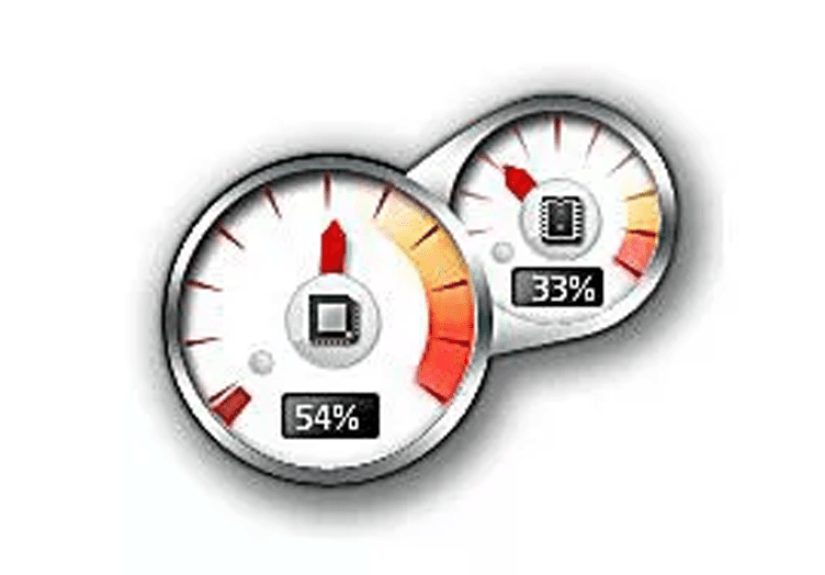
CPU Meter is the classic starter gadget, and honestly, it earns its reputation. It shows CPU usage and physical memory usage in a simple dual-dial layout that is easy to understand even if you are not the kind of person who uses phrases like “thermal envelope” in normal conversation. There are not many advanced options, but that is also the charm. If you want something clean, quick, and impossible to misunderstand, CPU Meter is a terrific first pick.
2. All CPU Meter
All CPU Meter is what happens when CPU Meter goes to the gym and comes back with more features. It tracks CPU usage, used memory, and available memory, and it supports multi-core processors far better than the old built-in gadget. It also updates quickly and includes a short graph history, which makes it more helpful for spotting brief spikes. If you want a more capable CPU-and-RAM monitor without turning your desktop into a cockpit, this is one of the best choices.
3. System Monitor II
System Monitor II is one of the strongest all-around gadgets for serious monitoring. It can show total CPU load, per-core activity, memory usage, page file usage, and, depending on system support, temperature data as well. This is the gadget for people who want numbers, graphs, and bars all working together instead of a pretty gauge that mostly says, “Yep, computer still exists.” If you like detail and want one gadget to cover most essentials, System Monitor II is a standout.
4. System Control A1
System Control A1 is a compact and practical gadget that tracks CPU load, memory usage, and uptime data. Its biggest strength is that it offers meaningful performance information in a very small space, which makes it ideal for crowded desktops. It is not the most customizable option in the bunch, but it is one of the easiest to live with. If you want a tiny monitoring dashboard that does its job without demanding attention, this one deserves a look.
5. Network Meter
Network Meter is a favorite for anyone who has ever muttered, “Why is the internet slow?” at a perfectly innocent router. It shows internal and external IP addresses, upload and download speeds, bandwidth usage, SSID, and signal quality. That is a lot of networking value in one gadget. It is especially useful for troubleshooting because it helps you figure out whether the issue is your Wi-Fi, your local network, or your internet connection itself.
6. Network Monitor II
Network Monitor II takes the network-monitoring concept and adds even more detail. It can display wired or wireless status, current and peak speeds, uploaded and downloaded totals, signal strength, and connection type. It also gives you graphs and traffic counters, which makes it excellent for users who want to monitor network behavior over a session instead of just glancing at a single number. If Network Meter is the handy multitool, Network Monitor II is the version with extra attachments.
7. Xirrus Wi-Fi Monitor
Xirrus Wi-Fi Monitor is impossible to miss, and that is both a compliment and a warning. Its radar-like design is dramatic, oversized, and a little theatrical, but it also makes wireless information very visual. You can see nearby networks, signal strength, and coverage information in a way that feels more interactive than most gadgets. If you care deeply about Wi-Fi and do not mind giving up some desktop space for the cause, Xirrus is a fun and genuinely useful option.
8. DriveInfo
DriveInfo focuses on one of the most useful questions in Windows history: “How much space do I have left before disaster strikes?” It shows free disk space in both percentage and gigabytes and can work with local, removable, network, and media drives. That makes it a practical gadget for people who manage multiple drives or tend to discover storage problems only when a download fails at 99%. It is not flashy, but it is helpful every single day.
9. Drive Activity
Drive Activity is more about behavior than capacity. Instead of simply showing how full your drive is, it graphs how hard the drive is working. That makes it useful for diagnosing slowdowns caused by heavy disk access, background tasks, or a system that seems to spend its entire life “thinking.” If you have ever listened to your hard drive chatter like it was trying to write a novel, this gadget can help explain why.
10. O&O DiskStat
O&O DiskStat is one of the most polished disk gadgets from the Windows 7 era. It can show drive capacity, free space, and activity level, and on some systems it can also show temperature information through S.M.A.R.T.-related reporting. It strikes a very nice balance between attractive design and practical monitoring. If you want a disk gadget that feels informative without becoming a cluttered mess of tiny numbers, O&O DiskStat is a smart pick.
11. GPU Observer
GPU Observer is the gadget for anyone who games, edits video, or just enjoys knowing what their graphics card is up to. It can show GPU temperature, fan speed, load, memory load, and system clocks, all in a straightforward layout. Support varies by hardware, but on compatible NVIDIA and ATI/AMD setups, it gives you a quick pulse check on graphics performance. For older gaming rigs, this can be incredibly useful when heat starts creeping up or fans begin auditioning for a jet engine role.
12. GPU Monitor
GPU Monitor is like GPU Observer’s more detailed cousin. It offers a broader set of GPU data, including vendor and model info, GPU and PCB temperatures, fan speed, memory usage, clocks, and more. It was especially appealing to overclockers and enthusiasts because it packed a lot of information into one desktop widget. If your graphics card is the diva of your system and you want to keep a close eye on it, GPU Monitor is one of the strongest options in the category.
13. margu-NotebookInfo2
margu-NotebookInfo2 has a goofy name and serious utility. It tracks a mix of system data such as uptime, CPU usage, RAM usage, wireless strength, battery level, and more. In other words, it is the Swiss Army knife of the Windows 7 gadget world. It is particularly useful on laptops because it combines several kinds of monitoring into one place. If you want a single gadget that covers daily laptop survival basics, this is one of the most versatile picks on the list.
How to Choose the Right Gadget for Your Setup
If you only want one gadget, go with System Monitor II for general performance, Network Monitor II for connectivity, or margu-NotebookInfo2 for laptop-friendly monitoring. If you want a simple setup, pair CPU Meter with DriveInfo and call it a day. If you enjoy watching every dial swing like you are launching a spaceship, combine All CPU Meter, GPU Monitor, and Network Meter and embrace the nerdy glory.
The trick is not to install everything just because you can. Even Tom’s Hardware pointed out long ago that gadgets fight for screen real estate, especially on smaller displays. Pick gadgets based on the problems you actually want to catch: overheating, slow disk performance, weak Wi-Fi, low storage, or runaway background tasks. A tidy desktop with three useful monitors beats a messy one with thirteen tiny windows screaming for attention.
What It’s Actually Like to Use These Gadgets Today
Using Windows 7 monitoring gadgets today feels a bit like driving a classic car with an aftermarket dashboard. The machine may be old, but the feedback is immediate, satisfying, and weirdly fun. Modern operating systems hide a lot of this information behind clicks, menus, and expandable panels. Windows 7 gadgets, by contrast, put the important stuff right in front of your face. You do not ask, “How is my system doing?” The desktop answers before you finish the sentence.
That changes how you use the computer. With a CPU gadget in the corner, you start noticing which apps spike the processor for no good reason. With a network gadget, you can tell when your connection is truly crawling and when a website is simply having a bad day. With a disk monitor, you quickly learn the difference between a normal busy system and one that is grinding itself into sawdust. It turns vague frustration into visible behavior, and that alone is incredibly helpful.
The experience is also surprisingly personal. Some people want a clean, almost invisible gadget like CPU Meter. Others prefer something bold and dramatic like Xirrus Wi-Fi Monitor, which looks like it should be controlling satellites. Neither approach is wrong. That is part of the charm. These gadgets do not just monitor your PC; they become part of how your desktop feels. They are useful, but they also have personality, which modern utility apps often lack.
There is also a practical side to the nostalgia. On older hardware, especially systems with spinning hard drives and limited RAM, these gadgets can reveal bottlenecks quickly. You stop guessing. You stop blaming the wrong program. You stop giving the side-eye to your browser when the real villain is a background updater chewing through disk time like it gets paid by the minute. Monitoring gadgets help you catch those patterns without constantly opening larger system tools.
Of course, the experience is not perfect. Some gadgets are visually dated, some depend on older drivers, and some are harder to find than they used to be. Compatibility can be a little moody, especially when temperature or advanced sensor readouts are involved. That is the price of using legacy desktop tools in a post-legacy world. But when they work, they still deliver something modern widgets often miss: fast, focused, always-on visibility.
In that sense, the best Windows 7 gadgets still hold up not because they are trendy, but because they respect your attention. They do one job, they do it on the desktop, and they do not ask you to sign in, sync, subscribe, or accept ten pop-ups before showing a number. Sometimes you just want to know whether your CPU is sweating, your drive is choking, or your Wi-Fi is wobbling. These gadgets answer those questions with refreshing honesty.
Final Thoughts
The best Windows 7 gadgets for system monitoring are not necessarily the prettiest ones. They are the ones that save time, reveal problems early, and keep your desktop useful instead of decorative. For most people, System Monitor II, Network Monitor II, DriveInfo, GPU Monitor, and margu-NotebookInfo2 form the strongest core lineup. Add or subtract from there depending on whether your biggest concern is performance, storage, graphics, or connectivity.
If you still love the Windows 7 desktop experience, these gadgets are one of the best reminders of why the OS stayed popular for so long. They were small, practical, and just geeky enough to make you feel like you were in control of your machine. And honestly, that is half the fun. Nothing says “I have this under control” quite like watching six little meters bounce around while pretending you are not absolutely judging your browser for using half your RAM.