Table of Contents >> Show >> Hide
- What Does It Mean to Unjailbreak an iPhone?
- Before You Start: Four Smart Prep Moves
- How to Unjailbreak an iPhone: 12 Easy Steps
- Step 1: Confirm the iPhone is actually jailbroken
- Step 2: Back up everything you want to keep
- Step 3: Save anything a standard backup might miss
- Step 4: Make sure Find My and Activation Lock won’t surprise you later
- Step 5: Connect your iPhone to a computer with a reliable cable
- Step 6: Open the right software
- Step 7: Try a normal restore first
- Step 8: Use Recovery Mode if a normal restore fails
- Step 9: Choose “Restore,” not “Update”
- Step 10: Wait while iOS is reinstalled
- Step 11: Set up the iPhone again
- Step 12: Verify that the jailbreak is gone
- What If the Restore Doesn’t Work?
- Should You Restore From Backup or Start Fresh?
- Common Mistakes to Avoid When Unjailbreaking an iPhone
- FAQ: Unjailbreaking an iPhone
- Real-World Experiences After Unjailbreaking an iPhone
- Final Takeaway
If your iPhone is jailbroken and now acting like it drank six espressos and made bad choices, the good news is this: you can usually put it back to normal. Unjailbreaking an iPhone is basically the process of removing the jailbreak and restoring Apple’s original iOS software. In plain English, you’re taking your phone from “wild west customization experiment” back to “clean, stable, Apple-approved citizen.”
The safest and most reliable way to do that is not by hunting down every tweak, deleting Cydia one icon at a time, or whispering apologies to your lock screen. It’s by backing up your data, restoring the device to factory settings, reinstalling the latest iOS, and then setting the phone up again. That sounds dramatic, but it’s actually straightforward when you break it into simple steps.
In this guide, you’ll learn exactly how to unjailbreak an iPhone in 12 easy steps, what to do before you begin, how to use Recovery Mode if your phone is being stubborn, and what to expect after the restore is finished. Whether you want better security, smoother performance, access to future iOS updates, or a cleaner device before selling it, this walkthrough will help you get there without turning your iPhone into an expensive paperweight.
What Does It Mean to Unjailbreak an iPhone?
To unjailbreak an iPhone means removing the modifications that gave you root-level access and custom app stores such as Cydia, Sileo, or Zebra. In most cases, the cleanest fix is a full restore. That wipes the custom software, reinstalls stock iOS, and removes the jailbreak environment altogether.
That matters because a jailbroken iPhone can be less stable, more vulnerable to malware, and more likely to act weird after system updates. Maybe apps crash. Maybe battery life sinks like a rock. Maybe your banking app sees the jailbreak and says, “Absolutely not.” Unjailbreaking gives you a fresh start.
Before You Start: Four Smart Prep Moves
1. Back up your data
A restore erases your iPhone. That means photos, messages, settings, notes, app data, and the random screenshot of a recipe you swore you’d make someday. Back up first using iCloud or your computer.
2. Know your Apple Account password
After the restore, you may need to sign in again to activate the phone and disable or clear Activation Lock. If you don’t know that password, pause here and recover it first.
3. Update your Mac or Windows tools
On a Mac running macOS Catalina or later, you’ll use Finder. On Windows, you’ll usually use the Apple Devices app or iTunes, depending on your setup. Updating the software first helps avoid restore errors.
4. Decide whether you want a backup restored
If your jailbreak caused instability, bugs, or suspicious behavior, restoring an older clean backup is smarter than restoring the most recent one. And if you really want the cleanest possible start, set the phone up as new after the restore.
How to Unjailbreak an iPhone: 12 Easy Steps
Step 1: Confirm the iPhone is actually jailbroken
Look for signs such as Cydia, Sileo, Zebra, unusual theme engines, custom boot animations, unauthorized tweaks, or system-level changes that regular iPhones do not allow. If those are present, you’re almost certainly dealing with a jailbroken device.
Step 2: Back up everything you want to keep
Go to Settings > [your name] > iCloud > iCloud Backup and run a fresh backup, or connect the phone to your computer and create a computer backup. If you use a computer backup, an encrypted backup is often best because it saves more account and health-related data.
Step 3: Save anything a standard backup might miss
Some app data, downloaded files, authenticator app codes, and media saved outside normal sync paths can be easy to forget. Export what matters now. This is the digital equivalent of checking the seat cushions before donating the couch.
Step 4: Make sure Find My and Activation Lock won’t surprise you later
You do not always need to manually disable Find My before restoring, but you absolutely do need your Apple Account credentials afterward. If you’re preparing the phone for sale or transfer, sign out properly so Activation Lock does not remain attached to your account.
Step 5: Connect your iPhone to a computer with a reliable cable
Use a Mac or Windows PC and, ideally, the cable that came with the device or a certified replacement. A flaky cable can interrupt the restore and turn a simple cleanup job into a long afternoon.
Step 6: Open the right software
On a Mac with newer macOS versions, open Finder. On Windows, open Apple Devices or iTunes. Select your iPhone when it appears. If the computer asks whether you trust the device, approve the prompt.
Step 7: Try a normal restore first
Click Restore iPhone if the option is available. In many cases, that is enough to remove the jailbreak and reinstall the latest official iOS version. If the phone restores normally, great. You just took the easy route and saved yourself from button gymnastics.
Step 8: Use Recovery Mode if a normal restore fails
If the device is frozen, boot-looping, not recognized properly, or refusing a standard restore, put it into Recovery Mode.
For iPhone 8 or later, including iPhone SE (2nd generation and later):
Press and quickly release Volume Up, press and quickly release Volume Down, then press and hold the Side button until the recovery screen appears.For iPhone 7 and iPhone 7 Plus:
Press and hold the Side button and Volume Down button together until the recovery screen appears.For iPhone 6s, iPhone SE (1st generation), and earlier:
Press and hold the Home button and the Side or Top button together until the recovery screen appears.Step 9: Choose “Restore,” not “Update”
Once your computer detects Recovery Mode, it may offer Update or Restore. Choose Restore if your goal is to fully unjailbreak the phone. Update tries to preserve data and reinstall iOS, but Restore is the cleaner option for removing jailbreak leftovers.
Step 10: Wait while iOS is reinstalled
Your computer will download the latest compatible version of iOS, erase the device, and reinstall the operating system. Leave the iPhone connected during the whole process. Don’t unplug it because you got impatient. This is one of those moments where patience is cheaper than regret.
Step 11: Set up the iPhone again
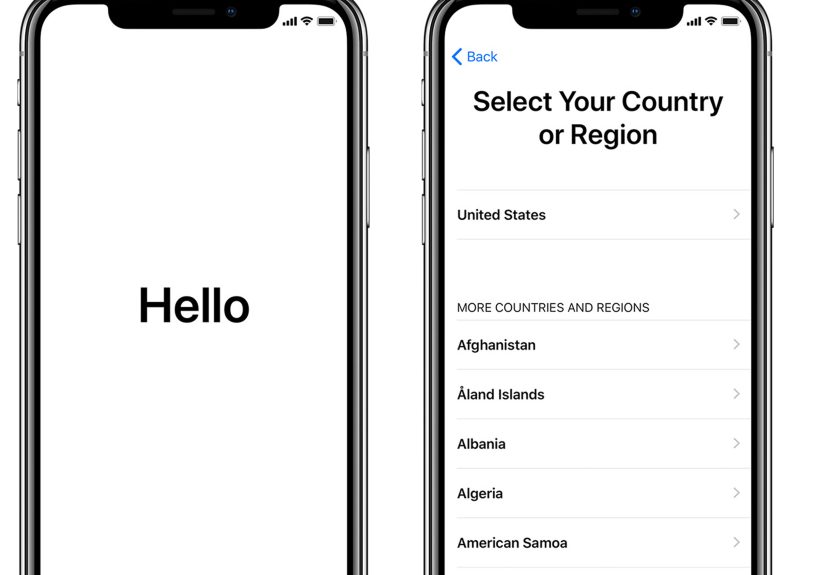
When the restore is done, the iPhone will restart and show the setup screen. At this point, you can either:
- Set it up as a new iPhone for the cleanest possible result
- Restore from an iCloud backup
- Restore from a computer backup
If you suspect the jailbreak caused serious corruption or security issues, starting fresh is often the smarter choice.
Step 12: Verify that the jailbreak is gone
Once setup is complete, check that jailbreak tools and package managers are gone. Cydia, Sileo, and similar apps should no longer appear. Your iPhone should behave like a standard stock device again, and future iOS updates should be much more straightforward.
What If the Restore Doesn’t Work?
Sometimes an unjailbreak job refuses to be easy. If the restore fails, don’t panic and definitely don’t start pressing random buttons like you’re trying to launch a spaceship.
Try these fixes:
- Restart the computer and the iPhone, then try again
- Use a different Lightning or USB-C cable
- Try a different USB port
- Update Finder, Apple Devices, or iTunes
- Put the iPhone back into Recovery Mode and repeat the restore
- Temporarily disable security software on the computer if it is interfering
- Use another computer if the first one keeps throwing errors
If none of that works, the issue may be hardware-related or the device may need professional service. A badly failed jailbreak can sometimes leave a phone in rough shape, but in many cases Recovery Mode still saves the day.
Should You Restore From Backup or Start Fresh?
This is where a lot of people hesitate. A backup is convenient because it brings back your apps, messages, settings, and everyday digital clutter exactly the way you left it. But convenience is not always the same thing as wisdom.
If the phone was stable before the jailbreak and you only want to return to stock iOS, restoring from backup is usually fine. If the iPhone had crashes, battery drain, suspicious pop-ups, weird profiles, failed updates, or general haunted-house energy, starting fresh may be safer. You can always manually add back the apps and content you trust.
Common Mistakes to Avoid When Unjailbreaking an iPhone
Skipping the backup
This is the classic mistake. If the data matters, back it up before you restore. Future you will be dramatically more pleasant to live with.
Trying to delete jailbreak apps manually
Deleting Cydia alone does not fully unjailbreak the device. The underlying modifications can remain. A full restore is the cleaner move.
Using random third-party cleanup tools
Some tools promise a one-click fix, but they can be unreliable or risky. Apple’s built-in restore process is still the most dependable route.
Forgetting Apple Account credentials
Activation Lock can stop you cold after the restore if you cannot sign back in. Make sure you know your credentials before you begin.
FAQ: Unjailbreaking an iPhone
Will unjailbreaking delete everything?
Yes, a full restore erases the device. That is why a backup matters so much.
Can I unjailbreak an iPhone without a computer?
You can erase an iPhone directly from the device in some situations, but using a computer is the more reliable way to fully reinstall stock iOS and remove jailbreak remnants.
Will unjailbreaking fix performance problems?
It often helps. A clean restore can improve stability, reduce crashes, and make software updates normal again. It will not fix damaged hardware, but it can absolutely fix software chaos.
Can Apple still tell the phone was jailbroken?
A proper restore returns the device to stock software, but warranty and support questions can vary by situation. The important point is that a restored phone is far closer to normal than a still-jailbroken one.
Do I need DFU Mode?
Usually, no. Recovery Mode is enough for most people. DFU Mode is more advanced and is generally unnecessary unless standard recovery steps fail.
Real-World Experiences After Unjailbreaking an iPhone
People who unjailbreak their iPhone often describe the experience in two phases. Phase one is panic: “Why is my phone suddenly in Recovery Mode and why do I feel like I’m defusing a bomb?” Phase two is relief: “Oh. It works again. And wow, this thing is faster.” That pattern is common because a jailbroken phone can slowly normalize bad behavior. When you live with app crashes, odd resprings, broken notifications, and battery drain for long enough, you start treating chaos like a personality trait. Then you restore the phone, and suddenly it feels normal again.
One common experience is better stability almost immediately. After unjailbreaking, many people notice fewer random freezes, smoother app launches, and fewer moments where the phone acts like it is negotiating with reality. Banking apps, streaming apps, secure work tools, and game apps that previously complained about a compromised device often start behaving again. That alone is enough for some users to swear off jailbreaking for good.
Battery life is another big theme. A lot of users report that their iPhone stops draining so aggressively once the jailbreak is gone. That does not mean every battery problem was caused by jailbreaking, but custom tweaks running in the background, altered system processes, and unstable add-ons can definitely make the phone work harder than it should. After a clean restore, the device often feels less hot, lasts longer between charges, and stops losing 12% battery while sitting still and doing absolutely nothing heroic.
There is also a psychological side to the experience. Some users feel a weird sense of defeat after unjailbreaking, especially if they enjoyed themes, customization, or side-loaded tweaks. But that feeling usually fades quickly when the phone becomes dependable again. The novelty of custom icons is fun until your map app crashes in traffic or your authentication app refuses to open when you need to log in somewhere important. Reliability has a way of becoming very attractive once you almost lose it.
Another common story is that people wish they had backed up more carefully. They remember photos, but forget voice memos. They remember contacts, but forget notes stored locally in an app. They remember their messages, but forget authenticator codes. That is why the prep work matters so much. Unjailbreaking itself is not usually the hard part. Remembering every little piece of your digital life before the wipe is the part that sneaks up on you.
In the end, most people who go through the process say the same thing: the restore was less scary than they expected, the phone worked better afterward, and the biggest lesson was not technical at all. It was simple. Back up first, use Apple’s restore tools, do not cut corners, and do not trust a phone that has been held together with experimental tweaks and optimism. Your future self prefers boring stability over thrilling instability almost every time.
Final Takeaway
If you want to unjailbreak an iPhone the right way, the best method is also the least glamorous: back up your data, restore the iPhone through Finder, Apple Devices, or iTunes, reinstall stock iOS, and then set the device up again. It is not flashy, but it is effective. And when your phone boots up clean, stable, and free of jailbreak clutter, you will probably wonder why you waited so long.
So yes, you can absolutely unjailbreak an iPhone without turning the process into a tech horror story. Follow the 12 steps, keep your backup safe, and let Apple’s restore process do the heavy lifting. Your phone will thank you by acting like a phone again.