Table of Contents >> Show >> Hide
- What Is Offload Unused Apps?
- How to Turn Off Offload Unused Apps in 3 Quick Steps
- Quick Summary: The 3 Steps
- Why You Might Want to Turn Off Offload Unused Apps
- What Happens After You Turn It Off?
- Offloading vs. Deleting Apps: What Is the Difference?
- How to Reinstall an Offloaded App
- How to Manually Offload an App Without Turning on Automatic Offloading
- Why Apps Still Look Missing After You Turn the Feature Off
- Storage Tips If You Turn Off Offload Unused Apps
- Should You Keep Offload Unused Apps On or Off?
- Common Problems and Fixes
- Experience Notes: What It Is Like to Live With This Setting
- Conclusion
Your iPhone is smart. Sometimes, a little too smart. One day your favorite travel app, budgeting tool, or rarely used airline app is sitting patiently on your Home Screen. The next day, you tap it at the airport, and suddenly your iPhone says, “Great choice! Let me download that again while your boarding group is being called.”
That little surprise usually comes from a feature called Offload Unused Apps. It is designed to save storage by automatically removing apps you have not used in a while while keeping their documents and data. In theory, it is helpful. In real life, it can feel like your phone quietly packed your apps into storage without asking where the boxes went.
The good news is that you can turn off Offload Unused Apps quickly. Whether you use an iPhone or iPad, this guide explains the three main steps, what the setting actually does, why apps may look “missing,” and how to manage storage without letting your device make all the decisions.
What Is Offload Unused Apps?
Offload Unused Apps is an iOS and iPadOS storage feature that automatically removes apps you rarely use when your device needs more space. Unlike deleting an app, offloading keeps the app’s documents, settings, and related data on your device. The app icon usually remains on your Home Screen or in the App Library with a small cloud download symbol beside it.
That cloud icon is your clue. It means the app itself is no longer fully installed, but your iPhone remembers it. When you tap the icon, iOS attempts to download the app again from the App Store. Once it reinstalls, your saved information should return, assuming the app is still available and compatible with your device.
Think of offloading like putting an app in the garage instead of throwing it in the trash. The furniture is still yours, but you cannot sit on the couch until you bring it back inside.
How to Turn Off Offload Unused Apps in 3 Quick Steps
The exact menu path may vary slightly depending on your iOS version. On newer versions, Apple places App Store settings inside the Apps section. On older versions, App Store may appear directly in Settings. The process is still simple.
Step 1: Open the Settings App
Start by opening the Settings app on your iPhone or iPad. This is the gray gear icon that quietly controls almost everything, including whether your apps get “sent on vacation” without your permission.
If you cannot find Settings, swipe down on the Home Screen and type “Settings” into Search. Tap the Settings app when it appears.
Step 2: Go to Apps, Then App Store
On newer iPhones and iPads, tap Apps, then select App Store. Scroll down until you see the option labeled Offload Unused Apps.
If your device uses an older iOS version, you may be able to go directly to Settings > App Store. If you do not see App Store in the main Settings list, use the search bar at the top of Settings and type “Offload Unused Apps” or “App Store.”
Step 3: Toggle Off Offload Unused Apps
Find the switch next to Offload Unused Apps and turn it off. When the switch is gray, automatic offloading is disabled. From this point forward, your iPhone should stop automatically removing apps just because you have not opened them recently.
That is it. Three steps. No secret handshake. No need to shout at the cloud icon like it personally betrayed you.
Quick Summary: The 3 Steps
- Open Settings on your iPhone or iPad.
- Tap Apps > App Store or, on older iOS versions, tap App Store directly.
- Turn off Offload Unused Apps by switching the toggle to gray.
Why You Might Want to Turn Off Offload Unused Apps
Offload Unused Apps is useful for people who constantly run out of storage. But it is not perfect for everyone. If you rely on certain apps only occasionally, automatic offloading can become annoying at exactly the wrong moment.
You Need Apps Ready Without Wi-Fi
Some apps are used rarely but urgently. Airline apps, hotel apps, parking apps, banking apps, authentication apps, medical apps, and event ticket apps may sit untouched for weeks. Then suddenly, you need them immediately. If they have been offloaded, you need an internet connection to reinstall them.
That is fine at home. It is less fun in a parking garage with one bar of signal and a payment app that has decided to cosplay as a cloud.
You Want Full Control Over Your Apps
Some users simply prefer manual control. If you install an app, you expect it to stay installed until you remove it. Turning off automatic offloading puts you back in charge. Your iPhone can still recommend storage-saving actions, but it will not automatically offload unused apps in the background.
You Use Apps Seasonally
Many apps are not used daily. Tax apps, travel apps, fantasy sports apps, school apps, holiday shopping apps, camping apps, and conference apps may only matter a few times a year. Offload Unused Apps may view them as unnecessary, but future you may strongly disagree.
What Happens After You Turn It Off?
Turning off Offload Unused Apps prevents automatic offloading going forward. It does not automatically reinstall apps that were already offloaded. If an app already shows a cloud icon, you need to tap it to download the app again.
Once reinstalled, the app should return with its saved documents and data if that data was preserved and the app remains available in the App Store. However, if the app has been removed from the App Store, discontinued by the developer, or is no longer compatible with your iOS version, reinstalling may not work.
That is one reason some users prefer to turn this feature off. Keeping important apps installed can reduce the risk of being stuck with an unavailable app when you need it most.
Offloading vs. Deleting Apps: What Is the Difference?
Offloading and deleting may sound similar, but they are not the same thing.
Offloading an App
When you offload an app, your iPhone removes the app itself but keeps its documents and data. The icon remains visible, usually with a cloud symbol. You can tap the icon to reinstall the app later.
This is useful when you want to free storage but may use the app again. For example, you might offload a large game while keeping your progress saved.
Deleting an App
When you delete an app, the app and its local data are removed from your device. Some data may still exist in iCloud or within the app’s own account system, but that depends on the app. Deleting is more final than offloading.
Use deletion when you are sure you no longer need the app or its local data. Use offloading when you want storage space but might come back later.
How to Reinstall an Offloaded App
If an app has already been offloaded, reinstalling it is simple. Tap the app icon with the cloud symbol. Your iPhone will download it from the App Store. You can also open the App Store, search for the app, and tap the download icon.
For best results, connect to Wi-Fi before reinstalling large apps. Some games, video editors, navigation apps, and creative tools can be huge. Downloading them over cellular data may be slow or may use more data than you expect.
How to Manually Offload an App Without Turning on Automatic Offloading
You can turn off automatic offloading and still manually offload individual apps when you want. This gives you the best of both worlds: storage flexibility without surprise disappearing acts.
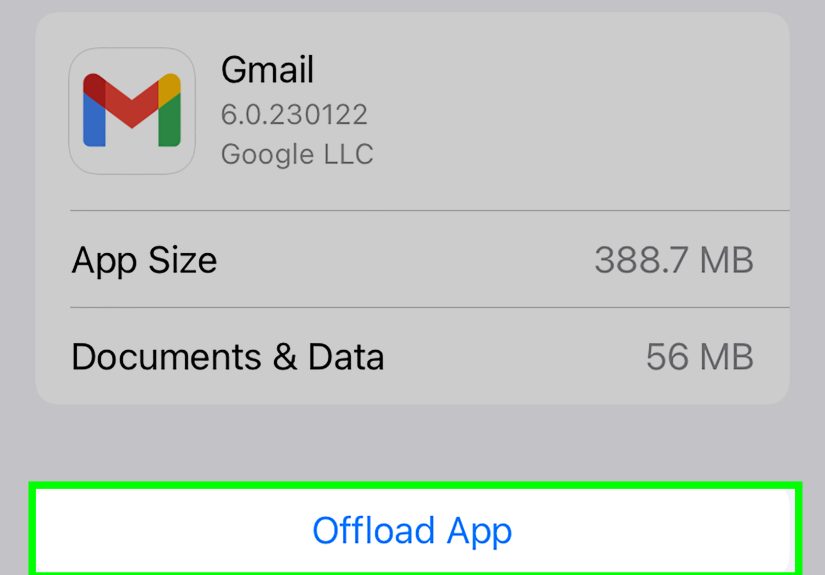
To manually offload an app:
- Open Settings.
- Tap General.
- Tap iPhone Storage or iPad Storage.
- Select the app you want to offload.
- Tap Offload App.
This method is ideal for apps you rarely use but do not want to fully delete. You choose the app. You choose the timing. Your iPhone does not get to play storage manager behind the curtain.
Why Apps Still Look Missing After You Turn the Feature Off
If you turned off Offload Unused Apps but still see cloud icons, do not panic. The setting only stops future automatic offloading. It does not reverse what already happened.
You may also be confusing offloaded apps with apps removed from the Home Screen. Since the App Library exists, an app can be installed but not visible on your main Home Screen pages. To check, swipe left until you reach the App Library, then search for the app by name.
If the app appears without a cloud icon, it is installed. If it appears with a cloud icon, it needs to be downloaded again. If it does not appear at all, it may have been deleted or never installed on that device.
Storage Tips If You Turn Off Offload Unused Apps
Turning off Offload Unused Apps means your device will no longer automatically recover storage this way. That is fine, but you should manage storage another way so your iPhone does not become a tiny glass suitcase packed with digital socks.
Check iPhone Storage Regularly
Go to Settings > General > iPhone Storage. This screen shows what is taking up space, including apps, photos, media, messages, and system data. It may also provide recommendations.
Look for unusually large apps. Social media apps, streaming apps, podcast apps, messaging apps, and games can quietly collect cached files, downloads, videos, and attachments.
Delete Offline Downloads
Music, movies, podcasts, maps, and streaming videos can eat storage quickly. If you downloaded an entire season of a show for one flight and forgot about it, your iPhone remembers. Unfortunately, it remembers in gigabytes.
Open your streaming, music, podcast, and map apps and remove downloads you no longer need.
Review Large Message Attachments
Photos, videos, GIFs, voice messages, and files in Messages can add up over time. In iPhone Storage, you may see recommendations for reviewing large attachments. Deleting old attachments can free space without removing important apps.
Use Cloud Storage Carefully
iCloud Photos, Google Photos, Dropbox, OneDrive, and other cloud services can help reduce local storage pressure. However, always understand what is stored locally and what is stored in the cloud before deleting anything. “I thought it was backed up” is a sentence nobody wants to say at midnight.
Should You Keep Offload Unused Apps On or Off?
There is no one-size-fits-all answer. Keep Offload Unused Apps on if you often run out of storage and do not mind reinstalling apps later. Turn it off if you want apps to stay ready, travel often, rely on occasional-use apps, or dislike surprises.
For many users, the smartest approach is to turn off automatic offloading and manually offload apps when needed. This gives you storage control without letting your iPhone decide that the hotel app you need tonight is “unused.”
Common Problems and Fixes
I Do Not See Offload Unused Apps in Settings
Use the search bar inside Settings. Swipe down from the top of the Settings screen and type Offload Unused Apps. On newer iOS versions, check Settings > Apps > App Store. On older versions, check Settings > App Store.
The Toggle Is Off, but My App Still Has a Cloud Icon
The app was probably offloaded before you disabled the setting. Tap the icon to reinstall it. After that, it should remain installed unless you manually offload or delete it.
An Offloaded App Will Not Reinstall
Check your internet connection, Apple Account, available storage, and App Store access. If the app has been removed from the App Store or is no longer compatible with your device, it may not reinstall.
Will Turning This Off Delete Anything?
No. Turning off Offload Unused Apps does not delete apps or data. It simply stops your iPhone or iPad from automatically offloading unused apps in the future.
Experience Notes: What It Is Like to Live With This Setting
The first time many people notice Offload Unused Apps, it is not during a calm storage-cleaning session with tea and good lighting. It is usually during a mildly chaotic moment. You tap an app you absolutely need, and instead of opening, it starts downloading. Suddenly, your helpful iPhone feels like an assistant who cleaned your desk by hiding your passport.
One common experience is with travel apps. You may only use an airline app a few times a year, so iOS sees it as unused. Then travel day arrives. You are standing in line, holding coffee, balancing luggage, and trying to pull up your boarding pass. The app icon is still there, which looks promising. Then you tap it and see the download wheel. That is the exact moment when “storage optimization” stops sounding fancy and starts sounding personal.
Another real-world example involves banking and authentication apps. Some people do not open certain finance apps every week, especially if they mostly use desktop banking. But when they need to approve a transaction, check a card, or verify a login, speed matters. If the app has been offloaded, reinstalling it may take time. In some cases, you may also need to sign in again, confirm your identity, or wait for security checks. That is not always a disaster, but it is rarely convenient.
Parents often run into this with school, daycare, sports, or medical portal apps. These apps may sit untouched for long stretches, then suddenly become important when a form, schedule, prescription, appointment, or emergency message appears. Automatic offloading does not understand emotional urgency. It only sees usage patterns and storage pressure.
On the other hand, some users love the feature. If you own a lower-storage iPhone, Offload Unused Apps can be a quiet lifesaver. It can free space without forcing you to delete photos, messages, or important files. For people who download lots of apps and forget about them, automatic offloading can keep the device from becoming a crowded app museum.
The best personal strategy is to match the setting to your lifestyle. If your phone is mostly used at home, you have reliable Wi-Fi, and you do not mind waiting for apps to reinstall, keeping the feature on may be fine. If you travel, use apps for work, rely on spotty mobile data, or want every app to open instantly, turning it off is probably the better move.
A practical habit is to review storage once a month. Open iPhone Storage, sort through large apps, delete downloads, clear unnecessary media, and manually offload apps you truly do not need right now. This routine takes a few minutes and prevents your phone from making surprise decisions later.
Another useful habit is to reinstall important offloaded apps before trips, appointments, or events. Check travel apps, ticket apps, wallet-related apps, medical apps, navigation apps, and communication tools. If you see a cloud icon, tap it while you are still on Wi-Fi. Future you, standing in a noisy airport or parking lot, will be grateful.
In short, Offload Unused Apps is not a bad feature. It is just a feature that works best when you understand it. Turn it off if you value readiness over automatic storage savings. Leave it on if you value space and do not mind the occasional reinstall. Either way, the winning move is knowing where the toggle lives and checking it before your iPhone starts spring-cleaning without supervision.
Conclusion
Turning off Offload Unused Apps is quick, but it can save you from plenty of small headaches. Open Settings, go to Apps and App Store, then switch Offload Unused Apps off. On older iOS versions, you may find the setting directly under App Store.
The feature is useful when storage is tight because it removes unused apps while keeping their data. But if you need apps to stay installed and ready, disabling automatic offloading is the smarter choice. You can still manually offload individual apps later, which gives you storage control without surprise cloud icons appearing at the worst possible moment.
Your iPhone should help you manage storage, not make you negotiate with Wi-Fi at the airport gate. With this setting turned off, your apps stay where you left them: installed, ready, and not mysteriously “on a break.”