Table of Contents >> Show >> Hide
- Why Minecraft Pauses When You Tab Out
- How to Stop Minecraft From Pausing When Tabbing Out: 7 Tips
- 1. Press F3 + P in Minecraft Java Edition
- 2. Edit the options.txt File for a More Permanent Fix
- 3. Use Windowed or Borderless Windowed Mode
- 4. Open Your Inventory, Chat, or a Container Before Tabbing Out
- 5. Do Not Use the Escape Menu if You Want the World to Keep Running
- 6. Understand the Difference Between Single-Player, Multiplayer, LAN, and Servers
- 7. Troubleshoot Laptop Keys, Mods, Bedrock Edition, and Launchers
- Quick Fix Checklist
- Common Mistakes That Make Minecraft Keep Pausing
- Extra Experience: What Players Usually Learn After Fixing Auto-Pause
- Conclusion
Editor’s note: This guide focuses mainly on Minecraft: Java Edition, where the hidden “pause on lost focus” option can be toggled with F3 + P or edited in options.txt. Minecraft Bedrock Edition, modded launchers, and some laptop keyboards may behave differently. Key behavior was checked against Minecraft Java hotkey documentation, Minecraft Wiki debug-screen references, Mojang issue discussions, and current community troubleshooting reports.
Few Minecraft moments are more awkward than building an automatic farm, tabbing out for one innocent second, and returning to find that absolutely nothing happened. No crops grew. No smelter finished. Your carefully designed “genius” AFK setup sat there like a decorative toaster. If Minecraft pauses when you Alt + Tab, click another monitor, or switch to a browser, the problem is usually a setting called pause on lost focus.
The good news? In Minecraft: Java Edition, stopping Minecraft from pausing when tabbing out is usually very easy. The even better news? You do not need a complicated modpack, a command block shrine, or a suspicious download from a website that looks like it was built during the woolly mammoth era. In most cases, you can fix it with a keyboard shortcut or a quick text-file edit.
This guide explains how to stop Minecraft from pausing when tabbing out, why it happens, what works in Java Edition, what may not work in Bedrock Edition, and how to troubleshoot common problems. Whether you are running an iron farm, waiting for copper to oxidize, hosting a LAN world, or simply trying to watch a tutorial while mining in a straight line like a responsible adult, these seven tips will help keep your world moving.
Why Minecraft Pauses When You Tab Out
Minecraft pauses when it loses focus because the game assumes that, if you are not actively controlling the window, you might want time to stop. In single-player, that can be helpful. Nobody wants to Alt + Tab to answer a message, return two minutes later, and discover that a baby zombie has filed a complaint directly into their ankles.
However, that safety feature becomes annoying when you want the game to keep running in the background. Many players tab out to check coordinates, watch tutorials, use Discord, manage a music playlist, or monitor an AFK farm. In those cases, auto-pause feels less like protection and more like Minecraft standing behind you with a clipboard saying, “No multitasking allowed.”
In Java Edition, this behavior is controlled by the hidden pauseOnLostFocus option. You can toggle it in-game with F3 + P, or you can manually edit the options.txt file. In Bedrock Edition, the situation is less flexible, especially on Windows, consoles, and mobile devices, where the operating system may suspend or disconnect the app when it moves into the background.
How to Stop Minecraft From Pausing When Tabbing Out: 7 Tips
1. Press F3 + P in Minecraft Java Edition
The fastest fix is the built-in Java Edition shortcut: F3 + P. This toggles “pause on lost focus” on or off. When it is off, Minecraft should continue running after you Alt + Tab, click another monitor, or switch to another app.
Here is how to do it:
- Open Minecraft: Java Edition.
- Load into your single-player world.
- Press and hold F3.
- While holding F3, press P.
- Look for a small message confirming that pause on lost focus has been disabled.
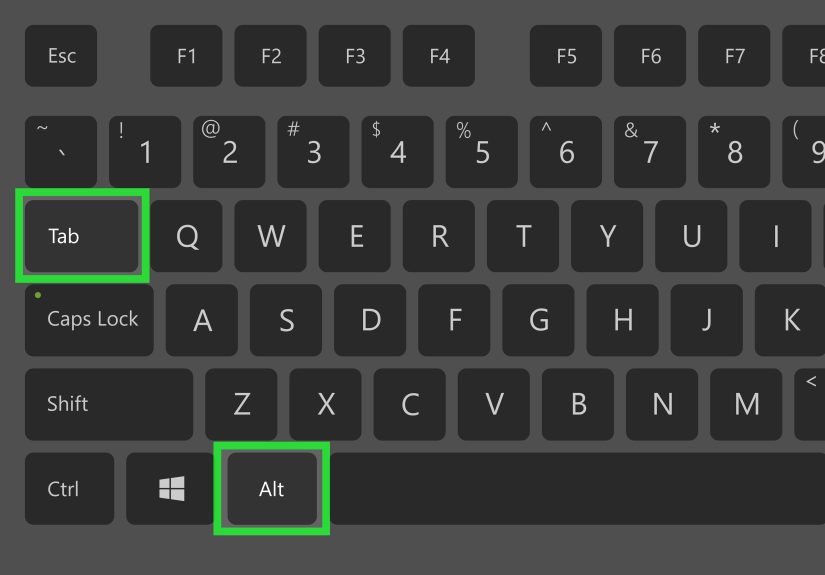
- Alt + Tab out of the game and return after a few seconds to test it.
If the setting worked, mobs should keep moving, furnaces should keep smelting, and farms should continue running while Minecraft is not the active window. Congratulations: your wheat farm has been promoted from “frozen screensaver” to “actual machine.”
One important detail: this shortcut is mainly for Minecraft Java Edition. Bedrock Edition does not use Java’s F3 debug shortcut system in the same way, so pressing F3 + P there may do nothing useful.
2. Edit the options.txt File for a More Permanent Fix
If F3 + P does not stick, or if you prefer a more direct approach, edit Minecraft’s options.txt file. This file stores many Java Edition settings, including the pause-on-focus-loss option.
On Windows, the usual Java Edition location is:
On macOS, it is usually inside:
On Linux, it is often found here:
Before editing, close Minecraft completely. Then open options.txt with a basic text editor such as Notepad, TextEdit in plain-text mode, or any code editor. Look for this line:
Change it to:
Save the file, reopen Minecraft, load your world, and test Alt + Tab again.
This method is especially useful if your keyboard shortcut is blocked, your laptop requires strange function-key gymnastics, or your launcher profile keeps resetting the option. If you use multiple Minecraft installations or modded launchers, make sure you are editing the correct instance folder. MultiMC, Prism Launcher, CurseForge, and other launchers may store files in separate profile directories, not always in the default .minecraft folder.
3. Use Windowed or Borderless Windowed Mode
Fullscreen mode can make Alt + Tab behavior feel clunky. On some systems, switching away from fullscreen Minecraft causes delays, black screens, minimized windows, or weird focus behavior. While fullscreen itself is not always the cause of pausing, changing display mode can make multitasking much smoother.
In Java Edition, press F11 to toggle fullscreen. You can also go to:
Turning fullscreen off places Minecraft in a normal window. From there, you can resize it, move it to another monitor, or use your browser more comfortably. Many players prefer windowed mode when running farms, checking guides, using spreadsheets for villager trades, or watching “simple starter base” videos that somehow require 9,000 blocks of quartz.
If you want the visual feel of fullscreen without the same switching issues, consider using borderless windowed mode through your graphics settings, launcher options, or trusted utility tools. Just remember that not every setup is the same. A single-monitor laptop, dual-monitor desktop, and modded client can all behave differently.
4. Open Your Inventory, Chat, or a Container Before Tabbing Out
Here is a classic Minecraft trick: open a non-pausing screen, such as your inventory, chat, chest, furnace, crafting table, or another container, and then tab out. In many Java Edition situations, this keeps the world active without relying on the Escape menu.
This works because not every menu pauses the game. The Escape menu pauses single-player. Your inventory usually does not. That is why a creeper can still ruin your afternoon while you are lovingly rearranging your backpack. Minecraft does not pause just because you are staring at a stack of cobblestone and wondering where your diamonds went.
Try this:
- Stand somewhere safe.
- Open your inventory with E, or open a chest or furnace.
- Alt + Tab to another window.
- Return after a few seconds and check whether time continued.
This is not as clean as disabling pause on lost focus, but it is useful when you are on a temporary setup, playing on someone else’s computer, or troubleshooting why F3 + P is not working. It is also great for quick tasks, such as copying coordinates from a guide, changing music, or answering one message before your friends accuse you of “AFK mining emotionally.”
5. Do Not Use the Escape Menu if You Want the World to Keep Running
In single-player Java Edition, pressing Esc opens the Game Menu, and that menu pauses the world. Even if you disable pause on lost focus, the Escape menu can still stop the game because it is an intentional pause screen, not simply a lost-focus event.
This distinction matters. “Pause on lost focus” means Minecraft pauses because the window is no longer active. The Escape menu is different: you are directly telling the game to pause. It is like telling a dog to sit and then being shocked that it sat. Minecraft is only following orders.
If your goal is to keep the world active, avoid tabbing out from the Escape menu. Instead, tab out while actively in the world, while the inventory is open, or after turning off pause on lost focus with F3 + P.
This is especially important for AFK setups. If you walk into your farm, press Esc, and then leave for ten minutes, the farm probably will not run. The mobs will not move, crops will not grow, and your redstone clock will sit there questioning your leadership. Use F3 + P or pauseOnLostFocus:false, then tab out without opening the pause menu.
6. Understand the Difference Between Single-Player, Multiplayer, LAN, and Servers
The way Minecraft behaves depends heavily on where the world is running. In single-player Java Edition, your computer runs both the client and the local world. If the game pauses, the world pauses. In multiplayer, the server keeps running even if your client is minimized, tabbed out, or sitting at a menu. That is why your friend can keep being attacked by skeletons while you are busy changing a song.
If you are hosting a LAN world from your own single-player session, the situation can become more confusing. Other players may depend on your local game staying active. If your game pauses or disconnects, their experience may freeze or fail too. If you want a world to keep running reliably while you multitask, a dedicated server or Realm is often cleaner than hosting from a paused local session.
For serious AFK farms, community servers, family worlds, or long-running survival projects, consider these options:
- Use a dedicated Java server if you want the world to keep running independently.
- Use Realms if you want an easier hosted option without managing server files.
- Avoid relying on a paused LAN host if other players need the world to stay active.
- Check server AFK rules before leaving farms running for long periods.
Also remember that chunks must be loaded for most farms to work. If your character is too far away, or if the server unloads chunks, disabling pause will not magically keep every machine in the world active. Minecraft is powerful, but it is not a wizard with unlimited RAM and emotional patience.
7. Troubleshoot Laptop Keys, Mods, Bedrock Edition, and Launchers
If F3 + P does not work, do not panic. Minecraft is probably not haunted. Usually, the problem is your keyboard, launcher, edition, or mod setup.
Try Fn + F3 + P on laptops
Many laptops use function keys for brightness, volume, keyboard lighting, or other hardware controls. If pressing F3 + P does nothing, try:
You can also check whether your keyboard has an Fn Lock key. On some laptops, enabling Fn Lock makes F1–F12 behave like normal function keys instead of media buttons.
Use F3 + Q to check debug shortcuts
In Java Edition, F3 + Q displays help for debug shortcuts. If that works, your F3 key is probably being recognized by Minecraft. If it does not work, your keyboard or operating system may be intercepting the key before Minecraft sees it.
Check modded clients and launchers
Some modpacks, launchers, or performance mods can affect focus behavior, fullscreen behavior, keyboard shortcuts, or how the game handles background input. If the vanilla method does not work, test a clean Minecraft Java profile. If the clean profile works, your modded setup is the likely culprit.
Know Bedrock Edition’s limits
Minecraft Bedrock Edition can behave differently from Java Edition. On Windows, mobile, and console platforms, tabbing out may cause the app to pause, suspend, disconnect, or return to a menu depending on the device, operating system, and current version. The Java pauseOnLostFocus setting does not provide the same simple universal fix for Bedrock.
If you play Bedrock and need a world to stay active for other players, the most reliable solution is usually a dedicated server, Realm, or another always-on host rather than depending on the game client continuing in the background.
Quick Fix Checklist
If you just want the shortest path to success, use this checklist:
- Playing Java Edition? Press F3 + P.
- Shortcut not working? Try Fn + F3 + P.
- Need a permanent fix? Edit
options.txtand setpauseOnLostFocus:false. - Fullscreen acting weird? Press F11 and try windowed mode.
- Do not tab out from the Escape menu if you want the world to keep running.
- For quick tab-outs, open inventory, chat, or a container first.
- For Bedrock or LAN hosting, consider a Realm or dedicated server.
Common Mistakes That Make Minecraft Keep Pausing
Editing the Wrong options.txt File
This happens all the time with modded launchers. You edit the default .minecraft file, reopen your modpack, and nothing changes because the modpack uses a different instance folder. If you use Prism Launcher, MultiMC, CurseForge, ATLauncher, or another launcher, open the instance folder from inside that launcher and edit the options.txt file there.
Leaving Minecraft on the Pause Menu
Remember: disabling pause on lost focus does not mean the Escape menu stops being a pause menu. If you press Esc, you are still pausing single-player. To keep the world moving, leave the game active or use inventory/chat/container screens instead.
Expecting Every Farm to Work While Tabbing Out
Disabling pause keeps the game running, but Minecraft mechanics still apply. Crops need random ticks. Mob farms need spawn conditions. Furnaces need loaded chunks. Villagers need proper schedules and pathfinding. If your farm does not work after disabling pause, the issue may be the farm design, simulation distance, chunk loading, or server rulesnot Alt + Tab.
Assuming Java and Bedrock Work the Same Way
They do not. Java Edition gives players more direct access to hidden settings, debug shortcuts, and editable files. Bedrock Edition is more controlled by platform behavior, especially on mobile, console, and Windows app environments. If someone says “just press F3 + P,” they are probably talking about Java Edition.
Extra Experience: What Players Usually Learn After Fixing Auto-Pause
The first thing most players learn after stopping Minecraft from pausing when tabbing out is that the fix feels almost too easy. You press F3 + P, tab out, check a browser, return, and suddenly your furnace has actually smelted items. It feels like discovering that your house had a secret basement the entire time. For Java Edition players, this hidden shortcut is one of those quality-of-life features that should probably be easier to find in the normal settings menu.
In real gameplay, the biggest benefit is smoother multitasking. Many Minecraft players keep a wiki, seed map, building tutorial, Discord call, music app, or YouTube video open while playing. Before disabling auto-pause, every switch away from the game interrupts the rhythm. You tab out to check how many blocks a beacon pyramid needs, return, and the world has politely done nothing. After changing the setting, Minecraft feels more like a living world and less like a stage play where everyone freezes when you stop looking.
AFK farms are where the difference becomes obvious. Iron farms, crop farms, mob grinders, wool farms, honey farms, and smelting arrays often require time. If your single-player world pauses every time you click another window, those systems cannot do their job. Once pause on lost focus is disabled, you can stand in the correct AFK spot, keep chunks loaded, and handle light tasks on your computer while the farm runs. It is still smart to check your setup safely, especially around hostile mobs, lava, powdered snow, or anything built by a redstone genius who labels nothing.
That said, this setting is not magic. If you walk too far away from a farm, the chunks may unload. If your simulation distance is low, some processes may stop outside range. If you are on a multiplayer server, the server may have AFK timers or rules against unattended farming. If you are in Bedrock Edition, the app may still pause, suspend, or disconnect depending on the platform. The fix solves one problem: Minecraft pausing because the window lost focus. It does not rewrite every game mechanic, server policy, or operating-system background rule.
Another practical lesson is that windowed mode often makes the whole experience nicer. Fullscreen Minecraft can be beautiful, but it is not always friendly to multitasking. Players with two monitors usually prefer windowed or borderless setups because they can click a browser, music player, chat window, or recording software without the game minimizing awkwardly. If you create videos, stream, or follow build tutorials, this can save a surprising amount of time.
Finally, experienced players learn to build a safe AFK area before trusting any background setup. Put yourself in a lit, enclosed spot. Block off hostile mobs. Avoid standing near open edges, lava, cactus, berry bushes, campfires, or wandering creepers with career ambitions. Test for five minutes before leaving the game running longer. The goal is to return to extra resources, not a death screen and a suspiciously happy skeleton wearing your armor.
Conclusion
Stopping Minecraft from pausing when tabbing out is simple in Java Edition once you know where the setting is hiding. Press F3 + P to toggle pause on lost focus, or edit options.txt and change pauseOnLostFocus:true to pauseOnLostFocus:false. For smoother multitasking, try windowed mode, avoid the Escape menu, open inventory or chat before quick tab-outs, and remember that Bedrock Edition does not always follow the same rules.
The best setup depends on your goal. For casual multitasking, F3 + P is usually enough. For AFK farms, combine the setting with safe positioning, loaded chunks, and a reliable farm design. For worlds that need to stay active for other players, use a dedicated server or Realm. Once configured correctly, Minecraft can keep running while you check a guide, change music, answer Discord, or admire your farm’s productivity like a proud blocky landlord.