Table of Contents >> Show >> Hide
- Why Discord Lowers Other App Volume on Windows
- Quick Fix: Turn Off Discord Attenuation
- Fix Windows Communications Settings
- Check the Windows Volume Mixer
- Disable Exclusive Mode for Your Audio Device
- Turn Off Audio Enhancements and Spatial Effects
- Check Discord Voice & Video Settings Beyond Attenuation
- Update or Reinstall Audio Drivers
- Restart Discord and Reset Voice Settings
- Test with Another Voice App
- Reinstall Discord as a Last Resort
- Best Settings to Stop Discord from Lowering App Volume
- Common Mistakes to Avoid
- Real-World Experience: What This Problem Feels Like and How People Usually Fix It
- Conclusion
Few things are more annoying than lining up the perfect playlist, opening your favorite game, joining a Discord voice channel, and suddenly realizing everything else on your Windows PC sounds like it has been pushed into a pillow. Your music fades. Your game audio shrinks. Your browser video starts whispering. Meanwhile, Discord is sitting there innocently, acting like it did not just turn your whole computer into a library.
If Discord on Windows keeps lowering the volume of other apps, the usual culprit is not a haunted headset or a secret goblin living inside your taskbar. Most of the time, it comes from one of two features: Discord Attenuation or the Windows Communications sound setting. Both are designed to make voices easier to hear during calls, but when they behave too aggressively, they can make games, Spotify, YouTube, browsers, and media players sound painfully quiet.
The good news is that you can usually fix the problem in a few minutes. This guide walks through the most reliable ways to stop Discord from lowering app volume on Windows 10 and Windows 11, plus extra troubleshooting steps for stubborn audio setups, gaming headsets, Realtek drivers, sound enhancement software, and volume mixer weirdness.
Why Discord Lowers Other App Volume on Windows
Discord includes a feature called attenuation. In plain English, attenuation means “lowering the volume of something.” Discord uses it to reduce other sounds when someone speaks in voice chat. The idea is helpful: your teammate says, “Watch out behind you,” and you actually hear it instead of getting emotionally body-slammed by explosions, music, and notification pings.
But attenuation can be too helpful. If the slider is set high, Discord may reduce the volume of other apps whenever people talk. This can affect games, streaming services, music apps, video players, and browsers. On top of that, Windows has its own “communications activity” feature that can lower other sounds when it detects a call. Discord, Zoom, Teams, Skype-style apps, and gaming voice chat tools can all trigger similar behavior depending on the system.
So when users ask, “Why does Discord lower my game volume?” or “Why does Discord make everything quiet on Windows?” the answer is usually one of these:
- Discord Attenuation is enabled.
- Windows Communications is set to reduce other sounds.
- The Windows Volume Mixer has saved a lower volume level for one app.
- An audio driver or headset utility is applying voice-call audio effects.
- Exclusive mode or sound enhancements are interfering with normal volume behavior.
Quick Fix: Turn Off Discord Attenuation
The first setting to check is Discord’s own attenuation slider. This is the most direct fix if Discord lowers the volume of games, music, or other apps only when people are speaking in a voice channel.
How to Disable Attenuation in Discord
- Open the Discord desktop app on Windows.
- Click the gear icon near your username to open User Settings.
- Select Voice & Video from the left menu.
- Scroll down until you find Attenuation.
- Move the attenuation slider all the way to 0%.
- Close settings and test your game, music, or browser audio again.
Setting attenuation to 0% tells Discord not to reduce the volume of other applications when someone talks. For most people, this single change solves the problem. It is the audio equivalent of telling Discord, “Thank you for your enthusiasm, but please stop touching my Spotify.”
Should You Turn Off Both Attenuation Options?
Depending on your Discord version, you may see options related to lowering the volume of other apps or lowering Discord while you speak. If your goal is to stop Discord from lowering other app volume, set the main attenuation slider to 0%. If there are extra toggles under the attenuation section, turn off anything that allows Discord to reduce other application sounds.
After making the change, leave and rejoin the voice channel. In some cases, Discord applies audio changes more cleanly after reconnecting to voice chat. If the issue continues, fully quit Discord from the system tray and reopen it.
Fix Windows Communications Settings
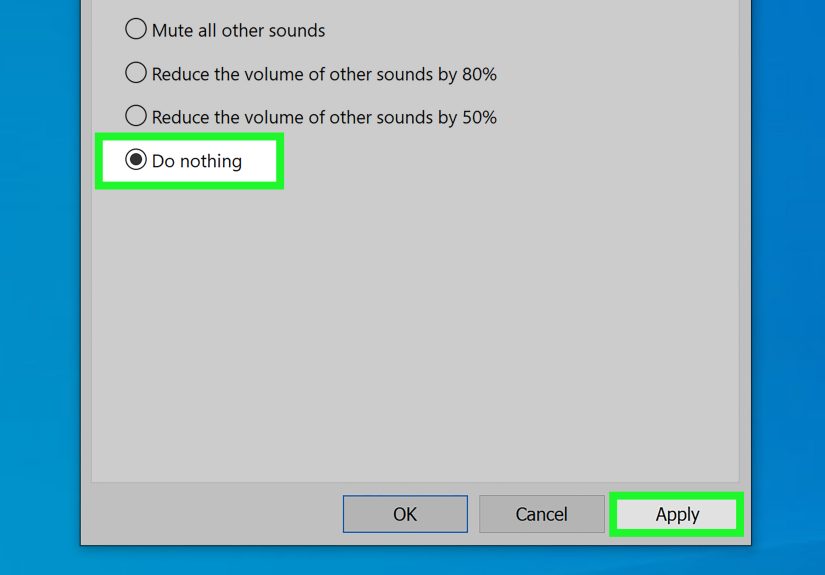
If Discord attenuation is already at 0% but your app volume still drops, Windows may be responsible. Windows includes a setting that automatically lowers other sounds when it detects communications activity. That setting can reduce volume by 50%, reduce it by 80%, mute other sounds, or do nothing.
For Discord users, the best option is usually Do nothing.
How to Set Windows Communications to Do Nothing
- Right-click the speaker icon in the Windows taskbar.
- Select Sound settings.
- Scroll down and choose More sound settings. On some systems, this opens the classic Sound window.
- Click the Communications tab.
- Under “When Windows detects communications activity,” select Do nothing.
- Click Apply, then OK.
- Restart Discord, and if needed, restart your PC.
This setting is one of the most common reasons Windows lowers app volume during Discord calls. When it is set to reduce other sounds by 80%, your games and music can suddenly feel like they are hiding under a blanket. Choosing “Do nothing” prevents Windows from automatically ducking your audio during voice activity.
Check the Windows Volume Mixer
Sometimes the problem is not active attenuation at all. Windows may have saved a lower volume level for an individual app. For example, Chrome, Spotify, Steam, a game, or Discord itself may be sitting at 20% in the Volume Mixer while your main system volume is at 80%. This makes it look like Discord is lowering app volume, even when the app is simply stuck at a reduced level.
How to Reset App Volume Levels in Windows 11
- Open Settings.
- Go to System > Sound.
- Select Volume mixer.
- Look under Apps.
- Raise the volume sliders for affected apps such as your browser, game, music player, or Discord.
- If available, click Reset to restore sound devices and volumes to recommended defaults.
On Windows 10, you can right-click the speaker icon and choose Open Volume mixer. Make sure every app you care about is set to a reasonable level. It sounds basic, but this is the computer-audio version of checking whether the lamp is plugged in. Embarrassing? Maybe. Effective? Absolutely.
Disable Exclusive Mode for Your Audio Device
Exclusive mode allows applications to take special control of an audio device. This can be useful for professional recording tools, but it can also create strange behavior with voice chat, games, and headset software. If Discord or another app seems to hijack audio levels, exclusive mode is worth checking.
How to Turn Off Exclusive Mode
- Right-click the speaker icon in the taskbar.
- Open Sound settings.
- Choose More sound settings.
- In the Playback tab, select your main headphones or speakers.
- Click Properties.
- Go to the Advanced tab.
- Uncheck Allow applications to take exclusive control of this device.
- Uncheck Give exclusive mode applications priority.
- Click Apply and OK.
Repeat the same process under the Recording tab for your microphone. This can help if your headset, mic, or audio driver treats Discord as a special call app and changes sound levels when voice chat starts.
Turn Off Audio Enhancements and Spatial Effects
Windows audio enhancements can improve sound in some cases, but they can also create muffled audio, volume dips, uneven loudness, and weird voice-priority behavior. Some PCs also come with extra audio tools such as Realtek Audio Console, Nahimic, Dolby Audio, DTS Sound, Waves MaxxAudio, ASUS Sonic Studio, or SteelSeries Sonar.
These tools may include features like smart volume, voice clarity, noise suppression, automatic leveling, or communication mode. Any of those can make Discord calls affect the volume of other apps.
How to Disable Enhancements in Windows
- Open Settings.
- Go to System > Sound.
- Select your output device.
- Find Audio enhancements and set it to Off.
- If you use spatial sound, temporarily set it to Off for testing.
If you use a gaming headset app, open that app and look for options related to chat mix, voice priority, automatic volume leveling, or ducking. Turn those off and test Discord again. Some headset software has a separate game/chat balance wheel or virtual audio devices, and one wrong setting can make your game sound like it moved three rooms away.
Check Discord Voice & Video Settings Beyond Attenuation
Attenuation is the main Discord setting, but it is not the only voice option that can affect how your audio feels. Discord also includes settings for input sensitivity, noise suppression, echo cancellation, automatic gain control, audio subsystem, and experimental voice features.
Recommended Discord Settings to Test
- Input Sensitivity: Turn off automatic input sensitivity and set the slider manually if Discord reacts too often to background noise.
- Noise Suppression: Try turning it off temporarily to test whether it affects audio behavior.
- Echo Cancellation: Disable it for testing if your output audio sounds muffled or unstable.
- Automatic Gain Control: Turn it off if your microphone or audio level changes unpredictably.
- Audio Subsystem: Try switching between Standard and Legacy if Discord voice behaves strangely.
These options mostly affect microphone and voice processing, but they can still help diagnose audio conflicts. Change one setting at a time, then test. If you change everything at once, troubleshooting becomes less “smart technician” and more “throwing spaghetti at the sound card.”
Update or Reinstall Audio Drivers
If Discord keeps lowering app volume even after changing Discord and Windows settings, your audio driver may be involved. Realtek, USB headset drivers, Bluetooth drivers, and motherboard audio utilities can all influence how Windows handles communication apps.
How to Update Your Audio Driver
- Right-click the Start button.
- Select Device Manager.
- Expand Sound, video and game controllers.
- Right-click your audio device.
- Select Update driver.
- Choose Search automatically for drivers.
If updating does not help, visit your PC, motherboard, or headset manufacturer’s support page and download the latest official audio driver. For laptops, the manufacturer’s driver is often better than a generic one because it may include device-specific tuning.
You can also test the generic Windows audio driver, but do that carefully. If the generic driver fixes the issue, your branded driver or audio suite was probably applying unwanted call-related effects. If it makes things worse, roll back to the manufacturer driver.
Restart Discord and Reset Voice Settings
Discord sometimes needs a clean restart after audio setting changes. Closing the window is not always enough because Discord may continue running in the system tray.
How to Fully Restart Discord
- Click the small arrow in the Windows taskbar to show hidden tray icons.
- Right-click the Discord icon.
- Select Quit Discord.
- Open Discord again from the Start menu or desktop shortcut.
If the problem continues, go to User Settings > Voice & Video and use Reset Voice Settings. This returns Discord voice settings to default, which can clear old, conflicting, or experimental settings. After resetting, set attenuation back to 0% again and test your apps.
Test with Another Voice App
A simple way to identify the source of the problem is to test another voice app. Try joining a call in Zoom, Microsoft Teams, Steam voice chat, Xbox Game Bar, or another communication app. Then play music or a YouTube video in the background.
If other apps also lower your system volume, the issue is probably Windows, your audio driver, or headset software. If only Discord causes the volume drop, focus on Discord settings, voice reset, app reinstall, or Discord-specific audio conflicts.
Reinstall Discord as a Last Resort
If nothing works, reinstalling Discord can remove corrupted settings or outdated app files. Before doing this, quit Discord completely.
How to Reinstall Discord on Windows
- Open Settings > Apps.
- Find Discord.
- Select Uninstall.
- Restart your PC.
- Download and install the latest Discord desktop app.
- Open Discord and immediately set attenuation to 0%.
Reinstallation is not usually necessary, but it can help when Discord updates, cached settings, or old configuration files cause strange sound behavior.
Best Settings to Stop Discord from Lowering App Volume
Here is a practical setup that works well for most Windows users:
| Setting | Recommended Choice | Why It Helps |
|---|---|---|
| Discord Attenuation | 0% | Stops Discord from lowering other app audio when people speak. |
| Windows Communications | Do nothing | Prevents Windows from reducing volume during calls. |
| Volume Mixer | Reset or manually raise app levels | Fixes apps stuck at low volume. |
| Exclusive Mode | Off | Prevents apps from taking special control of audio devices. |
| Audio Enhancements | Off for testing | Removes driver effects that may cause volume dips. |
| Headset Chat Mix | Balanced or disabled | Stops headset software from prioritizing voice over game sound. |
Common Mistakes to Avoid
Only Changing Discord Volume
Turning Discord down in the Volume Mixer does not fix attenuation. It only makes Discord quieter. If the problem is Discord lowering other apps, you need to change attenuation or Windows communications settings.
Forgetting the System Tray
Discord can keep running after you close the main window. Always quit it from the system tray when testing audio changes.
Ignoring Headset Software
Many gaming headsets create separate “Game” and “Chat” audio devices. If your game is routed through the wrong channel, voice chat may overpower everything else. Check your headset app and Windows default output device.
Changing Too Many Settings at Once
Make one change, test, then move to the next. This helps you identify the real fix instead of creating a mystery casserole of audio settings.
Real-World Experience: What This Problem Feels Like and How People Usually Fix It
In everyday use, Discord lowering app volume usually shows up at the worst possible moment. You may be in a competitive match, listening for footsteps, when a friend joins voice chat and suddenly the game becomes faint. Or you might be watching a tutorial while sitting in a Discord call, only for the browser volume to drop every time someone laughs, coughs, breathes near the microphone, or begins a passionate speech about what to order for dinner.
The first instinct is often to raise the system volume. That works for about twelve seconds, right up until someone speaks again and the audio drops back down. Then users start raising the volume inside the game, inside Spotify, inside YouTube, inside Windows, and maybe inside their soul. Eventually, every slider is in a different place, Discord is still doing its tiny audio magic trick, and nobody remembers what “normal volume” used to sound like.
From a practical troubleshooting perspective, the best experience is to start with the obvious fix: Discord attenuation. It is simple, fast, and directly related to the symptom. If turning attenuation to 0% solves the issue, you are done. No driver archaeology required. You can go back to gaming, streaming, studying, or pretending to study while your friends argue in voice chat.
When attenuation does not solve it, the Windows Communications tab is the next big win. Many users forget this setting exists because it lives in the older Sound control panel rather than the modern Windows Settings layout. It can feel slightly hidden, like Windows put it in a drawer labeled “Things You Will Only Find After Googling for 45 Minutes.” But once you set it to “Do nothing,” the system usually stops treating Discord like an old-fashioned phone call that requires every other sound to bow respectfully.
For gaming headset owners, the experience can be more complicated. Apps like SteelSeries Sonar, Logitech G Hub, Razer Synapse, Corsair iCUE, Nahimic, Dolby, and Realtek utilities can add virtual audio devices and chat-mix controls. These tools are useful when configured correctly, but confusing when Windows sends your game to one device and Discord to another. A physical chat-mix dial can also make game audio seem broken when it is simply turned toward the chat side. Before blaming Discord, check whether your headset has a balance wheel or software mixer.
Another common experience is that the issue seems fixed, then returns after a reboot. That often points to startup audio utilities or saved mixer levels. In that case, open Task Manager, review startup apps, and temporarily disable unnecessary audio tools. Then reset the Windows Volume Mixer and test again. If the volume stays stable after a clean restart, one of those background utilities was probably meddling.
The most reliable long-term setup is boring, and that is a compliment. Set Discord attenuation to 0%, set Windows Communications to “Do nothing,” keep app volumes balanced in Volume Mixer, avoid unnecessary sound enhancements, and make sure your headset software is not automatically prioritizing voice chat. Once configured, Discord should behave like a good guest at the audio party: present, useful, and not randomly turning down everyone else.
Conclusion
To stop Discord on Windows from lowering app volume, begin with the two most important fixes: set Discord Attenuation to 0% and change Windows Communications behavior to Do nothing. These two settings solve the majority of cases because they directly control the features that reduce other sounds during voice activity.
If the issue continues, check the Windows Volume Mixer, disable exclusive mode, turn off audio enhancements, review headset chat-mix settings, update your audio drivers, and restart Discord completely. The problem can feel mysterious, but it is usually just one setting trying way too hard to be helpful. Once you tame it, your game audio, music, browser videos, and Discord voice chat can finally coexist peacefullylike roommates who learned how to label their food in the fridge.