Table of Contents >> Show >> Hide
- Why a Deleted File Might Not Be in the Recycle Bin
- First Rule of File Recovery: Stop Using the Drive
- Step 1: Search for the File Before You Attempt Recovery
- Step 2: Check Built-In Backup and Version History Options
- Step 3: Use Windows File Recovery for Files Missing from the Recycle Bin
- Step 4: Try Reputable Recovery Software If Built-In Tools Fail
- Step 5: Know When Professional Data Recovery Is the Smarter Move
- What Not to Do When a File Is Deleted
- How to Improve Your Chances Next Time
- Common File Recovery Scenarios
- Experience and Real-World Lessons From File Recovery
- Final Thoughts
You delete a file, reach for the Recycle Bin like a calm and responsible adult, and then discover… nothing. Empty. A digital ghost town. At this point, your heartbeat speeds up, your coffee tastes bitter, and your brain starts replaying every bad decision you’ve ever made since 2009.
The good news is that a deleted file that is not in the Recycle Bin is not always gone forever. In many cases, it is still recoverable if you act quickly and avoid making things worse. The trick is knowing what to do first, what tools to trust, and what mistakes can turn a recoverable file into a permanent farewell letter.
In this guide, you’ll learn how to recover a deleted file that’s not in the Recycle Bin on Windows and Mac, how cloud storage can save your bacon, when recovery software makes sense, and when it is time to call in the data-recovery cavalry. We’ll also cover real-world experiences and practical recovery scenarios, because file loss is never theoretical when it’s your tax return, wedding photo, or final draft of anything.
Why a Deleted File Might Not Be in the Recycle Bin
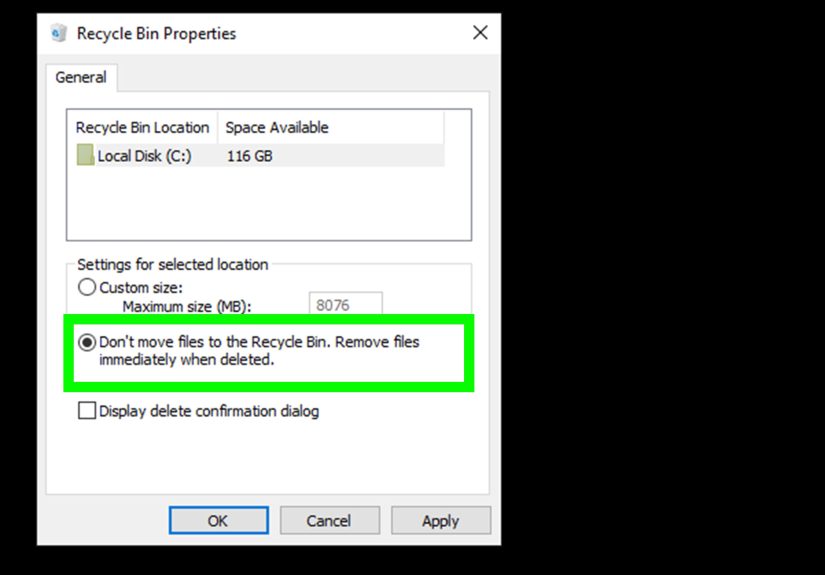
Before you assume your computer has turned against you, it helps to know why files sometimes skip the Recycle Bin altogether. The most common reason is Shift + Delete, which permanently removes a file instead of sending it to the Recycle Bin. Other times, the file was deleted from an external drive, USB flash drive, SD card, network location, or cloud-synced folder with its own deletion rules.
Another possibility is that the Recycle Bin was emptied, storage cleanup tools ran automatically, or the file was deleted inside an app that manages its own trash or version history. In plain English: your file may still exist somewhere, just not where you expected it to wave hello.
First Rule of File Recovery: Stop Using the Drive
If the missing file was stored on your internal drive, your first job is beautifully unglamorous: stop using that drive as much as possible. Do not download random tools, save new files, move huge folders around, or start a cleaning spree like you’re starring in a productivity documentary.
When a file is deleted, the operating system often marks that space as available rather than instantly scrubbing the data. That means the file may still be recoverable until new data overwrites it. Every fresh save, install, screenshot, browser cache, and “let me just quickly export this PDF” can reduce your odds.
If possible, use another computer to research your next steps. If you need recovery software, install it on a different drive or run it from external media. Think of the deleted file as trapped under thin ice: stomping around is not a rescue strategy.
Step 1: Search for the File Before You Attempt Recovery
Yes, really. Start with the boring stuff first. Many “deleted” files are actually moved, renamed, or saved to a folder you forgot existed.
On Windows
Open File Explorer and search by:
- file name or part of the name
- file type, such as
*.docx,*.jpg, or*.pdf - date modified
- common folders like Desktop, Documents, Downloads, and Pictures
On Mac
Use Spotlight or Finder search. Filter by kind, last opened date, and file extension. Also check the Trash, iCloud Drive, and the app that created the file. Some apps keep autosaved or recently edited versions that are easier to restore than doing a full-blown forensic rescue.
This step sounds basic, but it saves a surprising number of people from a full emotional collapse. Sometimes the file is not lost. It’s just hiding with the confidence of a cat under a couch.
Step 2: Check Built-In Backup and Version History Options
If the file really is gone, your next move is to check backup tools and version history. This is where modern systems occasionally redeem themselves.
Windows: File History and Previous Versions
If you previously turned on File History, you may be able to restore an earlier copy of the missing file or folder. Open the folder where the file used to live, right-click it if needed, and look for restore or previous-version options. You can also open File History from Control Panel and browse backed-up versions.
This works especially well for documents, photos, and folders you revise often. If you accidentally deleted a spreadsheet from your Documents folder, File History might hand you a time machine without requiring any sci-fi soundtrack.
Mac: Time Machine
On a Mac, Time Machine is your best friend if it was set up before disaster struck. Open the folder where the file was originally stored, launch Time Machine, go back through snapshots, and restore the missing file. You can even recover older versions of documents, not just the latest copy.
If you use a Mac and you do not use Time Machine, this is your gentle reminder that future-you deserves better.
Cloud Storage Can Save the Day
If your file lived inside a synced folder, check the cloud service before doing anything more dramatic.
OneDrive may have the file in its online Recycle Bin or inside version history. Google Drive may keep deleted files in Trash for a limited period. Dropbox offers deleted-file recovery and version history. iCloud Drive and Adobe Creative Cloud can also keep recently deleted items or earlier versions, depending on the file and account type.
This matters because cloud recovery is cleaner than disk recovery. You are restoring a known file record, not trying to reconstruct scraps of deleted data like a digital archaeologist.
Step 3: Use Windows File Recovery for Files Missing from the Recycle Bin
If you’re on Windows and backups did not save you, Windows File Recovery is one of the most useful built-in options. It is a Microsoft command-line tool designed for recovering files deleted from local storage devices, including internal drives, external drives, and USB devices.
It is not glamorous. It will not hold your hand. It looks like something built for people who unironically enjoy command prompts. But it can work.
Basic Rules Before You Run It
- Recover files to a different drive from the source drive.
- Use it as soon as possible after deletion.
- Know the original folder, file type, or part of the name if you can.
Example Commands
To recover a deleted Documents folder from drive C: to drive E:
To search for deleted PDF and DOCX files:
If a simple scan does not find the file, try a deeper search:
The recovered files are usually placed in a new recovery folder on the destination drive. Recovery results can be messy, so expect some renamed files and imperfect folder structures. It is less like opening a neat filing cabinet and more like receiving a rescued box of papers from a windstorm.
Step 4: Try Reputable Recovery Software If Built-In Tools Fail
If built-in backups are unavailable and Windows File Recovery comes up empty, third-party recovery software may still help. The best tools scan the drive for deleted file records and file fragments, then attempt to restore them before they are overwritten.
When choosing software, look for tools with these qualities:
- read-only scanning options
- preview support for common file types
- clear recovery filters by file name, type, and date
- the ability to save recovered files to another drive
- a solid reputation and transparent pricing
Avoid anything that looks like a pop-up ad from 2007 yelling “URGENT PC RESCUE!!!” in neon colors. If the software homepage feels like it was designed during a sugar rush, that is a clue, not a feature.
Also, remember the golden rule: do not install recovery software on the same drive that lost the file. That is the data-recovery version of setting your own ladder on fire before climbing it.
Step 5: Know When Professional Data Recovery Is the Smarter Move
Sometimes DIY recovery is not the right play. If the drive is making clicking sounds, disappearing from your computer, showing corruption errors, or holding irreplaceable business or family files, consider a professional data recovery service.
This is especially true when:
- the drive has physical damage
- the computer was dropped or exposed to liquid
- the file system is severely corrupted
- recovery attempts have already failed
- the lost data is too important to gamble on a trial-and-error approach
Professional recovery can be expensive, but it can also be the difference between “I lost my draft” and “we recovered the only copy of our project files.” If the data matters more than the price, do not keep experimenting until you have accidentally converted a recoverable problem into an impossible one.
What Not to Do When a File Is Deleted
This part deserves its own spotlight, because people often lose files twice: first by accident, then by panicking.
- Do not save new files to the same drive.
- Do not install recovery tools on that drive.
- Do not download giant updates, games, or media.
- Do not defragment or “optimize” the drive while recovery is still possible.
- Do not reset, reinstall, or factory-restore the computer until you have tried file recovery.
- Do not restore recovered files to the original drive during the first attempt.
In other words, stop trying to “tidy things up.” This is not the moment for digital spring cleaning.
How to Improve Your Chances Next Time
The most effective file-recovery strategy starts before anything goes wrong. Painful, yes. True, also yes.
Use Automatic Backups
Turn on File History in Windows or Time Machine on Mac. This one habit can turn a catastrophe into a two-minute inconvenience.
Sync Important Files to the Cloud
OneDrive, Google Drive, Dropbox, iCloud Drive, and similar services can provide deleted-item recovery and version history. That safety net is worth using, especially for working files.
Keep a Second Backup
Cloud sync is helpful, but a separate backup drive is still wise. Sync mistakes, ransomware, and accidental deletions can spread faster than regret.
Name Files Clearly
Searching for Final_Final_ReallyFinal2.docx is already enough suffering. Make future recovery easier with meaningful file names and consistent folders.
Common File Recovery Scenarios
You Deleted a Word Document with Shift + Delete
Check File History, OneDrive, Office version history, and then Windows File Recovery. Search by *.docx and by filename fragments.
You Deleted Photos from a USB Drive
Do not keep using the USB drive. Use recovery software or Windows File Recovery, and save the results to your computer or a second external drive.
You Emptied the Recycle Bin Too Fast
Classic move. Check cloud sync folders first, then backup history, then scan the source drive with recovery software or Microsoft’s recovery tool.
Your File Was in a Cloud Folder
Log into the cloud service’s web dashboard. The web version often shows deleted files, restore queues, and older versions more clearly than the desktop app.
Experience and Real-World Lessons From File Recovery
People rarely search for “how to recover a deleted file that’s not in the Recycle Bin” on a calm, lovely afternoon. They search for it while sweating over a missing contract, a school project due in six hours, or a folder of photos that somehow vanished after a cleanup binge. And the stories tend to follow the same pattern.
One very common experience is the accidental keyboard shortcut disaster. Someone highlights the wrong folder, hits Shift + Delete out of habit, and only realizes what happened when the folder never appears in the Recycle Bin. The first reaction is usually panic. The second is a wild, unhelpful clicking spree. The people who recover their files most successfully are often the ones who stop touching the drive almost immediately and move straight to backup checks or recovery tools.
Another classic scenario involves external drives. A user cleans up a USB stick or SD card, assumes deleted items will be recoverable later, and then discovers that removable media often behaves differently. In these cases, recovery can still work, but only if the device is not heavily used afterward. Copying new vacation photos onto the same memory card right after deleting the old ones is basically like painting over the map you were trying to read.
Cloud-synced files create their own kind of confusion. Someone deletes a file on their desktop, then notices it disappears everywhere else too. That feels terrifying until they check the cloud service online and discover a Recently Deleted area, a Recycle Bin, or version history. This is why many file-loss stories end with a surprisingly anticlimactic sentence: “It was in Dropbox the whole time.” Humbling, yes. Better than permanent loss, also yes.
Office documents have another quirk: sometimes the easiest recovery is not undelete recovery at all, but version recovery. A user thinks the file is gone, but what really happened is that it was overwritten, synced badly, renamed, or replaced by an older copy. In that case, version history in Word, Excel, OneDrive, or another platform can be more useful than traditional recovery tools.
Then there are the painful lessons. People install recovery software directly onto the same drive they are trying to rescue from. They save recovered files back to the same disk. They run cleanup tools, OS resets, or factory restores before checking backup options. These mistakes do not always destroy recovery chances, but they definitely do not help. File recovery rewards patience, restraint, and a weirdly disciplined refusal to “just try one more thing” at random.
The best recovery experiences usually have one thing in common: a backup existed somewhere. Maybe it was Time Machine. Maybe File History. Maybe OneDrive quietly saved the day while the user spent months ignoring it. Whatever the source, backups turn file recovery from a rescue mission into a simple restore. That is not flashy advice, but it is the advice that saves the most tears.
So if you are dealing with a missing file right now, remember this: your situation may feel dramatic, but it is also very common. Start with search. Check backup and cloud history. Use recovery tools carefully. Avoid writing new data. And if the file matters enough, get professional help before experimenting yourself into a corner. Digital disasters love panic. Recovery loves patience.
Final Thoughts
If a deleted file is not in the Recycle Bin, do not assume it is gone forever. In many cases, you can still recover it by acting fast, avoiding further writes to the drive, checking built-in backups, reviewing cloud version history, and using recovery tools correctly. The difference between success and failure often comes down to the first ten minutes after deletion.
So take a breath, stop clicking everything in sight, and work through the options in order. Your file may still be there, waiting patiently while you stop making the situation worse. Which, honestly, is more grace than most lost files owe us.