Table of Contents >> Show >> Hide
If your Android home screen looks like a digital junk drawer, you’re not alone. The good news?
Learning how to move icons on Android is incredibly easy once you know where to tap, press, and drag.
Whether you’re on a Samsung Galaxy, Google Pixel, or another Android phone, the basics of rearranging
app icons are almost always the same: long-press, drag, and drop.
In this guide, we’ll walk through a simple 4-step method to move icons on Android, plus show you how
to tidy up your home screen with folders, favorites, and widgets. We’ll even add picture callouts so
you know exactly what should appear on screen at each stepperfect if you’re helping a less techy
friend or family member.
Before You Start: A Quick Look at Your Android Home Screen
Think of your Android home screen as your phone’s “front porch.” It’s where your most important app
icons, shortcuts, and widgets live. Behind that porch is your app drawer, which contains every app
you’ve installed, even if it’s not on the home screen yet. When you move icons on Android,
you’re usually rearranging what’s on the porch, not uninstalling anything.
Most Android phones share the same basic controls:
- Long-press (touch and hold) to grab an app icon.
- Drag the icon to a new spot or another screen.
- Drop it when a highlight or outline shows a valid location.
Some manufacturers like Samsung add extra options such as locking the home screen layout so icons can’t be moved.
If long-pressing an icon doesn’t let you move it, you may need to unlock that layout in your Home screen settings.

The 4-Step Guide: How to Move Icons on Android
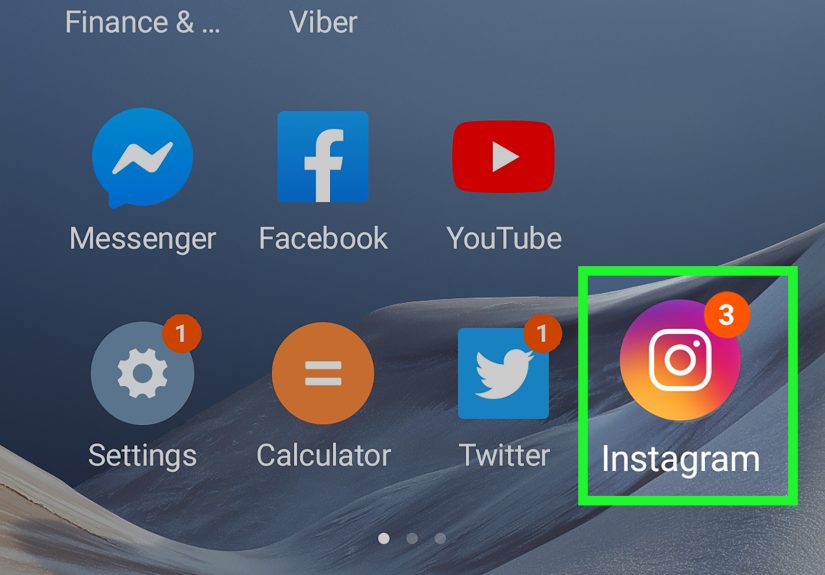
Step 1: Go to the Home Screen and Pick an Icon
First, unlock your phone and land on the home screen where your icons live. If the app you want to move isn’t
there yet, swipe up to open the app drawer, find the app, and you can move or add it from there.
Look for the icon you want to move. Maybe it’s your messaging app stuck on the second page, or a shopping app you
accidentally left in the middle of your work apps. The goal is to place your most-used icons where your thumb naturally lands.

Step 2: Long-Press the Icon Until It Lifts
Tap and hold the icon you want to move. After a second or two, you’ll feel a slight vibration or see the icon
“lift” from the screen. On many phones, the background may dim slightly and a menu might appear with options like:
- Remove from Home or Remove
- Uninstall
- App info
- Shortcuts, like New message or Camera selfie
Don’t panic if you see these options. As long as you keep your finger on the icon and drag it instead of tapping
Uninstall, your app is safe. You’re just rearranging where it sits, not deleting it.

Step 3: Drag the Icon to Its New Location
While still holding the icon, drag it to the spot where you want it to live. As you move it, other icons will
slide around to make room. If you’re moving icons on Android to the edge of the screen, keep dragging toward that edge
until the screen slides to the next home page.
You can:
- Reorder icons on the same screen (drag between rows and columns).
- Move icons to another home screen by dragging them to the left or right edge until the page changes.
- Place icons in the favorites row at the bottom (usually for your must-have apps like Phone, Messages, and Browser).
When you see the icon snap into place with a subtle animation, lift your finger. That’s it – you’ve successfully moved an app icon.

Step 4: Add, Remove, and Group Icons for a Cleaner Layout
Moving icons is just the beginning. If you really want your home screen to feel organized instead of chaotic,
use these extra tricks while you’re at it.
Create Folders to Group Similar Apps
You can group related apps into folders – for example, all your social media apps, all your banking apps,
or all your work tools. To create a folder:
- Long-press an app icon you want in the folder.
- Drag it directly on top of another related app icon.
- When a small frame appears around both icons, lift your finger.
- Tap the new folder to give it a name like “Social,” “Finance,” or “Work.”
From here, you can drag other icons into the folder to keep similar apps together. This makes your home screen
cleaner and makes it easier to find what you need without scrolling through multiple pages.
Add Icons from the App Drawer to the Home Screen
If an app isn’t on your home screen yet, but you use it daily, you can add it:
- Swipe up to open the app drawer.
- Long-press the app icon you want.
- Drag it toward the top area until your home screen appears.
- Drop it into an open space where you want it to live.
You’re not moving the app itself – you’re creating a shortcut. The original app will still exist in the app drawer.
Remove Icons Without Uninstalling Apps
If your home screen feels crowded, you can remove icons without uninstalling the apps:
- Long-press the app icon on your home screen.
- Drag it to a Remove or Remove from Home area at the top or bottom of the screen, or tap the
Remove option if it appears.
The app is still installed and will appear in your app drawer; it just won’t be on the home screen anymore.

Troubleshooting: Why Won’t My Icons Move?
Occasionally, you’ll long-press an icon and nothing happensor you see options, but you can’t drag the app at all.
Here are some common reasons and quick fixes.
1. Your Home Screen Layout Is Locked
Some Android launchers (especially on Samsung devices) let you lock the home screen layout so icons and widgets can’t
be accidentally moved. If that lock is on, long-pressing won’t let you rearrange icons.
To fix this on many Samsung phones:
- Long-press an empty area on the home screen.
- Tap Settings or Home screen settings.
- Look for a toggle called Lock Home screen layout and turn it off.
Once it’s off, try long-pressing the icon again and you should be able to move it.
2. You’re Dragging into a Full Row or Restricted Area
Sometimes an icon won’t drop where you’re trying to place it because that row or area is already full.
Try dropping it in a different row or move another icon out of the way first. On some phones, the top row may be
reserved for widgets or may behave differently depending on your launcher.
3. You’re Using a Custom Launcher with Different Behavior
If you’ve installed a custom launcher (like Nova Launcher, Niagara, or others), the exact steps for moving icons
might be slightly different. The concept is the samelong-press, drag, and dropbut options, grid sizes, and
restrictions might vary. Check the launcher’s settings under Home settings or within its app.
4. Work or Kids Mode Is Limiting Changes
On some phones, parental controls, Kids Mode, or work profiles can limit changes to the home screen.
If your device is managed by a company or set up with special restrictions, you might not be able to move icons freely.
In that case, you’ll need to adjust those settings or talk to whoever manages the device.
Bonus: Organizing Icons for Maximum Productivity
Now that you know how to move icons on Android, you can turn your home screen into a calm, efficient control center
instead of a cluttered mess. Here are a few organization strategies that work well:
- Center of thumb strategy: Put your most-used apps where your thumb naturally rests,
especially on big phones. - Top-row widgets, bottom-row apps: Keep at-a-glance info (weather, calendar, to-dos)
at the top and tappable icons at the bottom. - Page themes: Make one page for work, one for entertainment, and one for travel or utilities.
- Minimalist layout: Keep only 10–15 of your most-used apps on the home screen and leave the rest in the app drawer.
You don’t have to use every trick at once. Start by moving icons into a layout that makes sense to you.
Over the next few days, pay attention to which apps you actually use. Move those front and center, and demote the rest into folders or the app drawer.
Real-World Experiences: What It’s Like to Reorganize Your Android Icons
Once you understand how to move icons on Android, the real fun begins: deciding where everything should go.
This is where personal preferences, habits, and a little bit of psychology come into play. If you’ve ever spent
an afternoon “cleaning up your phone” instead of doing actual work… you’re in good company.
Many Android users find that their first instinct is to organize apps by categorysocial, finance, productivity,
games, and so on. This works great if your brain naturally files things by purpose. Your “Social” folder might
hold Instagram, TikTok, X, Messenger, and Snapchat, while your “Money” folder houses banking, budgeting, and
investing apps. After moving icons into these folders, people often report that their home screen feels calmer and
less noisy, even though they haven’t deleted anything.
Others swear by a more visual approach: organizing icons by color. If you’re the kind of person who remembers
that your banking app is “the green one,” placing similarly colored icons in rows or columns can make your home
screen feel surprisingly intuitive. Once you know how to drag icons around freely, you can build rainbow rows or
color-coded clusters. It sounds quirky, but for visual thinkers, it can be faster than hunting through text labels.
A lot of people also go through a “minimalist phase” once they realize how easy it is to remove icons without
uninstalling apps. They move their most-used eight to twelve apps to the main screen, tuck everything else into
a single “More” folder or leave it in the app drawer, and stop there. The result is a home screen that feels more
like a curated dashboard than a crowded desktop. If your phone stresses you out every time you unlock it, this
kind of pruning can feel surprisingly refreshing.
Then there’s the practicality of everyday use. Big-screen phones are amazing for movies and multitasking,
but they can be awkward for single-handed use. Once you start intentionally moving icons, you quickly notice that
your thumb has “favorite zones.” Many users move essential appslike Phone, Messages, Maps, and their primary chat
appto the lower-left or lower-right corner, depending on which hand they use most. Less important apps get gently
nudged to upper rows or secondary screens. Just a few minutes of rearranging can save you dozens of awkward stretches every day.
Some users also create “travel mode” or “focus mode” pages by rearranging icons when they know they’re going on a trip
or starting a big project. For example, a travel-themed home screen might have airline apps, hotel apps, translation,
rideshares, and maps front and center, while a work or study page puts note-taking, calendar, cloud storage, and
communication tools in the spotlight. Because moving icons on Android is so quick, you can reconfigure your layout
in a couple of minutes and then change it back afterward.
Finally, once you’ve spent time organizing your icons exactly how you like them, it’s worth checking if your phone
has a home screen layout lock option. Turning that on after you’re done moving icons helps prevent
accidental rearrangements when your phone is in your pocket, your child is “helping,” or your pet walks across the screen.
You get the best of both worlds: the freedom to customize whenever you want, and the peace of mind that your careful
layout won’t get scrambled by mistake.
The bottom line? Knowing how to move icons on Android is more than a basic tech skillit’s a way to make your phone
match how you think. A few small drags and drops can turn your home screen from cluttered chaos into a layout
that quietly supports your habits, goals, and everyday routines.
Conclusion
Moving icons on Android comes down to four simple actions: long-press, drag, drop, and organize. Once you’re comfortable
with those steps, you can fine-tune your home screen with folders, favorites, and minimal clutter. Combine that with a
layout that matches your daily habits, and suddenly your phone stops feeling messy and starts feeling personal, efficient,
and easy to use.
So the next time you unlock your phone and feel a little overwhelmed by the icon chaos, remember: you’re only a few
taps and drags away from a cleaner, smarter home screen.